
«The company is VAT-registered»: what this option means and when to turn it off
The first item of the «Tax & E-Invoicing» tab is one question that decides how the whole system treats tax: is your company registered for VAT? The answer changes how your invoices look and how they are calculated, so set it before you issue your first invoice.
Where to find it
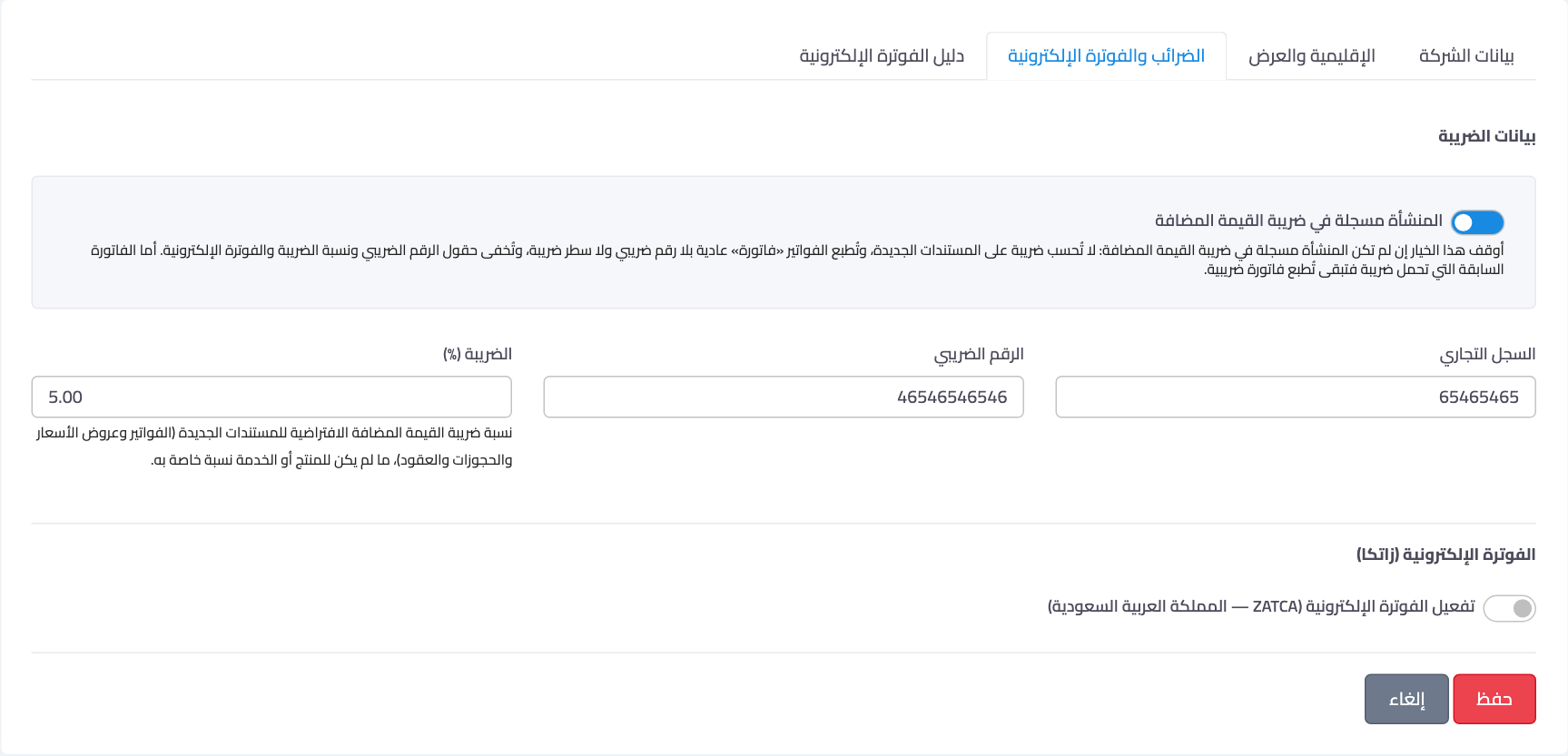
Open General Settings → Settings → Tax & E-Invoicing. It is the first item of the tab — Image 1.
If your company is registered
Turn the switch on, enter your VAT number and VAT rate, and press Save. Then:
- VAT is charged on new documents.
- Invoices print as a «Tax Invoice» with your VAT number and a VAT line.
- The E-invoicing (ZATCA) section and its guide tab appear for companies that need them in Saudi Arabia.
If your company is not registered
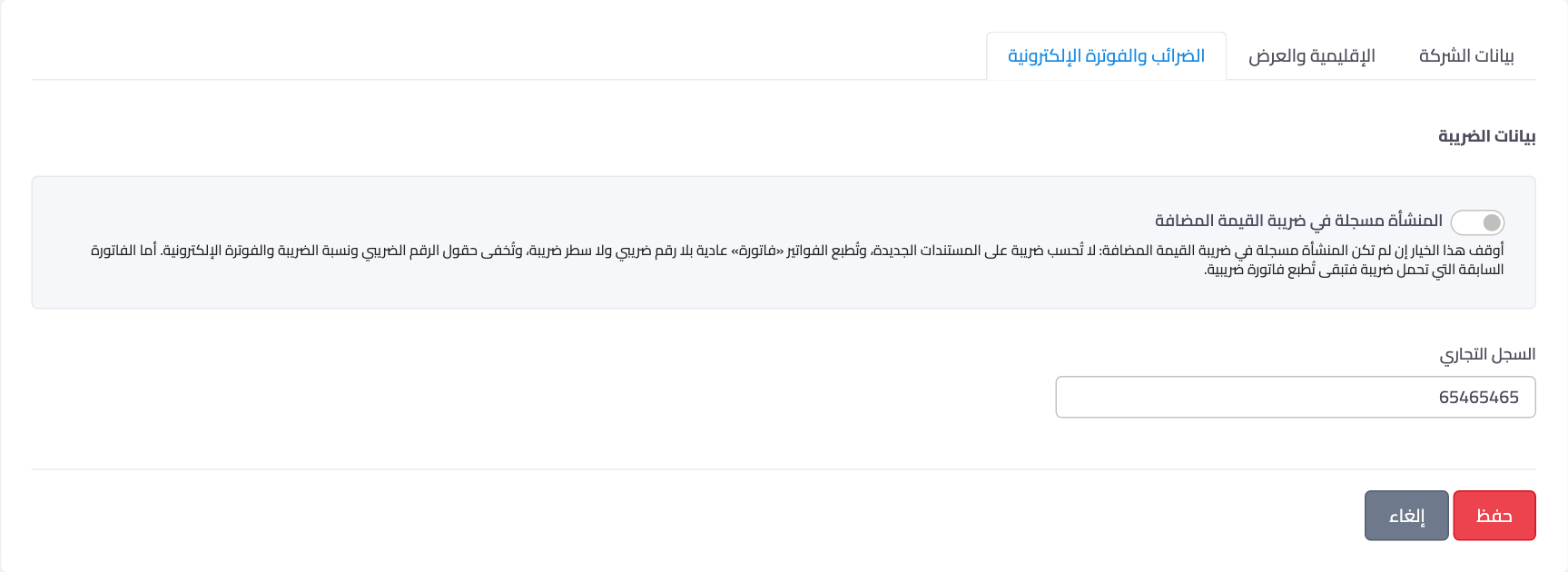
Turn the switch off and save — Image 2. Then:
- No VAT is charged on any new document: sales invoices, POS sales, quotations, orders, bookings and contracts in every module, whatever VAT rate is set on products or in a module's settings.
- The VAT inputs disappear from the screens where invoices and documents are created.
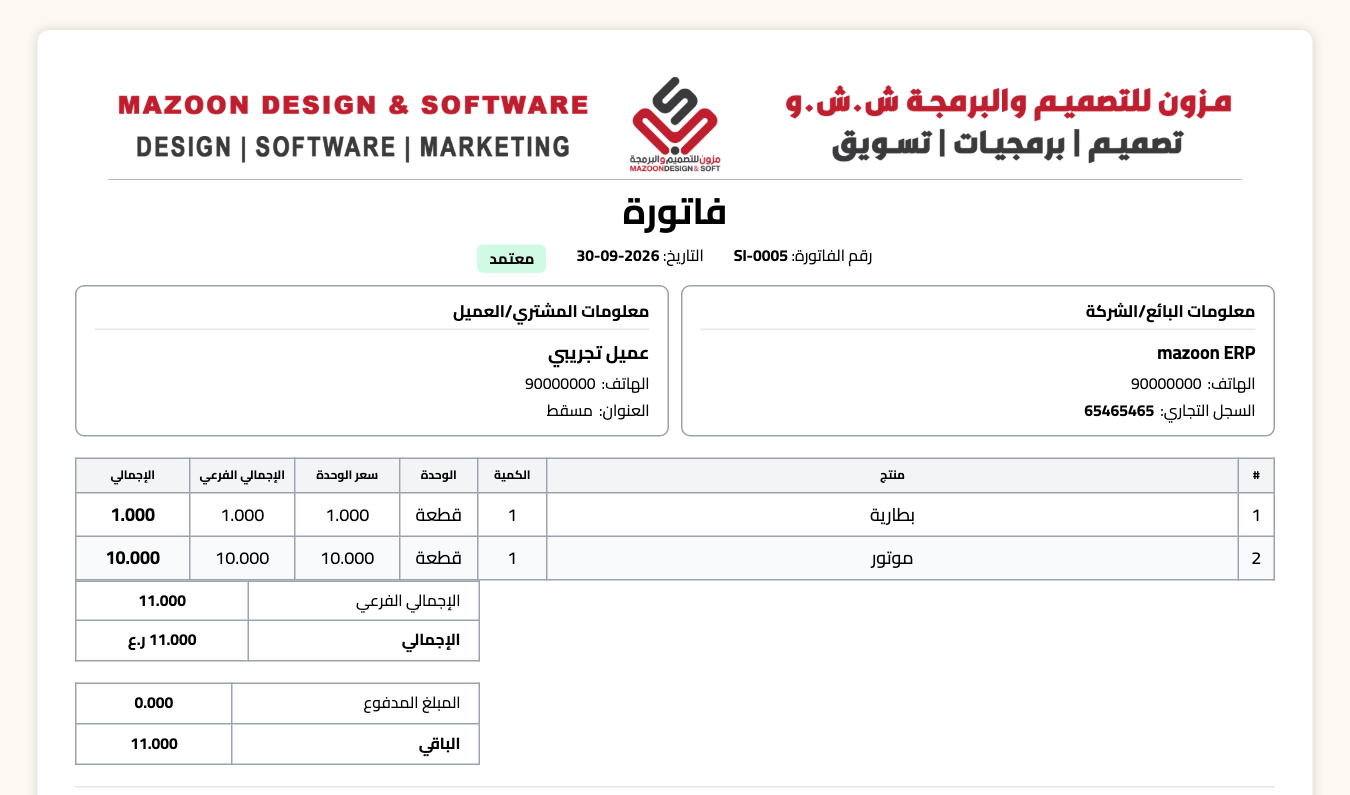
- Invoices print as an «Invoice» with no VAT number, no VAT column and no VAT line — Image 3.
- The VAT number, VAT rate, the e-invoicing section and its guide tab are hidden in Settings. Saved values are not deleted; they come back as they were if you turn the switch on later.
- Next to the VAT rates some modules have of their own (products, laundry, online store, car dealer, school fee types) a «Not applied» note appears.
Earlier invoices that carry VAT
They stay as they were issued and keep printing as a «Tax Invoice»: they really were issued with VAT, and a setting changed today does not rewrite them. To remove the VAT from one of them:
- If it can still be edited (no receipt recorded on it): edit it, set the VAT rate to zero and save. Its journal entry is re-posted and it prints as an «Invoice».
- If it can no longer be edited: cancel it and issue a replacement. Note that the total changes by the VAT amount.
- An invoice already sent to ZATCA cannot be edited; it is corrected with a credit note.
What does not change
Supplier bills, purchases and expenses are recorded as they are, with the supplier's VAT, whether your company is registered or not.
Notes
- A new account starts with the switch off. If your company is registered, turn it on and enter your VAT number before the first invoice.
- The switch cannot be turned off while e-invoicing (ZATCA) is on; turn e-invoicing off first.
- If you are not sure of your company's VAT status, check with your accountant or the tax authority in your country.
Screenshots
Try what you just read on your own data
Open a free 7-day trial — no credit card, with your own company link in minutes.