
Roles and permissions
A permission is authorisation for a single action, such as "view invoices" or "delete a user". A role is a bundle of those permissions granted to a user at once. Instead of granting each employee their permissions one by one, you create a role per job and attach whoever holds that job to it.
The roles list
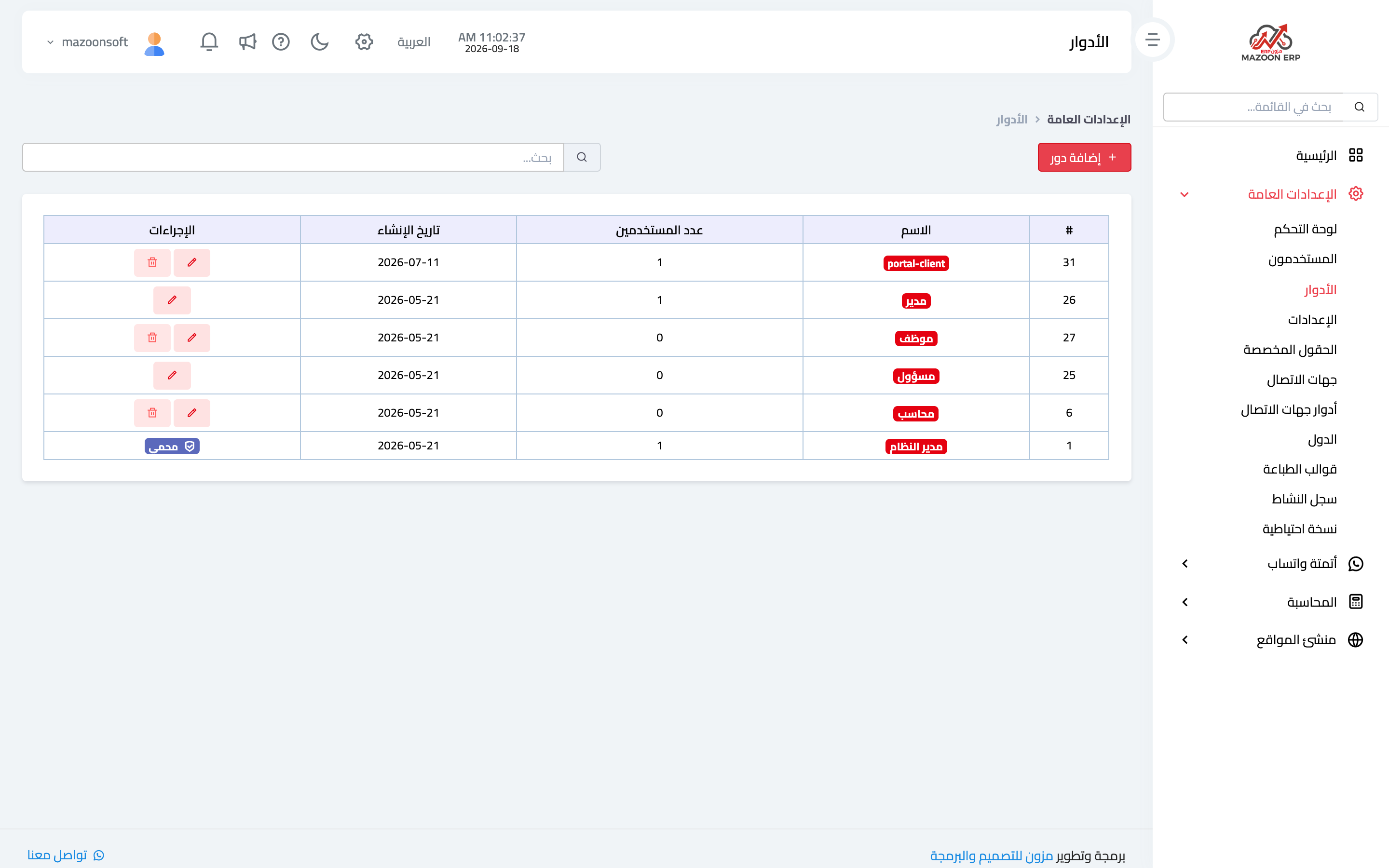
From General Settings, open the Roles & Permissions card. The list appears as in image 1: role name, how many users hold it, creation date, and edit and delete buttons.
Core roles such as System Administrator and Manager are protected: they cannot be deleted or renamed. The system administrator role in particular always holds every permission and its permissions cannot be edited, so someone can always administer the system.
Creating a role
Press Add Role and fill three fields:
- Role name — an internal English name using letters, numbers and underscores only, such as
sales_manager. - Arabic display name and English display name — what users see on screen, for example "Sales Manager".
Setting the permissions
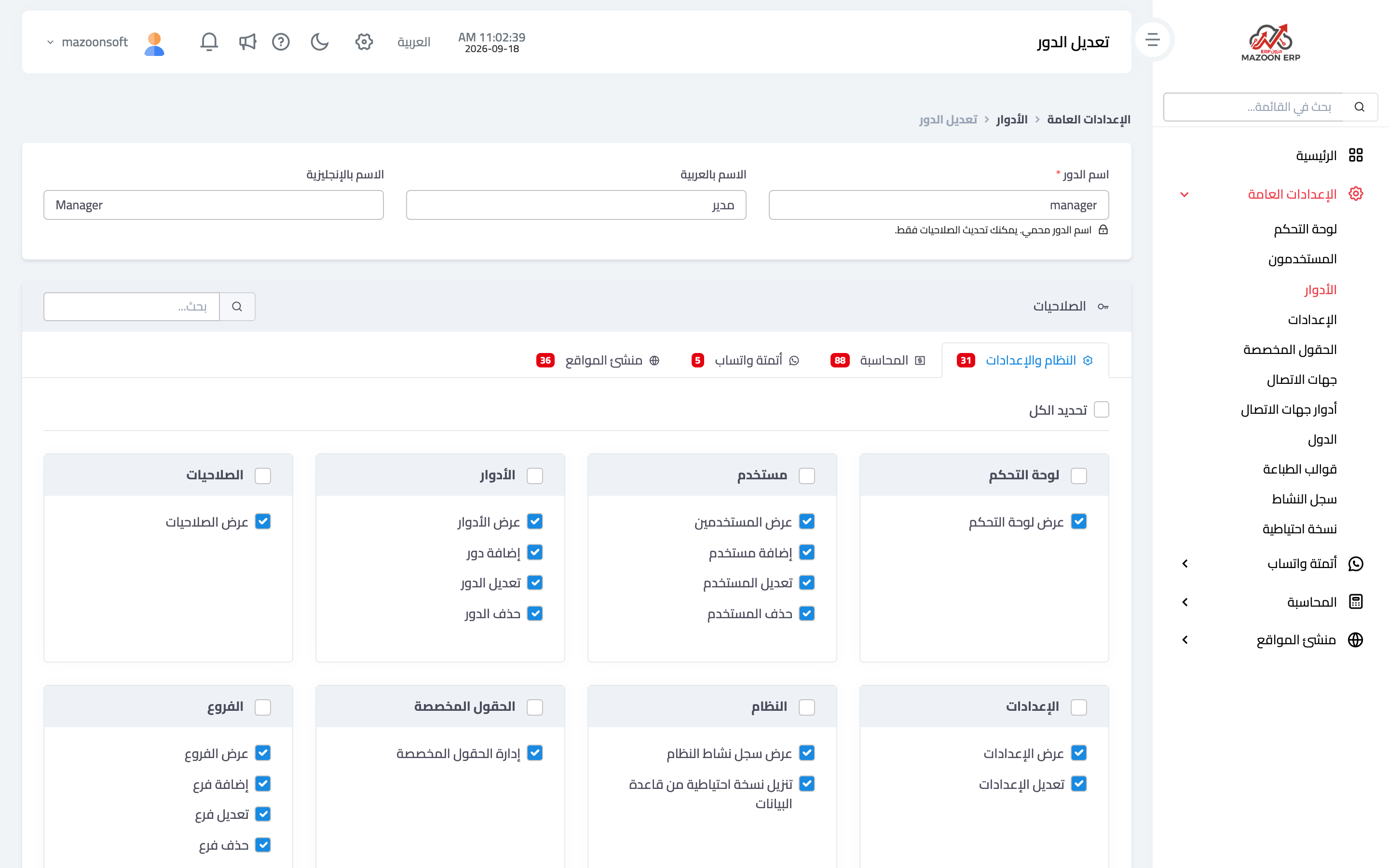
Once the role is saved, the permissions screen opens as in image 2, split into tabs by module: System & Settings, Accounting, Sales, and so on according to what your business has enabled. The number on each tab is how many permissions are granted there, so you can see at a glance where you have given access and where you have not.
Inside each tab, permissions are grouped into cards per screen — users, roles, branches, settings — and each card holds the four usual actions: view, create, edit and delete.
To work faster:
- Select all at the top of a tab grants every permission in that module at once.
- The checkbox in a card header grants that screen's permissions only.
- The search box at the top filters permissions as you type — the quickest way to find one specific permission.
A practical rule: start with view
Grant view first, then add create and edit for those who genuinely need them, and keep delete for a very small number of people. Wrongly deleting a financial document costs far more than the inconvenience of asking for an extra permission when it is needed.
Remember that a permission without view is useless: someone who cannot see a screen cannot create anything in it.
Order of work
Create roles before users, since every user is attached to a role when created. And when a whole job's responsibilities change, edit that role's permissions once — the change applies immediately to everyone who holds it.
Screenshots
Try what you just read on your own data
Open a free 7-day trial — no credit card, with your own company link in minutes.