
Users and My Account
Everyone who works in the system needs their own account. A shared account makes the activity log meaningless, because every action is attributed to the same name. This article covers creating and managing users, then the My Account page where each user edits their own details.
The user list
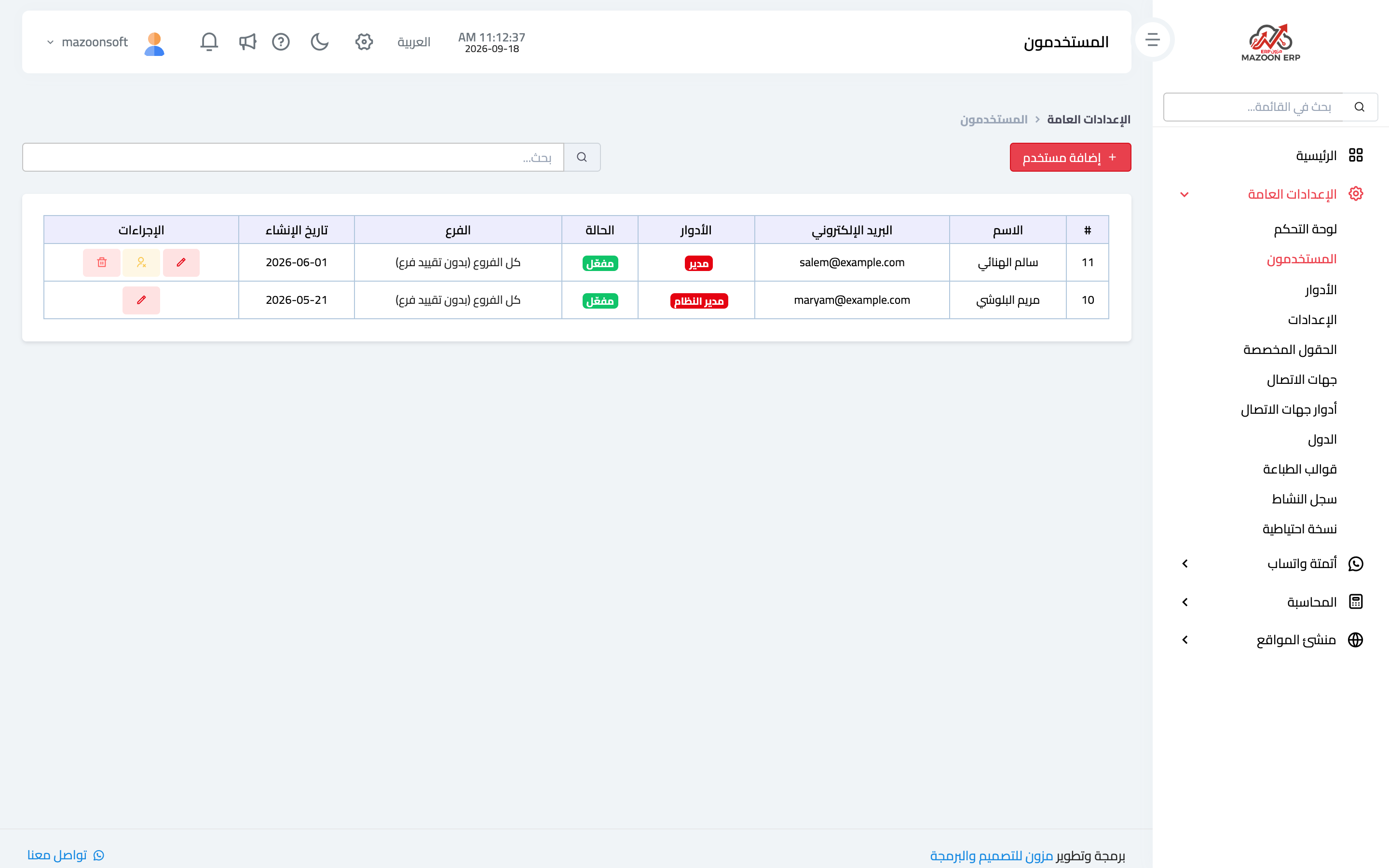
From General Settings, open the Users card. The list appears as in image 1: name, email, roles, status, branch and creation date. The search box at the top filters the list as you type.
Each row has buttons to edit, activate or deactivate, and delete. An account marked Protected cannot be deleted and its roles cannot be changed — this is the system administrator account, which guarantees someone can always log in and manage the system.
Adding a user
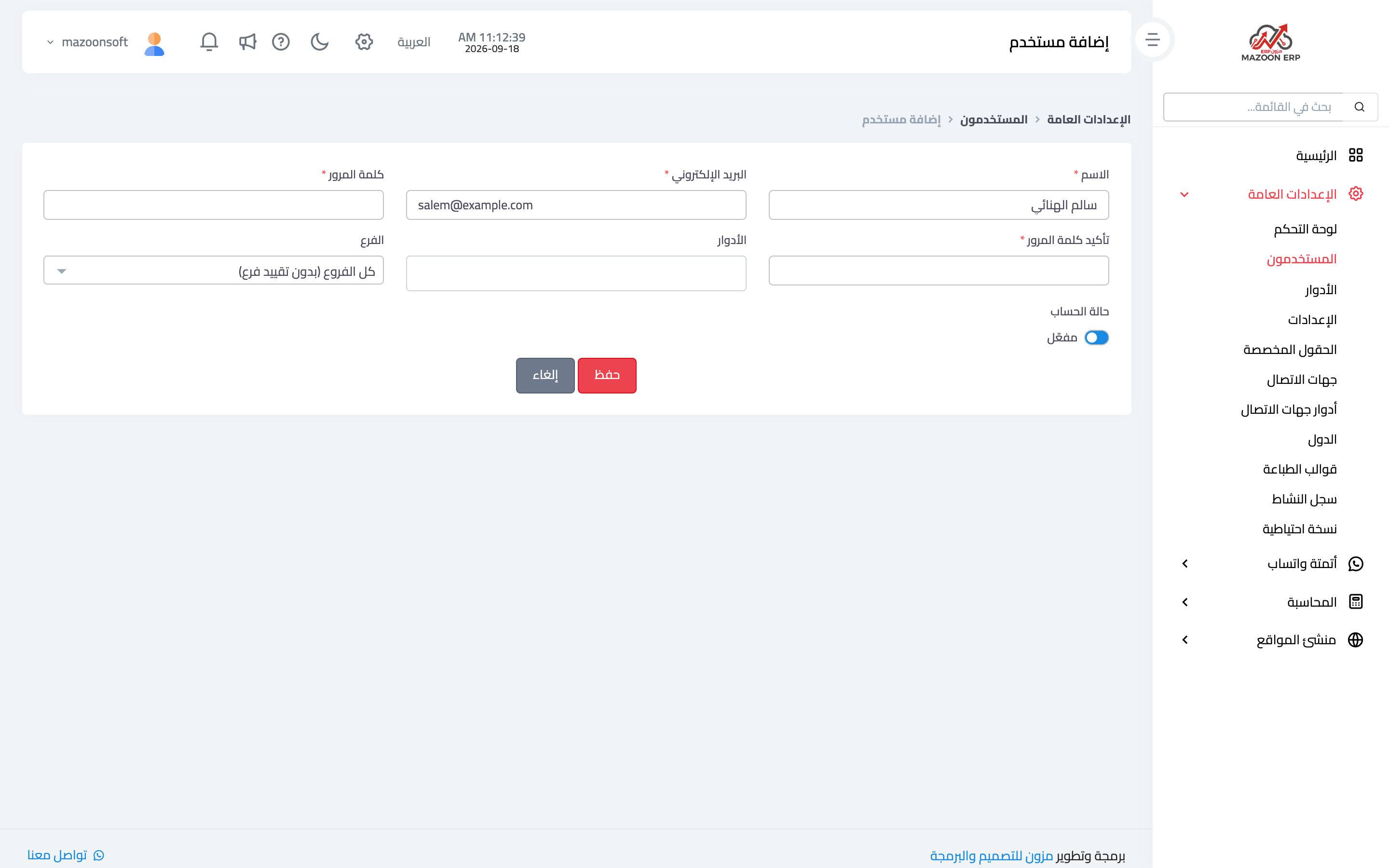
Press Add User to open the page shown in image 2:
- Name — the employee's name as it appears in the activity log and on the documents they create.
- Email — the login name; it must be unique per user.
- Password and confirmation — set by the administrator at creation; the user can change it after their first login.
- Roles — the role decides what the user sees and can do. Create your roles first, as described in the roles and permissions article.
- Branch — the user's branch, or "all branches (no branch restriction)" for someone who works across all of them.
- Account status — a deactivated account stays in the list but cannot log in.
Editing a user or changing their password
Press the edit button on a row to change the name, role or branch. The same page has a new password field: leave it empty to keep the current password, and fill it only when you want to set a new one for that employee.
When an employee leaves
Deactivate the account instead of deleting it. Deactivating blocks access immediately and keeps the documents they created attached to their name, which is exactly what you need when reviewing an old transaction. Deleting loses that link.
My Account
The My Account card in the General Settings panel is available to every user regardless of permissions, and is where they edit their own details and password. Ask each employee to change the password you created for them after their first login, so every account's password is known only to its owner.
Screenshots
Try what you just read on your own data
Open a free 7-day trial — no credit card, with your own company link in minutes.