
How do I suspend a departed employee and reset a password?
An employee has left and their account still works: that is a real hole. The answer is not deletion — deleting costs you the attribution of everything they entered.
Suspending an account
- Open General Settings → Users — image 1.
- Each row carries buttons: edit, suspend or activate, and delete.
- Press the suspend button. The account stays in the list but can no longer log in.
- To bring it back later, press the same button and it returns to active.
Resetting a user's password
- Press edit beside the user — image 2.
- Enter a new password and its confirmation; leave both empty if you are only editing their other details.
- Save, hand them the new password and ask them to change it from My Account.
Notes
- Suspend, do not delete. A deleted account severs the attribution of invoices, vouchers and the activity log to its owner, and you lose the answer to "who did this?".
- Suspension is immediate: a suspended employee cannot log in even knowing the password.
- Nobody can see a user's password once saved; a new one can only be set.
- A suspended account does not count against your plan's user limit, so you can open one for the replacement.
- The search box above the list filters users as you type when there are many of them.
Screenshots
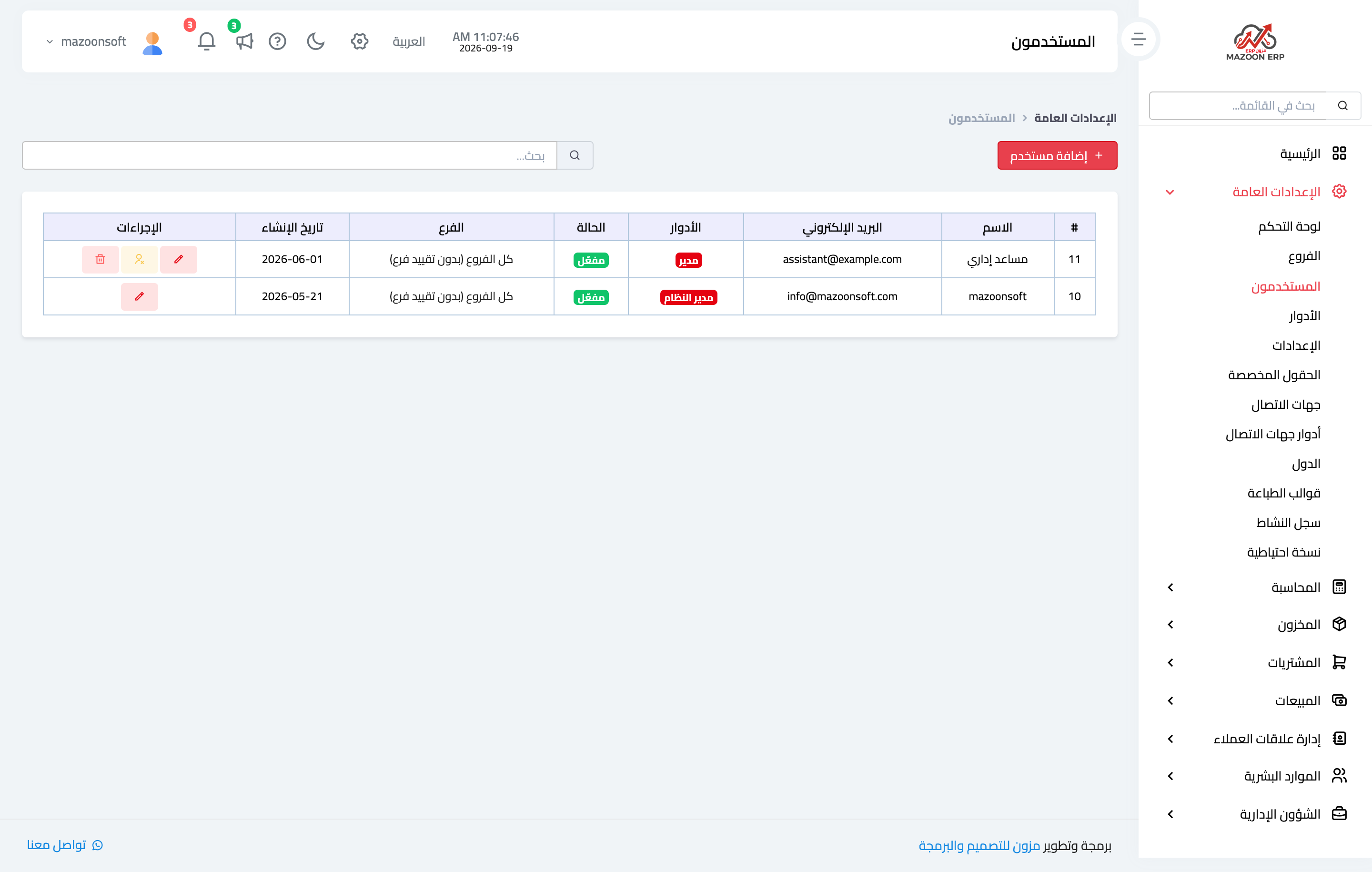
Figure 1
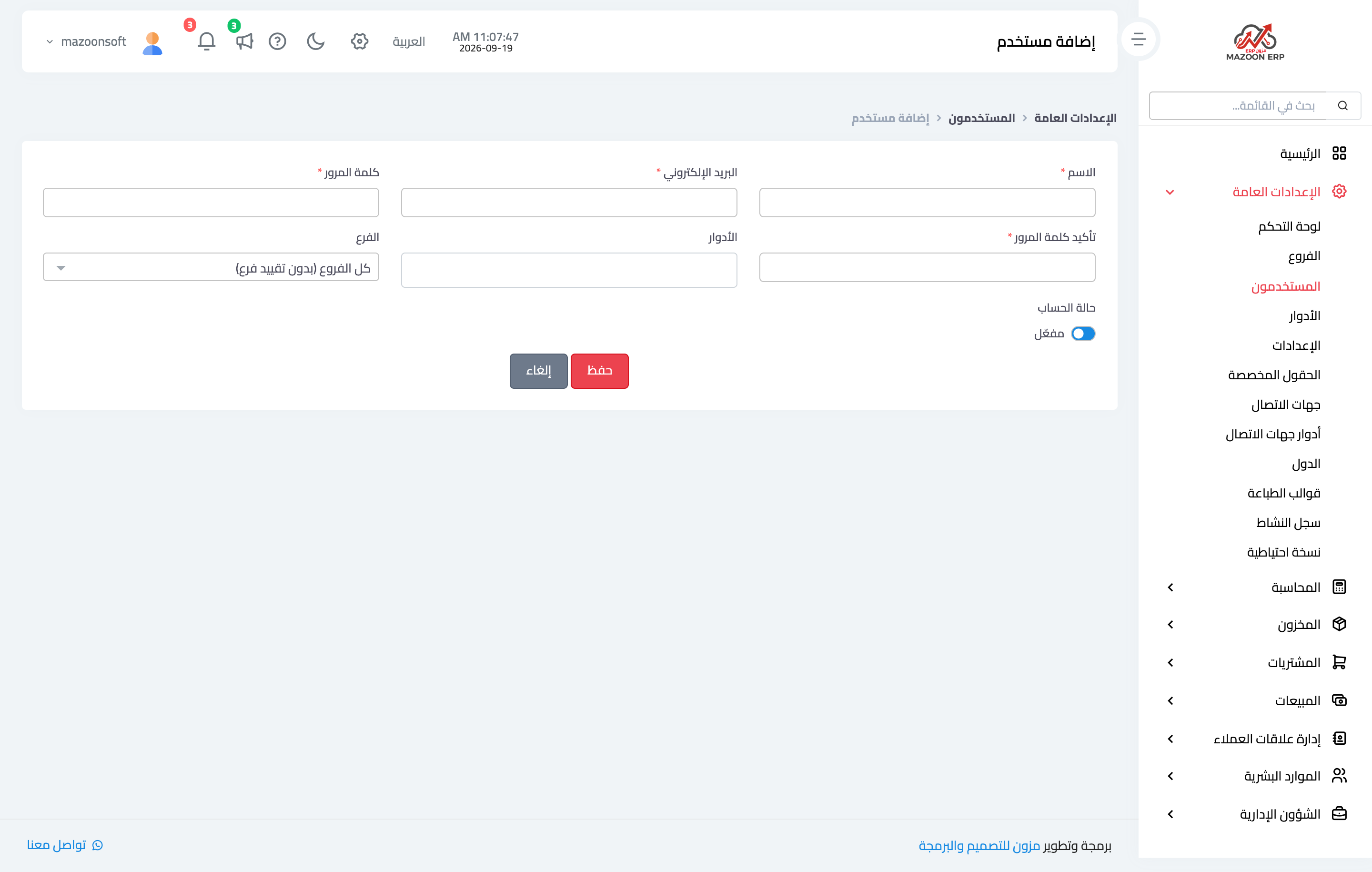
Figure 2
Try what you just read on your own data
Open a free 7-day trial — no credit card, with your own company link in minutes.