
How do I set the tax number and the tax rate?
The tax number appears on your printed invoices, and the tax rate is charged on your sales. Both fields live on one tab, yet each plays an entirely different role.
Steps
- Open General Settings → Settings → Tax & E-Invoicing — image 1.
- Commercial register: your organisation's registration number, shown on official documents.
- Tax number: your tax registration number. It is a precondition for enabling e-invoicing; without it the system stays in a "tax number required" state.
- Tax (%): a fallback rate used only when a product has no tax rate of its own. If every product carries its own rate, set this to zero.
- Save.
Notes
- Mind what the rate field means: not "the tax rate in my country" but "the rate used when the product has none". Setting it carelessly makes exempt products get taxed.
- A product's own tax rate is set on the product screen in Inventory or the store, and it always takes precedence over this one.
- Change the tax number and register before issuing many invoices; already-printed invoices keep their paper trail, though new printouts will carry the new number.
- Enabling e-invoicing has its own article in this guide; it is specific to Saudi Arabia.
Screenshots
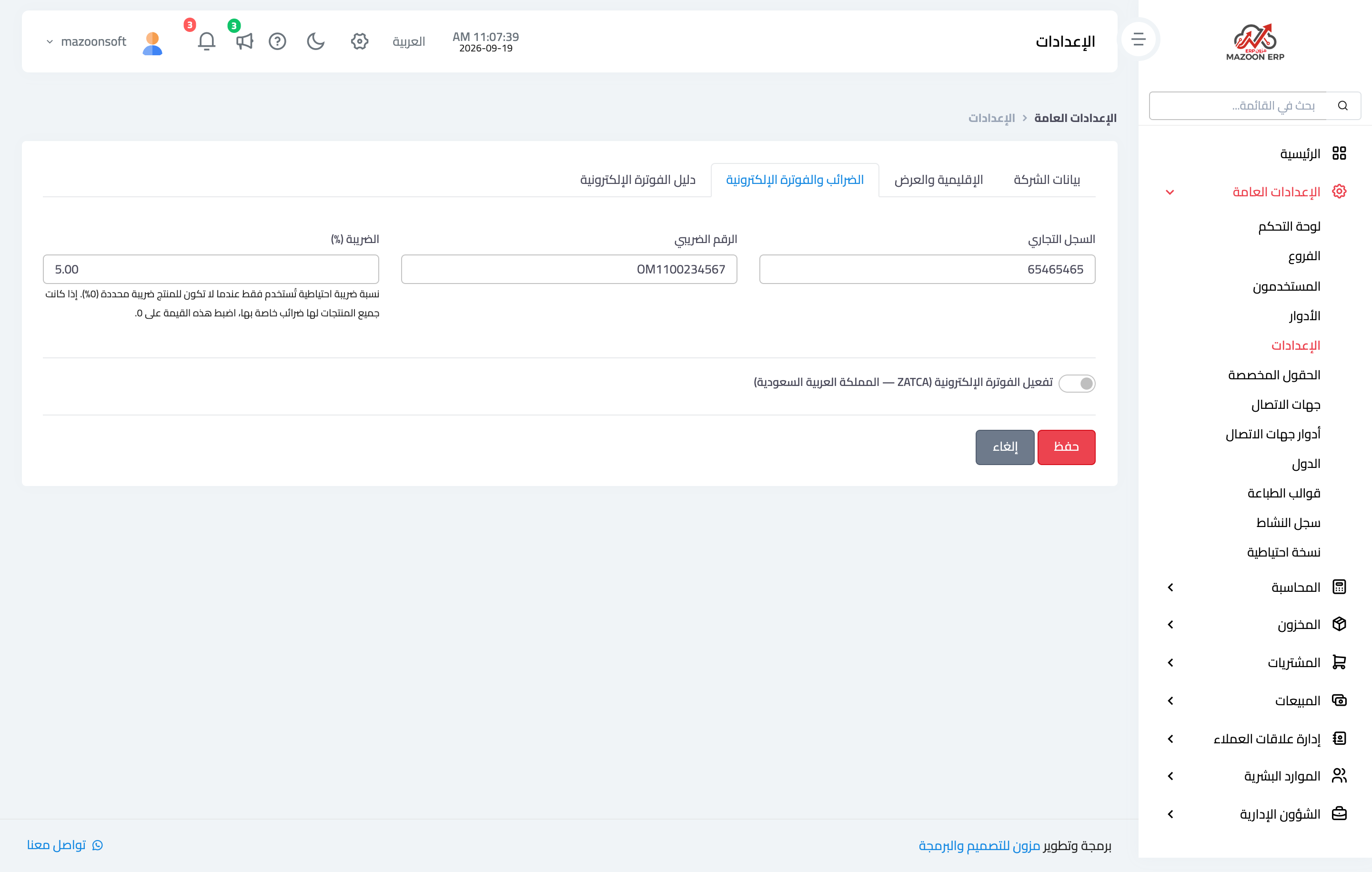
Figure 1
Try what you just read on your own data
Open a free 7-day trial — no credit card, with your own company link in minutes.