
How do I add a contact and give it more than one role?
Contacts are your organisation's shared address book: the customer you invoice, the supplier you buy from, the owner whose property you manage — all here, used by every module from the same place with no duplication.
Steps
- Open General Settings → Contacts — image 1 — and press Add Contact.
- In the form — image 2 — enter the name, phone (the dialling code is filled from the default country), e-mail and address.
- Under roles, tick everything that applies: the same person may be a customer and a supplier at once, so tick both.
- Fill in any custom fields you added for contacts — a credit limit or a preferred contact method for instance.
- Save. The contact appears immediately in every selection list matching its roles: the sales invoice, the supplier bill, the lease contract.
Notes
- The role decides where the contact shows up: someone without the "supplier" role will not be found in a purchase bill's supplier list.
- Do not create two records for the same person because they both sell to you and buy from you; one record with two roles keeps their true balance in both directions.
- Review your contacts before entering opening balances; merging after activity accumulates is far harder than getting it right at the start.
- A contact is not a user: it has no password and does not log in. See the article on the difference in Getting Started.
Screenshots
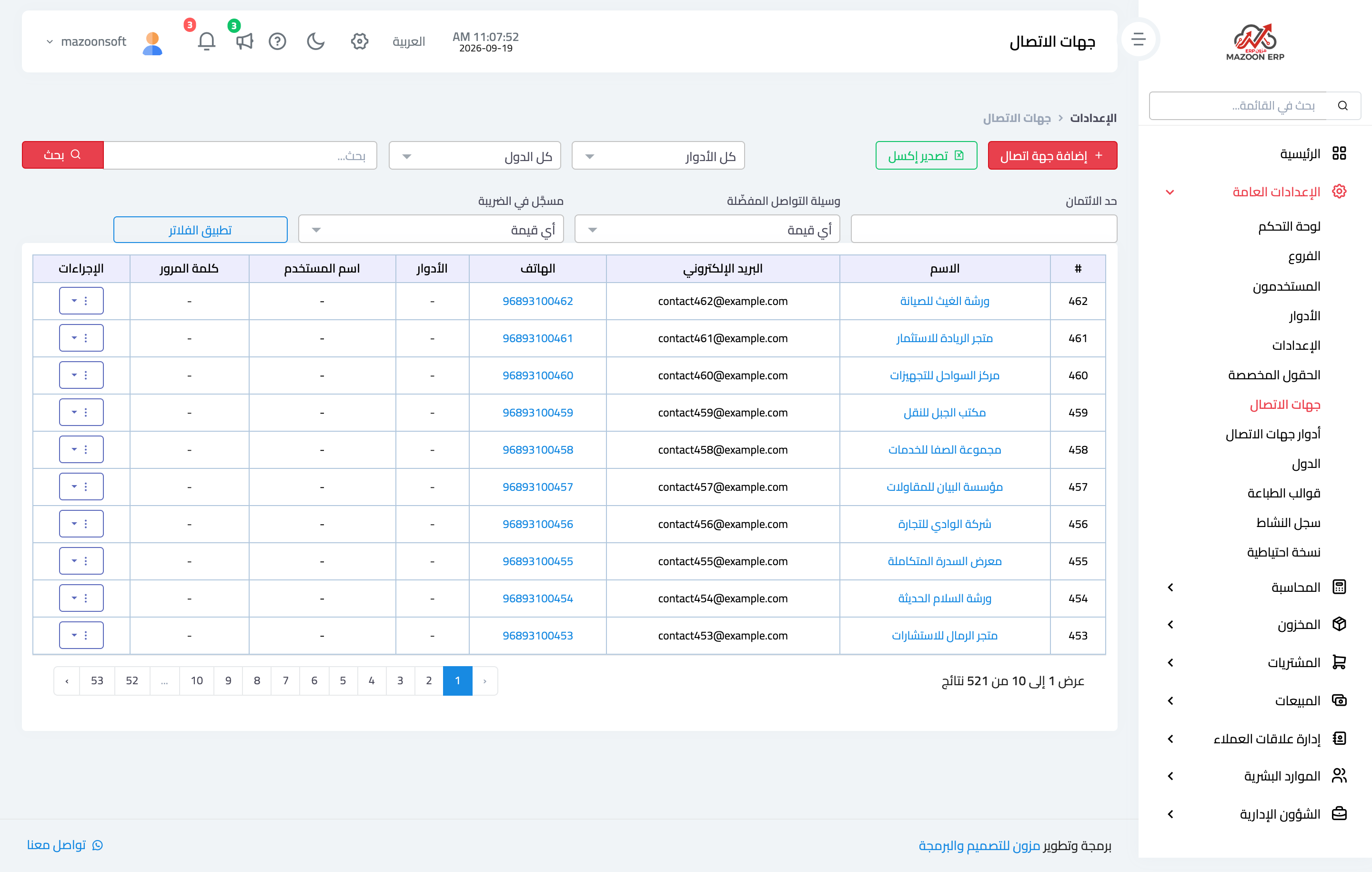
Figure 1
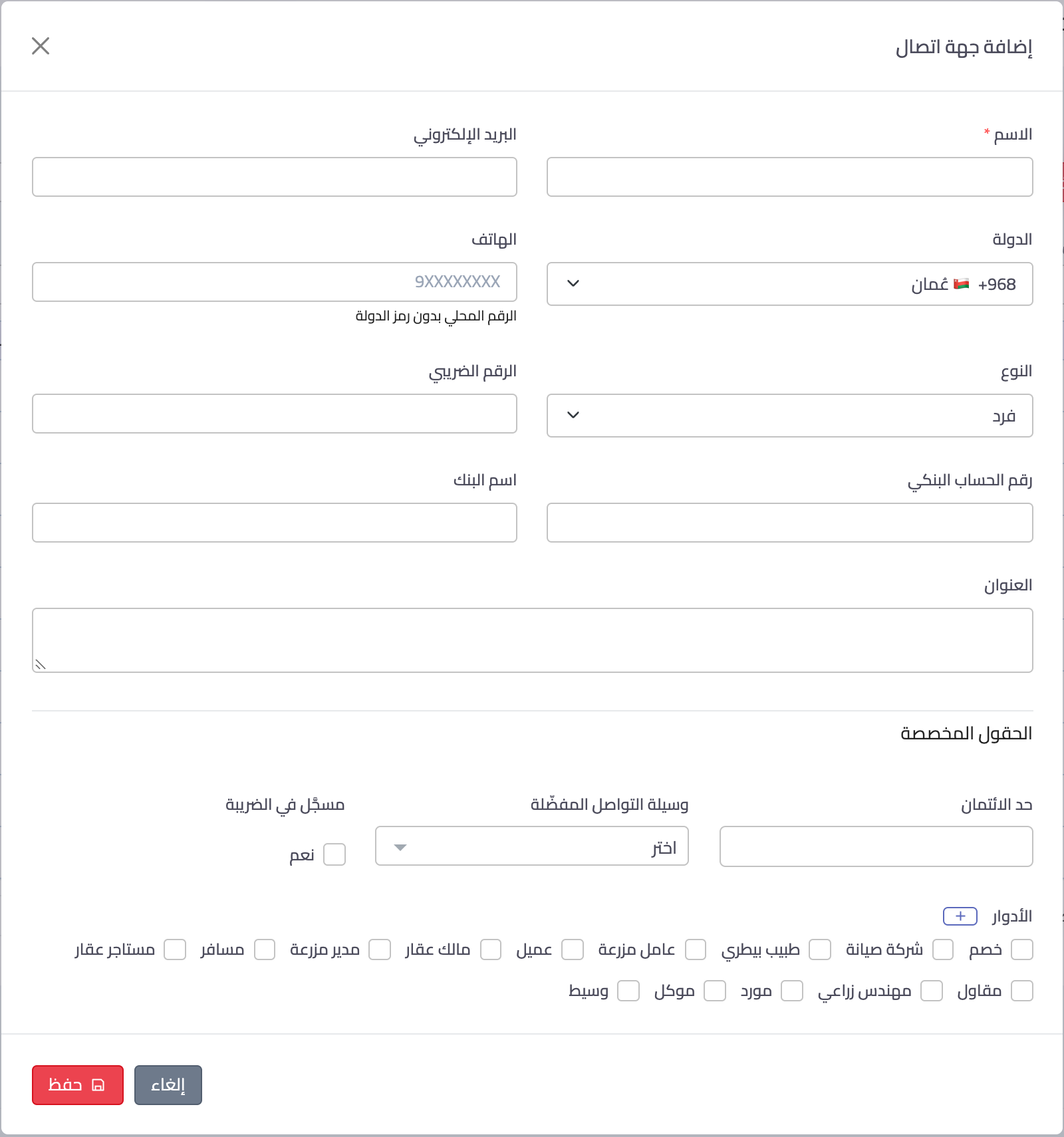
Figure 2
Try what you just read on your own data
Open a free 7-day trial — no credit card, with your own company link in minutes.