
How do I restrict an employee to one branch?
A Sohar employee should not see Muscat's sales or its stock. Restricting a user to a branch does that in one step, and it applies across every screen at once.
Steps
- Open General Settings → Users — image 1 — and press edit beside the employee.
- In the branch field — image 2 — choose their branch instead of all branches (no branch restriction).
- Save. From their next login the employee sees only their branch's data in lists and reports.
- For anyone working across all branches (the manager, the general accountant) leave all branches.
Notes
- The restriction applies to both viewing and entry: whatever the employee creates is attributed to their branch automatically.
- If an employee complains the list is empty while a colleague sees it full, check their branch before their permissions — that is the most common cause.
- The branch restriction is one thing and permissions another: the branch decides which data they see, the role decides which screens they open.
- Changing an employee's branch does not change what they entered before; those records stay attributed to the branch they were created in.
Screenshots
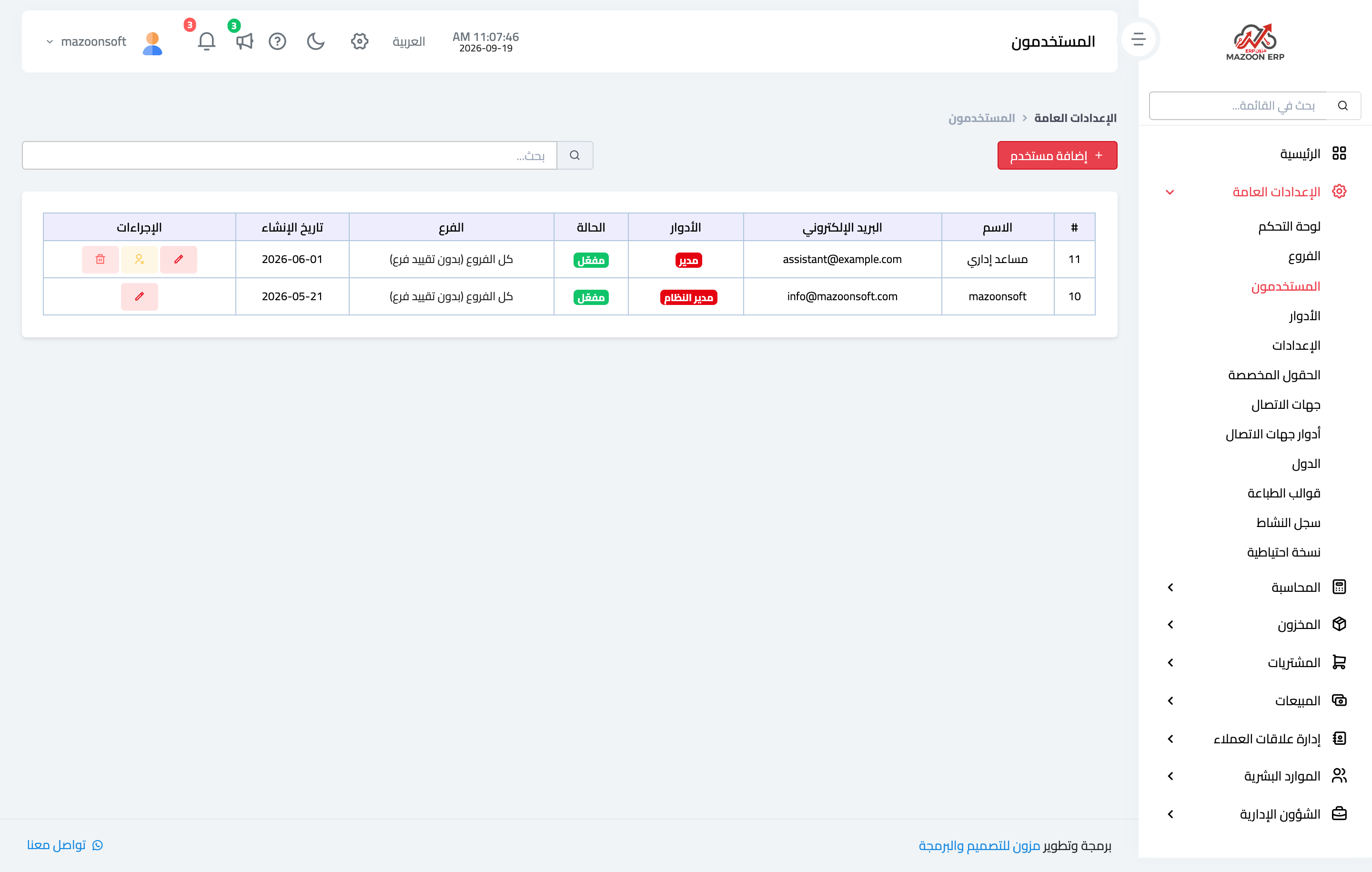
Figure 1
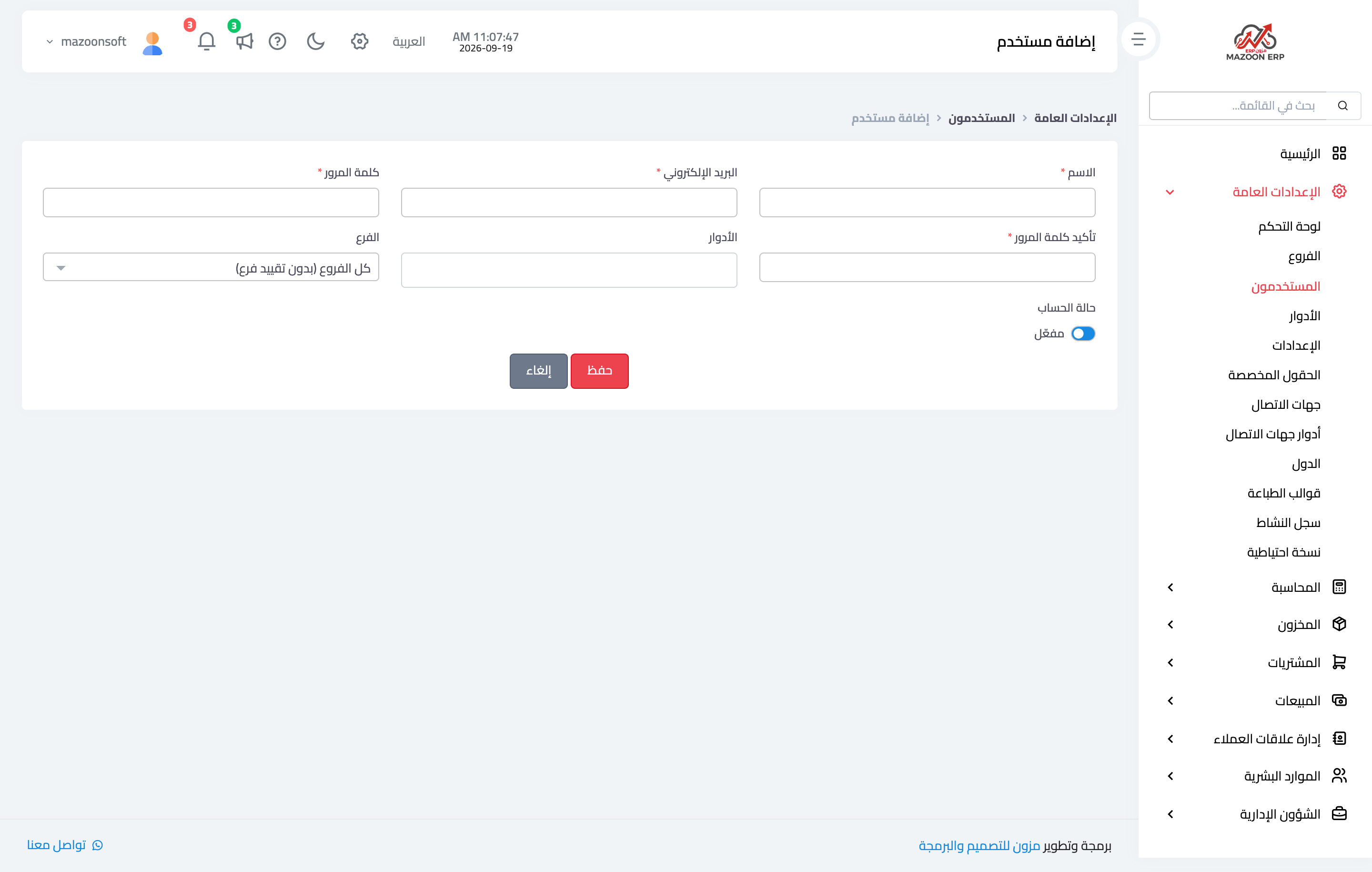
Figure 2
Try what you just read on your own data
Open a free 7-day trial — no credit card, with your own company link in minutes.