
How do I search contacts and export them to Excel?
A contacts book grows fast: hundreds of customers and suppliers. The filters at the top of the screen get you to what you want faster than scrolling, and the export gives you a file to work on freely.
Steps
- Open General Settings → Contacts — image 1.
- Type part of a name or phone number into the search box and press Search.
- Narrow further with the dropdowns: all countries and all roles, then any custom fields you made filterable.
- Press Apply filters. The result count appears below the table: showing 1 to 10 of 521 results.
- Press Export Excel to download the filtered results, not the whole list.
Notes
- Filter first, then export; the export follows what is on screen, so you get a small file covering exactly what you want.
- The export is useful for sending a list to the accountant, checking phone numbers before a marketing campaign, or reviewing dormant customers.
- There is no contact import from a file at present; entry is manual or comes from the data the modules generate.
- If you want an extra column in the export — a credit limit for instance — add it as a custom field on contacts first.
Screenshots
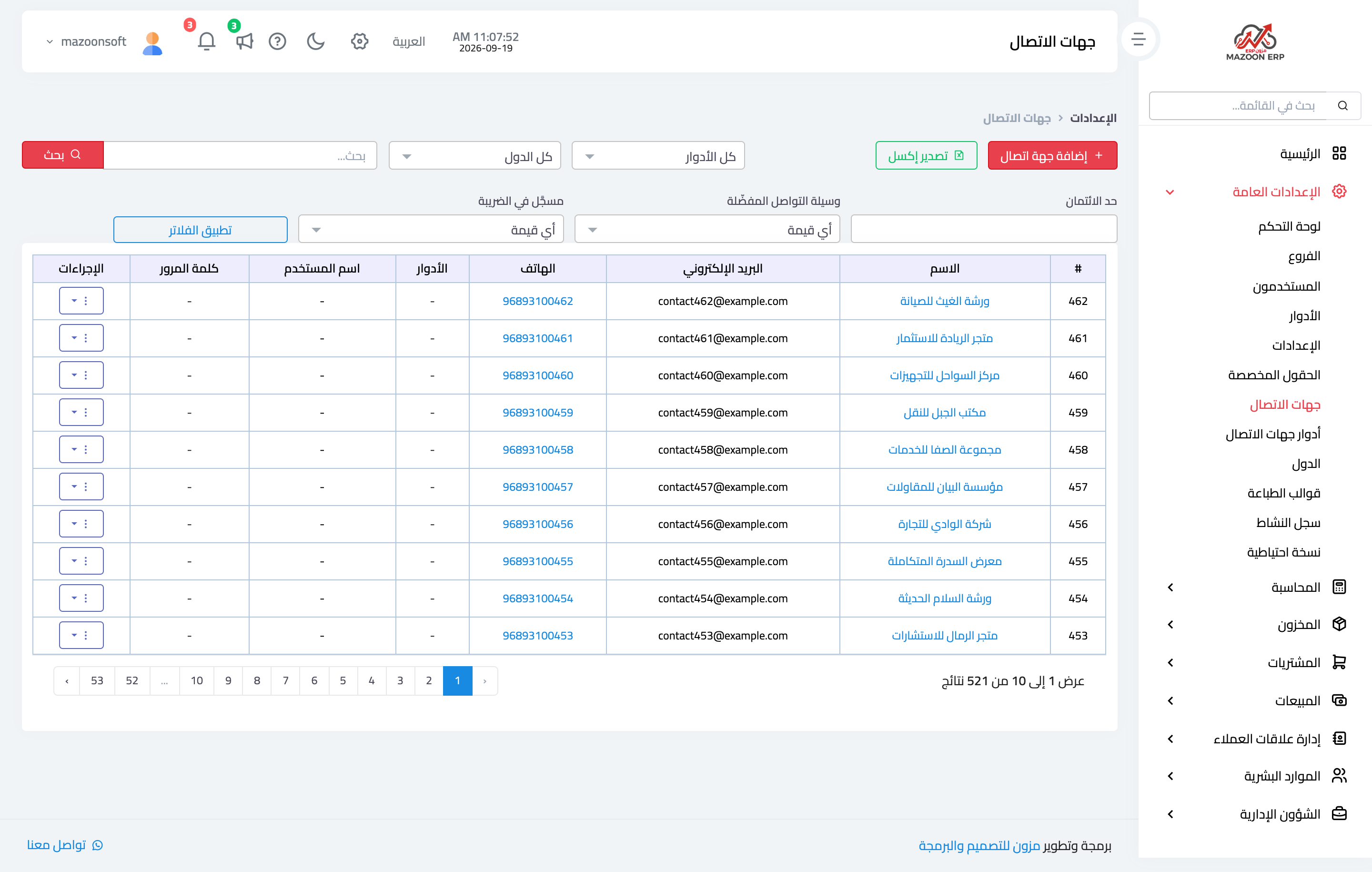
Figure 1
Try what you just read on your own data
Open a free 7-day trial — no credit card, with your own company link in minutes.