
How do I set the timezone and the default country?
Two small settings on the same screen, each with a daily effect: the first governs every timestamp the system records, the second saves a step for whoever enters contacts.
Steps
- Open General Settings → Settings → Regional & Display — image 1.
- Timezone: choose the zone where you work. It is what the clock in the top bar and every date and time the system shows are calculated in.
- Default country: selected automatically when a new contact is added, so the international dialling code is filled without the clerk choosing it every time.
- Save, then refresh the page to see the new clock in the top bar.
Notes
- The timezone is organisation-wide, not per user; changing it changes what everyone sees, including a branch in another city.
- Fields where you type a date yourself (invoice date, payment date) stay as you entered them; the timezone affects the timestamps the system records automatically, such as creation time and the activity log.
- Change it once at the start; changing it after records accumulate makes comparing old times with new ones confusing.
- The list of countries itself is managed under General Settings → Countries, where you add a new country with its dialling code if it is not here.
Screenshots
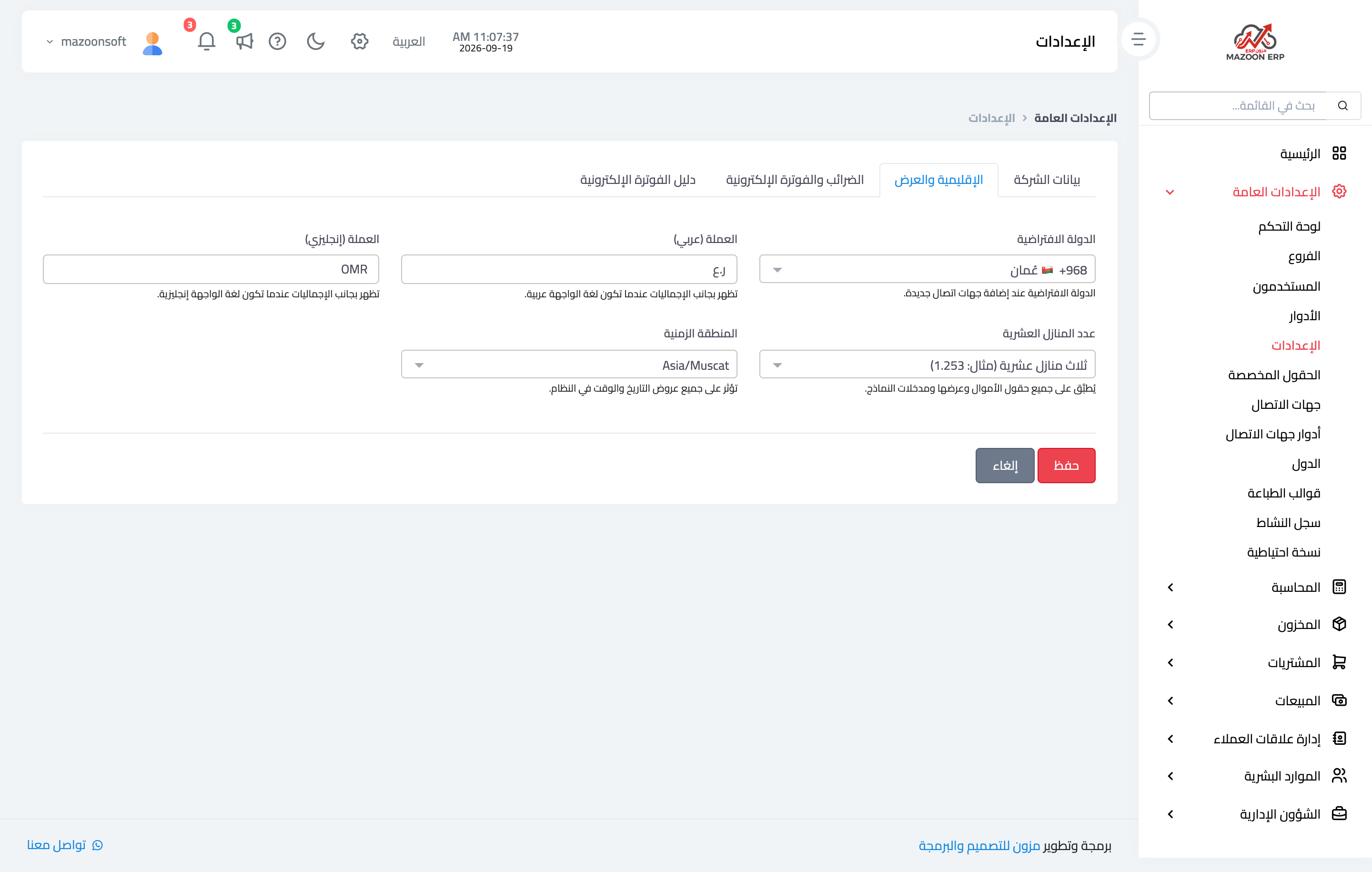
Figure 1
Try what you just read on your own data
Open a free 7-day trial — no credit card, with your own company link in minutes.