
When do I need branches, and how do I add one?
Branches are not just names: they separate each location's data, so a Sohar employee sees Sohar's sales alone, and your reports come out split by branch.
When you need them
- You have more than one sales point, warehouse or office and want to know how each performs.
- You want an employee restricted to their own branch's data.
- You hold separate stock at each location and need transfers between them.
With a single location, do not enable them; it is an extra field on every screen for no benefit.
Steps
- Open General Settings → Branches — image 1 — and press Add Branch.
- In the form — image 2 — enter a short, unique code, since it appears in lists and reports, then the full name as you want it read.
- Add the phone, e-mail, city and address.
- Save, and repeat for each branch.
Notes
- Branches in your plan: every plan includes one branch. Adding one more shows the message "You have reached the number of branches your plan allows" with a button to contact us on WhatsApp; we then enable the extra branch, and each extra branch costs OMR 3 a month or the equivalent in your country's currency. The top of the Branches page shows your active branches and how many you may have, and a switched-off branch does not count.
- The Branches card and its menu link appear only if the multi-branch feature is enabled for your subscription; if you cannot find it, get in touch with us.
- The code is what you see in narrow tables, so keep it to two or three letters: MCT, SLL, SOH.
- Once the branches exist, tie each user to their branch under Users, otherwise everyone sees everything.
- Do not delete a branch with activity on it; old invoices and vouchers are tied to it and your reports need it.
Screenshots
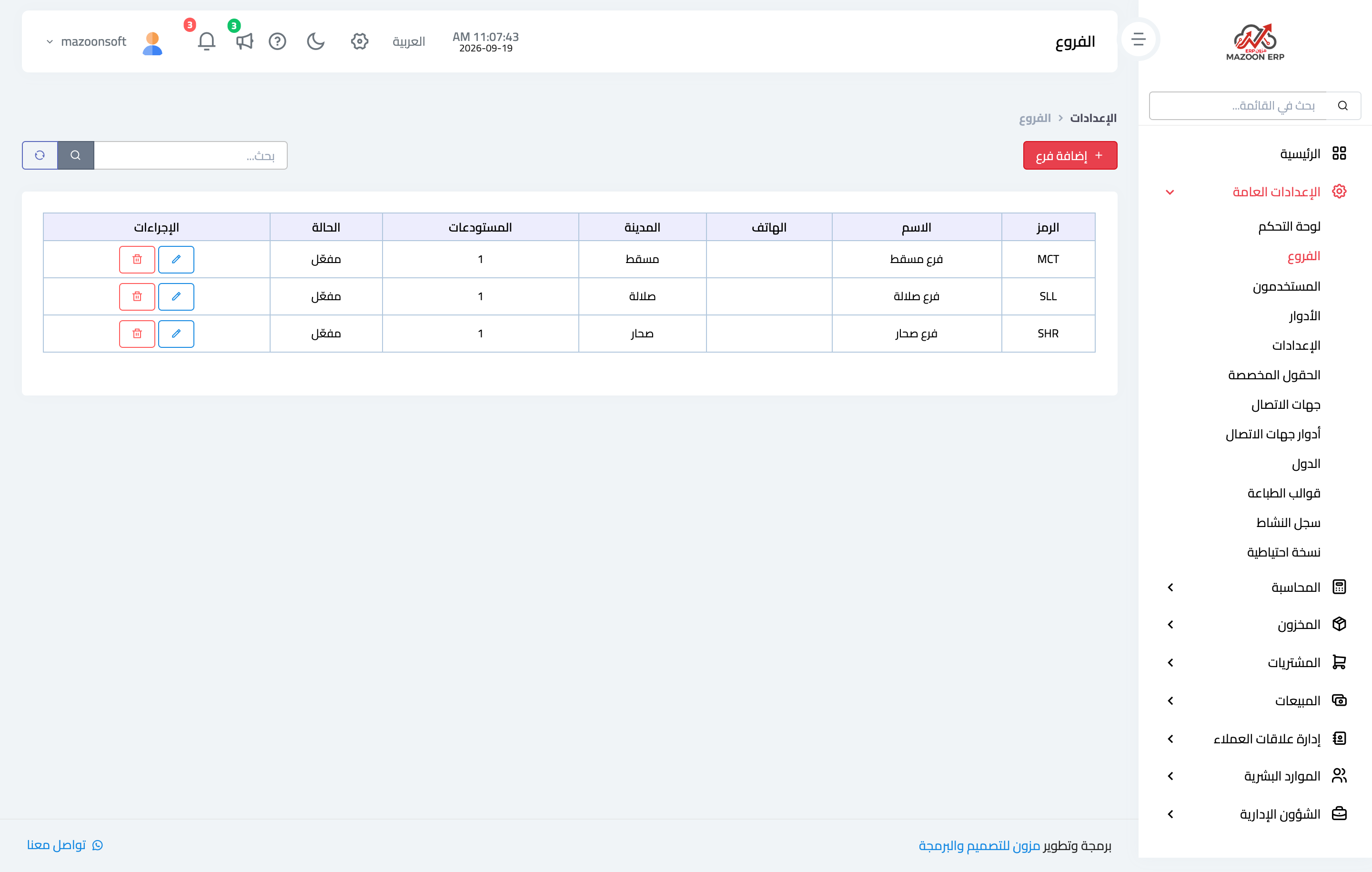
Figure 1
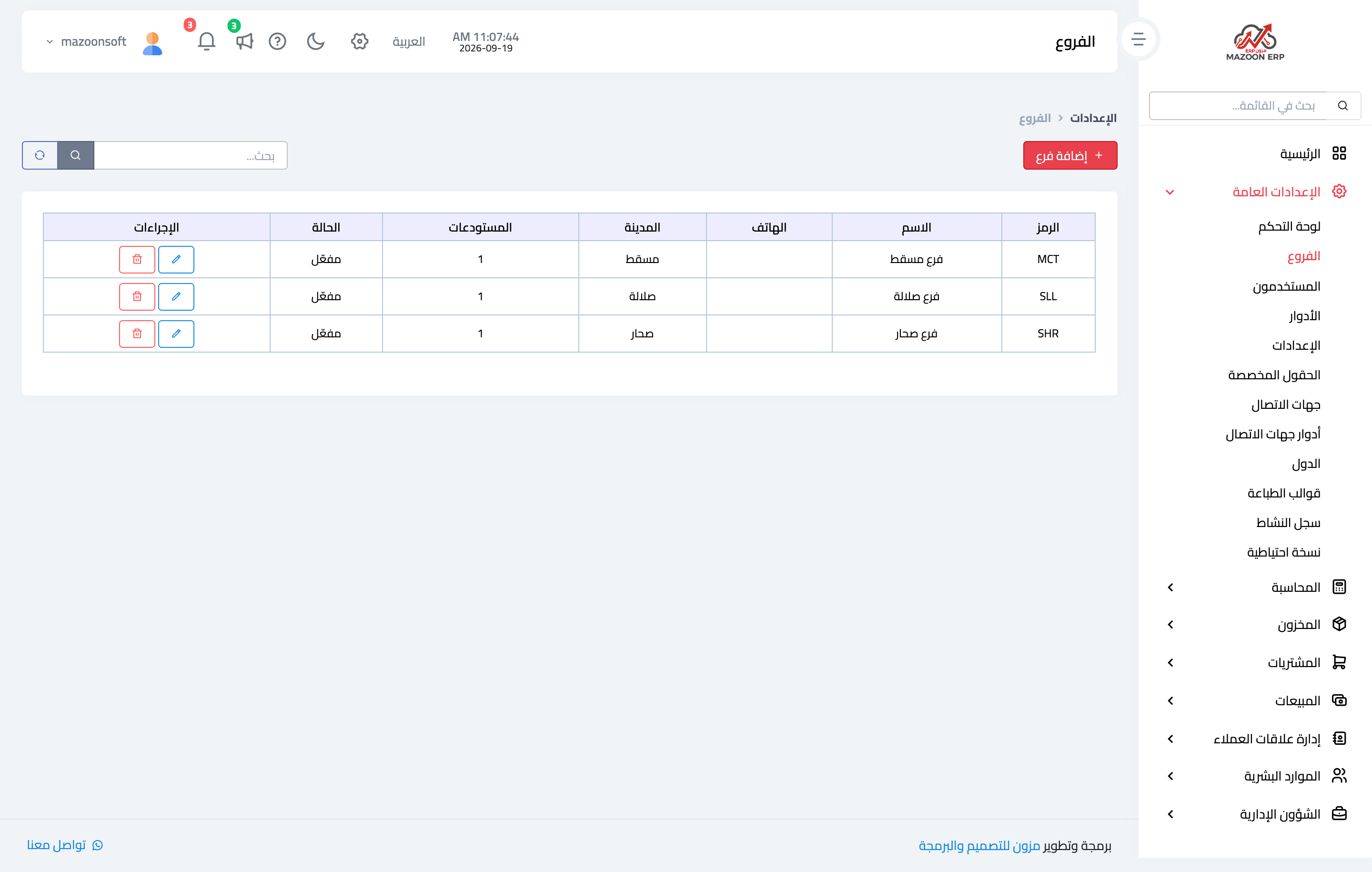
Figure 2
Try what you just read on your own data
Open a free 7-day trial — no credit card, with your own company link in minutes.