
How do I find out who changed a record?
When an amount disappears or a date changes and nobody knows how, the answer is in the system activity log. Every create, update and delete is recorded automatically along with the user and the exact moment.
Steps
- Open General Settings → Activity Log — image 1.
- Set From and To dates first; that is the quickest way to shrink the table.
- Choose the Module (accounting, inventory, HR…) and the Event (created, updated, deleted).
- Choose a User if you are tracing one person's actions.
- Or type part of the description, the model name or the user name in the search box.
- Press the search icon to apply the filters, or the refresh icon beside it to clear them.
Reading the table
- Date & time — the moment of the event, to the second.
- User — who did it. A — means the system did it itself (generating instalments, a scheduled posting, an import).
- Module and Model — the area and the record affected.
- Event — a coloured badge: created, updated, deleted.
- Changes — the names of the fields that actually changed in that update.
Notes
- The newest 50 entries are shown per page, always newest first.
- Pages are browsed with Previous and Next without a total count — a deliberate choice that keeps the screen fast with millions of rows, so filter by date instead of paging.
- The log is read-only; nobody can edit it or remove a row from inside the system, and that is exactly its value.
- It does not record reads, only changes.
Screenshots
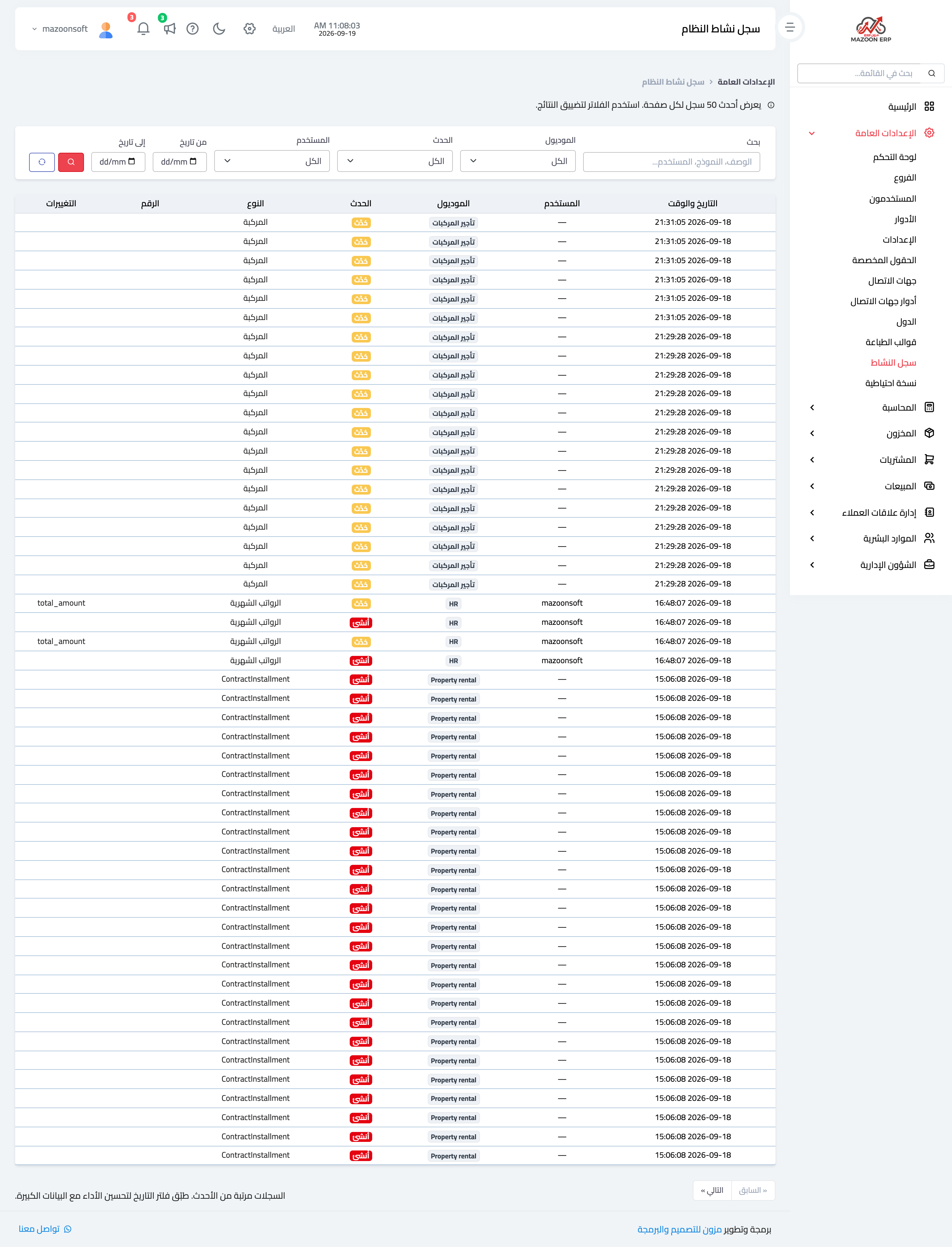
Figure 1
Try what you just read on your own data
Open a free 7-day trial — no credit card, with your own company link in minutes.