
How do I link my account with the Fatoora platform (phase two) step by step?
Phase two of e-invoicing means every invoice you issue is sent automatically to ZATCA's Fatoora platform. It is enabled per account: contact the Mazoon team to enable it for yours, then complete the following steps yourself in a few minutes.
Have ready before you start
- The national address proof of the establishment: building number, street, district, city, postal code and additional number.
- Access to the Fatoora portal (fatoora.zatca.gov.sa) with the establishment's account.
- The VAT number and national address of each business customer.
Steps
- Open General Settings → Settings → Tax & E-Invoicing — image 1. Check the VAT number (15 digits) and the commercial registration, and that Enable e-invoicing is on.
- Write the legal name exactly as registered with ZATCA, the business activity, then the national address of the establishment as in the proof: building number 4 digits, postal code 5 digits, additional number 4 digits.
- In the phase two box choose Phase 2 (send every invoice to ZATCA) and the invoices you issue: “Tax and simplified invoices”, or “Tax invoices only” if all your customers are businesses. Then press Save.
- Complete the card of each business customer: VAT number and full national address — image 3. Without them ZATCA rejects the tax invoice. Individual customers need nothing.
- Sign in to the Fatoora portal, choose Onboard new solution unit/device, request one code and copy the OTP shown. It is valid for one hour only.
- Back on the tax tab, in the Fatoora portal link card choose Production (real invoices), paste the code into OTP from Fatoora portal and press Link with Fatoora — image 2.
- The system runs ZATCA's compliance checks automatically in about a minute, then the status shows Linked.
After linking
- Issue your invoices as usual; the system sends them to ZATCA automatically. Sent today: service invoices, engineering consultancy invoices and workshop invoices; the other modules follow.
- An invoice to a business (tax invoice) is cleared by ZATCA within seconds and cannot be printed or shared before. An invoice to an individual (simplified) prints at once and is reported within minutes.
- Follow each invoice's status on its page, and every document sent in E-invoices sent — see the article “E-invoice statuses at ZATCA”.
- An invoice sent to ZATCA can no longer be edited or deleted. To correct it press Cancel the invoice or part of it (credit note) on its page, then issue a correct invoice.
Notes
- If a warning about the currency, decimals or time zone appears at the top of the tab, fix it first: Saudi riyal (SAR) with two decimals, Riyadh time zone.
- If you changed the settings without saving, the system asks you to save first, because linking uses the saved data.
- Engineering consultancy: progress invoices are sent normally; advance-payment invoices and invoices with retention or an advance deduction are not supported yet.
- If the code expires or linking fails, get a new code and repeat the last step; a message explains why it failed.
Screenshots
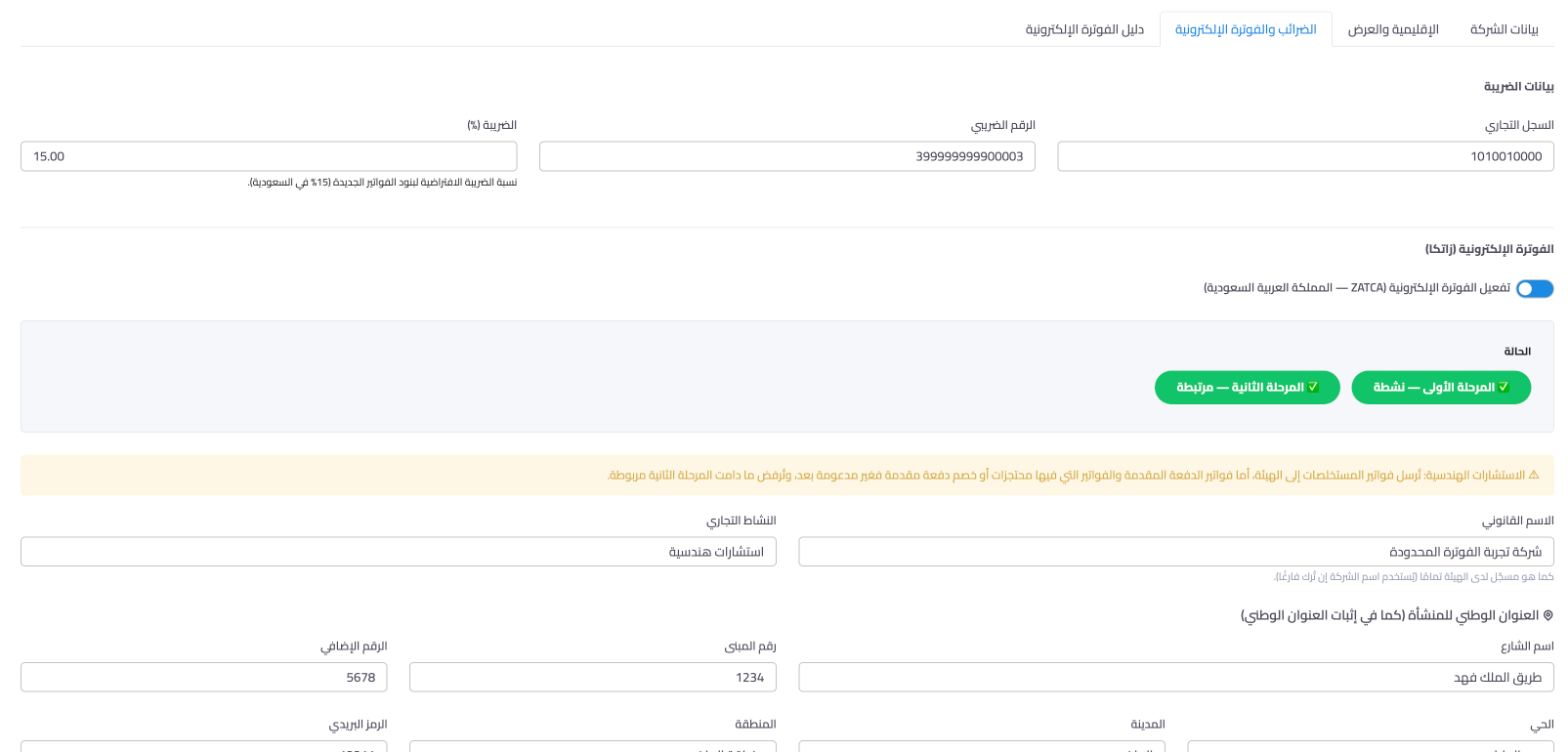
Figure 1
— Tax & E-Invoicing tab: both phases' status, legal name and national address
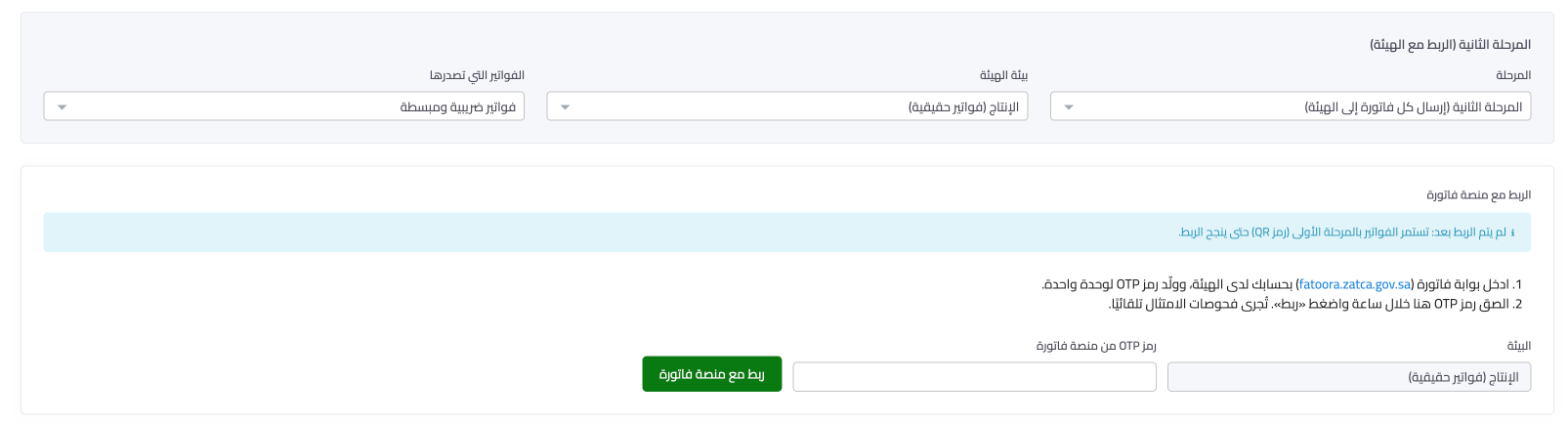
Figure 2
— Choosing phase two and the Fatoora portal link card: environment, OTP and Link button
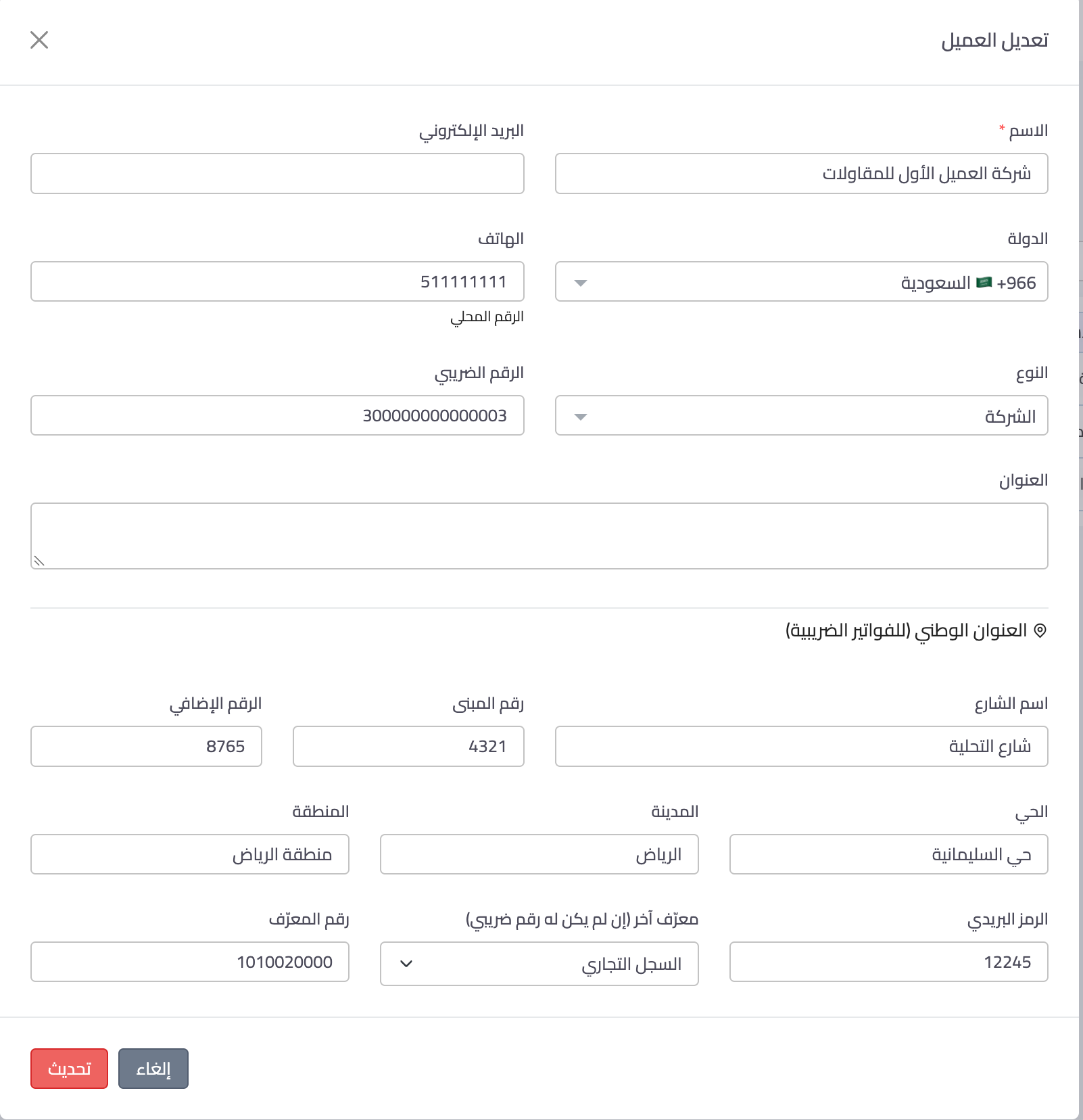
Figure 3
— A business customer card: VAT number and national address
Try what you just read on your own data
Open a free 7-day trial — no credit card, with your own company link in minutes.