
Branches: when you need them and how to set them up
Branches are for businesses that operate from more than one location. Once enabled, the branch is recorded on documents — invoices, receipts and stock movements — so you can measure each location on its own instead of one combined figure that never tells you where the result was made.
Is the feature enabled for you
If there is no Branches card in the General Settings panel, the feature is not enabled for your business. It is switched on by the Mazoon team at account level, so contact us to request it. A single-location business does not need it at all; enabling it only adds a branch field to many screens for no benefit.
The branch list
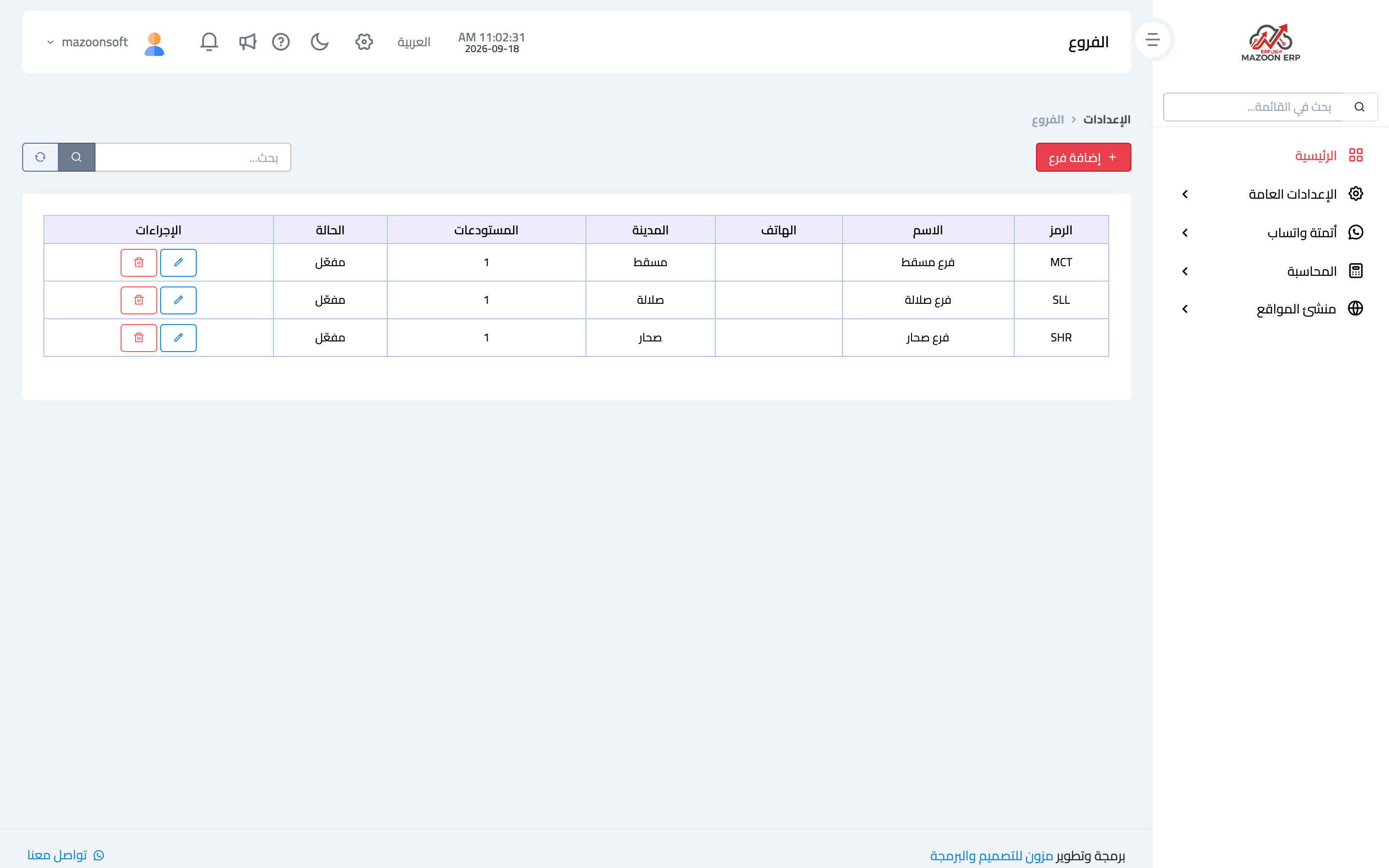
The list shows your current branches, as in image 1, with the code, name, phone, city, the number of warehouses attached, and the status (active or inactive). There is a search box above the list, and edit and delete buttons on each row.
Adding a branch
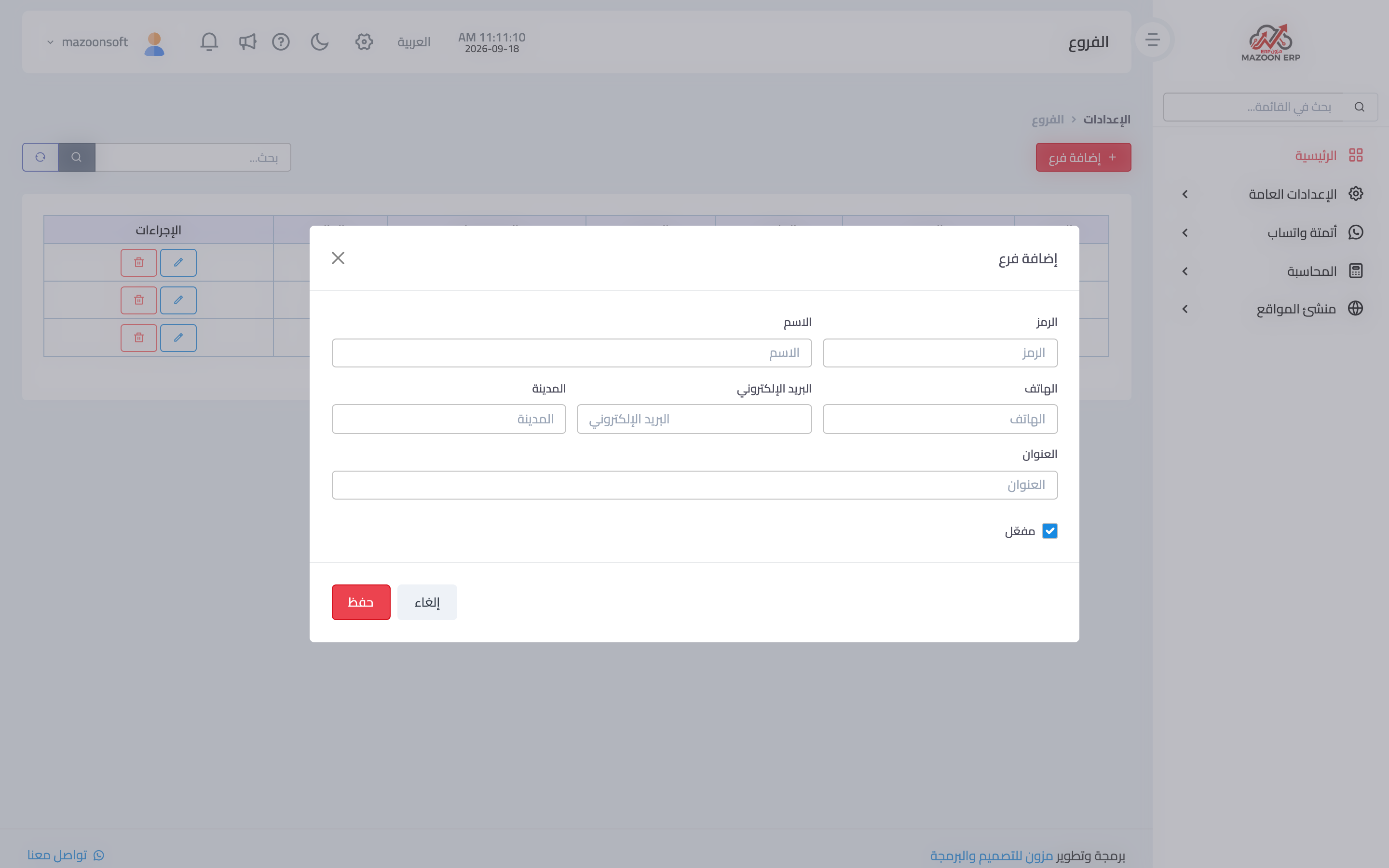
Press Add Branch to open the dialog shown in image 2, with these fields:
- Code — a short identifier such as MCT for the Muscat branch. Keep it short and stable, because it appears in lists and reports.
- Name — the full name as it should read.
- Phone and Email — the branch's contact details.
- City and Address — where the branch is.
- Active — controls whether the branch appears in selection lists.
Press Save to add it.
Branches in your plan: every plan includes one branch. Adding one more shows the message "You have reached the number of branches your plan allows" with a button to contact us on WhatsApp; we then enable the extra branch, and each extra branch costs OMR 3 a month or the equivalent in your country's currency. The top of the Branches page shows your active branches and how many you may have, and a switched-off branch does not count.
Deactivate rather than delete
When a branch stops trading, clear the Active checkbox instead of deleting it. Deleting cuts the branch off from its historical data; deactivating hides it from new selection lists while its past reports stay intact.
What is tied to a branch
- Users — each user is attached to a branch, or left on "all branches" if they work across them.
- Warehouses — each warehouse belongs to a branch, and the count appears in the branch list.
- Documents and reports — invoices, receipts and stock movements carry their branch, which is what the branch report is built on.
So create your branches before creating users and warehouses, and everything is attached to the right branch from day one.
Screenshots
Try what you just read on your own data
Open a free 7-day trial — no credit card, with your own company link in minutes.