
An employee says "I cannot access it" — how do I find the missing permission?
A recurring complaint: "the button is not there" or "the page says I have no permission". Diagnosis takes two minutes once you know where to look.
Steps
- Ask them for the exact screen name and what they are trying to do: just open it, add, edit, or delete? Each is a separate permission.
- Open General Settings → Users and find the role assigned to them.
- Open Roles and that role — image 1.
- Type part of the screen name into the search box inside the permissions section and they filter down in front of you.
- Tick the specific missing permission — view if they cannot see the screen, or create/edit/delete if they see it but find no buttons — then save.
- Ask them to log out and back in.
Notes
- If the screen appears for nobody at all, this is not permissions but a disabled module — check Module Management first.
- If the screen appears but the list is empty, the cause is usually the branch on their account rather than a permission.
- Do not solve it by handing them the super-admin role; that is not a permission but a key to everything.
- If the role is shared by several employees, remember editing it affects them all; for an exception, create a role of their own or assign them a second role.
Screenshots
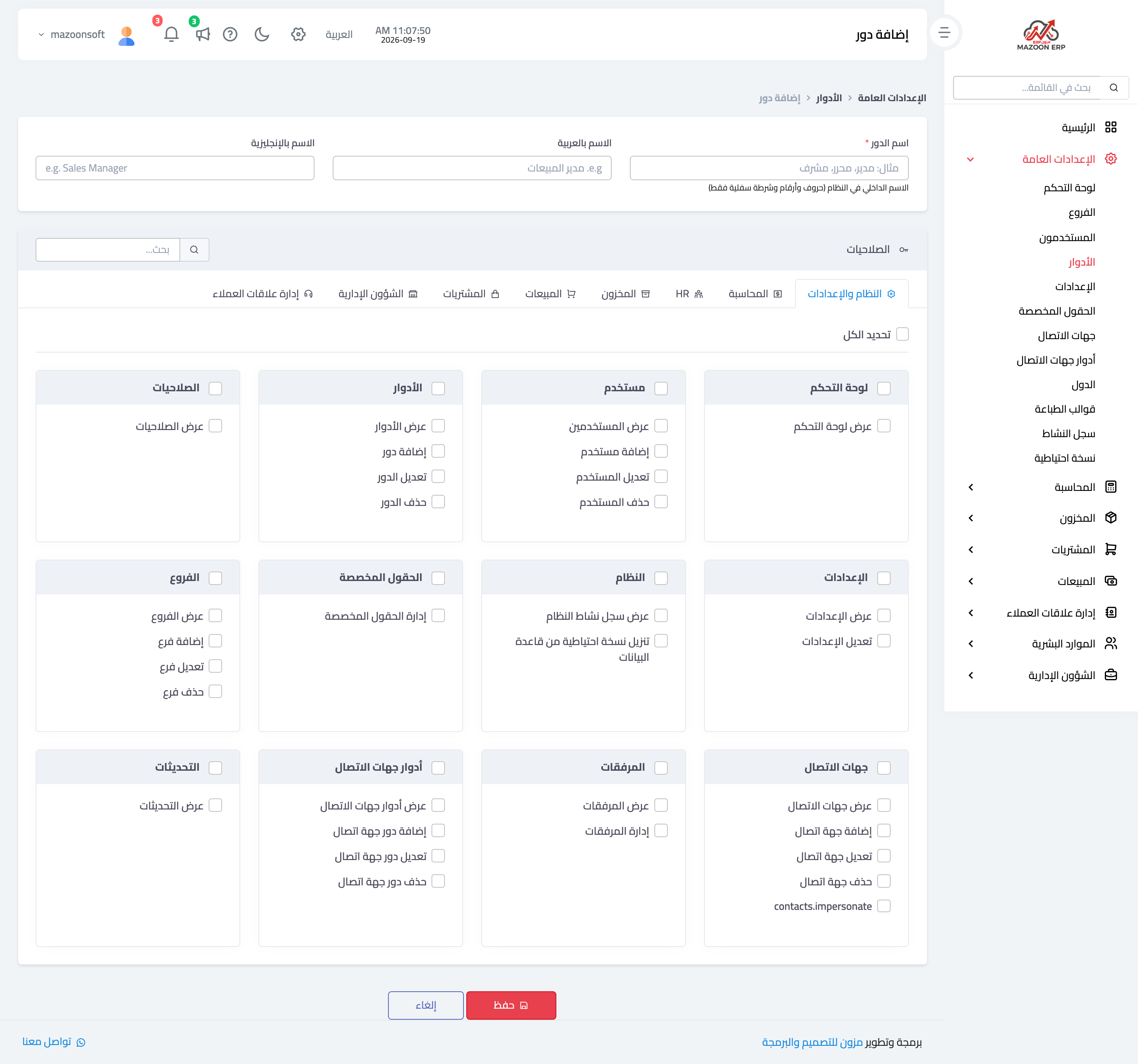
Figure 1
Try what you just read on your own data
Open a free 7-day trial — no credit card, with your own company link in minutes.