
How do I download a backup of my data?
Your data lives on Mazoon's servers, but you are entitled to keep a copy of your own. One button downloads your whole company database as a single file.
Steps
- Open General Settings — image 1.
- Press the Database Backup card, or the same link in the sidebar under General Settings.
- A file named something like backup_…_2026-09-19_11-08-00.sql starts downloading.
- Store it somewhere safe — an external drive or your own cloud storage.
What is in the file?
Your company database only: invoices, vouchers, journal entries, customers, suppliers, items, employees and everything you have entered. It contains no other company's data, and no uploaded files or images — those are kept separately in cloud storage.
Notes
- The button only appears to whoever holds the database backup permission. It is a sensitive one, because the file holds everything, so keep it with the owner or the system administrator.
- On large databases the download can take a few minutes; do not close the page before it finishes.
- The file is SQL, not Excel — it is meant for restoring a database, not for reading by hand. To export tables you can work with, use the Export to Excel buttons on the screens themselves.
- There is no self-service restore inside the system; if you need to go back to an earlier copy, contact the Mazoon team.
- Make it a monthly habit at least, and do it before any large change — posting opening balances or a bulk edit of items.
Screenshots
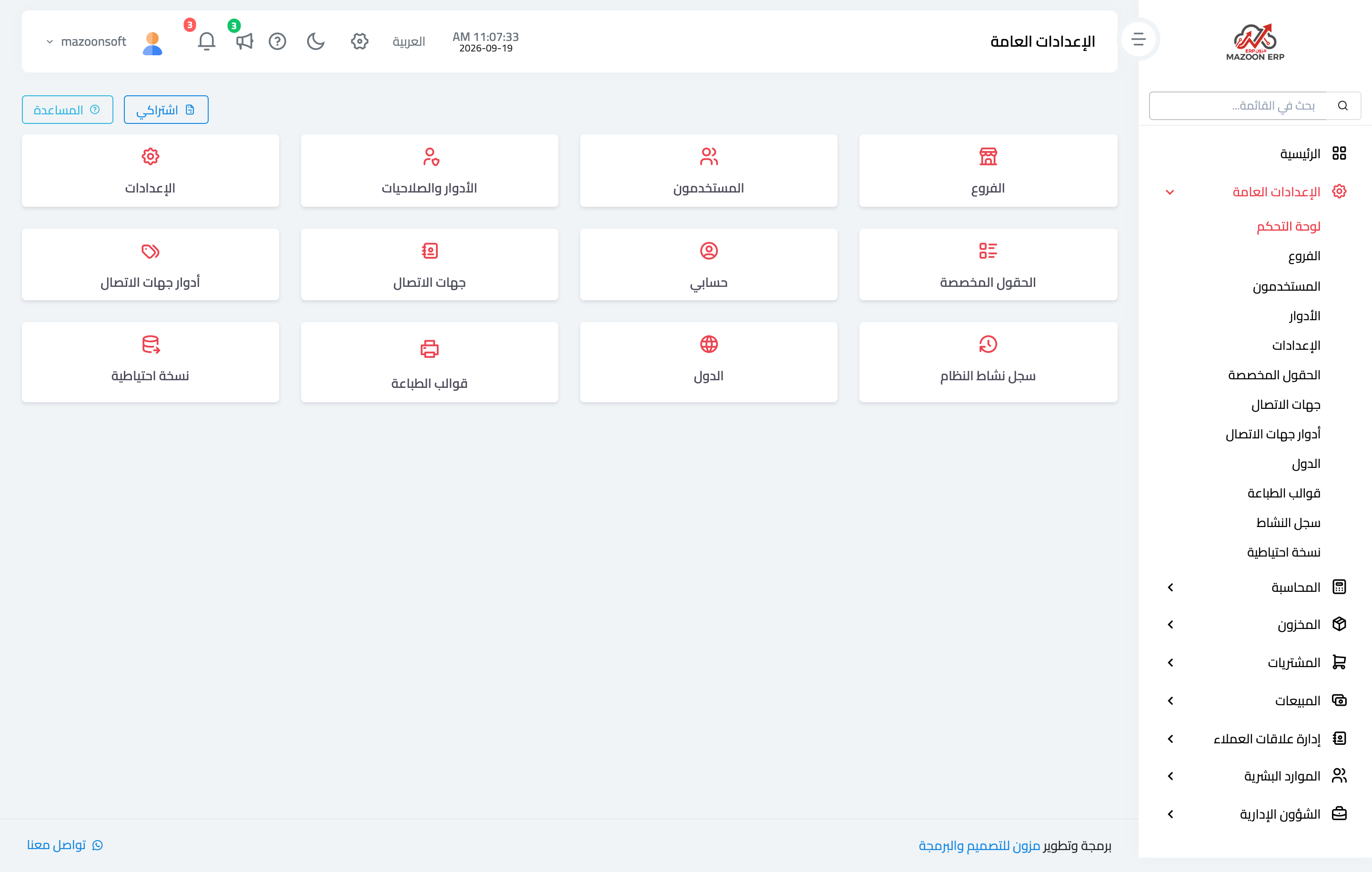
Figure 1
Try what you just read on your own data
Open a free 7-day trial — no credit card, with your own company link in minutes.