
E-invoice statuses at ZATCA: what they mean and what to do in each
Once your account is linked with the Fatoora platform, every document you issue carries a status telling you where it stands at ZATCA. The status shows at the top of the invoice page — image 2 — and all documents sent are listed in General Settings → E-invoices sent — image 1 — with filters by status and document number.
The statuses and what to do in each
- Cleared by ZATCA — a tax invoice (to a business) that ZATCA cleared. Print and share it as usual; its printout carries ZATCA's code. Nothing to do.
- Reported to ZATCA — a simplified invoice (to an individual) whose report reached ZATCA. Nothing to do.
- Awaiting ZATCA clearance or Waiting to be reported to ZATCA (in the list filter: “Waiting”) — the document has not reached ZATCA yet (a connection drop or a slow response). The system retries automatically every few minutes. A tax invoice cannot be printed until cleared; a simplified one prints at once and is reported later.
- Rejected by ZATCA — the reason appears in Arabic on the invoice page. Fix the cause (usually the customer's details, the national address or the settings), then open the invoice, edit it and save it to send it again. For a rejected credit note use the Send to ZATCA again button on its page.
- Not sent to ZATCA: needs attention — repeated attempts got no usable answer. Press Send now in the e-invoices list; if it keeps failing, contact the Mazoon team. To correct the document instead of resending it, press Withdraw and correct it.
- ZATCA already has this document: check it on the Fatoora portal — look it up on the Fatoora portal; if you find it, press Found on the portal to record it as accepted.
- Withdrawn: correct the document and save it to issue it again — you took it back to correct it; once corrected and saved it is issued with a new number in the chain.
- Voided: the document was deleted — the source document was deleted while rejected or withdrawn, so there is nothing left to correct.
In the e-invoices list
- The cards at the top count what was accepted, what is waiting and what needs attention. Choose Need attention in the filter to see only what needs your work.
- The XML button downloads the signed e-invoice as sent, and the Cleared copy button downloads the copy ZATCA returned after clearing it.
- The document name links to its page in the system.
Notes
- An invoice sent to ZATCA cannot be edited or deleted while it is accepted or waiting; correct it with Cancel the invoice or part of it (credit note) and issue a correct one. Editing is open only for an invoice ZATCA rejected.
- ZATCA allows 24 hours to report a simplified invoice, and the system sends it within minutes; if an invoice stays waiting for hours, check it.
- The dashboard shows an alert when documents need attention.
Screenshots
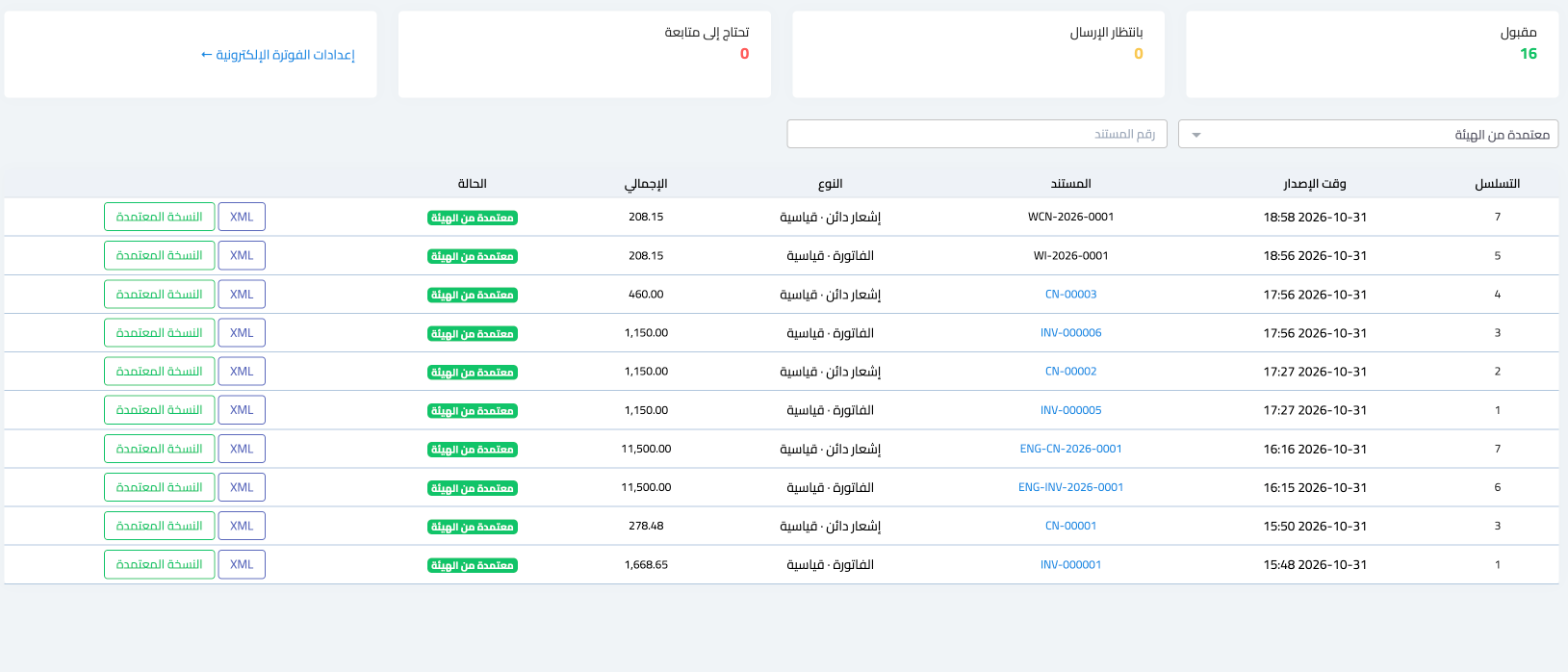
Figure 1
— The «E-invoices sent» list: status, type, XML and cleared-copy downloads
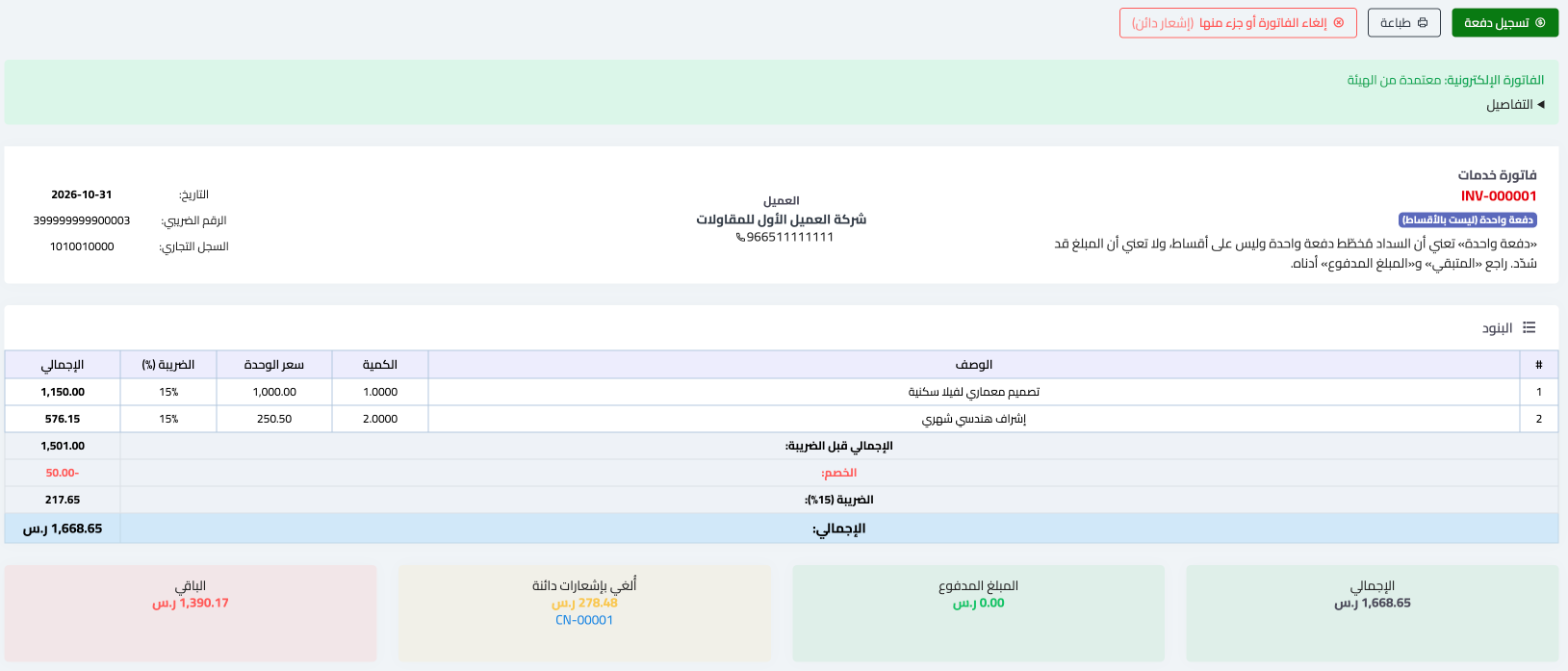
Figure 2
— An invoice page: its ZATCA status on top, the credit-note cancel button and what was credited
Try what you just read on your own data
Open a free 7-day trial — no credit card, with your own company link in minutes.