
What do the common error messages mean and how do I fix them?
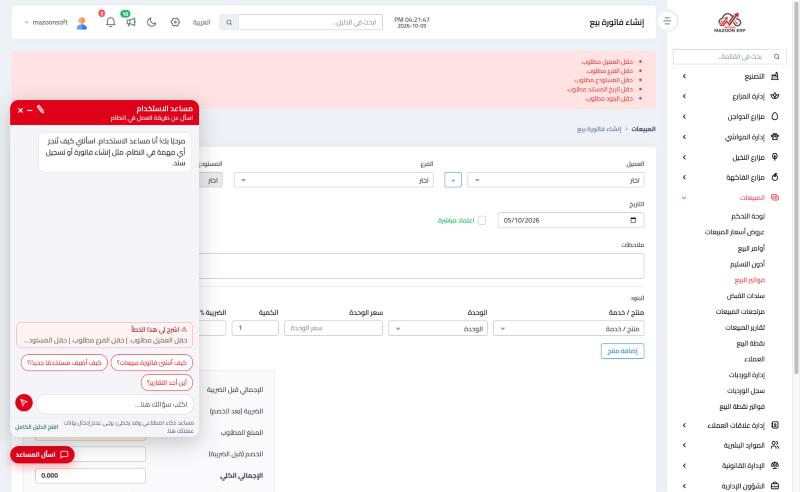
If the system refuses to save something and shows a red message, it is usually protecting your data rather than failing. These are the most common messages, what they mean and how to fix them. At any time you can press the "Explain this error" button in the usage assistant to have the message on your screen explained — Image 2.
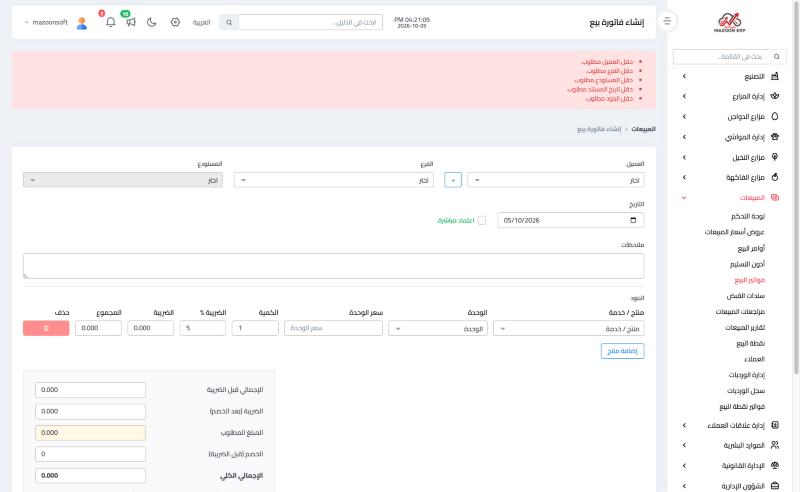
1) "The ... field is required"
A mandatory field was left empty. The message names the field (for example Customer, Branch or Warehouse) — Image 1.
- Fill in every field listed in the red notice at the top of the page.
- If you cannot see the field, look for it in another tab or section of the form, or scroll down.
- "The items field is required" means you have not added any line (product or service) to the document.
2) "The value of the ... field has already been used"
You entered a value that must not be repeated (such as a vehicle plate number, a product code or an ID number) and it is already recorded on another record.
- Search the list of records for the same value and make sure your search filters are not hiding anything. The record may be inactive or written slightly differently (a space or a letter).
- If you find it, edit the existing record instead of adding a new one, or change the value if it belongs to something else.
- If you cannot find it after searching, press "Send your question to the support team" in the assistant and tell us the field name and the value.
3) "... cannot be deleted"
The system blocks deleting a record that is linked to other documents, to keep your data consistent; for example a vehicle with rental contracts, a bill of materials with work orders, or a case with invoices. Likewise, a sales invoice that has a receipt voucher can be neither edited nor deleted.
- Read the message carefully; it often suggests the alternative: cancel, deactivate or archive.
- If you only want to hide the record, deactivate or archive it instead of deleting it.
- If it really must be deleted, deal with the linked documents first (by cancelling or deleting them, depending on your permissions) and try again.
4) "Cannot post to a closed fiscal period"
The document date falls inside a period your accountant has closed, and no entry dated inside it can be recorded.
- If the date is wrong, correct it to a date inside an open period.
- If it is correct and the entry must be recorded there, someone with accounting permission must reopen the period (from Accounting → Fiscal Periods) and close it again afterwards. See the article How do I add an account to the chart and close a period?
5) "You have reached the maximum number of ... allowed by your plan"
Your plan sets a maximum for some items, such as vehicles or users. Once it is reached the system will not accept more.
- Delete the items you no longer use. For vehicles, deleted vehicles are not counted against the limit.
- Or contact the administration to raise the limit (upgrade your plan).
6) "You do not have permission ..."
Your current role does not include this operation. Example: "You do not have permission to approve bills, so no payment was recorded. Save the bill and ask an approver."
- Ask the system administrator to grant you the permission by editing your role from General Settings → Roles. See the article How do I add a new user with permissions?
- Or ask someone who has the permission to carry out the step for you (such as approving the invoice).
If nothing helps
Press "Send your question to the support team" in the usage assistant (or contact us) and include: the screen name, the message exactly as it appeared, and what you were trying to do. This saves time for both of us.
Screenshots
Try what you just read on your own data
Open a free 7-day trial — no credit card, with your own company link in minutes.