
How do I add a new inventory item?
Before adding an item, settle one question: is it a product with a balance that moves in and out, or a service sold with no stock? The rest of the fields follow from that.
Steps
- Open Inventory → Items and services — Figure 1 — then Add.
- Set the type — Figure 2 — product or service. With a product the track stock switch appears.
- Write the name, leave the SKU for the system to generate, and add the barcode if you sell by scanner.
- Choose the unit (piece, kilogram, litre) and the category — the category is what reporting and filtering rest on once you have a thousand items.
- Enter the cost price, the sale price, and the tax rate, then the revenue account its sales post to.
- Press Save. The item is created with a zero balance; stock comes in through a goods receipt or an opening balance, not from this screen.
The reorder level
On the Reorder policies screen, set each item’s minimum level and order quantity, and the system warns you in the reorder report before the item runs out.
Notes
- Do not create a separate item for a colour or a size when the price is the same; a bloated list slows the cashier and the stocktake.
- Do not delete an item that has movement behind it; switch active off instead, so it disappears from the lists while its history stays intact.
- A service needs no warehouse and no cost; leave track stock off for it.
Screenshots
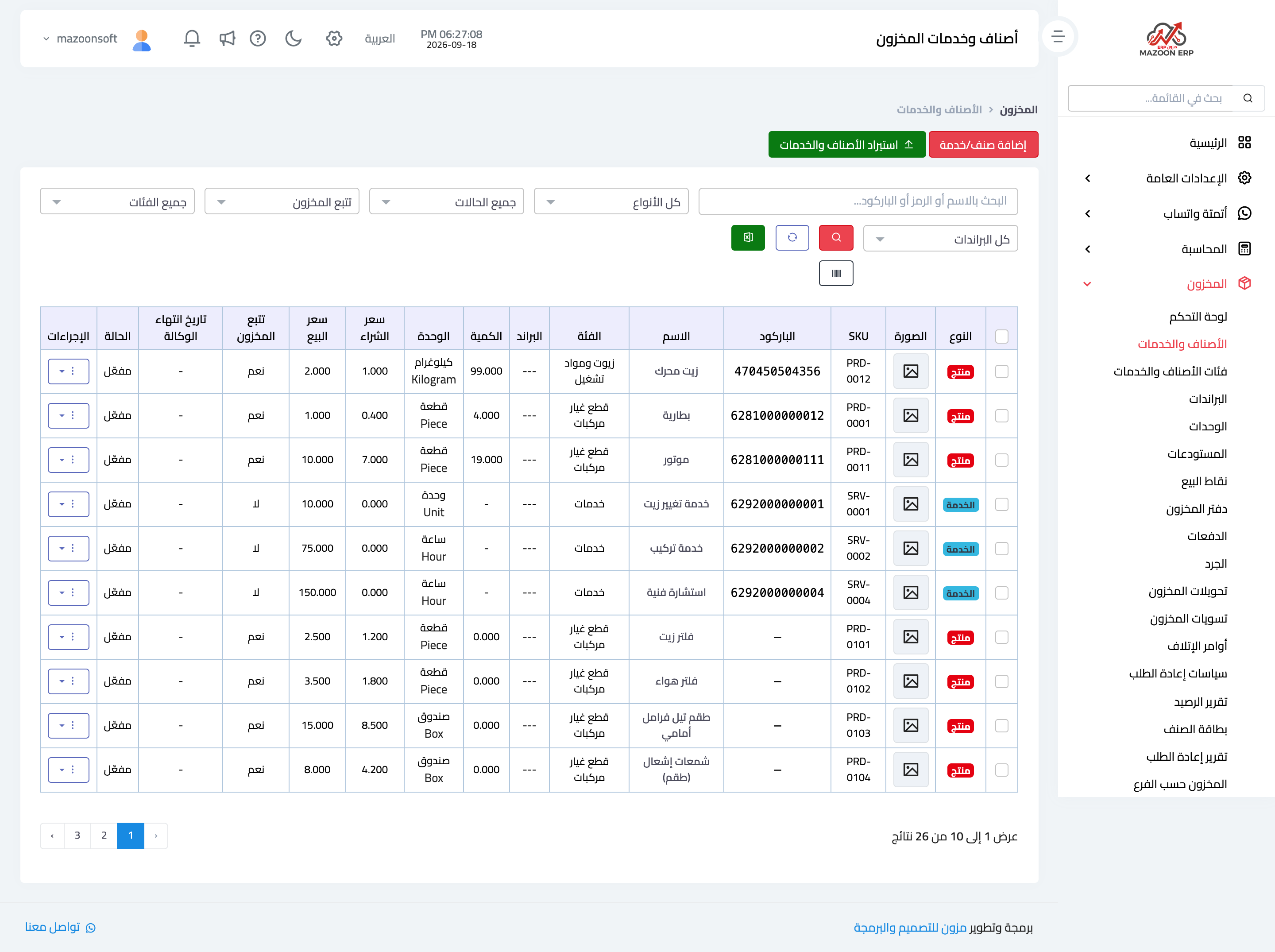
Figure 1
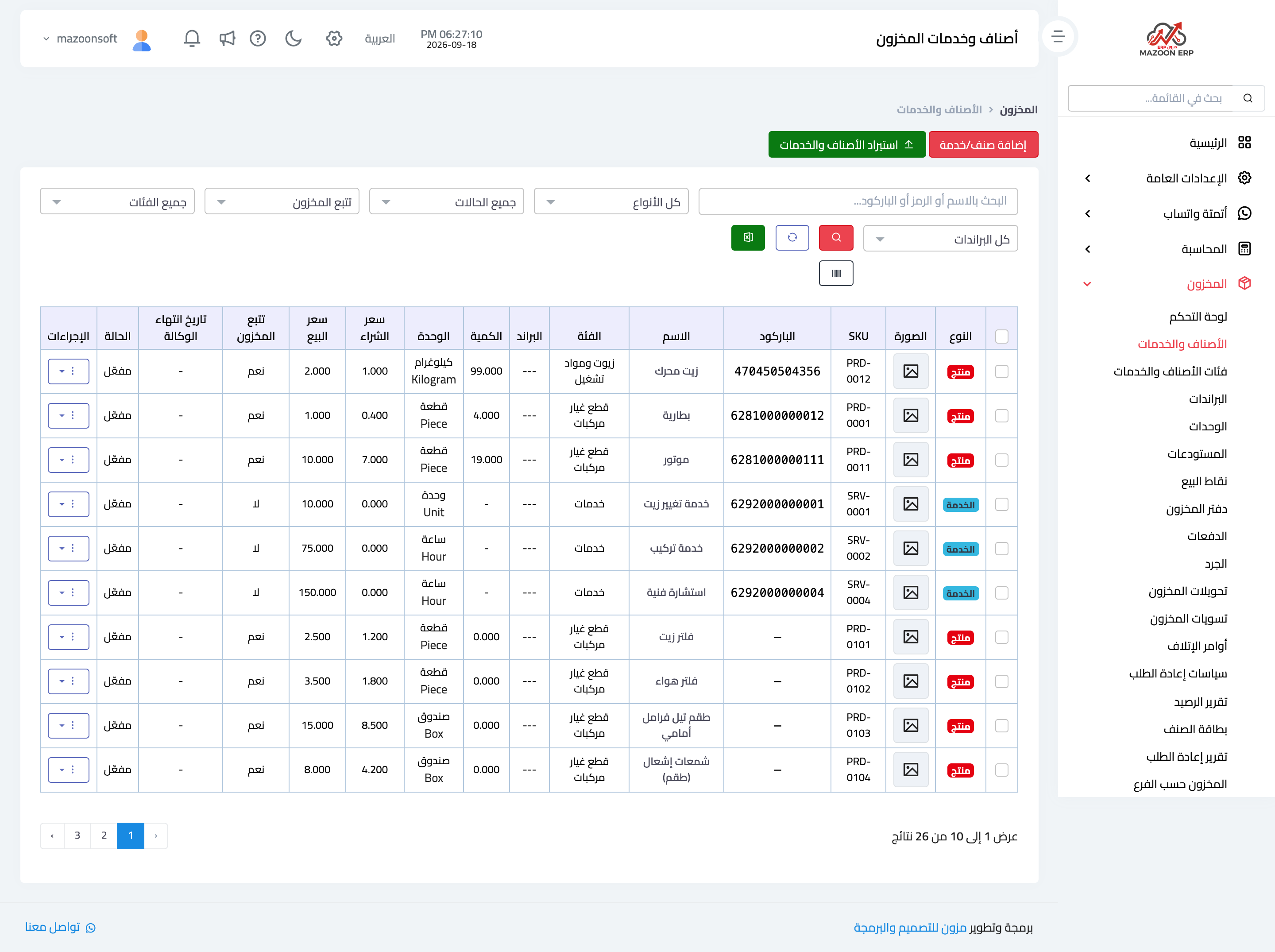
Figure 2
Try what you just read on your own data
Open a free 7-day trial — no credit card, with your own company link in minutes.