
How do I pay a supplier and track what is owed?
Paying a supplier has one screen and one only: purchase payments. Anything paid outside it stays unallocated and the supplier bill stays open.
Steps
- Open Purchasing → Payments — Figure 1 — then Add payment.
- Choose the supplier — Figure 2 — and the system lists their unpaid bills and the balance of each.
- Allocate the amount across the bills — this is where the common mistake happens: an unallocated payment makes the supplier appear both a debtor and a creditor.
- Set the from account, the payment method, and the actual date of payment, then Save.
- If you paid by cheque, enter its number and date; it then shows on the cheques screen until it clears.
Tracking what is owed
From Accounting → Reports → Payables ageing you see what you owe spread across overdue buckets, and from Contact statement you print a statement for a particular supplier when reconciling.
Notes
- Do not use a payment voucher to settle a supplier who has a bill; it posts an expense and does not close the bill, so the expense is doubled in your books.
- Record the payment on the date the money actually left, not the bill date.
- A bill with a payment against it cannot be edited or deleted; delete the payment first.
Screenshots
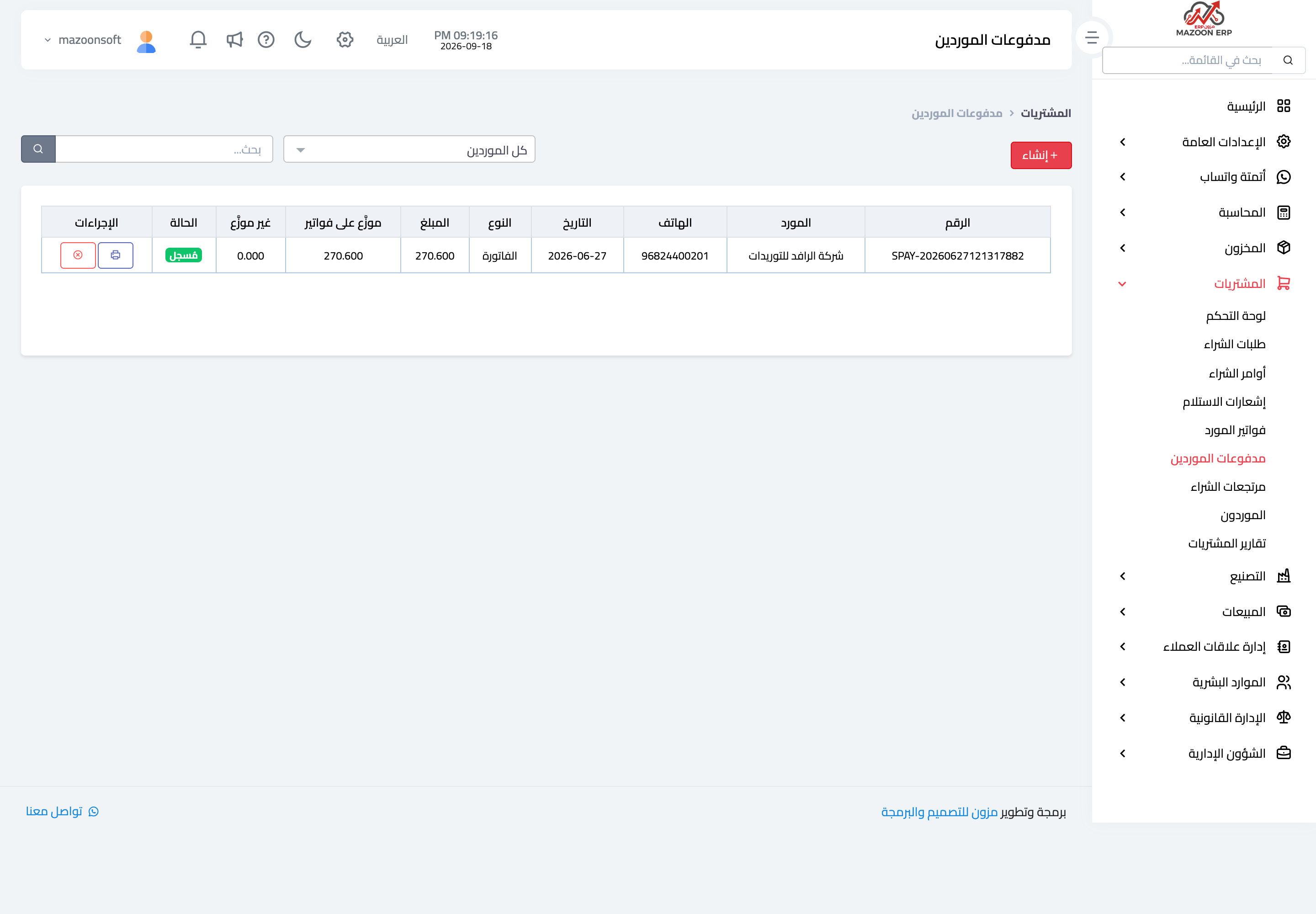
Figure 1
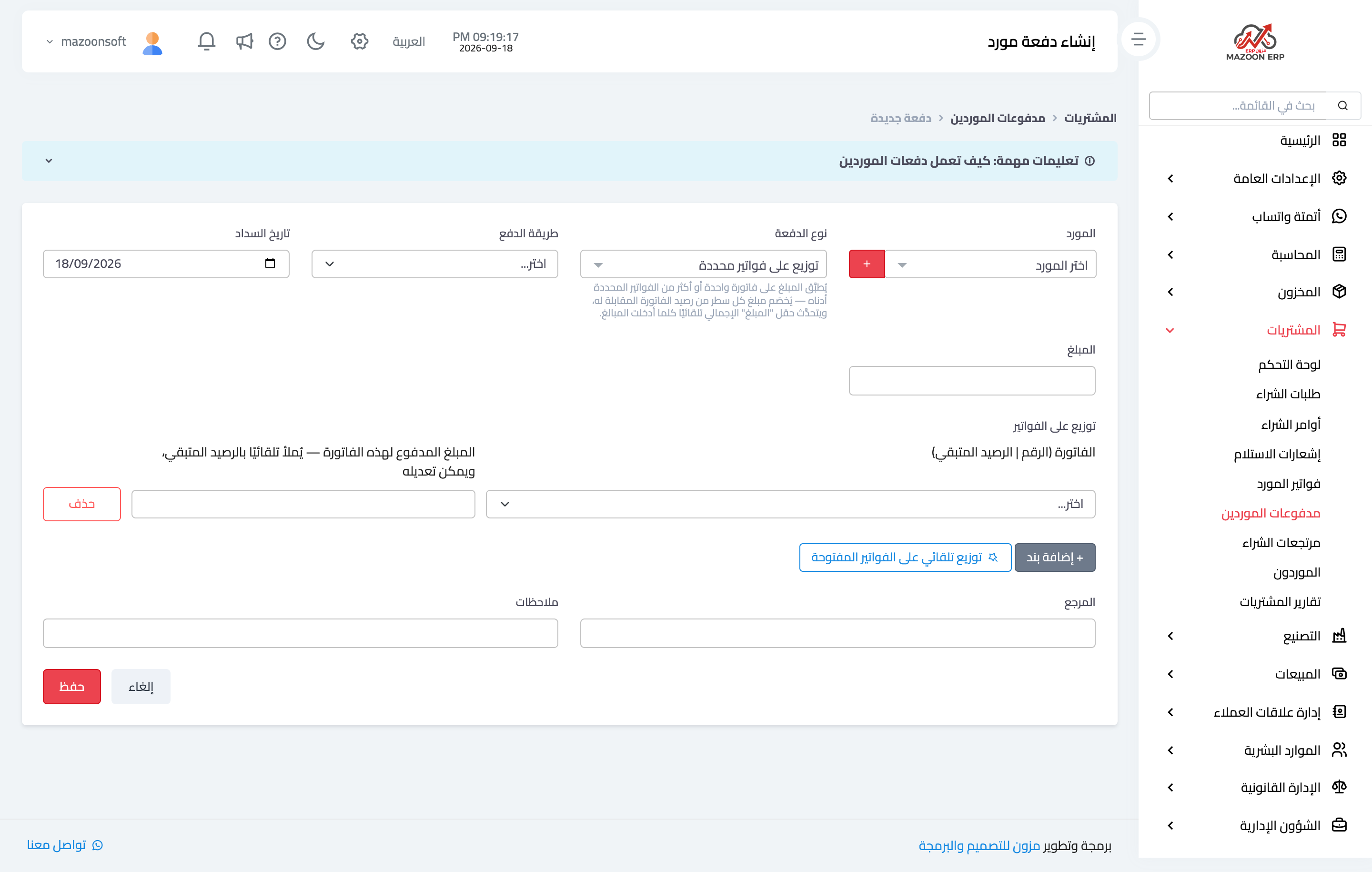
Figure 2
Try what you just read on your own data
Open a free 7-day trial — no credit card, with your own company link in minutes.