
How do I create a bill of materials and a work order?
Manufacturing in the system is two steps: the bill of materials says “what is this product made of?”, and then the work order says “make this many of it now”.
The bill of materials
- Open Manufacturing → Bills of materials — Figure 1 — then Add.
- Choose the finished product — Figure 2 — an item that exists in stock; create it first if it does not.
- Add the components and the quantity of each per single unit of the product — this is the crucial point: the quantity is per unit, not per batch.
- Enter the labour cost and the overhead per unit, and a markup if you want the system to suggest a selling price.
- Save. One product can have several bills in different versions, and only the active one is used.
The work order
- Open Work orders — Figure 3 — then New order — Figure 4.
- Choose the bill of materials, the quantity, and the warehouse; the system multiplies the per-unit components by the quantity and shows what will be drawn.
- Press Start, and the components leave stock.
- When it is finished press Complete, and the finished product enters stock at its computed cost: component value + labour + overhead.
Notes
- Do not start a work order when the component balance is short; running out stops you halfway and leaves an order hanging.
- Change a bill of materials by creating a new version rather than editing the old one; the cost of previous orders is built on it.
- Do not forget labour and overhead; leaving them at zero makes the product look cheaper than it is and corrupts the pricing decision.
Screenshots
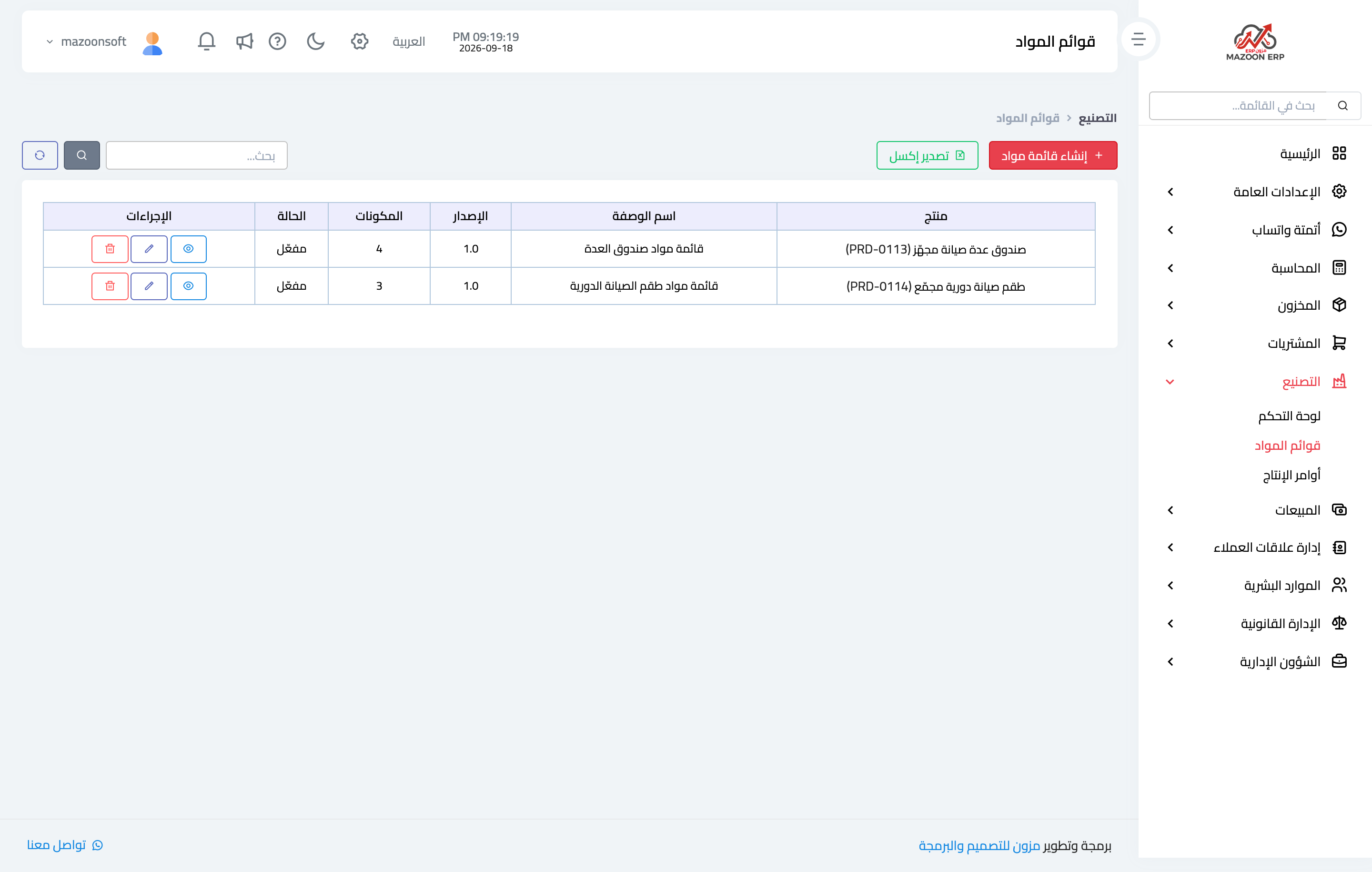
Figure 1
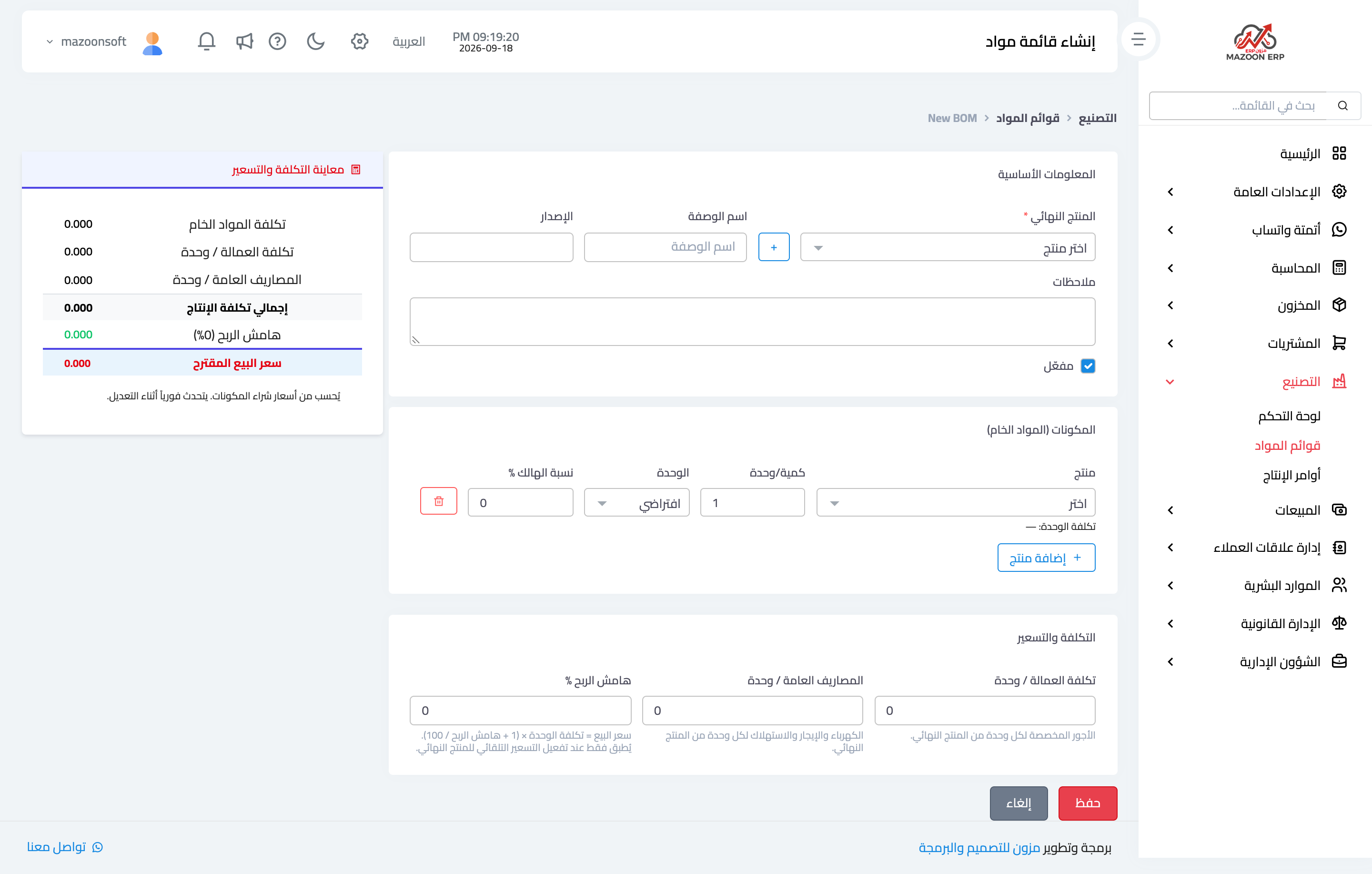
Figure 2
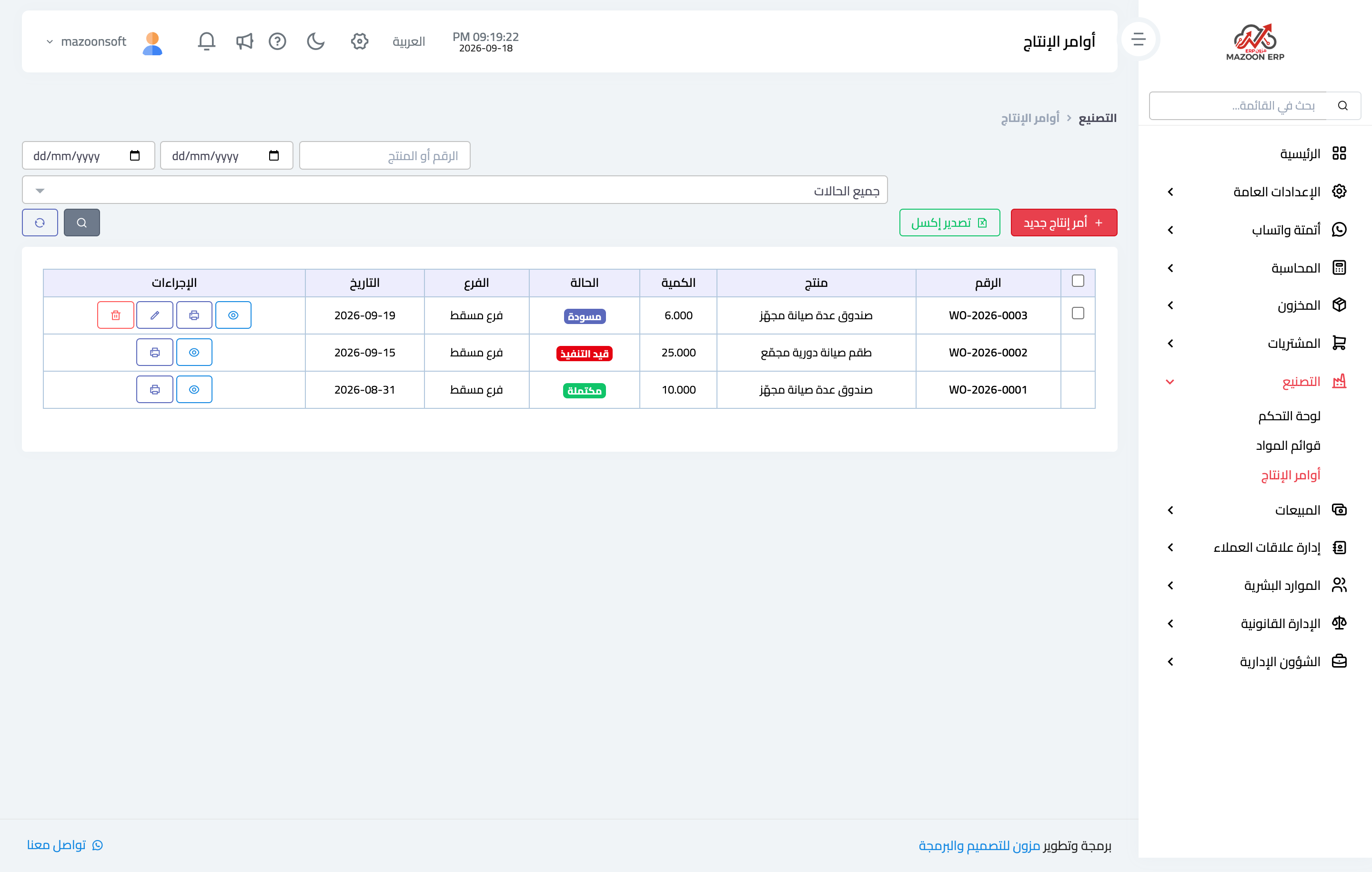
Figure 3
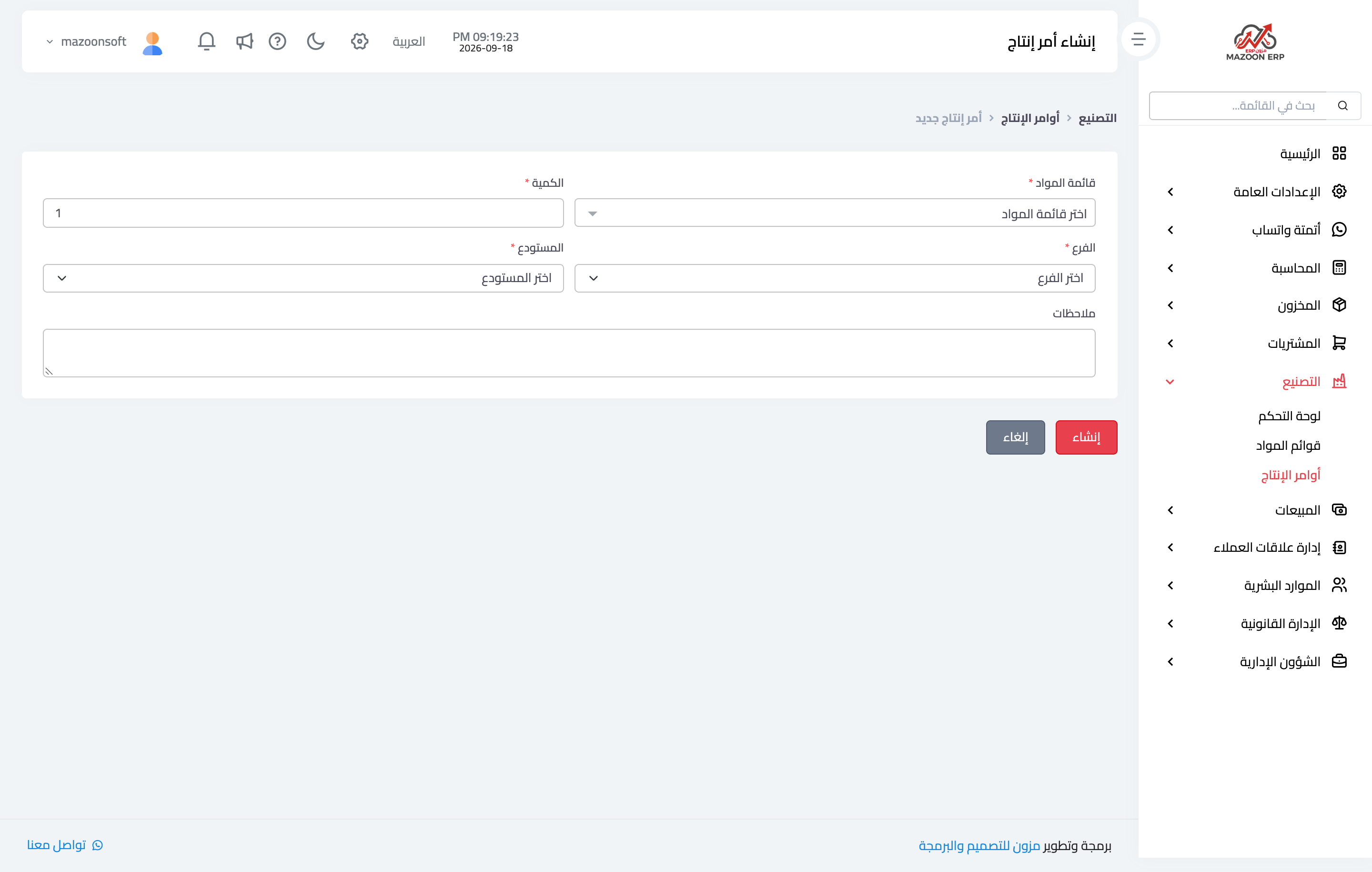
Figure 4
Try what you just read on your own data
Open a free 7-day trial — no credit card, with your own company link in minutes.