
How do I turn a quotation into an invoice?
A quotation is a document with no accounting and no stock effect: it creates no entry and reserves no goods. It is simply a promise of a price for a limited time.
Creating the quotation
- Open Sales → Quotations — Figure 1 — then Add quotation.
- Choose the customer and add the items and prices — Figure 2 — and set the expiry date, which is what protects you if prices rise.
- Print it or send it to the customer; it stays a draft until they come back to you.
When the customer accepts
Open the quotation and press Convert to invoice — or Convert to sales order if delivery is in stages. Every line, price, and discount carries across as it is, so you neither re-key nor mistake a price you already promised.
The difference between the three documents
- Quotation — a promise, with no effect.
- Sales order — a commitment on both sides; it tracks delivered against remaining and creates no entry.
- Invoice — the only document that draws down stock, creates the entry, and puts the amount on the customer’s balance.
Notes
- Do not key the invoice by hand when a quotation exists; converting links the two documents, so you can see what share of quotations actually converts.
- Always set an expiry date; a quotation with no limit comes back to you a year later with the customer demanding that price.
- A quotation does not reserve stock; if the quantity is tight, warn the customer that the offer is subject to availability.
Screenshots
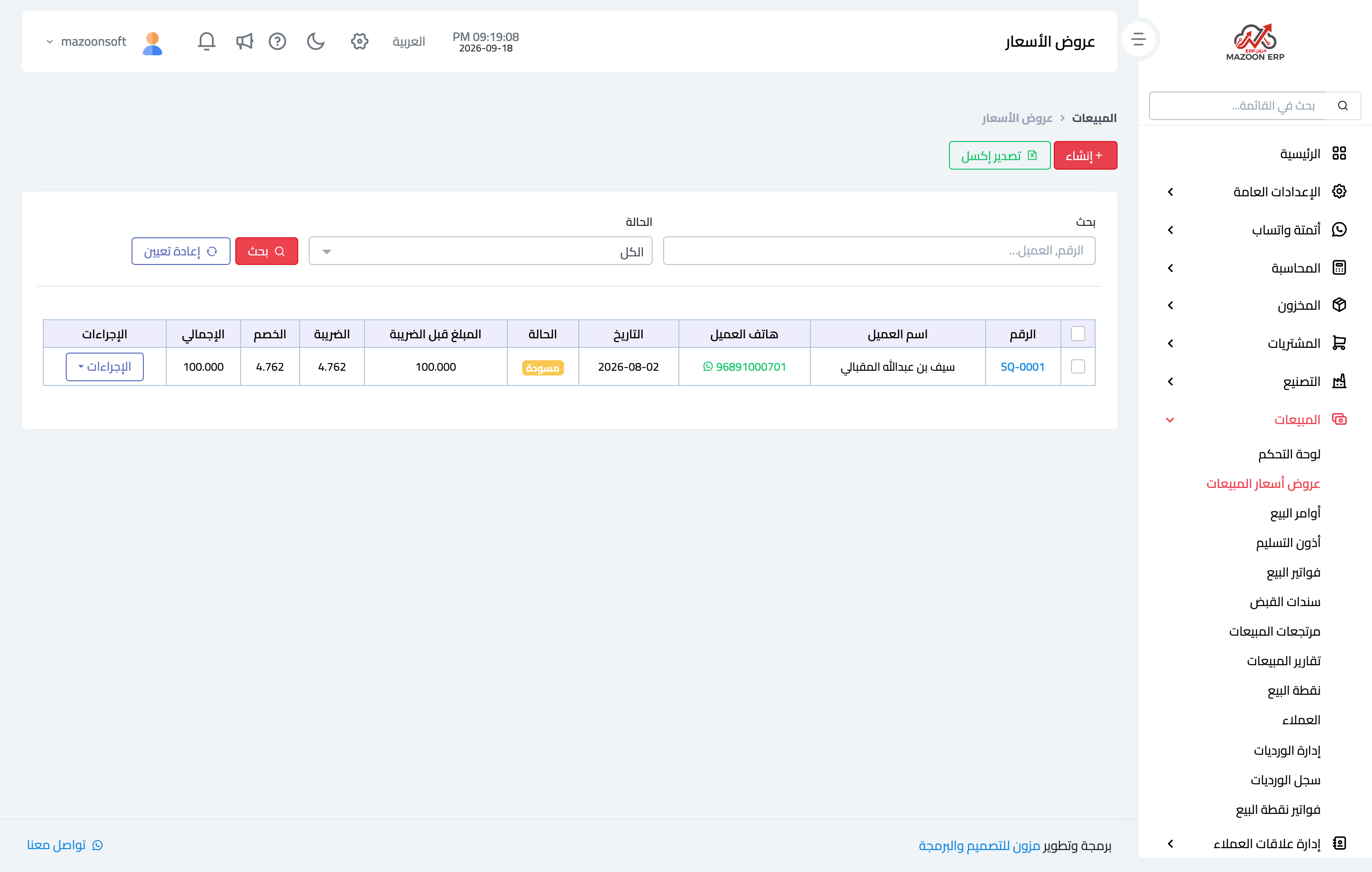
Figure 1
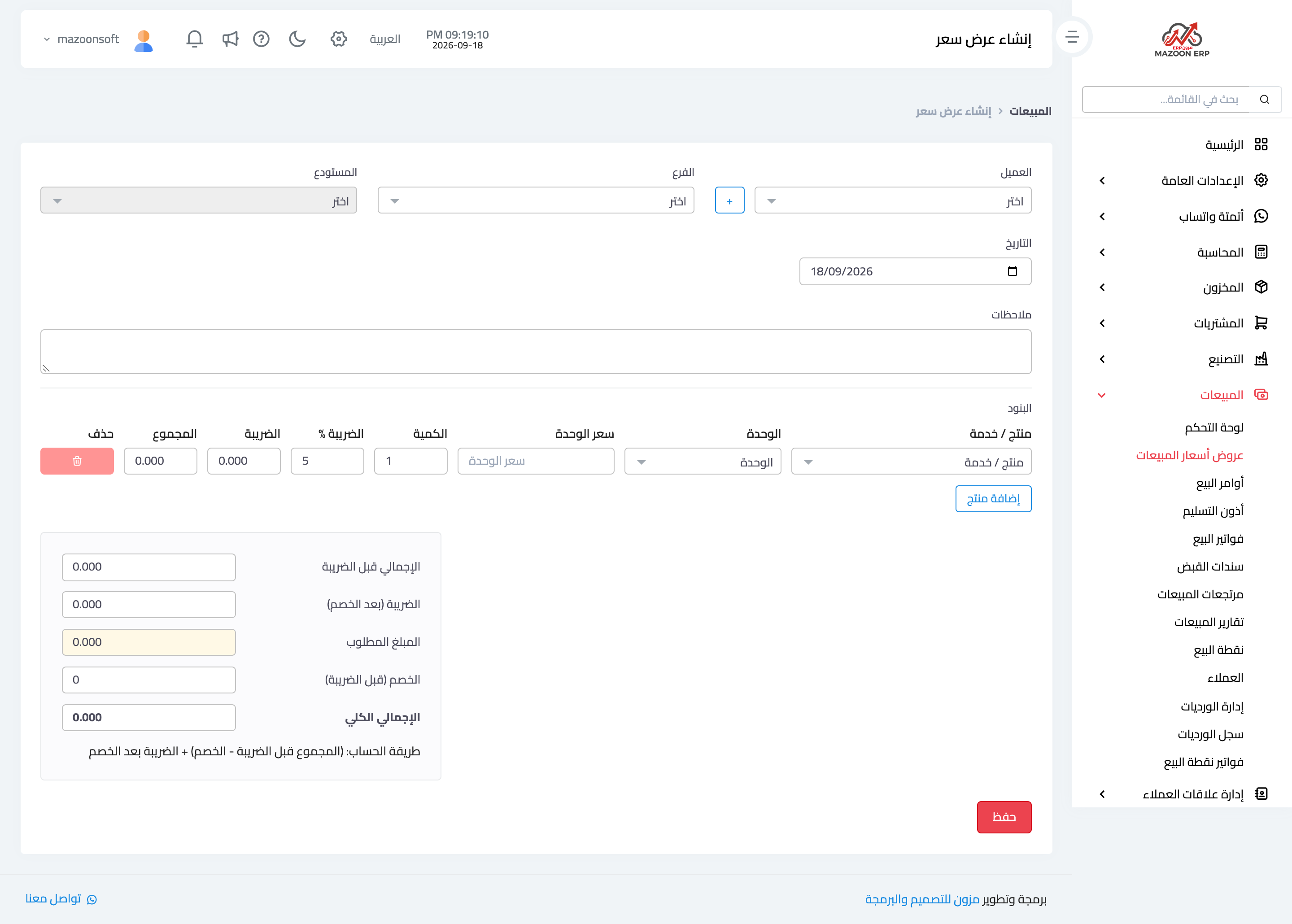
Figure 2
Try what you just read on your own data
Open a free 7-day trial — no credit card, with your own company link in minutes.