
How do I add a new employee with a contract?
Adding an employee is two steps, not one: the employee file with their personal and job details, then the contract with the salary and allowances. Without a contract the employee does not enter the payroll.
First: the employee file
- Open HR → Employees — Figure 1 — then Add employee.
- Fill in the personal details — Figure 2 — and do not skip the national ID and its expiry date; the system warns you before it expires.
- Set the department, job title, branch, and hire date, then Save.
Second: the contract
- Open Employee contracts — Figure 3 — then Add contract and choose the employee.
- Set the contract type and start date, and an end date for fixed-term contracts.
- Enter the basic salary, then the housing and transport allowances and anything beyond them — these are what the payroll is built on.
- Set the probation period, the daily working hours, and the working days per month — from these the absence deduction and the overtime hour rate are computed.
- Leave the status active, then Save.
Notes
- An employee with no active contract does not appear in the payroll and is paid nothing; this is the most frequent question of all.
- On a raise, do not edit the old contract’s salary; end that contract and create a new one so the salary history stays intact.
- To give the employee a login, create a user for them and link it from the user field on their file.
Screenshots
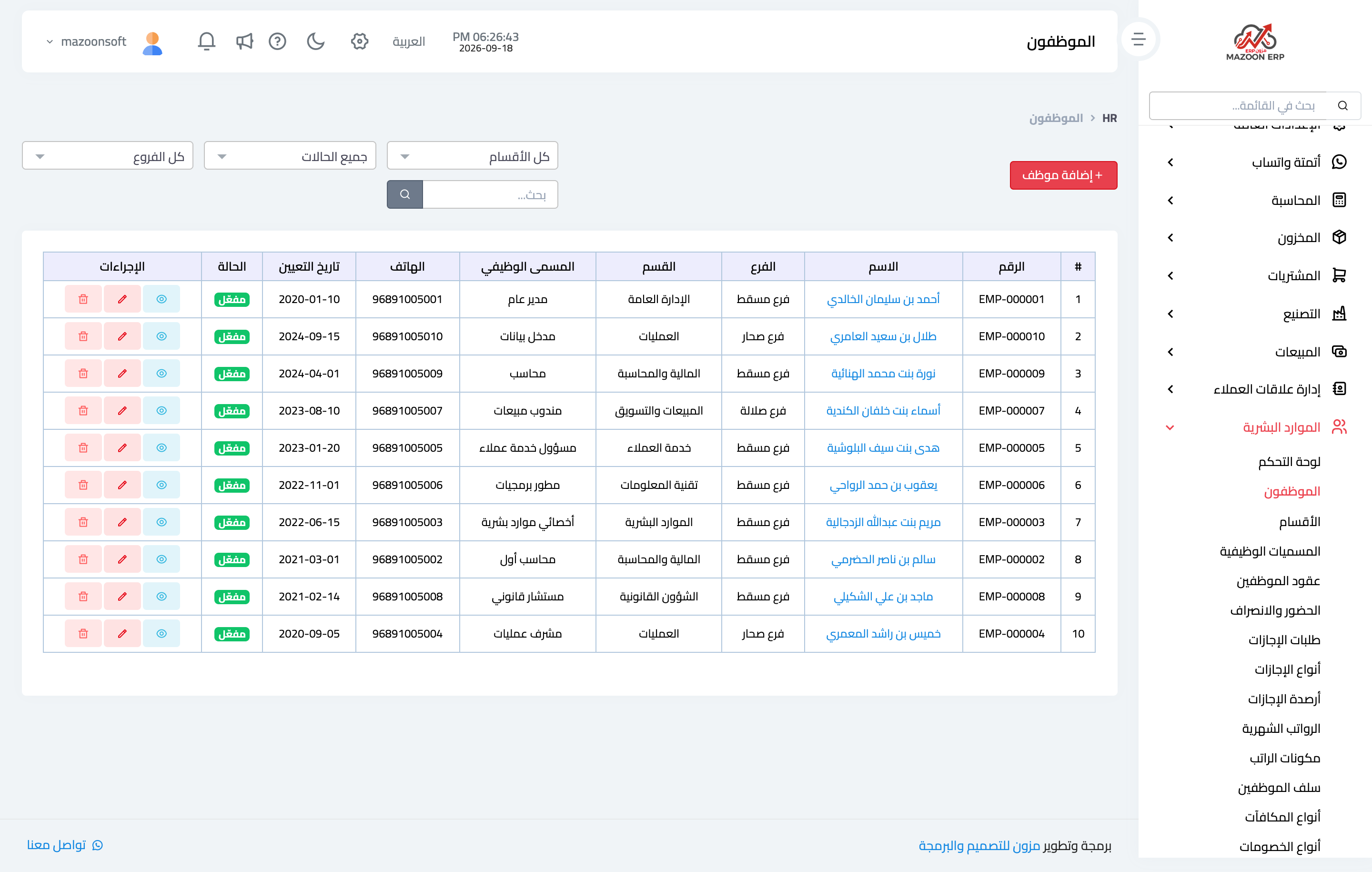
Figure 1
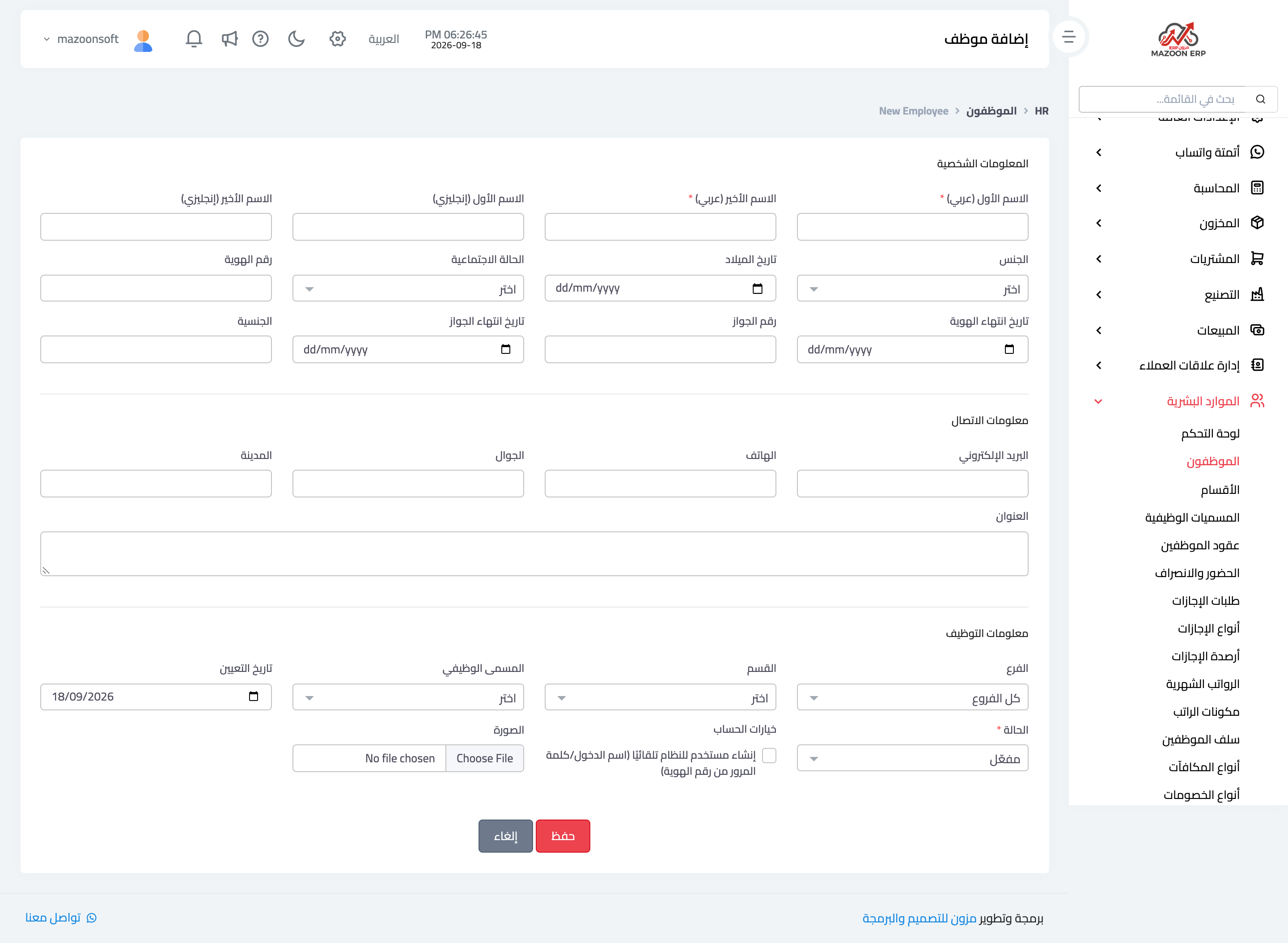
Figure 2
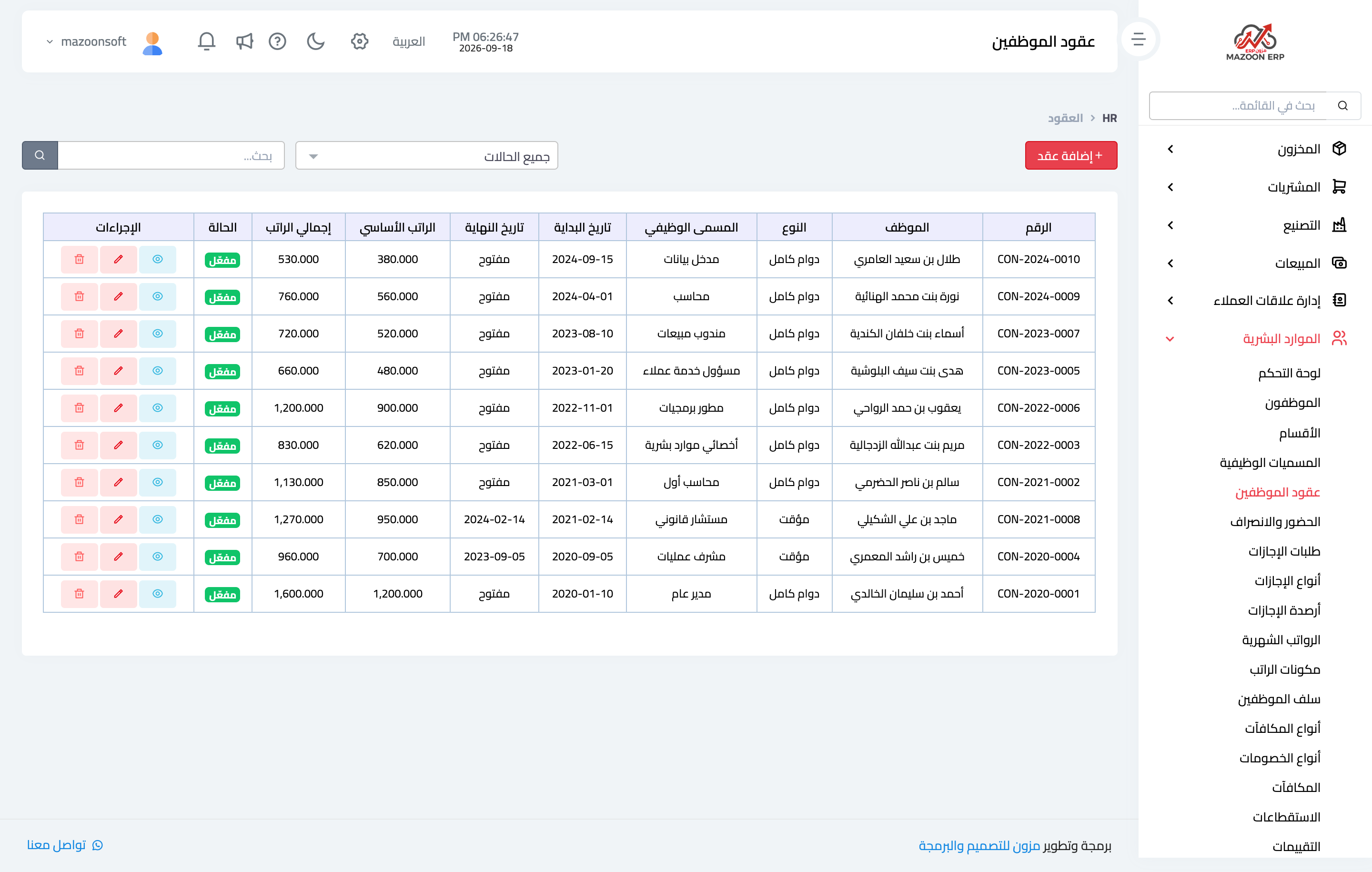
Figure 3
Try what you just read on your own data
Open a free 7-day trial — no credit card, with your own company link in minutes.