
How do I record and approve an employee leave?
Every leave passes through three states: pending when submitted, then approved or rejected. Only an approved leave is deducted from the balance.
Steps
- Open HR → Leave requests — Figure 1 — then Add request.
- Choose the employee then the leave type — Figure 2 — and the system shows the remaining balance of that type.
- Set the start and end dates, and the system computes the number of days itself.
- Write the reason, then Save. The request is stored as pending.
- From the requests list press Approve or Reject. On a rejection, write the reason so it stays on record.
- On approval the days come off the leave balances — Figure 3 — and the leave days are marked in attendance so they are not counted as absence.
Leave types and their balances
The leave types and their annual days are set on the Leave types screen, where you also mark which are paid and which are unpaid. An unpaid leave is deducted from the salary in that month’s payroll.
Notes
- Record the leave before closing the month’s payroll; what is keyed after payment cannot fix a salary already paid.
- Check the balance before approving; the system displays it but does not stop you exceeding it.
- Use unpaid leave for someone whose balance is exhausted rather than going over the annual balance, so the arithmetic stays sound.
Screenshots
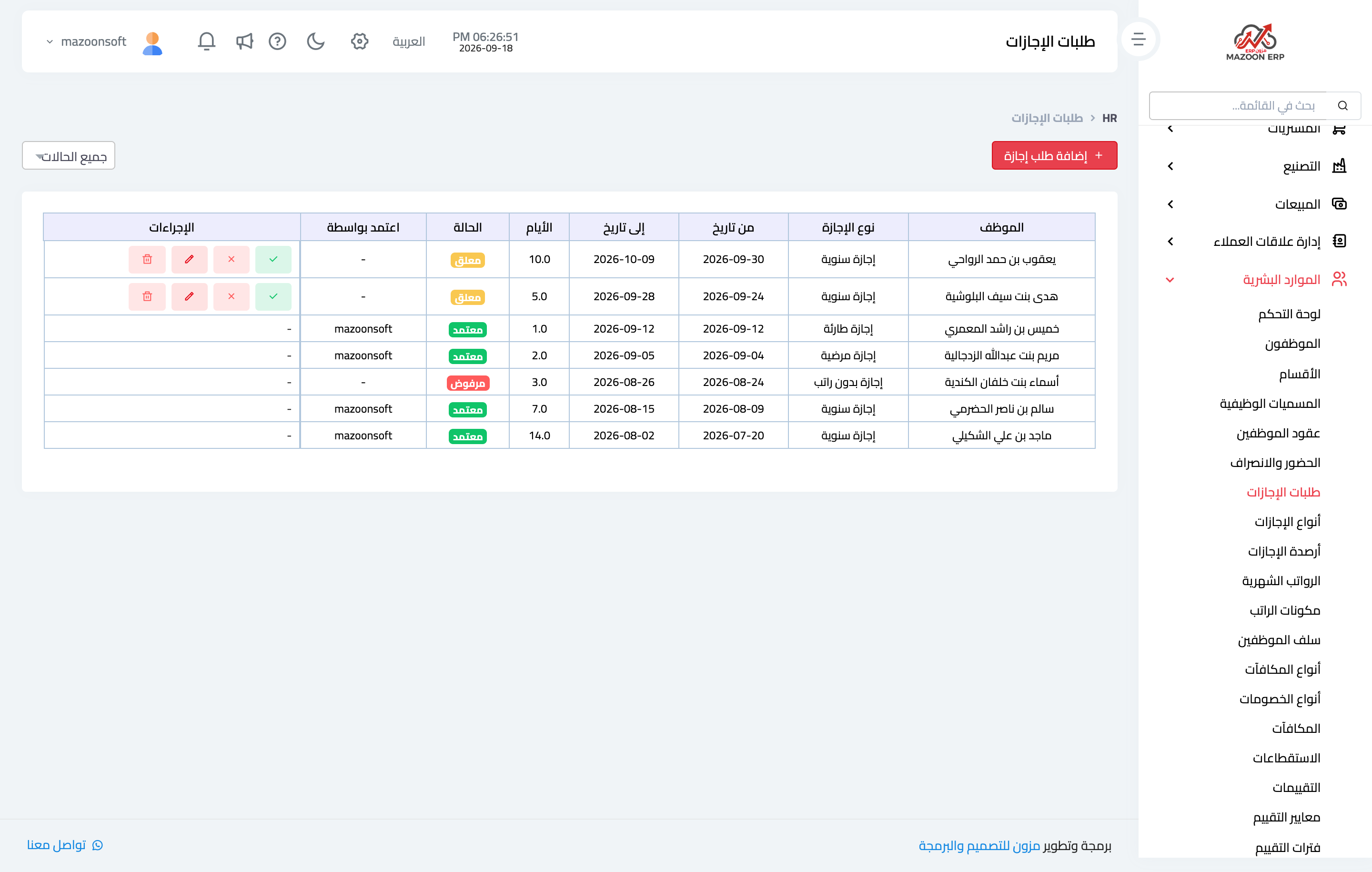
Figure 1
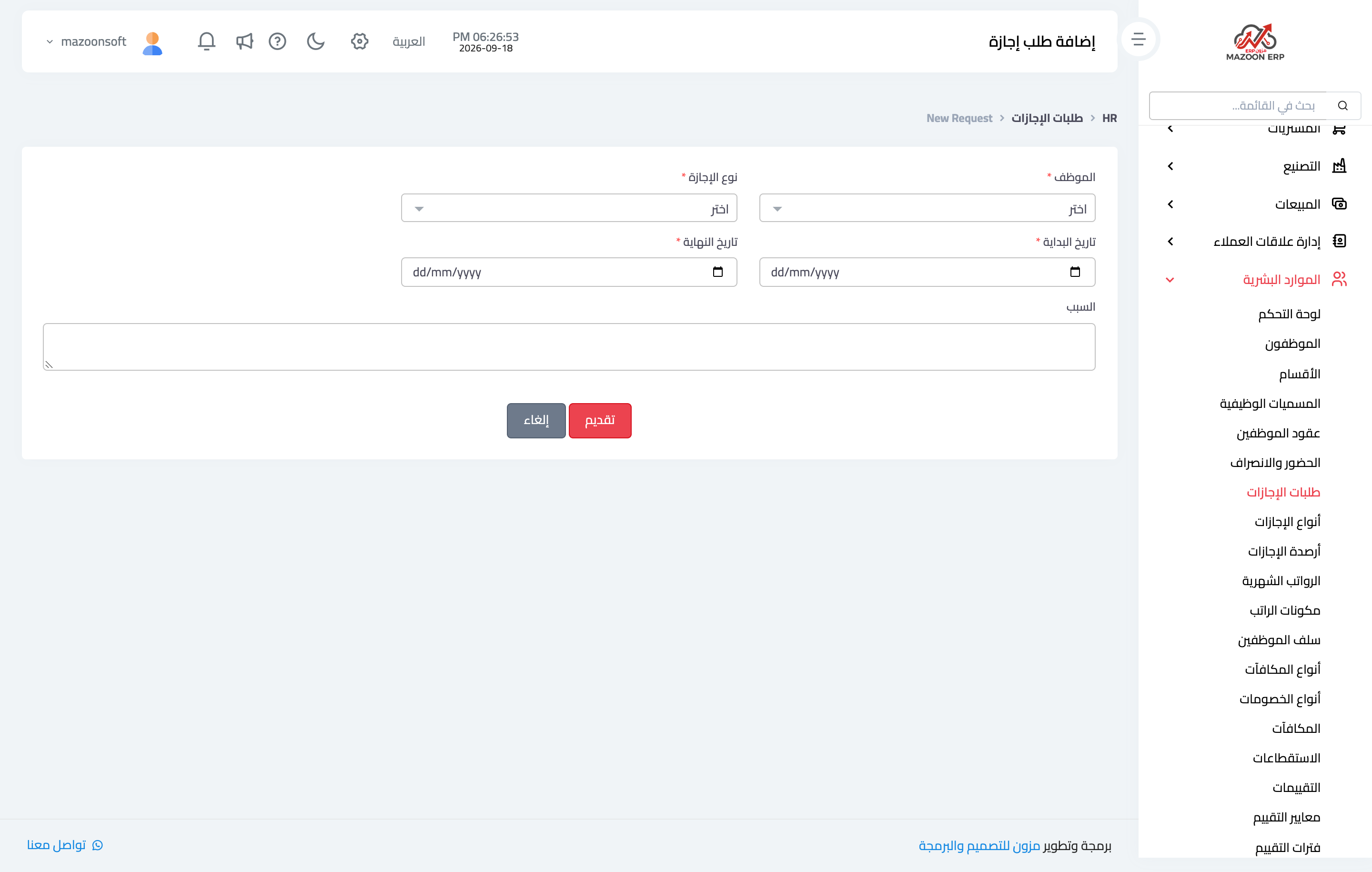
Figure 2
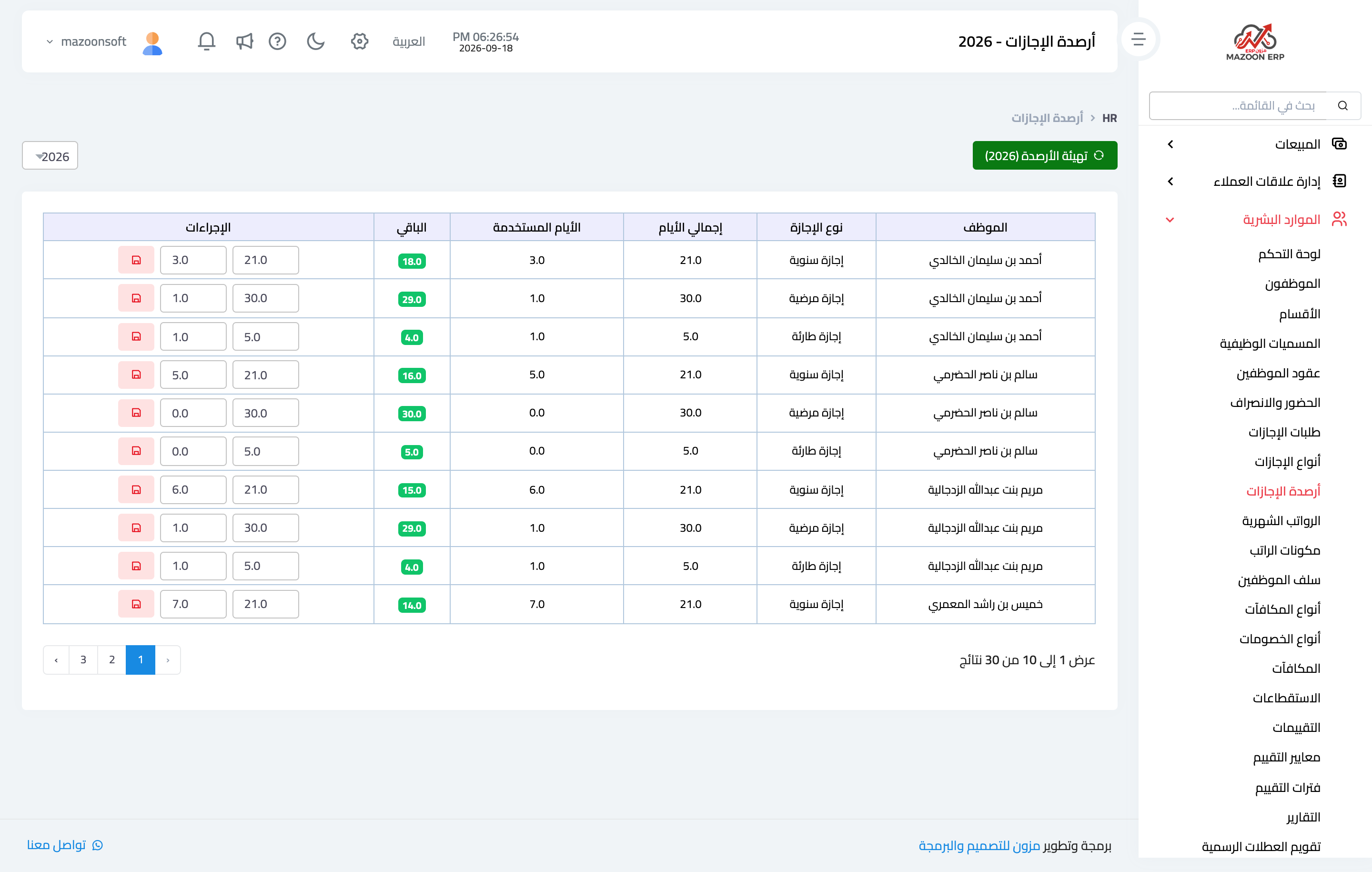
Figure 3
Try what you just read on your own data
Open a free 7-day trial — no credit card, with your own company link in minutes.