
The POS screen: cart, search, customer and discount
The POS screen is built to be used fast and with one hand. Learn its parts once and you will not need to look again — image 1.
The product side
- The search box at the top: type a name or SKU, or scan a barcode and press Enter, and the item goes straight into the cart.
- Category chips below it: All, then Product and Service, then your own categories, each with its item count.
- Product cards: image, name and price, with a coloured badge on the corner showing the quantity available in the current warehouse — green where there is stock, red at zero.
- Tap a card to add it to the cart.
The cart and payment side
- The customer bar at the top: pick a customer from the list, or add a new one with the button beside it without leaving the screen.
- Below it, the customer's details: outstanding balance, orders (lifetime) and last order — worth a glance before granting a discount or selling on credit.
- The cart table: name, quantity and line total, with increase, decrease and delete on each row.
- The totals: subtotal, then discount and order tax, then total payable in bold.
- Payment method buttons: cash, your banks and cheque — every method defined in Accounting appears here as a button.
- Suspend (F2) at the bottom, to park the sale.
The top bar
From the right: calculator · return · held sales with its counter · shift · close shift · recent for the last invoices.
Notes
- The discount here applies to the whole order, not to one line.
- A sale cannot be completed without a customer; choose a walk-in customer if the buyer has no file.
- With Allow Negative Stock off on the terminal, you cannot sell more than is available.
- The screen has two themes: modern with product cards, and quick, lighter for anyone working by barcode and shortcuts. The choice is saved per user.
- Get into the habit of scanning rather than tapping cards — it makes a real difference to queue time.
Screenshots
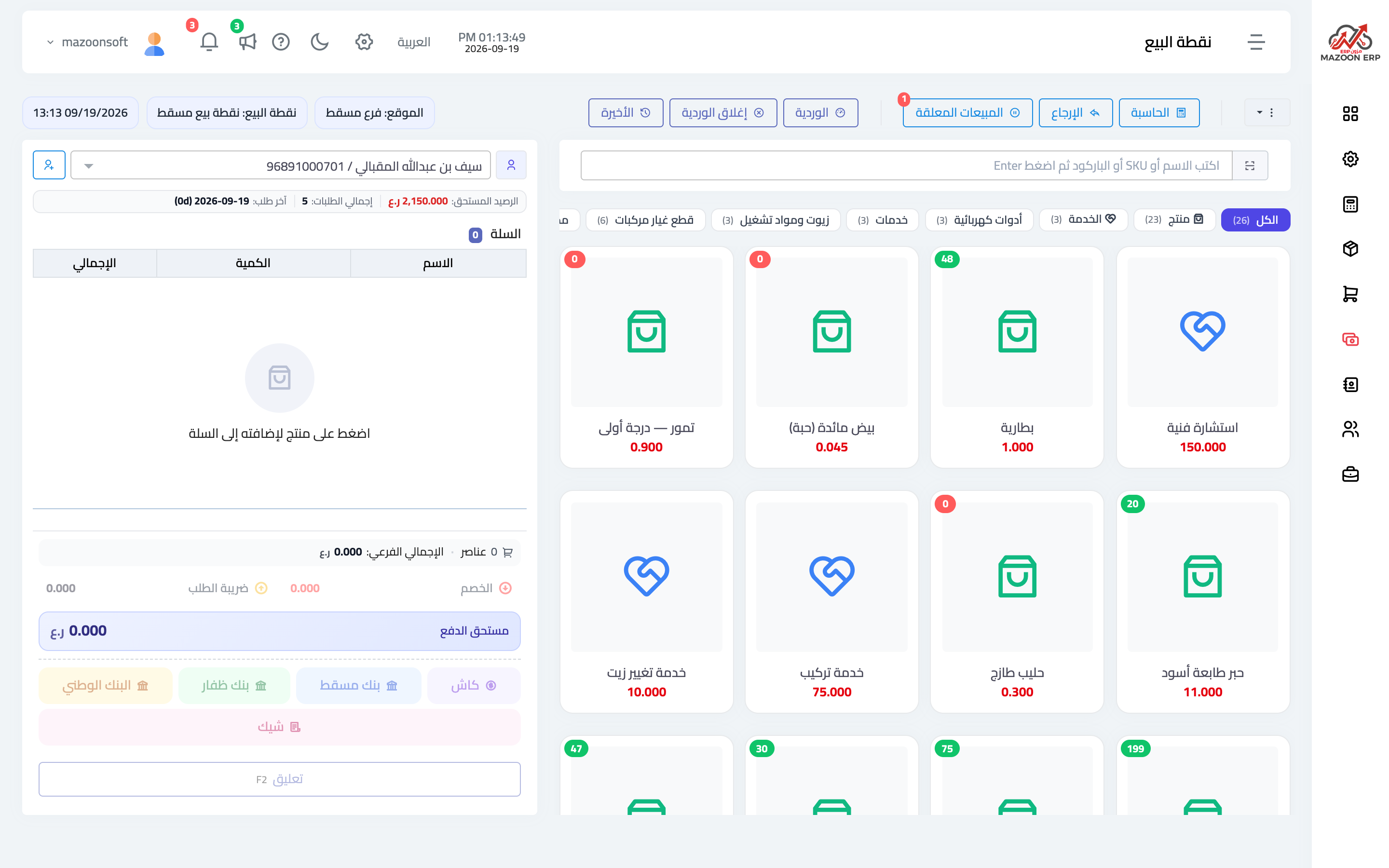
Figure 1
Try what you just read on your own data
Open a free 7-day trial — no credit card, with your own company link in minutes.