
How do I close a POS shift, read the cash difference, and print its report?
At the end of the day the cashier closes their shift: they count the drawer and compare it with what the system says. The gap between those two numbers is the most important figure in a cashier's day.
Steps
- On the POS screen press Close shift.
- Count the cash in the drawer and enter it as counted cash.
- Confirm the close.
- Print the shift report — detailed on A4, or small on the receipt printer.
Reading the numbers
The Shift History screen shows, for each closed shift: terminal, branch, user, opening and closing times, duration, and then the three figures that matter — image 1:
- Expected cash — what should be in the drawer: opening cash + the shift's cash sales − approved returns.
- Counted cash — what you entered after counting.
- Difference — counted minus expected. Negative is short, positive is over.
What does the difference mean?
- Short — change given wrongly, a cash sale never recorded, or money taken out for petty expenses.
- Over — change not handed back, a sale rung twice, or opening cash entered lower than reality.
- A small recurring difference is usually a small-change problem. A sudden large one deserves a line-by-line review of the shift's invoices.
Notes
- The report shows sales split by payment method, so compare the drawer against cash sales alone, not against total sales.
- Check held sales before closing; a forgotten one means goods that left without being recorded.
- Cancel any wrong sale before closing — afterwards the system blocks cancellation for good.
- Only the shift's owner, or someone with permission to manage other people's shifts, can close it.
- Force Close on the shift management screen is for a supervisor dealing with a shift nobody closed. Note that it closes with counted cash of zero, so the whole amount shows as short — use it only when you must.
- Print the report and keep it signed; it is the document handing the cash to the accountant.
Screenshots
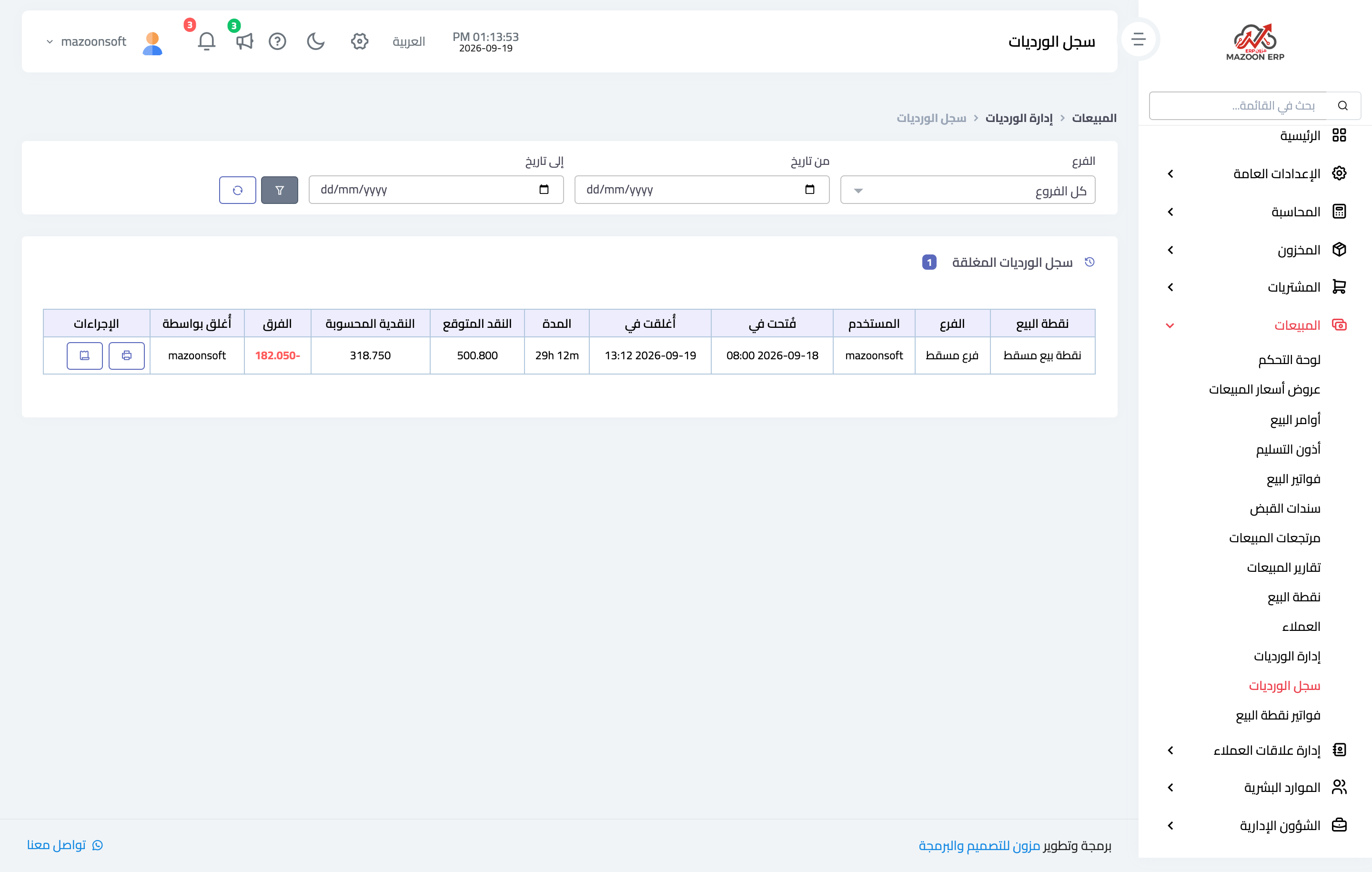
Figure 1
Try what you just read on your own data
Open a free 7-day trial — no credit card, with your own company link in minutes.