
The Sales dashboard: what do the numbers tell me?
The Sales dashboard is a sales manager's start screen: in a minute you see what you sold, what you have not collected, and what is waiting for action — image 1.
The cards
- Sales this month and sales today — the total of approved invoices.
- Accounts receivable — what customers owe you, with the number of customers and invoices it spans underneath. This is the most important number on the screen.
- Pending orders — with the approved count below.
- Draft quotations — quotations not sent yet or awaiting review.
- Pending returns — drafts waiting for approval.
The shortcuts
Two rows of quick links: quotations · sales orders · delivery notes · sales invoices · receipts · returns · reports · POS · POS invoices · shift management · shift history · customers. A quick search box jumps to a document by number.
The built-in invoice guide
Lower down sits the Invoice Guide: Create, Edit & Cancel panel with five tabs: create · edit · cancel · POS invoice · why no delete? — a quick reference inside the system without opening the docs.
Using it daily
- Start with accounts receivable: a steady rise means you are selling but not collecting.
- Check pending returns; a forgotten draft means goods not back in stock and an invoice you cannot edit.
- Open pending orders and make sure they are live rather than fulfilled-but-never-closed — they hold stock.
- For detail, move to Sales Reports → Pending.
Notes
- The figures respect branch restriction; a restricted user sees only their branch.
- The Activity Log button at the top shows who did what to sales documents.
- "Sales this month" is accrual, not cash; for actual collections see the Overview tab in the reports.
- The Guide button at the top opens all the Sales articles in the in-system guide.
Screenshots
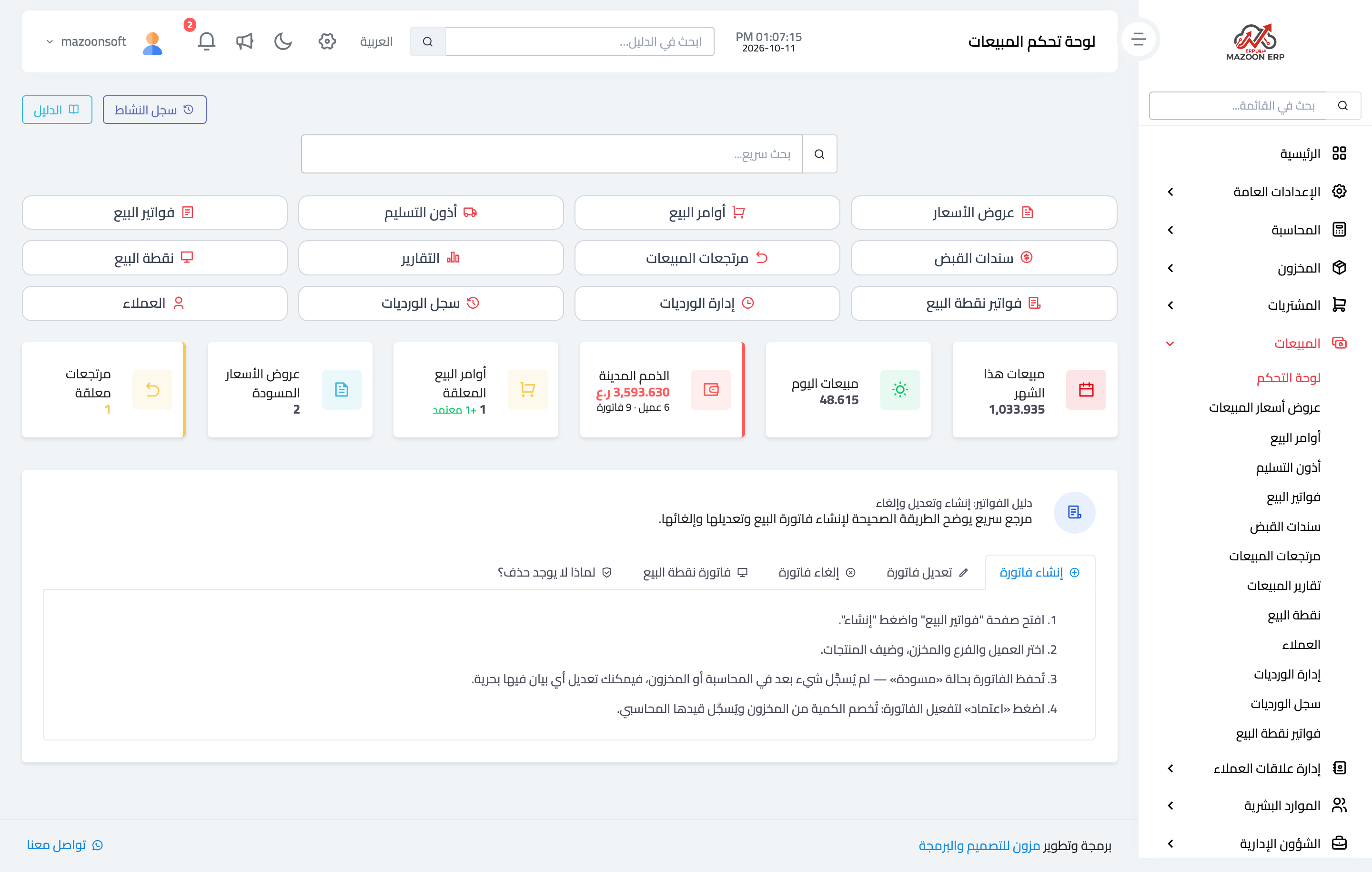
Figure 1
Try what you just read on your own data
Open a free 7-day trial — no credit card, with your own company link in minutes.