
How do I convert between sales documents without re-entering the lines?
The worst habit a new user picks up is typing the lines once on the quotation, again on the order and again on the invoice. The conversion buttons copy everything and keep the link between the documents.
Available conversions
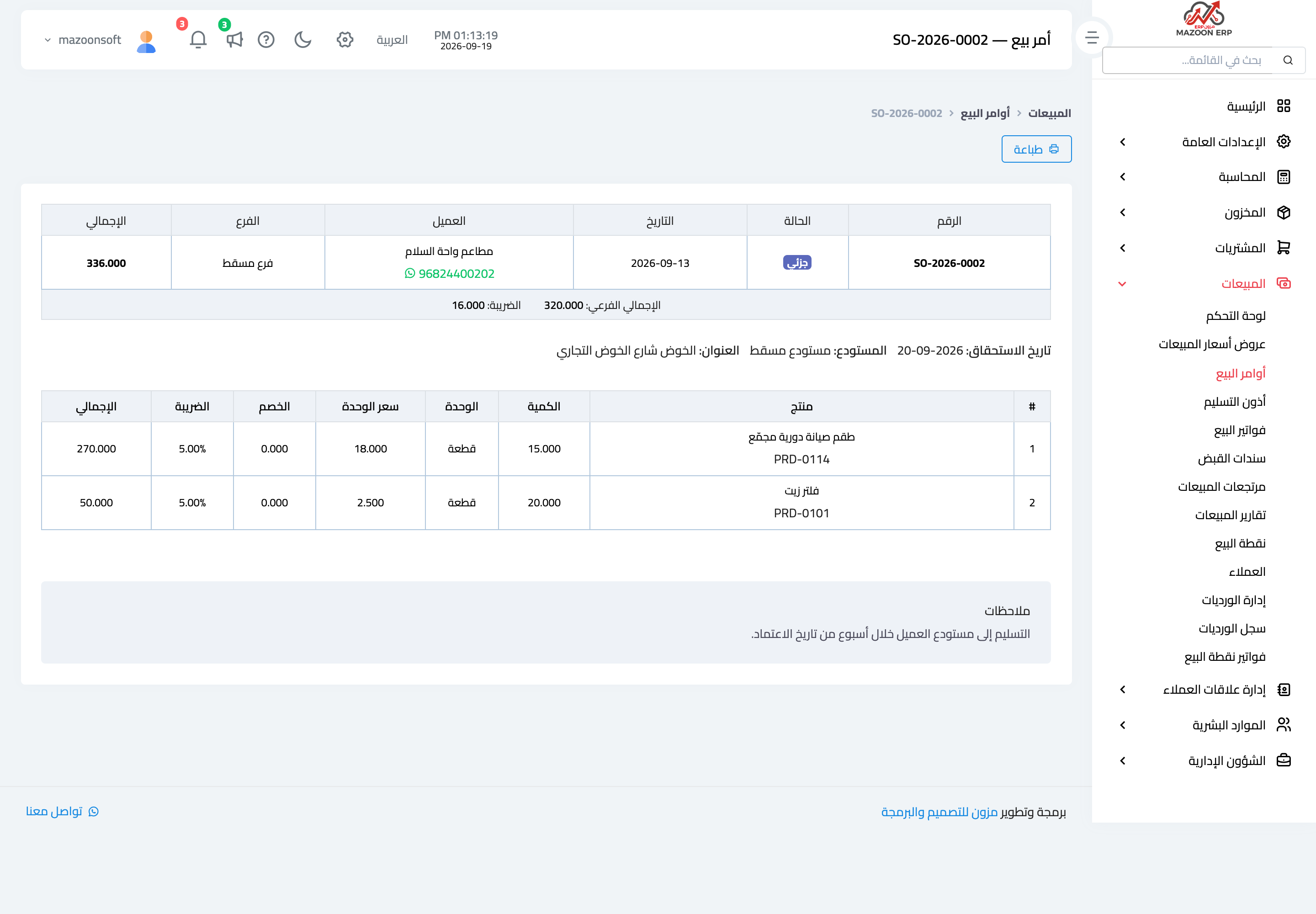
Open the source document and press the right button at the top — image 1:
- From a quotation → Convert to Order or Convert to Invoice.
- From a sales order → Create Delivery or Create Invoice.
- From a delivery note → Create Invoice.
A create screen opens pre-filled with the customer, branch, warehouse, lines, prices and notes; review it, adjust what you need and save.
What is copied, what stays linked
- Copied: customer, branch, warehouse, the lines with quantities, prices and taxes, and the notes.
- The source document's number is recorded on the new one, so you always know which order produced which invoice.
- The new document's date is today, not the source's — change it if you need to.
Invoicing in instalments
When invoicing from an order, the system does not propose the full quantities but whatever has not been invoiced yet. Invoiced fifty of a hundred? The next invoice from the same order proposes fifty. When the order is fully invoiced you get "No pending items available to transform" — a sign that the order is finished, not an error.
Notes
- Always review quantities and prices before saving; a conversion proposes, it does not decide.
- An invoice created from a delivery note does not deduct stock again, because the note deducted it on approval.
- An invoice created straight from a sales order does deduct stock on approval, because nothing deducted it before.
- A conversion does not change or close the source document; it stays as it was in its own list.
- More than one document can be created from one source — which is exactly what supplying in instalments needs.
Screenshots
Try what you just read on your own data
Open a free 7-day trial — no credit card, with your own company link in minutes.