
How do I take a return at the POS counter?
A customer comes back with the goods and their receipt. There is no need to leave the till screen — the Return button in the top bar does it — image 1.
Steps
- Press Return at the top of the POS screen.
- Look the invoice up by the number printed on the receipt.
- The invoice lines appear, each with the returnable quantity after earlier returns.
- Enter the returned quantity on the lines coming back only.
- Write the return reason and confirm.
- Print the return receipt for the customer.
What happens
- A sales return is created and approved immediately — there is no separate approval step as on the ordinary returns screen.
- The quantities go back into the terminal's warehouse.
- An entry reduces sales, tax and the customer's receivable.
The money you hand back
Note: the POS return screen does not ask how the money is paid out and does not record the payout. It returns the goods and reduces what the customer owes, and that is all.
So if you really took cash out of the drawer, open Sales → Sales Returns, open that same return, press Refund and enter the payment method, the amount and the refund date. Only then does the cash going out appear in the accounts and in the net-collections report.
Notes
- Counter returns work only for completed POS invoices, not for an ordinary invoice.
- You cannot return more than was sold, nor the same piece twice.
- A return on an invoice blocks cancelling it afterwards — deliberately, or the stock would double.
- The shift report subtracts approved returns from your shift's net, so compare the drawer after the return, not before.
- Always ask for the receipt; the invoice number is what ties the return to its original sale.
Screenshots
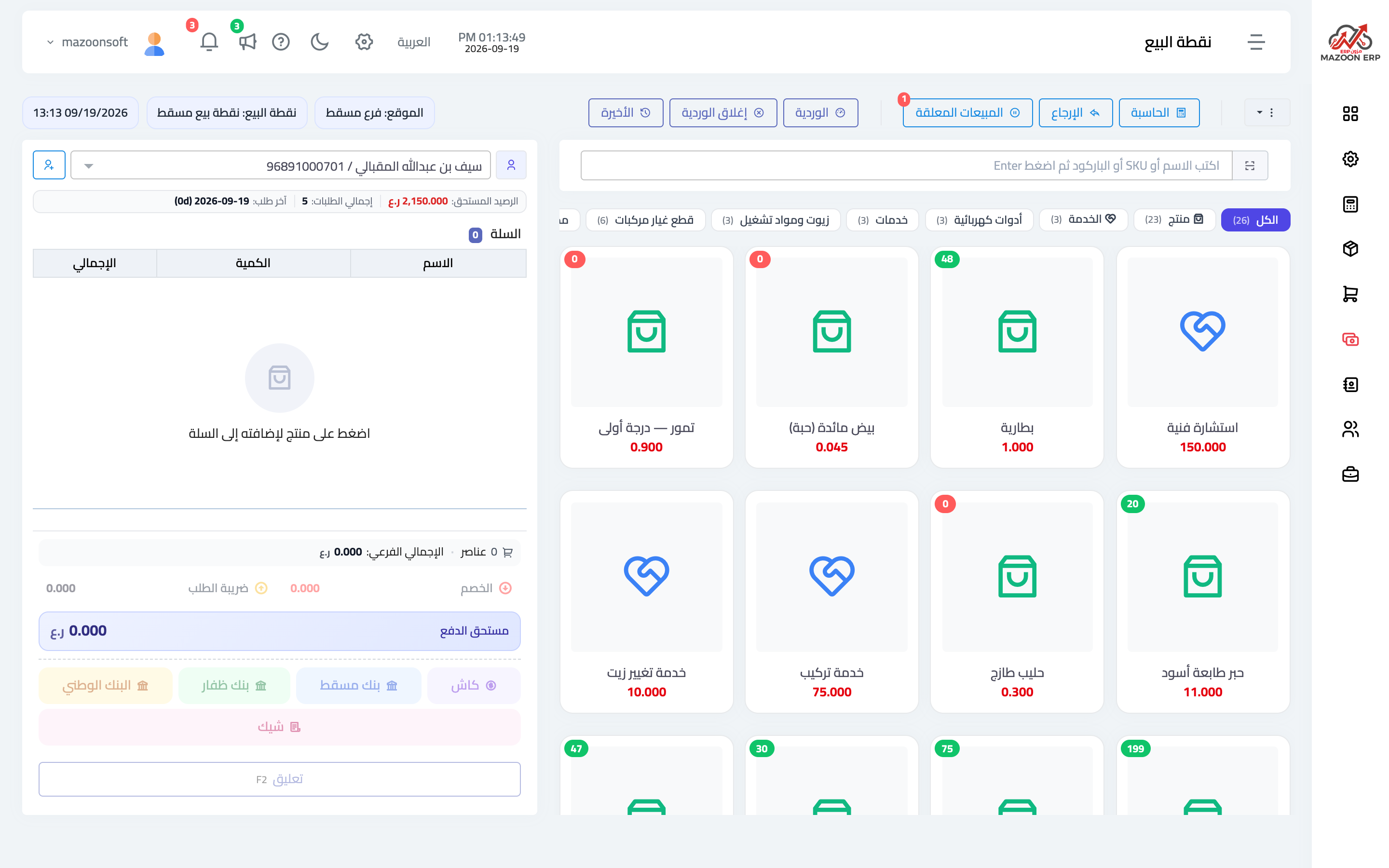
Figure 1
Try what you just read on your own data
Open a free 7-day trial — no credit card, with your own company link in minutes.