
How do I hold a POS sale and resume it later?
A customer fills a basket then goes back for something they forgot, with a queue behind them. Holding pushes their basket aside and clears the screen for the next customer, losing nothing.
Holding a sale
- With the cart filled, press Suspend at the bottom of the screen, or just F2.
- The sale is saved as held and the screen clears.
- The held sales counter in the top bar goes up — image 1.
Resuming it
- Press held sales in the top bar.
- Pick the sale from the list, and its lines and customer come back exactly as you left them.
- Add what was missing or remove what they changed their mind about, then complete the sale.
Notes
- A held sale deducts no stock and creates no invoice or entry — it is a saved basket, nothing more. The quantity stays available to another customer until it is completed.
- Several sales can be held at once; the counter tells you how many.
- Delete a held sale if the customer changes their mind for good — do not leave it hanging forever.
- Review held sales before closing the shift; a forgotten one is a sale that was never recorded.
- When resuming a held sale, the cheque details are not available (number, date, status). If the customer will pay by cheque, complete the sale directly rather than holding it, or add the cheque details afterwards by editing the receipt.
- Holding is for a short wait. An order to be delivered days later belongs in a sales order, not a held sale.
Screenshots
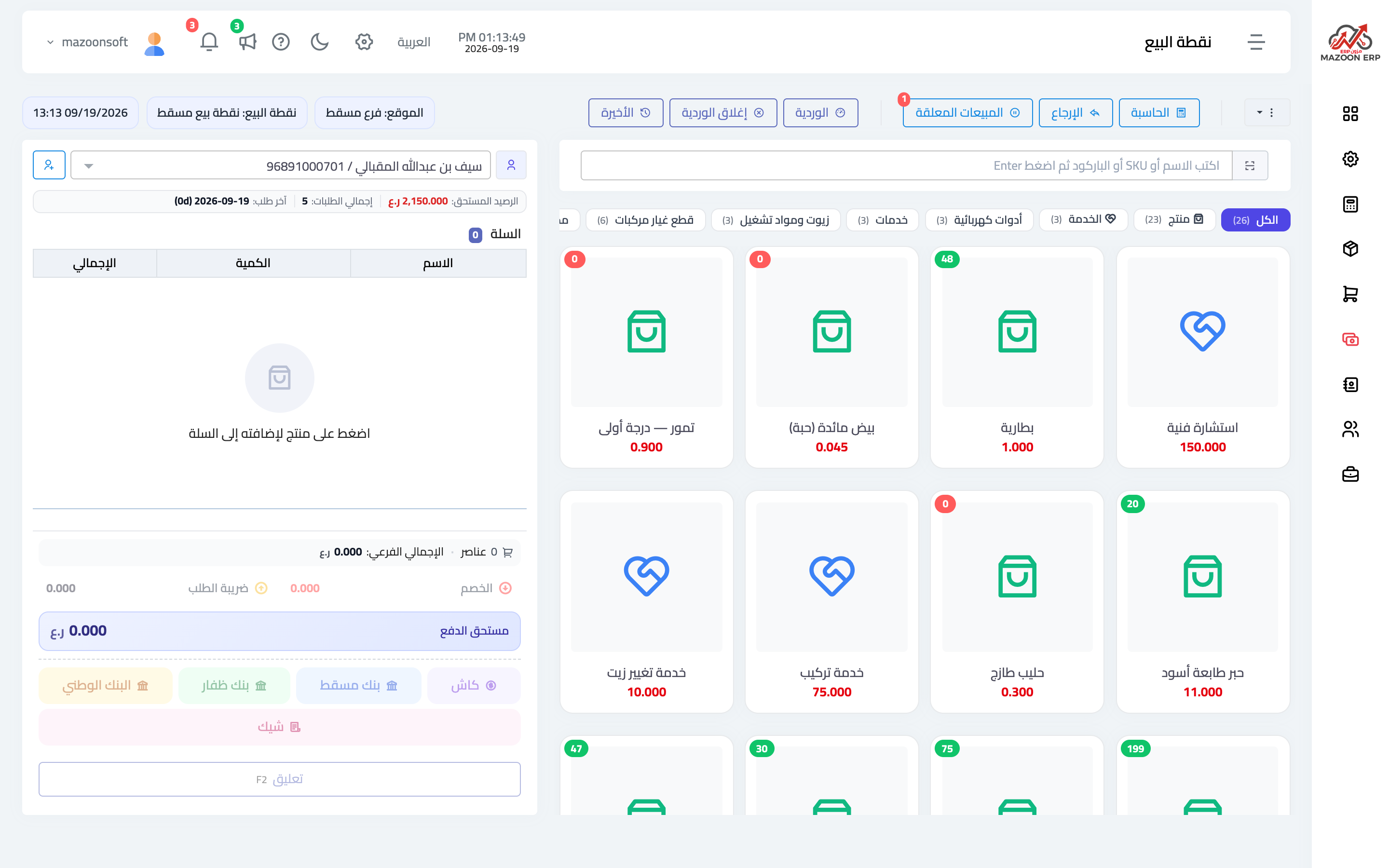
Figure 1
Try what you just read on your own data
Open a free 7-day trial — no credit card, with your own company link in minutes.