
Point of sale and shifts
Point of sale is the direct-selling screen: pick items, take payment, print the receipt in seconds. Every transaction creates its invoice, its receipt voucher and its stock movement automatically — with no extra step from the cashier.
The screen
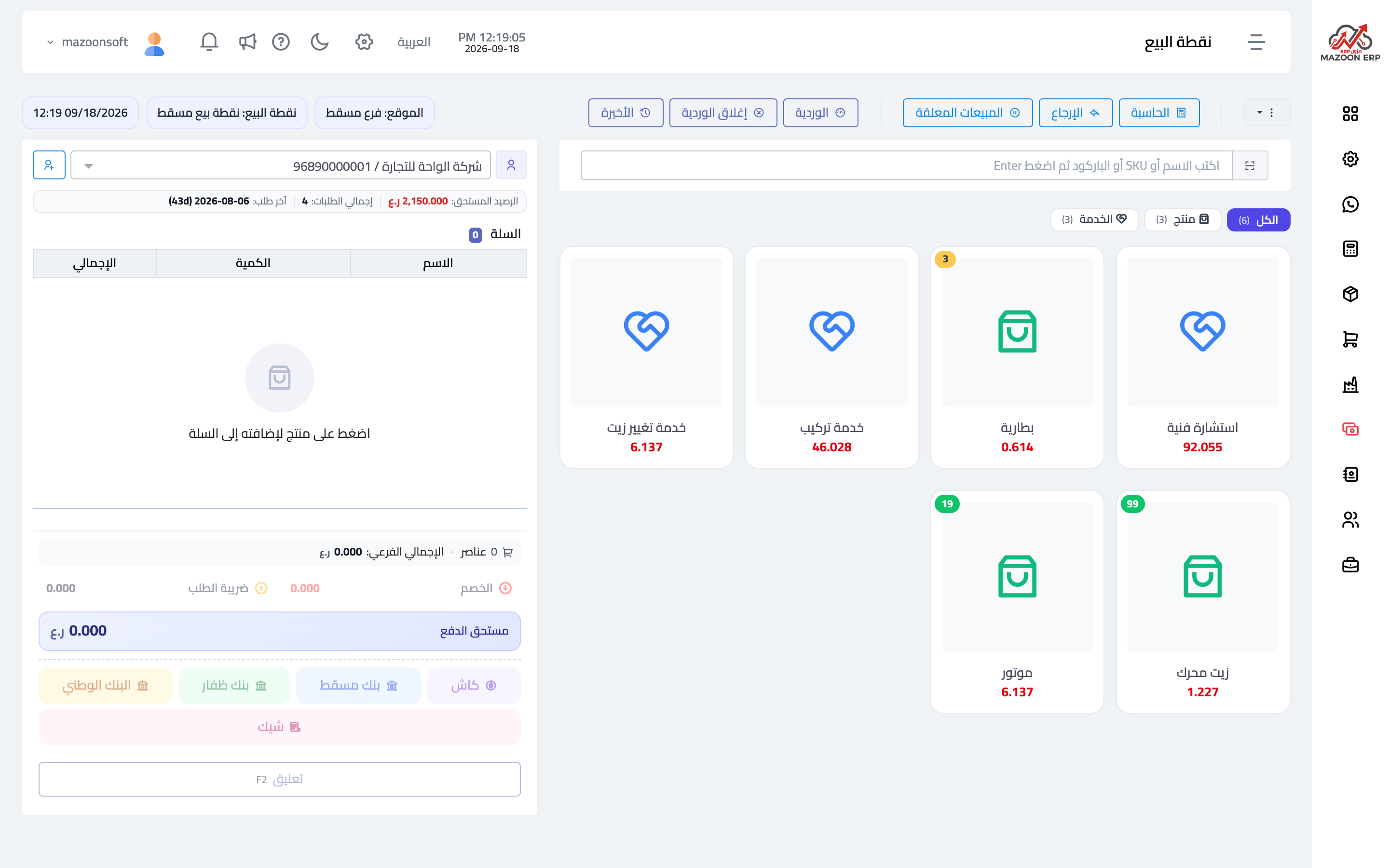
Open Point of Sale from the sales dashboard — image 1. The screen is divided into:
- A top bar — location (branch and terminal), the time, and buttons: calculator, refund, held sales, shift, close shift, and recent transactions.
- One side panel — the customer with their outstanding balance and last order, then the basket, totals, discount and tax, the payment method buttons (cash, banks, cheque), and a hold button (F2).
- The main area — a search box by name, code or barcode, tabs (all / products / services), and item cards with their prices and balances.
A sale, step by step
- Choose the customer, or leave it as a general cash customer.
- Add items by tapping them, scanning a barcode, or typing the name and pressing Enter.
- Adjust quantities in the basket and add a discount if needed.
- Press a payment method and enter the amount — the total can be split across several methods.
- Complete the sale: the invoice prints, stock is deducted and the collection is recorded.
The hold button parks the basket so you can serve another customer and come back to it from held sales — useful when a customer forgets something in the car.
Shifts
A shift is a working session on a terminal: opened at the start of the day with a float, and closed at the end with a cash count.
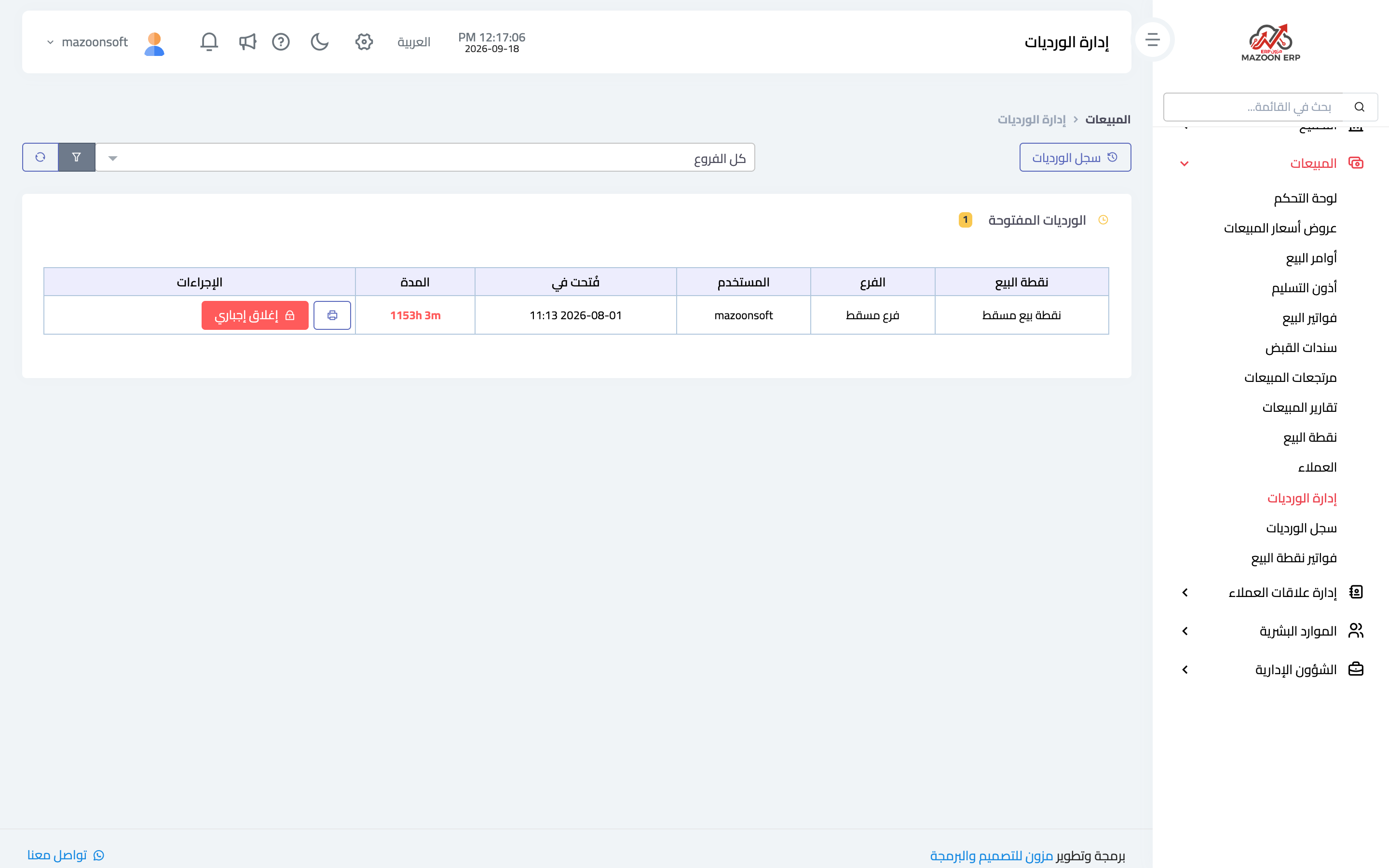
- Shift management — image 2 — which shifts are open now and who is on them.
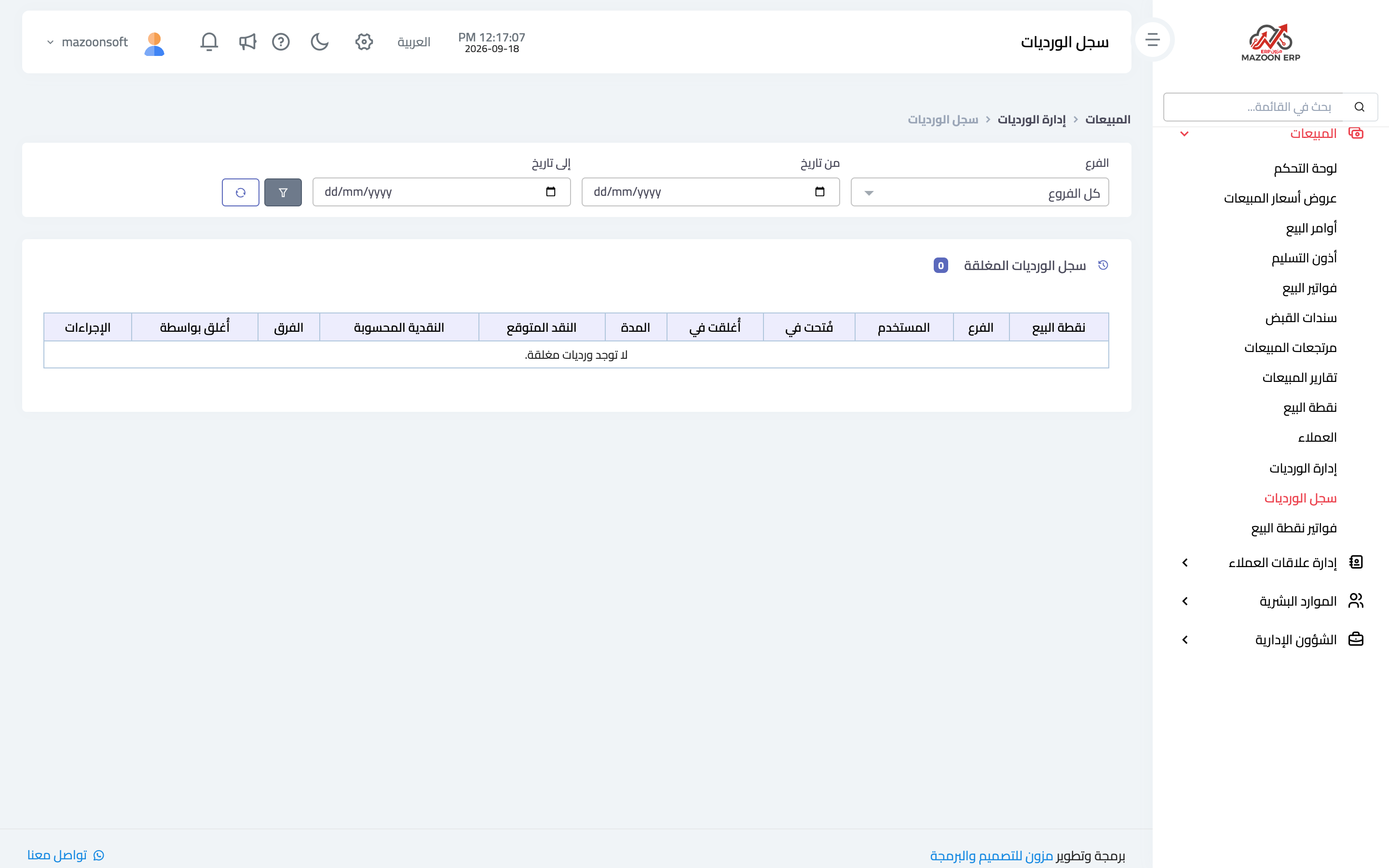
- Shift history — image 3 — closed shifts with their sales, collections and differences.
At closing, counted cash is compared with what should be there and any difference appears. This is the heart of cashier control: a recurring difference on one terminal deserves a look.
Correcting a wrong transaction
A POS invoice is never edited directly, because the stock movement is recorded against the sale itself rather than the invoice. The correct fix:
- Cancel the sale from the point-of-sale screen (or from POS invoices).
- The system reverses the invoice, its receipt voucher and the stock together in one step.
- Ring the sale up again correctly.
Once a shift is closed, no sale from it can be cancelled or edited, because its cash has been counted and handed over — any change afterwards would make the closed shift's report wrong. So check before closing, not after.
Before your first trading day
- Define the terminal and link it to its branch and warehouse (see the units, warehouses and points of sale article).
- Confirm which payment methods the cashier will see.
- Upload item images; choosing by picture is far faster than by name.
- Train the cashier on holding, refunding and closing a shift before the rush, not during it.
Screenshots
Try what you just read on your own data
Open a free 7-day trial — no credit card, with your own company link in minutes.