
How do I create, approve and print a quotation?
A quotation is the cheapest document in the system: it touches neither stock nor accounts, and simply records what you offered, at what price, and until when.
Steps
- Open Sales → Sales Quotations and press + Create — image 1.
- Choose the customer. If they are not on file, press Add Customer and add them without leaving the screen.
- Set the branch and warehouse.
- Set the date and a valid until date — what protects your price when costs move a month later.
- On the lines: pick the product or service and enter the quantity, unit price and tax rate. The system shows available stock beside each line.
- Press Add Item for each extra line.
- Add a discount (before tax) if any, and write your notes — delivery and payment terms belong here.
- Press Save.
How the total is calculated
The formula is printed on the screen: (subtotal before tax − discount) + tax after discount. The discount is applied first and tax is calculated on the net, not the other way round.
Approving and printing
The quotation is saved as a draft, so edit it freely. Once it settles, open it and press Approve to make it approved — image 2. Then Print for a copy on your letterhead to send to the customer.
Notes
- An approved quotation cannot be edited; if the price changes, cancel it and raise a new one so you keep a record of what was offered first.
- A draft can be deleted; an approved one can only be cancelled.
- The valid until date does not block a later conversion, but it is printed on the document and protects you in a discussion.
- Services go on a quotation exactly like products and need no stock.
- A quotation reserves nothing — reservations start with the sales order.
- Once the customer agrees, use Convert to Order or Convert to Invoice rather than re-typing.
Screenshots
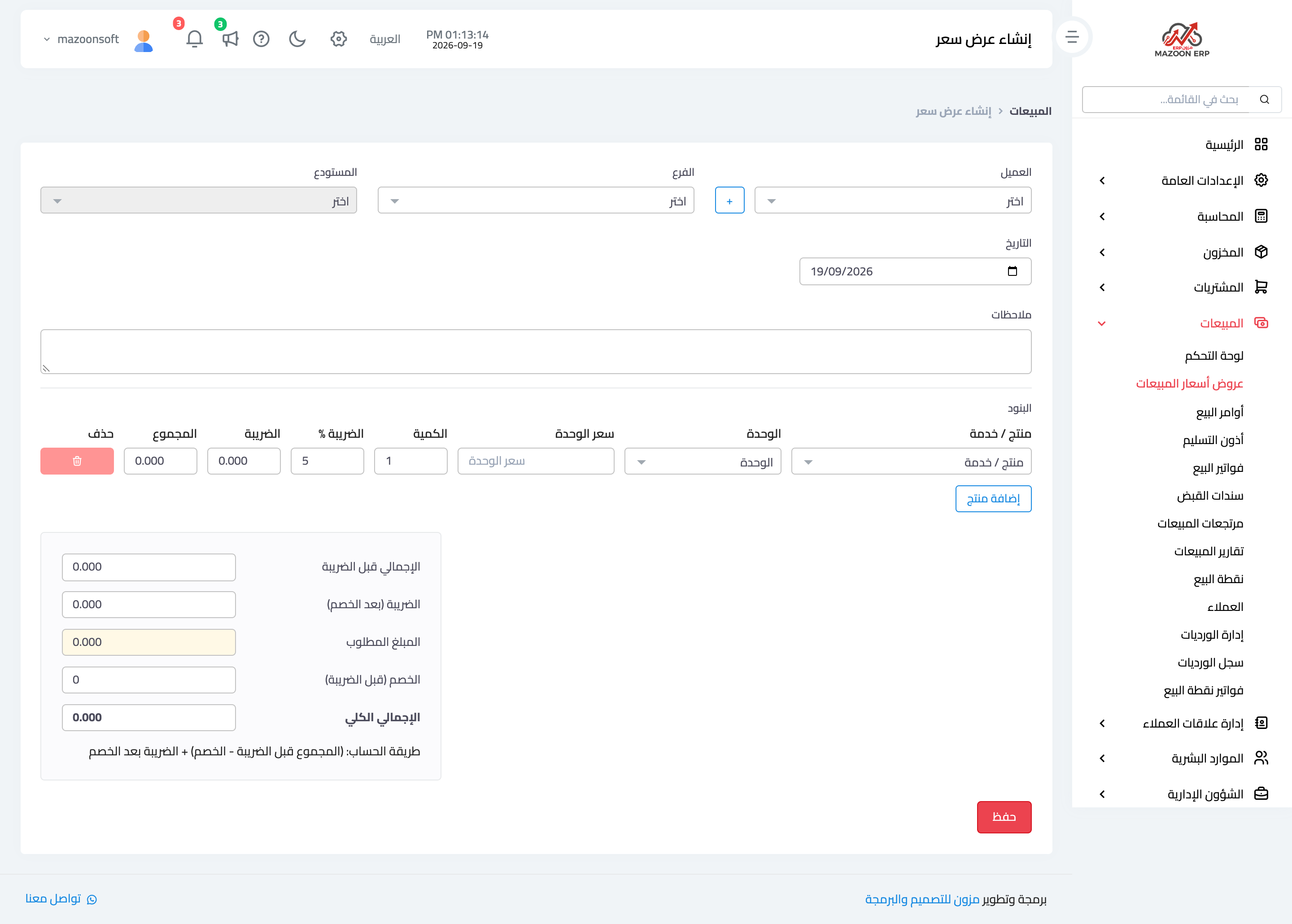
Figure 1
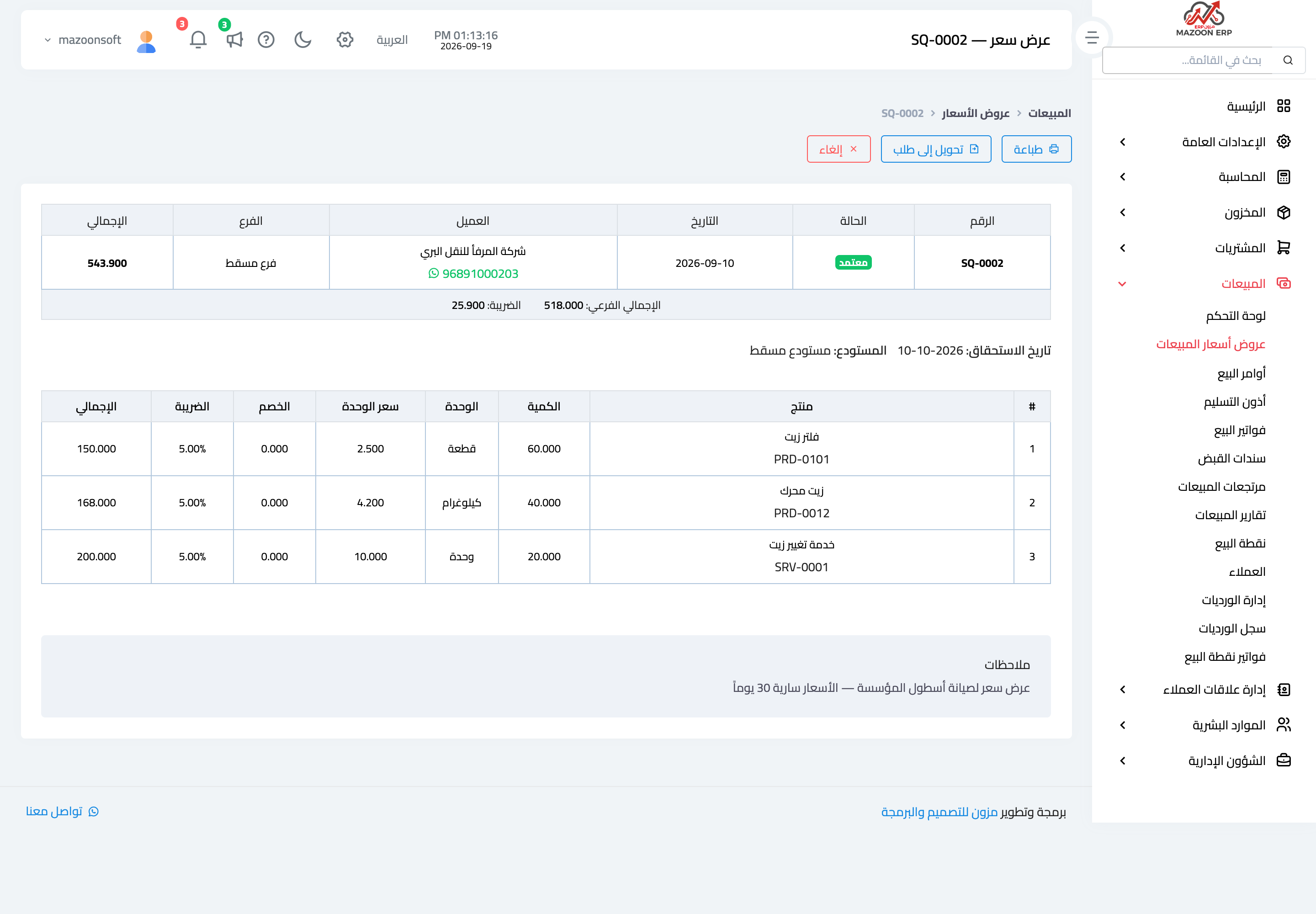
Figure 2
Try what you just read on your own data
Open a free 7-day trial — no credit card, with your own company link in minutes.