
How do I view, print and export contract invoices?
One contract can have many invoices and notes, and an installment contract has an invoice every month. The Invoices page gathers every contract's documents in one place, to review the month, match the VAT return, or print an invoice a customer asks for. The page appears for accounts with e-invoicing on, or that issued documents before.
Opening the page and searching
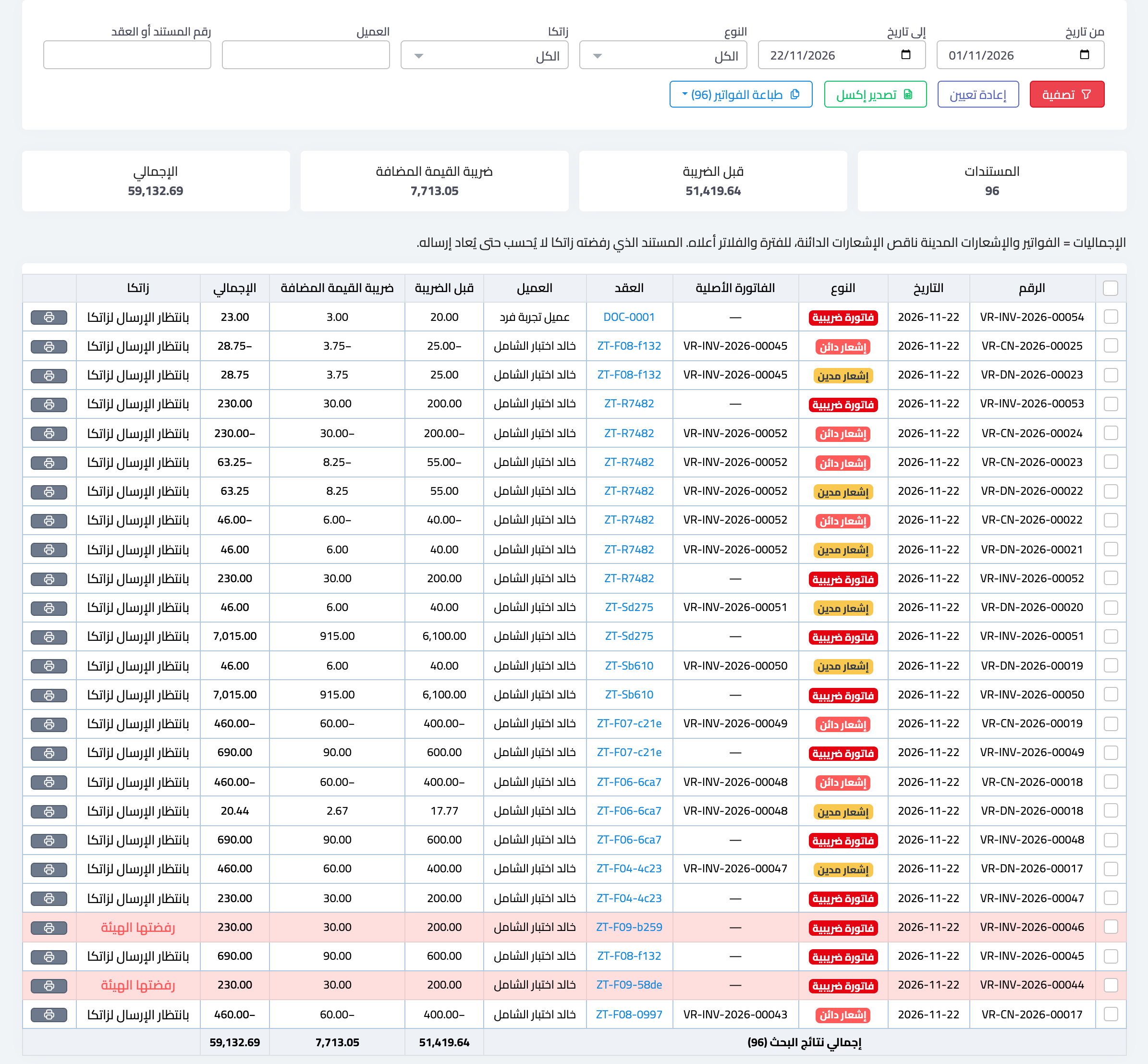
- Open Vehicle Rental → Invoices from the dashboard or the sidebar — Image 1.
- By default the page shows the current month up to today. Change any filter: From and To, Type (tax invoice, debit note or credit note), ZATCA (Accepted by ZATCA, Waiting to be sent to ZATCA, Rejected by ZATCA, Sending failed (retrying) or Phase 1 (QR)), Customer, and Document or contract number.
- Press Filter. To clear the filters press Reset.
The table and totals
- Each row is a document: number, date, type, the note's original invoice, contract, customer, before VAT, VAT, total, and ZATCA status. Credit notes show as negative.
- The contract number opens the contract on its Tax documents tab.
- Each row has a print icon, and a rejected document has Send again.
- The cards at the top and the Total of the search results row under the table show the number of documents and their amounts (before VAT, VAT, total) for all the search results, not only the page shown: invoices and debit notes minus credit notes. A document rejected by ZATCA is left out of the amounts until it is sent again, but it is included in the number of documents.
Export to Excel
Press Export Excel next to the filter button to download the documents that match the same filters: number, date, type, original invoice, contract, customer, customer VAT number, amounts (credit notes negative), ZATCA status, and the reason of the note. The file includes every document, rejected ones too with their status, so its totals differ from the page's when a rejected document is among the results.
Bulk print
- Selected documents: tick them in the first column (or the header box for everything on the page), then press Print selected in the bar that appears above the table.
- All search results: press Print invoices; the number in brackets is how many documents match. With 50 or fewer press Print all, or type a «from … to …» range.
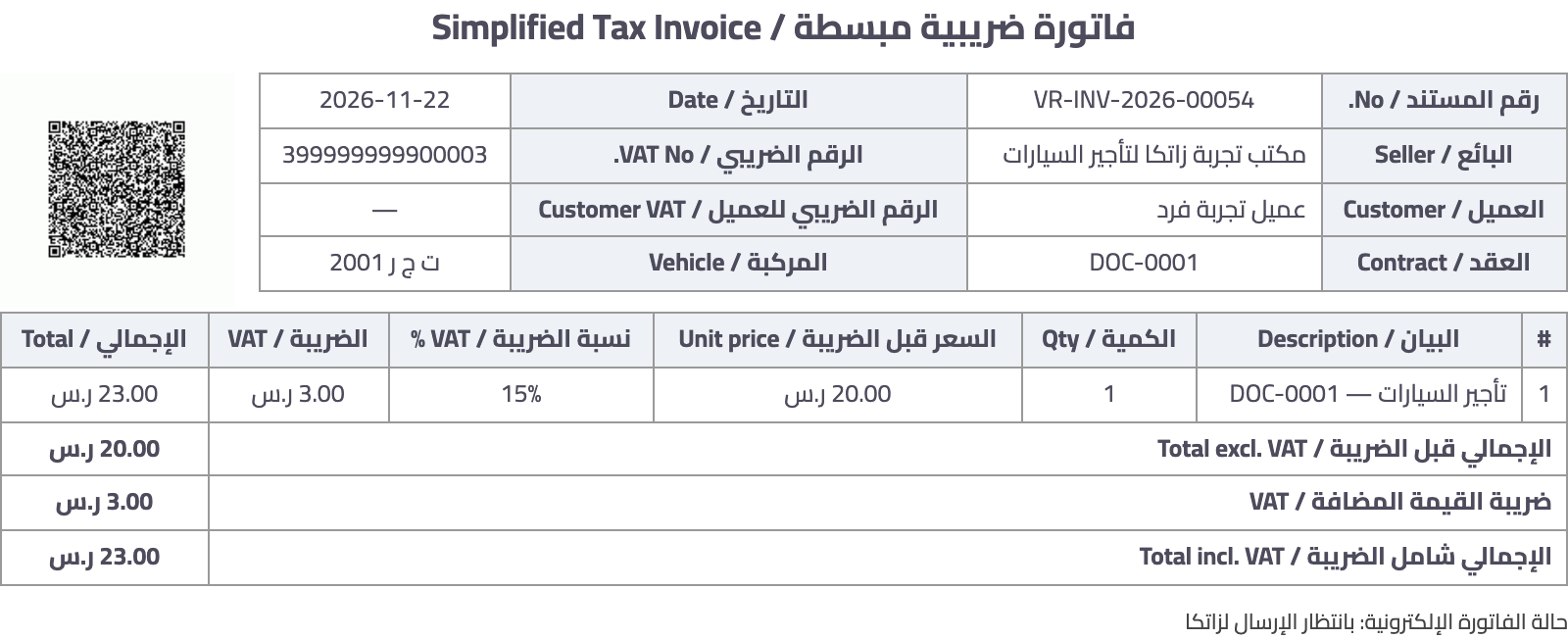
- One print takes up to 50 documents, each on its own sheet with its QR code — Image 2.
- A document that cannot be printed yet is listed in a Not printed box at the top of the first page with its reason: a standard document ZATCA has not cleared yet, a document ZATCA rejected (send it again, then print it), or a document whose contract was not found.
Notes
- Print numbering follows the list order: newest first.
- A document is never edited after it is issued; a correction is a note issued from the contract itself (return, deleting an add-on, or correcting an installment).
- To match entries with documents month by month use the E-invoicing reconciliation page — see «How does e-invoicing (ZATCA) work for rental contracts?».
Screenshots
Try what you just read on your own data
Open a free 7-day trial — no credit card, with your own company link in minutes.