
How do I edit or cancel a contract, and what do the contract statuses mean?
What you are allowed to do to a contract follows its status. Understand the statuses first and you will know why one button appears and another does not.
Contract statuses
- Draft — on creation. The only state in which the contract can be freely edited or deleted.
- Active — after the customer signs. The vehicle counts as rented for the whole period.
- Overdue — set automatically once the return date passes with no return recorded.
- Completed — after the return is confirmed and the contract closed.
- Cancelled — via the cancel button; the vehicle goes back to available.
Editing
- Open the contract and press Edit — Figure 1. You get the same tabs: details, add-ons, additional driver, images, terms.
- Change what you need and save; the total is recalculated for you.
- To lengthen an active contract use Contract extensions, not the date fields.
Cancelling
- From the contract page press Cancel contract — Figure 2.
- Write a reason — optional, but it saves an argument later.
- The vehicle returns to available unless another live contract holds it, and the contract's payments are cancelled with it and their entries reversed.
- If you cancelled it by mistake, press Restore contract: it comes back as it was, together with the payments its cancellation voided.
Notes
- Do not delete a signed contract and retype it; cancelling keeps the trail, deleting erases it.
- A completed contract cannot be edited; if you find a mistake, handle it with a separate financial document rather than reopening the contract.
- Overdue is a warning, not a penalty; review the contract list daily so you chase late returns early.
Screenshots
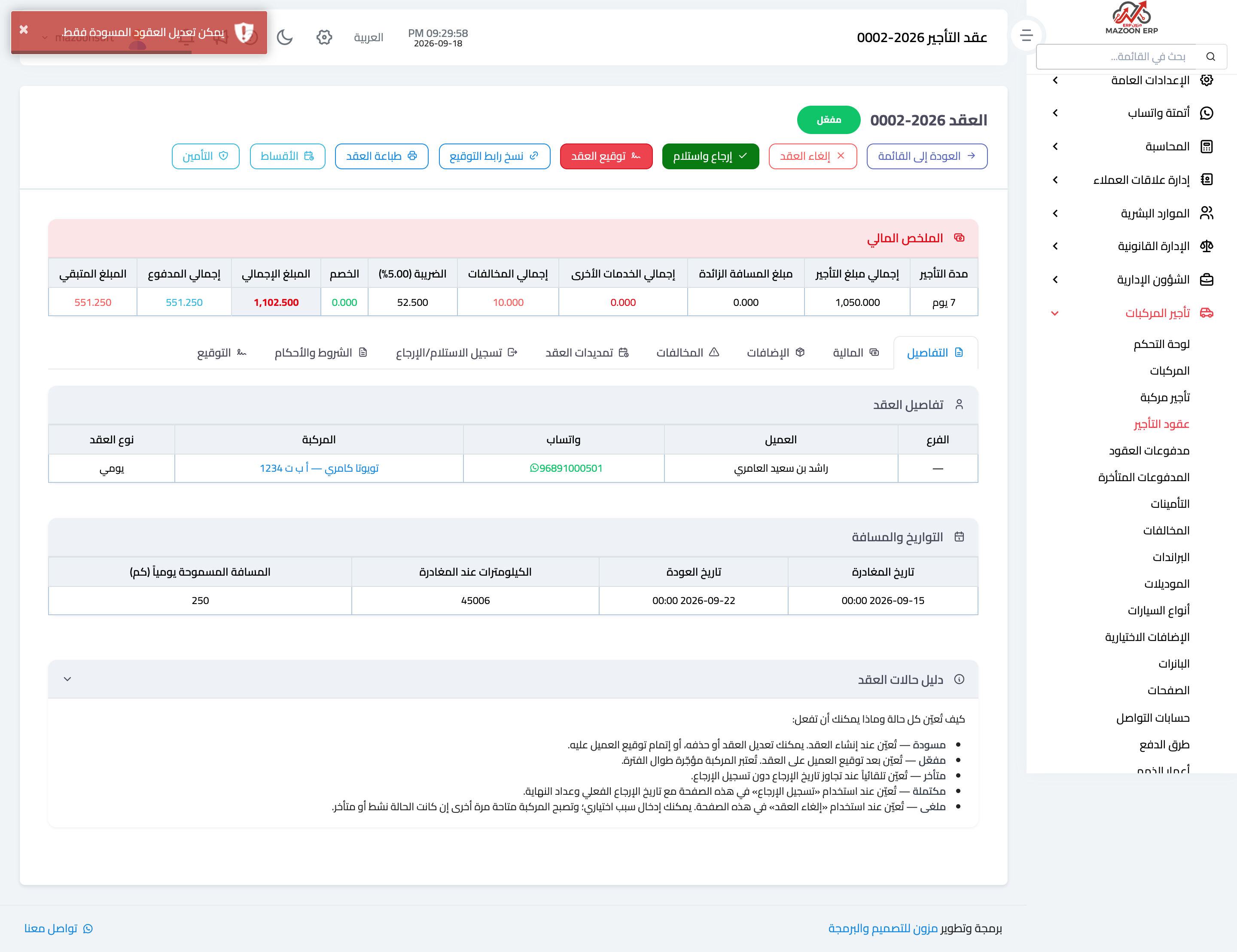
Figure 1
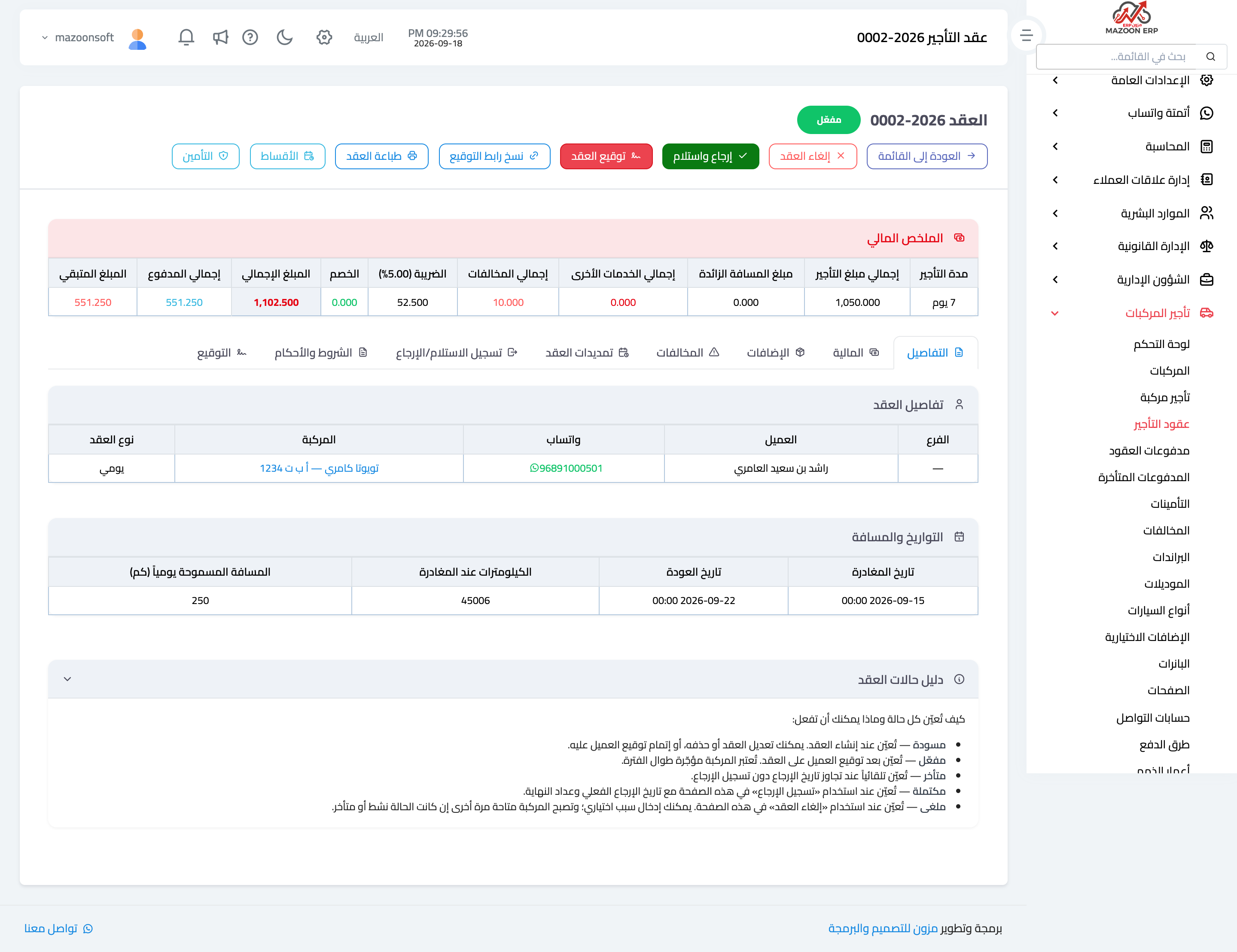
Figure 2
Try what you just read on your own data
Open a free 7-day trial — no credit card, with your own company link in minutes.