
How do I receive the vehicle back and close the contract?
Receiving the vehicle is where the account is settled: excess distance, fuel, violations and the deposit. It is deliberately two steps: save the details first, then close the contract.
Steps
- Open the contract and press Return & receive, or go to the Register return tab — Figure 1.
- Enter the actual return date — when the vehicle really came back, not the agreed date.
- Enter the odometer reading at return and the fuel at return.
- Press Save return details. The system computes the distance driven, the excess distance and its cost. If the rent changes because of extra days, extra kilometres or an early return, the difference is recorded in the accounts automatically, dated on the return.
- Check the financial summary at the top of the page — Figure 2 — and collect the balance from the customer.
- Settle the security deposit: refund it in full, or deduct against damage or a violation.
- Finally press Confirm return and close contract. The contract becomes completed and the vehicle returns to available.
Why two steps?
Because the facts arrive separately: the car comes back today, the traffic fine shows up days later. Save what you know first, and close the contract only once the account is complete.
Notes
- The return tab only works after the contract has been signed and activated.
- A closed contract cannot be edited, but a fine that arrives after closing can still be recorded on it; confirm the deposit before pressing the close button.
- Compare the handover photos against the car in front of you before you sign it back in, not afterwards.
- If the vehicle came back late, the difference is settled here through the actual return date.
- If the customer paid more than is due — for example, the car came back early — the system warns you and the difference shows in the contract summary as Owed to customer.
Screenshots
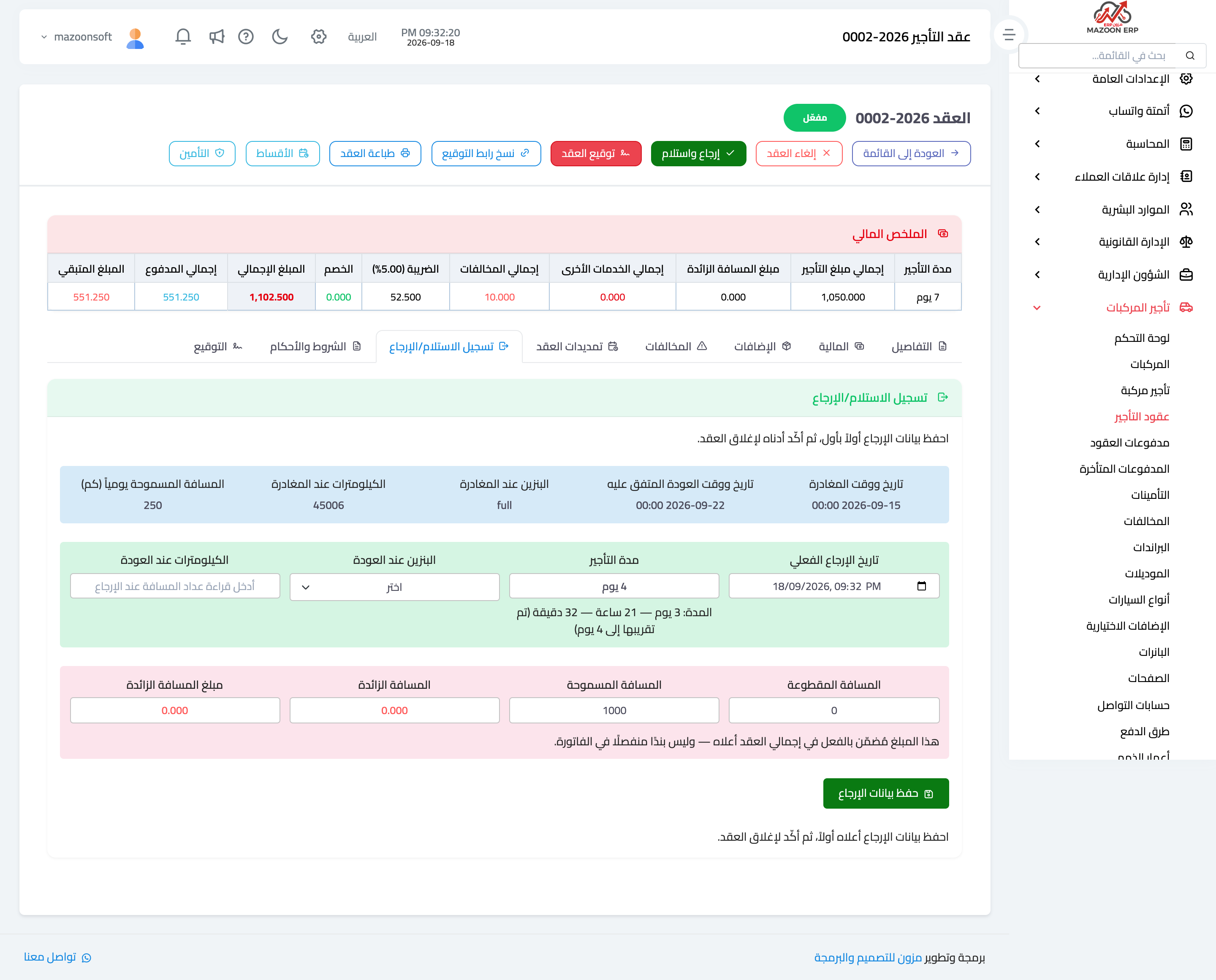
Figure 1
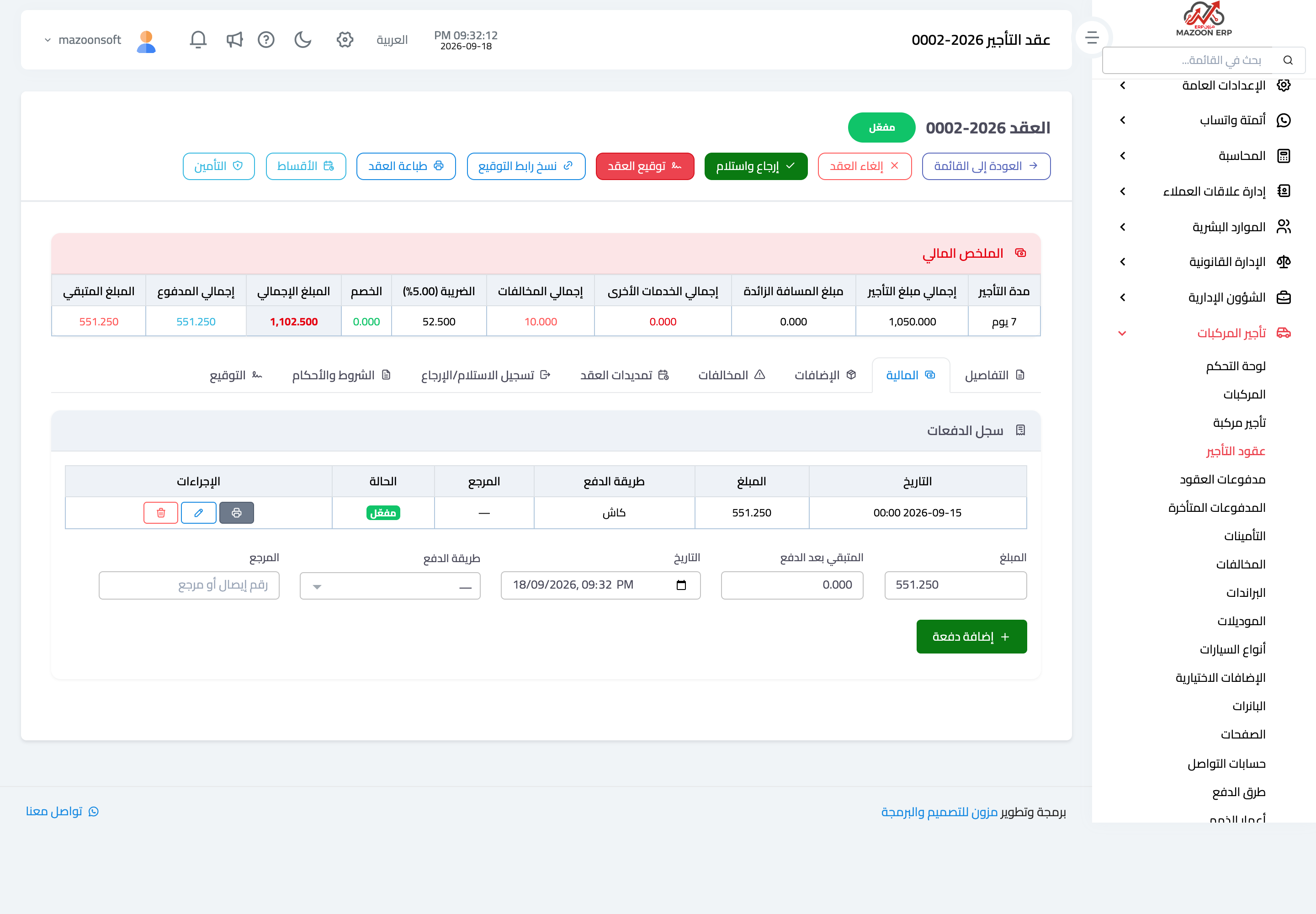
Figure 2
Try what you just read on your own data
Open a free 7-day trial — no credit card, with your own company link in minutes.