
How do I switch on the rental office website and take online bookings?
The vehicle rental module comes with a ready public website that shows your fleet and takes bookings straight into the system. It is all configured from one screen.
Steps
- Open Vehicle Rental → Office settings — Figure 1.
- Turn on Enable public booking website. While it is off, the catalogue and booking pages do not work at all.
- Turn on Enable online booking button if you want self-service booking. Left off, the vehicles still show but the booking calendar is replaced by Call and WhatsApp buttons.
- Choose the payment policy: either require full payment online, or an advance payment percent paid at booking time.
- Set the pending booking timeout in minutes; unpaid bookings are auto-cancelled after it, so nobody holds a vehicle for free.
- Enter the phone, WhatsApp number, email, address and Google Maps embed code, and pick a theme colour.
- Write the terms and conditions in both languages; the same text appears in the contract creation form.
- Save, then open the site and check how it looks — Figure 2 — and walk the booking flow — Figure 3.
What happens when a booking arrives
A rental contract is created in the system with its source set to the storefront. It appears in the contracts list like any other, the vehicle is held on the calendar, and all you have to do is review it and complete the signing and handover.
Notes
- Do not open the site before the vehicle photos and prices are right; a first visitor rarely comes back.
- A short pending timeout beats a long one; a hanging booking blocks a serious customer.
- If you are not ready for online payment yet, turn the booking button off and keep the site as a shop window with contact buttons.
Screenshots
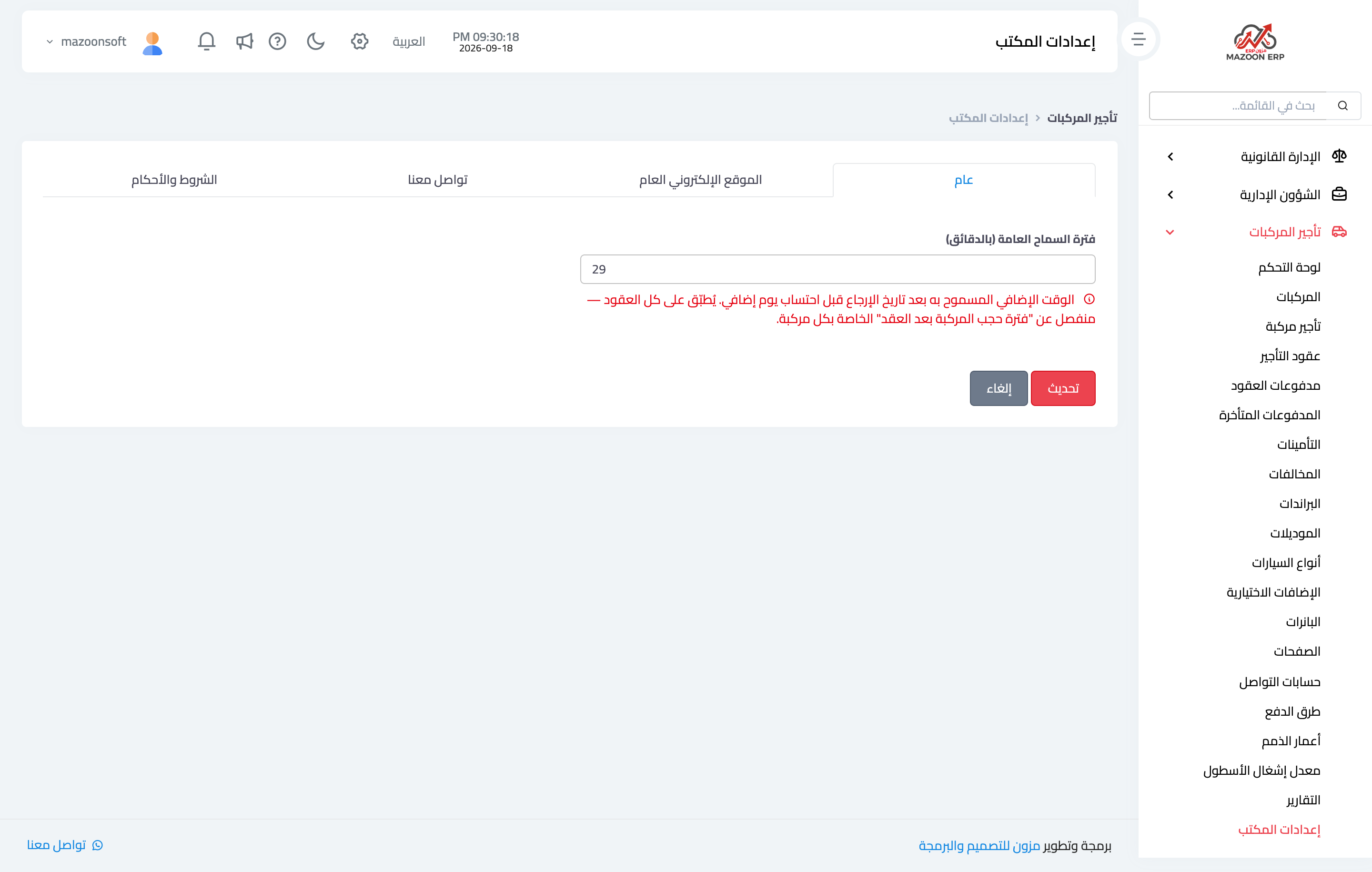
Figure 1
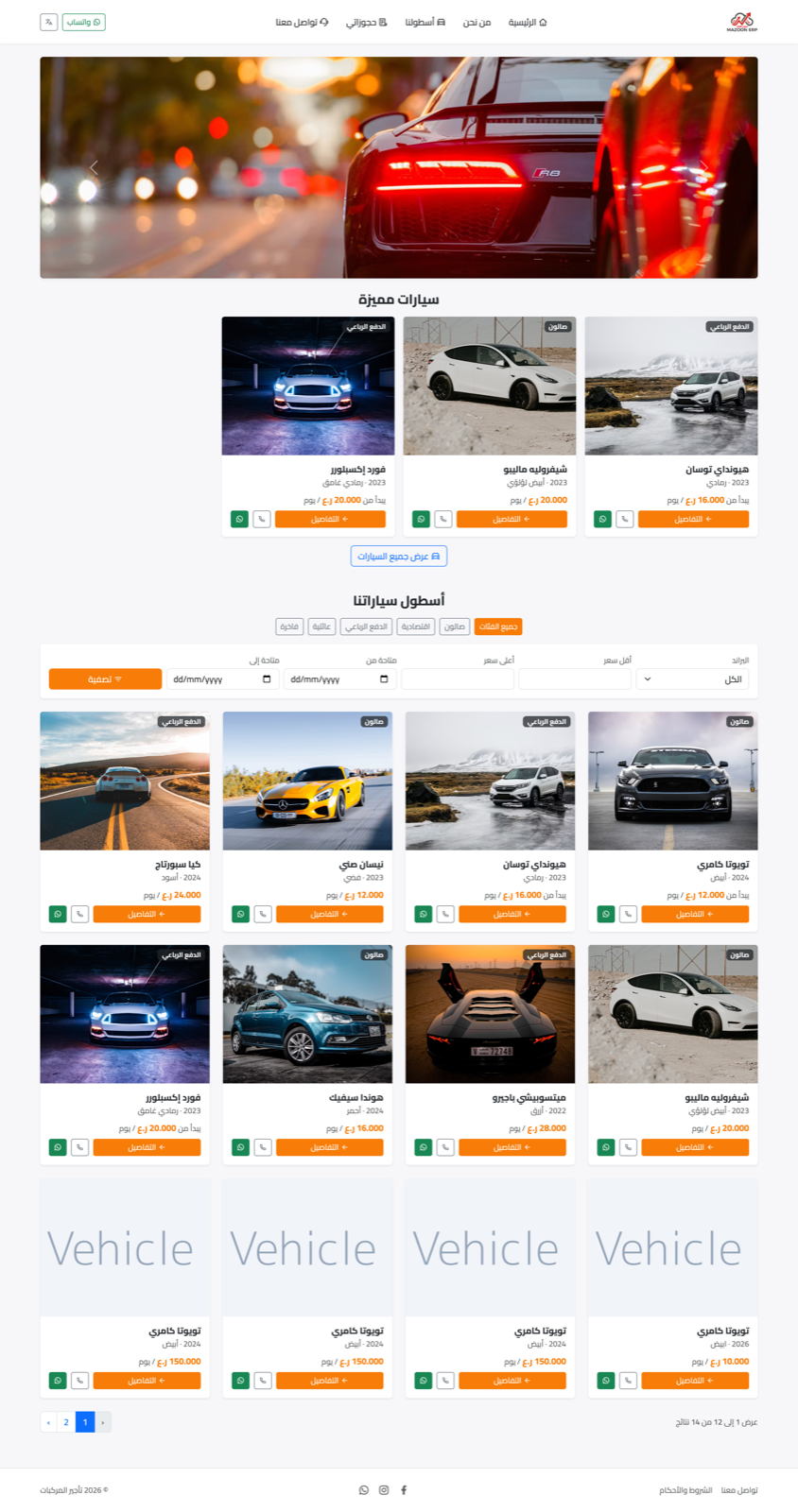
Figure 2
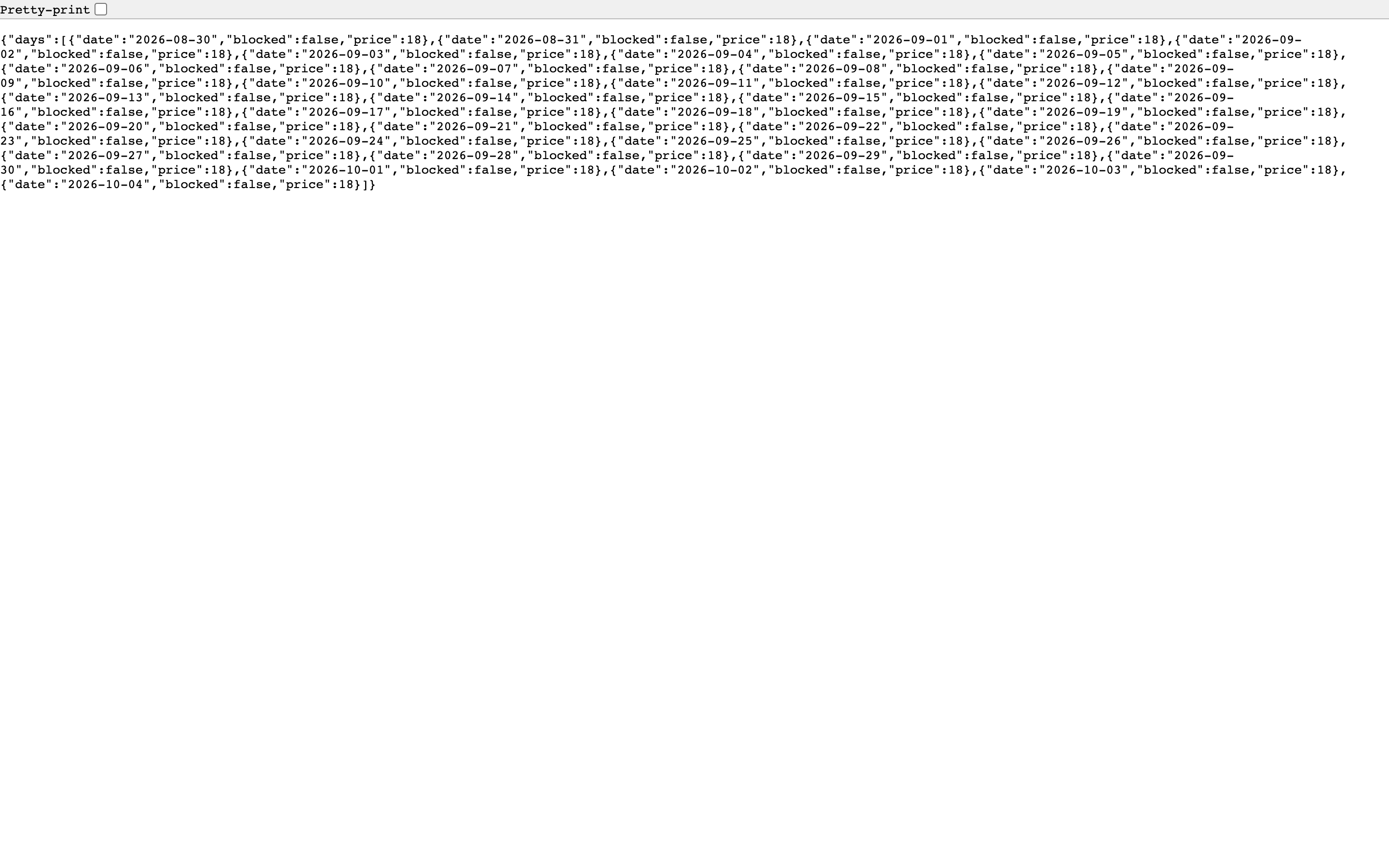
Figure 3
Try what you just read on your own data
Open a free 7-day trial — no credit card, with your own company link in minutes.