
How do I create a new rental contract?
The rental contract is the heart of the module: the invoice, the deposit, the violations and the accounting entry all come out of it. Here is the full cycle for creating one.
Steps
- Open Vehicle Rental → Rental contracts — Figure 1 — then New contract.
- Pick the vehicle and the customer — Figure 2. If the customer is new, press Add contact to register them without leaving the page.
- Set the rental type: daily or hourly.
- Choose the departure and return dates from the range picker and set the departure time and return time. The number of days is calculated for you.
- Record the start KM and the fuel at departure; these are your evidence at return.
- The daily rate is filled from the duration tier; you can adjust it down to the vehicle’s minimum allowed price.
- On the Add-ons tab add optional services, and on Additional driver record the second driver and licence if there is one.
- On the Vehicle images tab upload condition photos taken at handover.
- If you agreed a final price with the customer, type it in Target Amount (including tax) and the system works out the discount for you. This field cannot be used on a contract that has extensions. If your office prices include tax, you only need it to agree a lower amount — see How do I make rental prices include tax?
- Check the total, discount and tax in the summary box, then Save.
After saving
The contract is created as a draft, the only state in which it can be freely edited or deleted. Once the customer signs it becomes active and the vehicle is held for the whole period.
Notes
- Never leave the start KM empty; without it the excess distance cannot be computed at return, and that is where rental offices lose the most income.
- The system refuses two overlapping contracts on the same vehicle, so if a period is rejected check the existing contracts and blackout periods.
- Condition photos at handover save you a long argument over the first scratch.
- Custom fields of the contact, such as the ID number, appear on the contract page and in its print whenever they have a value. Custom fields defined for the contract itself have their own boxes in the contract form and are printed with it.
Screenshots
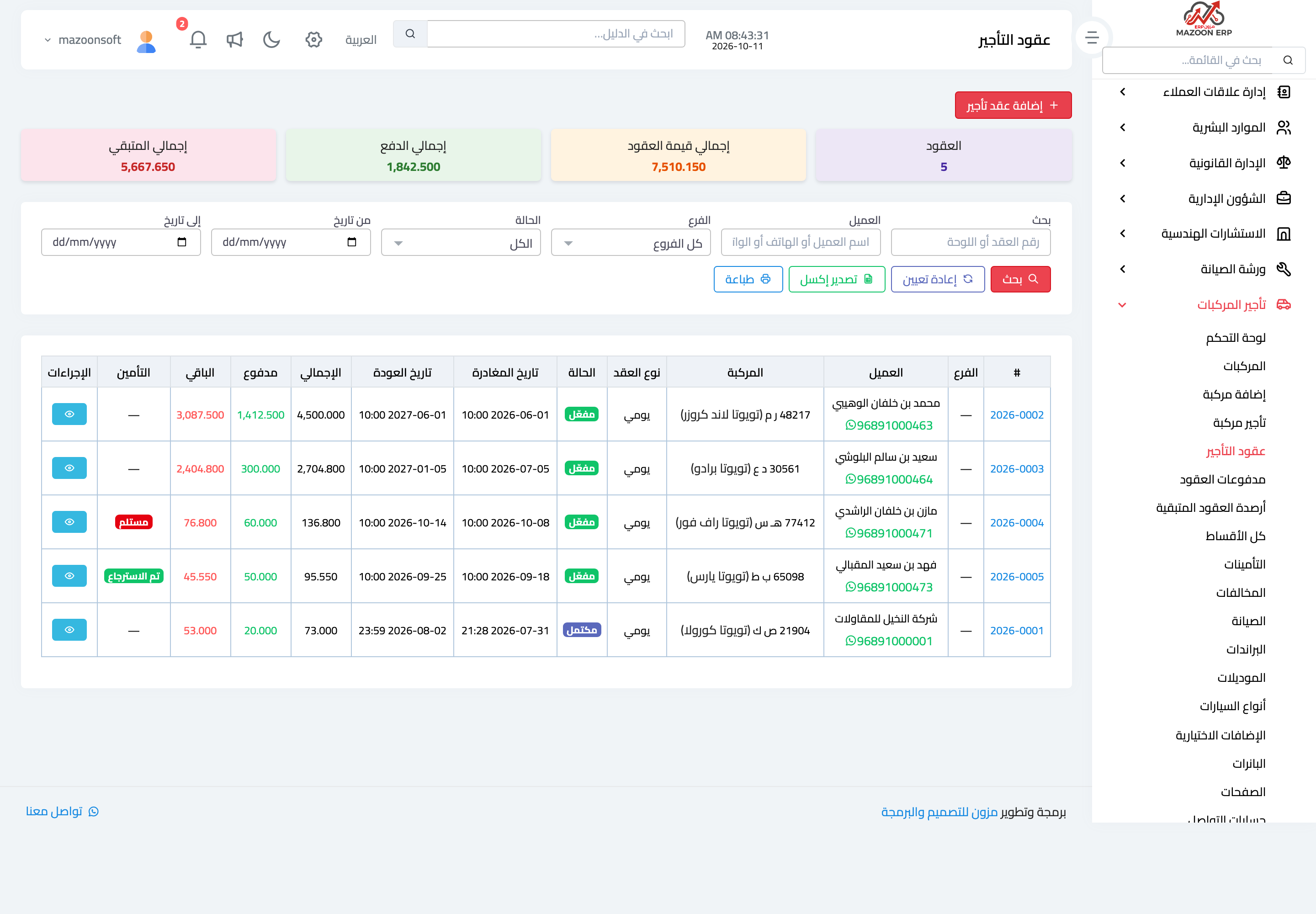
Figure 1
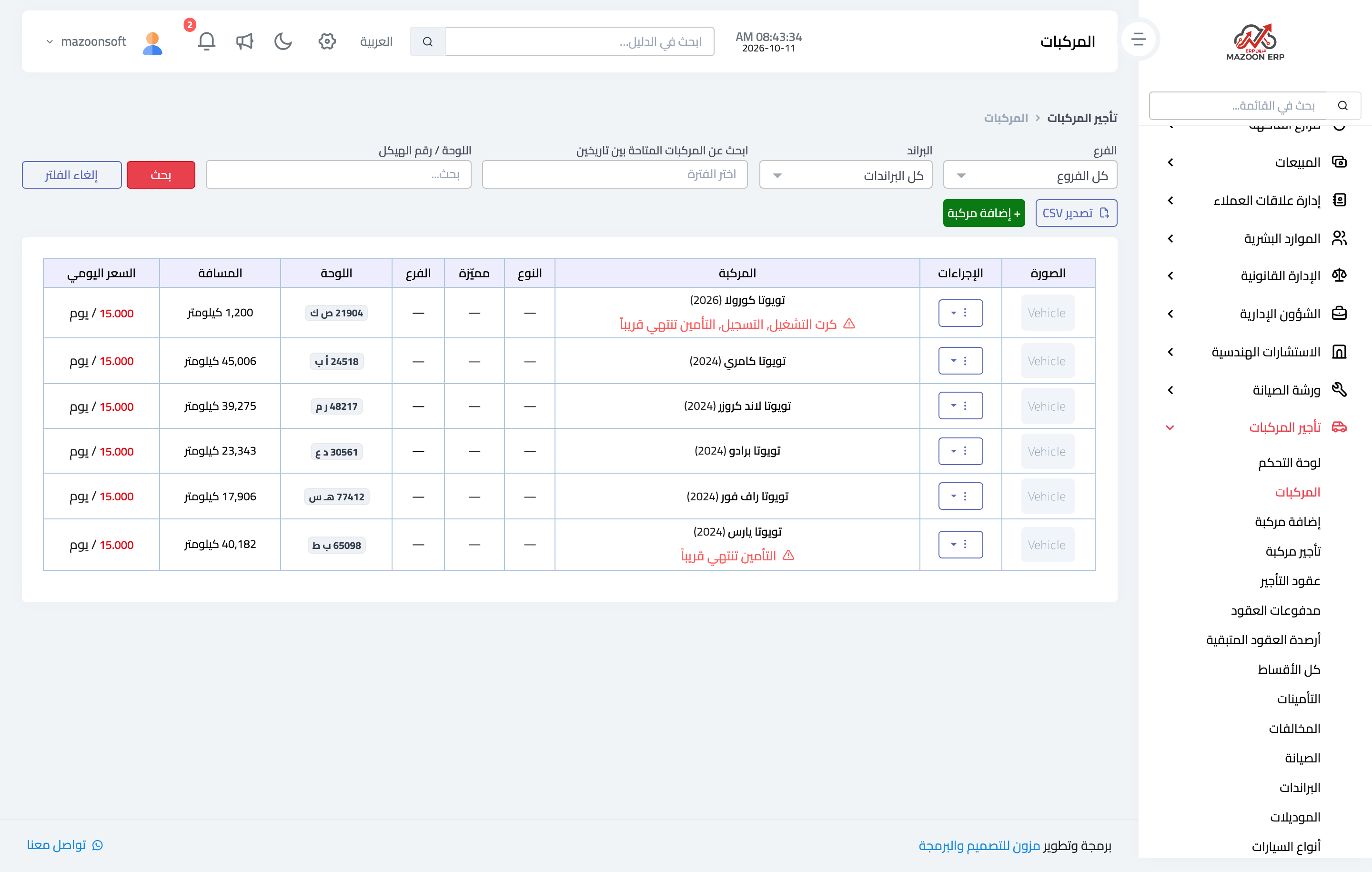
Figure 2
Try what you just read on your own data
Open a free 7-day trial — no credit card, with your own company link in minutes.