
How do I publish a vehicle on the website or hide it?
Not everything in the fleet belongs in the shop window: a car out on a long contract, or one reserved for the office, has no place on the website. Publishing is controlled per vehicle.
Steps
- Open Vehicles → Edit, then the Public storefront tab — Figure 1.
- Turn on Publish on public booking website to show it, or off to hide it.
- Pick the vehicle types so it lands under the right filter buttons on the fleet page — Figure 2.
- Write the short description and description in both languages, and list the amenities, one per line.
- Turn on Featured vehicle for the cars you want pushed on the homepage.
- Leave the slug empty to have it generated, or write your own for a cleaner link in search engines.
- Save and check the vehicle page on the website.
Notes
- A published vehicle with no main image shows as a grey box, so upload the photo before publishing.
- The short description is the first line a visitor reads; make it useful rather than promotional.
- Hiding a vehicle neither deletes it nor affects its contracts; it is purely a display setting.
- To block booking for a specific period without hiding the vehicle, use blackout periods.
Screenshots
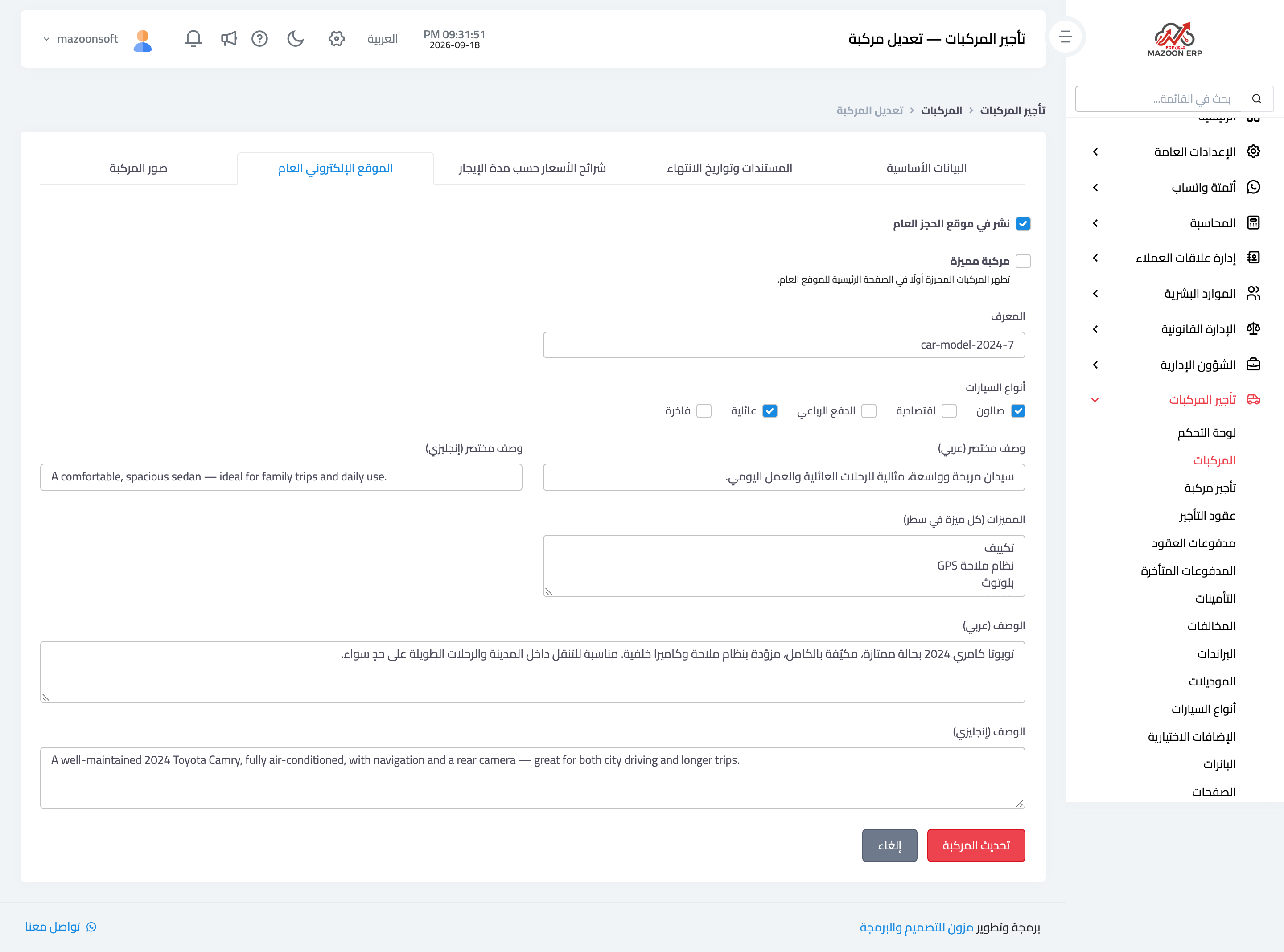
Figure 1
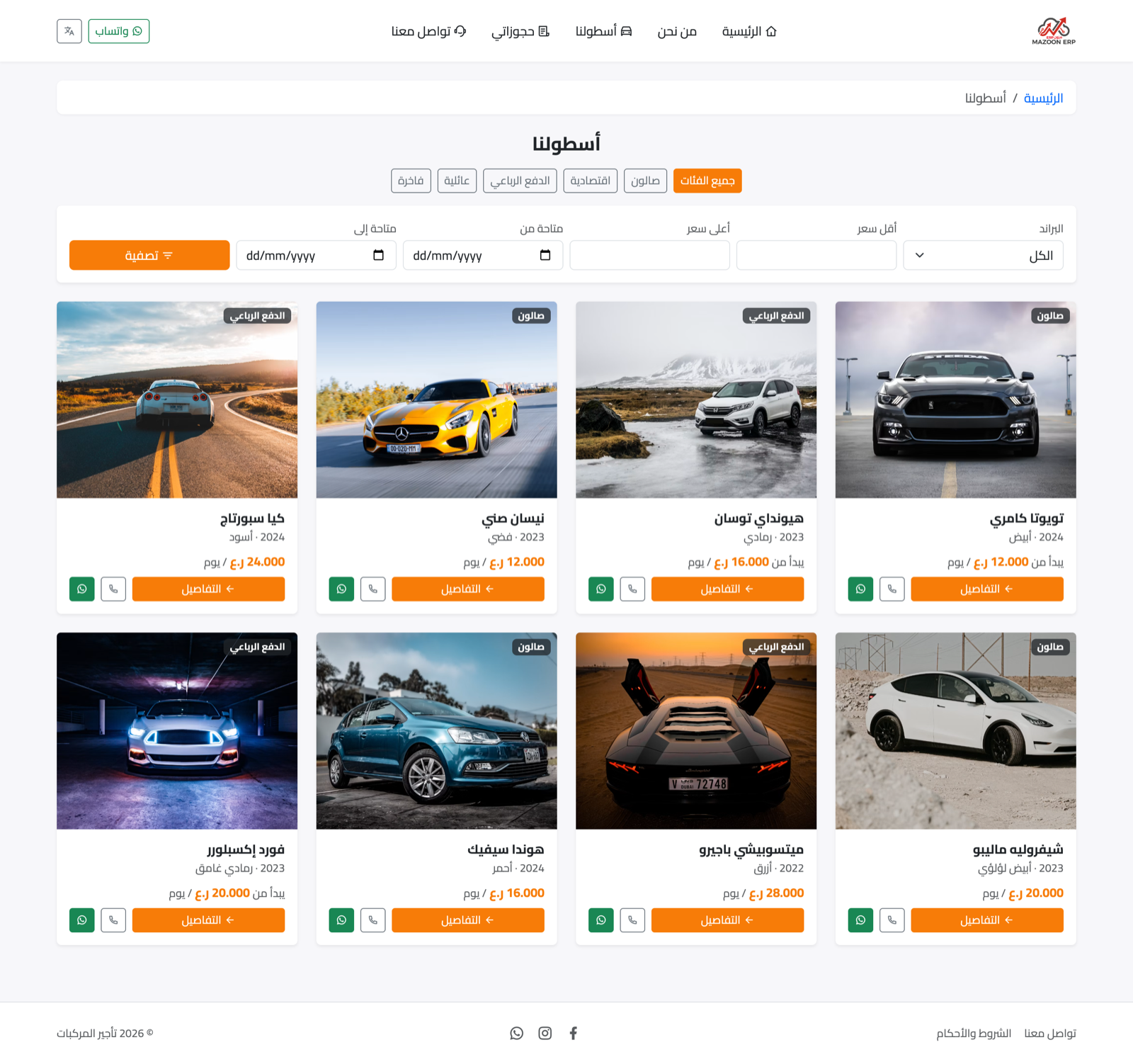
Figure 2
Try what you just read on your own data
Open a free 7-day trial — no credit card, with your own company link in minutes.