
How do I add a new vehicle to the fleet?
Everything in the vehicle rental module starts with the vehicle: a contract can only be written against a registered vehicle, and the website only shows a published one. This is the first step.
Steps
- Open Vehicle Rental → Vehicles — Figure 1 — then New vehicle.
- On the Basic information tab — Figure 2 — pick the brand then the model. If either is missing, press the + beside the list to add it without leaving the page.
- Enter the plate number, year, colour, chassis number and the current odometer reading.
- Set the allowed km per day and the hold period after a contract in hours — the time you need for cleaning and inspection before the next contract.
- Set the status to available so the vehicle appears in contract lists.
- Go to the Documents and expiry dates tab — Figure 3 — and record the expiry of the registration, insurance, operation card and periodic inspection.
- Save, then finish the vehicle from the Pricing tiers and Vehicle images tabs.
Notes
- The expiry dates are not decorative; the system warns you before insurance or registration lapses, and a rented-out vehicle with expired registration is your liability.
- The current odometer is the baseline for charging excess kilometres on the first contract, so read it off the dashboard rather than from memory.
- Saving the vehicle does not put it on the public website — see “How do I publish a vehicle on the website?”.
Screenshots
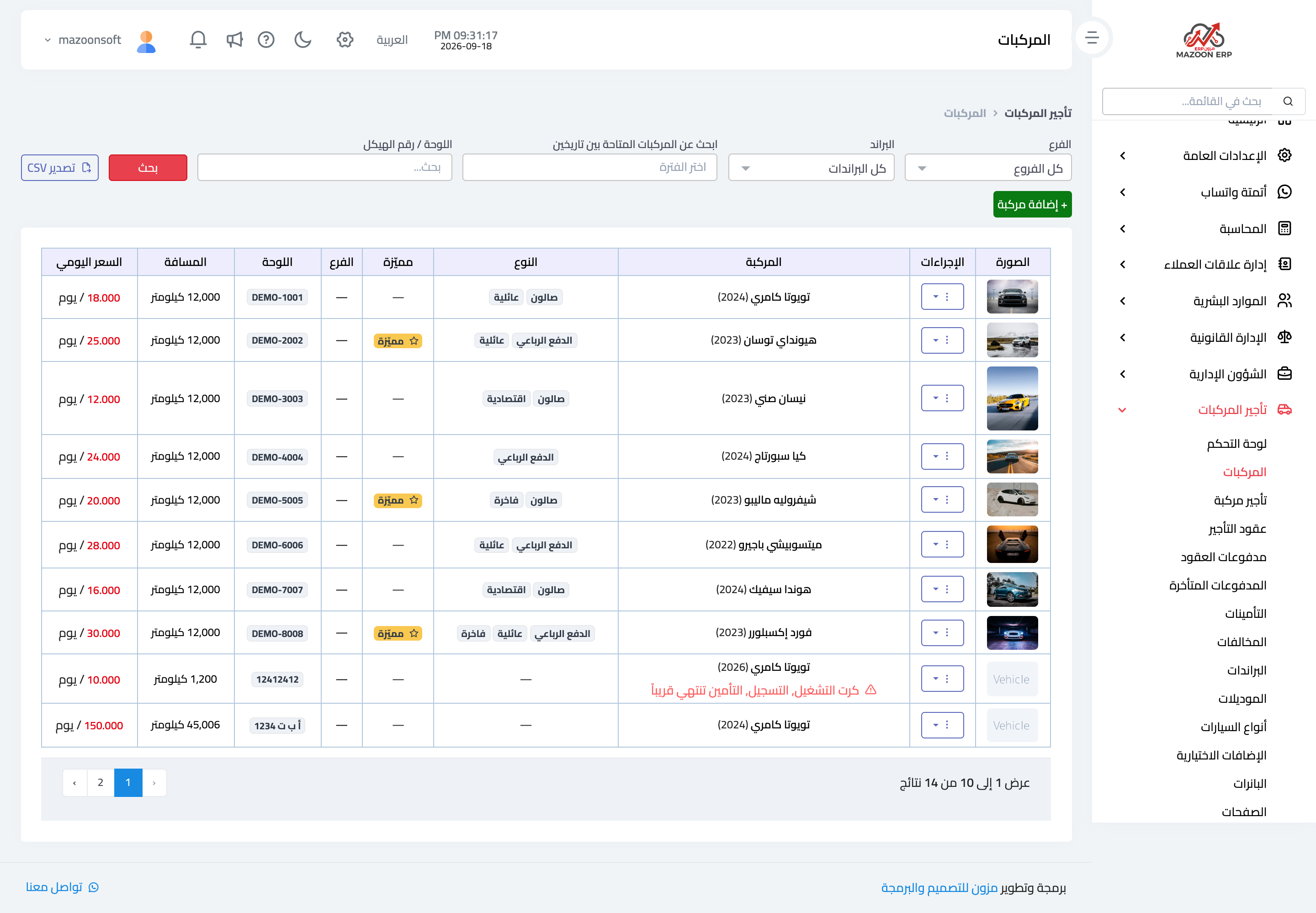
Figure 1
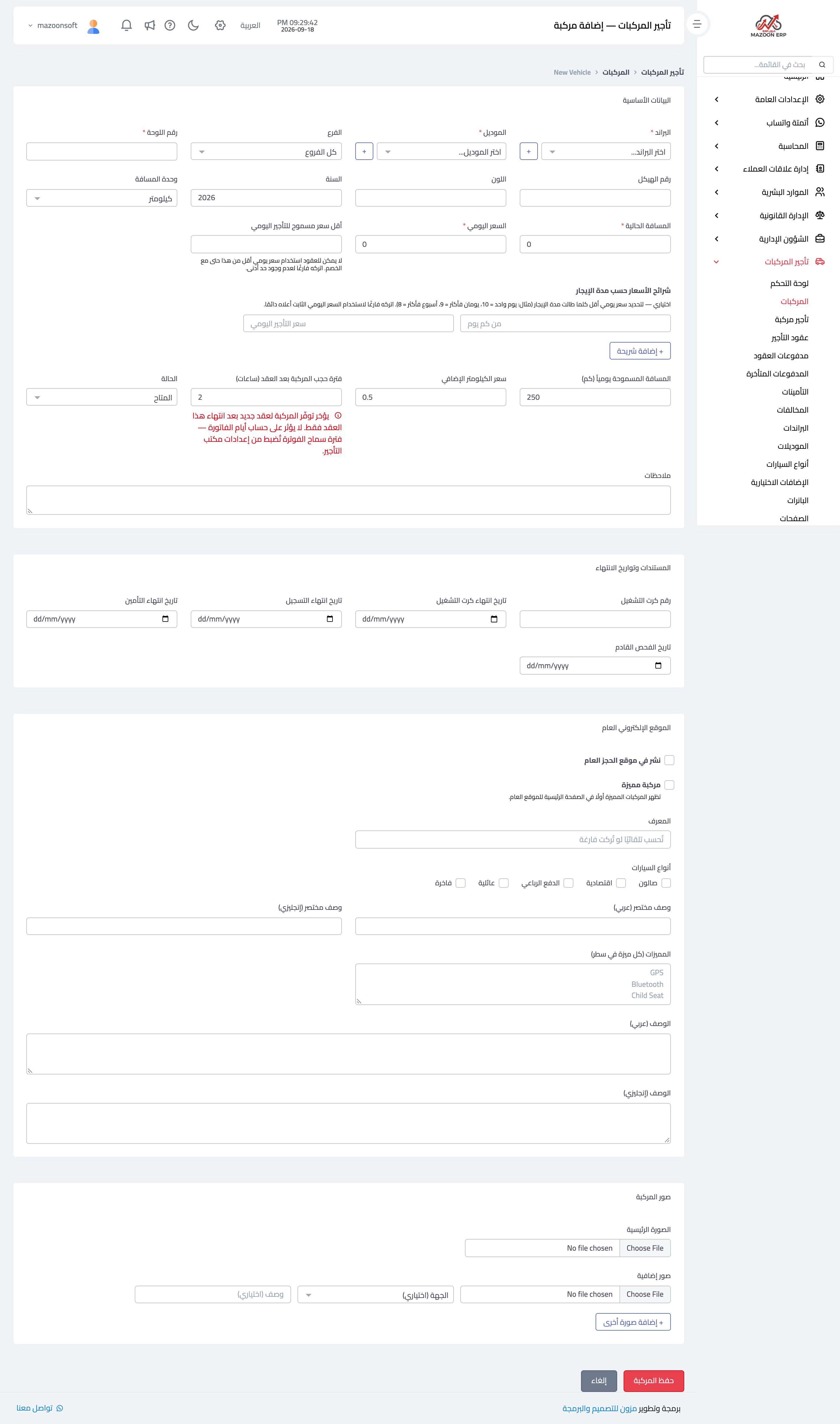
Figure 2
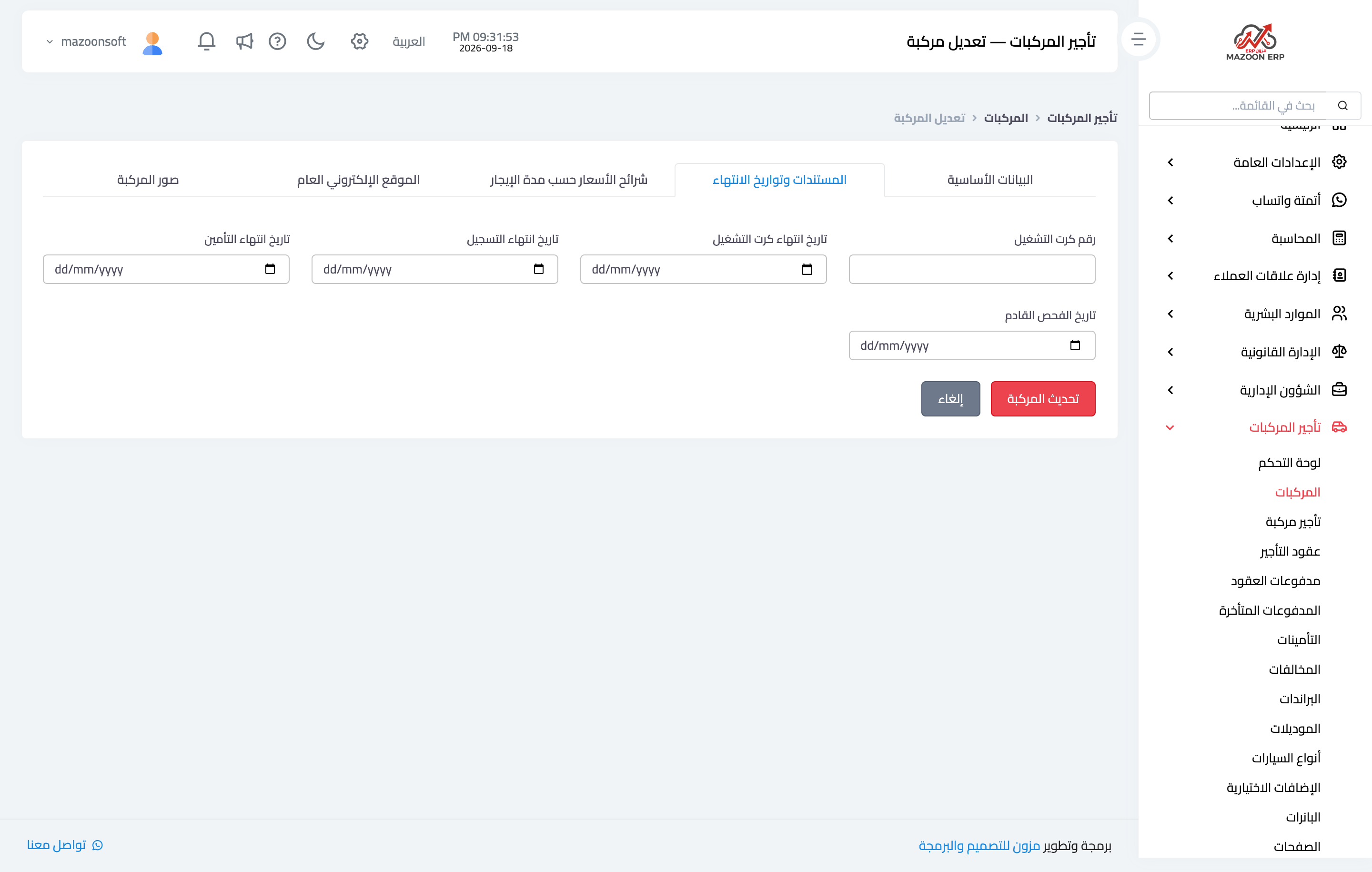
Figure 3
Try what you just read on your own data
Open a free 7-day trial — no credit card, with your own company link in minutes.