
How do I sign a contract electronically and send the signing link to the customer?
A contract stays a draft until the customer signs it; on signing it becomes active and the vehicle is held. You have two routes: signing at the counter, or a link the customer signs on their own phone.
Signing at the counter
- Open the contract from Rental contracts — Figure 1.
- Go through the Terms and conditions tab with the customer before signing.
- Press Sign contract, hand the device to the customer to sign with a finger inside the signature box — Figure 2 — and save.
Signing remotely
- From the contract page press Copy signing link.
- Send the link to the customer on WhatsApp. It opens a standalone signing page that needs no account in the system.
- As soon as the customer signs, the signatures appear on the Signature tab — Figure 3 — and the contract turns active.
- Print the contract with Print contract and keep a copy for the customer.
Notes
- Signing is not a formality; it is what moves the contract from draft to active and what actually holds the vehicle against any other contract.
- Write the terms and conditions once in Rental office settings and they carry into every new contract automatically.
- Do not hand over the vehicle before signing; a draft contract will not protect you in a dispute.
Screenshots
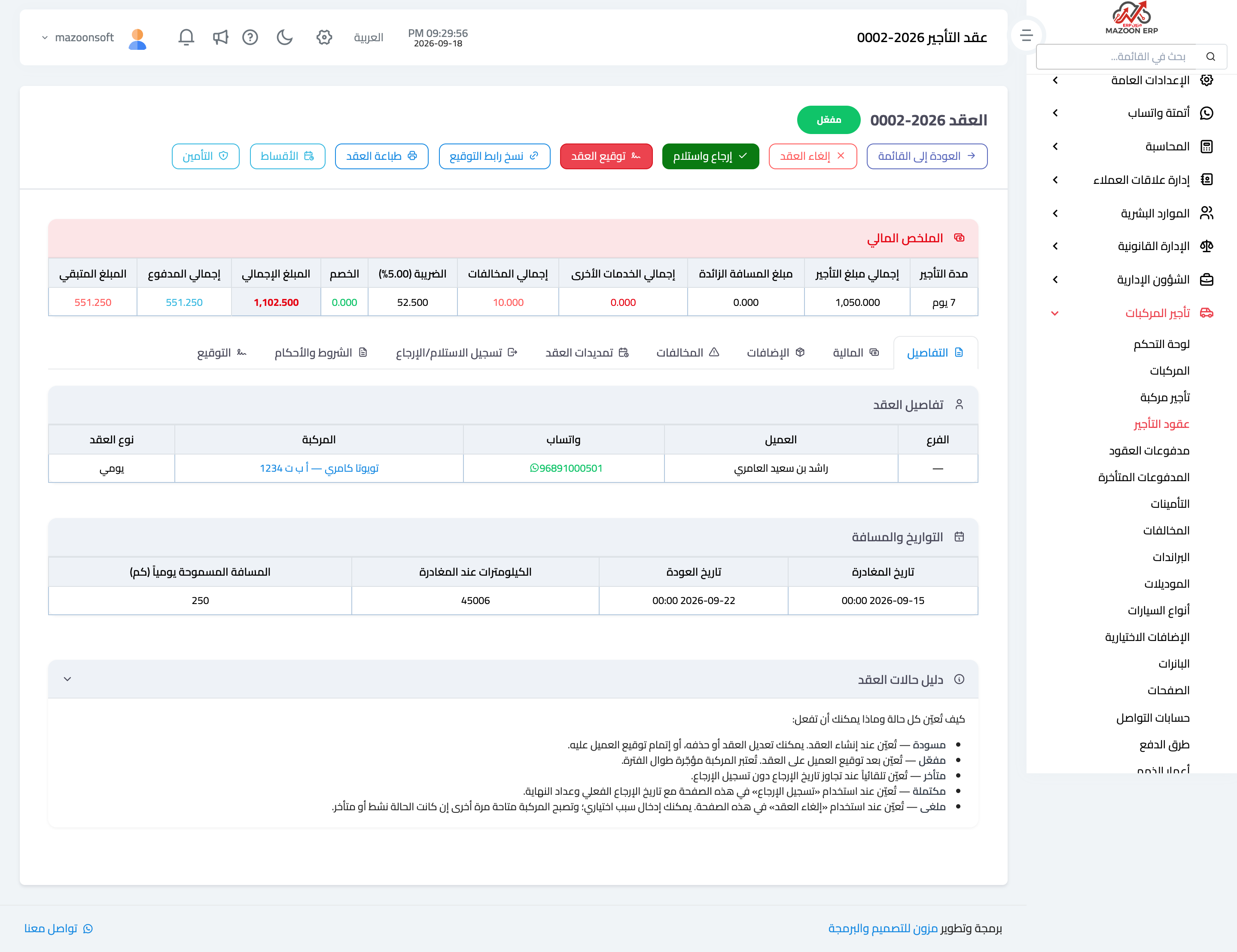
Figure 1
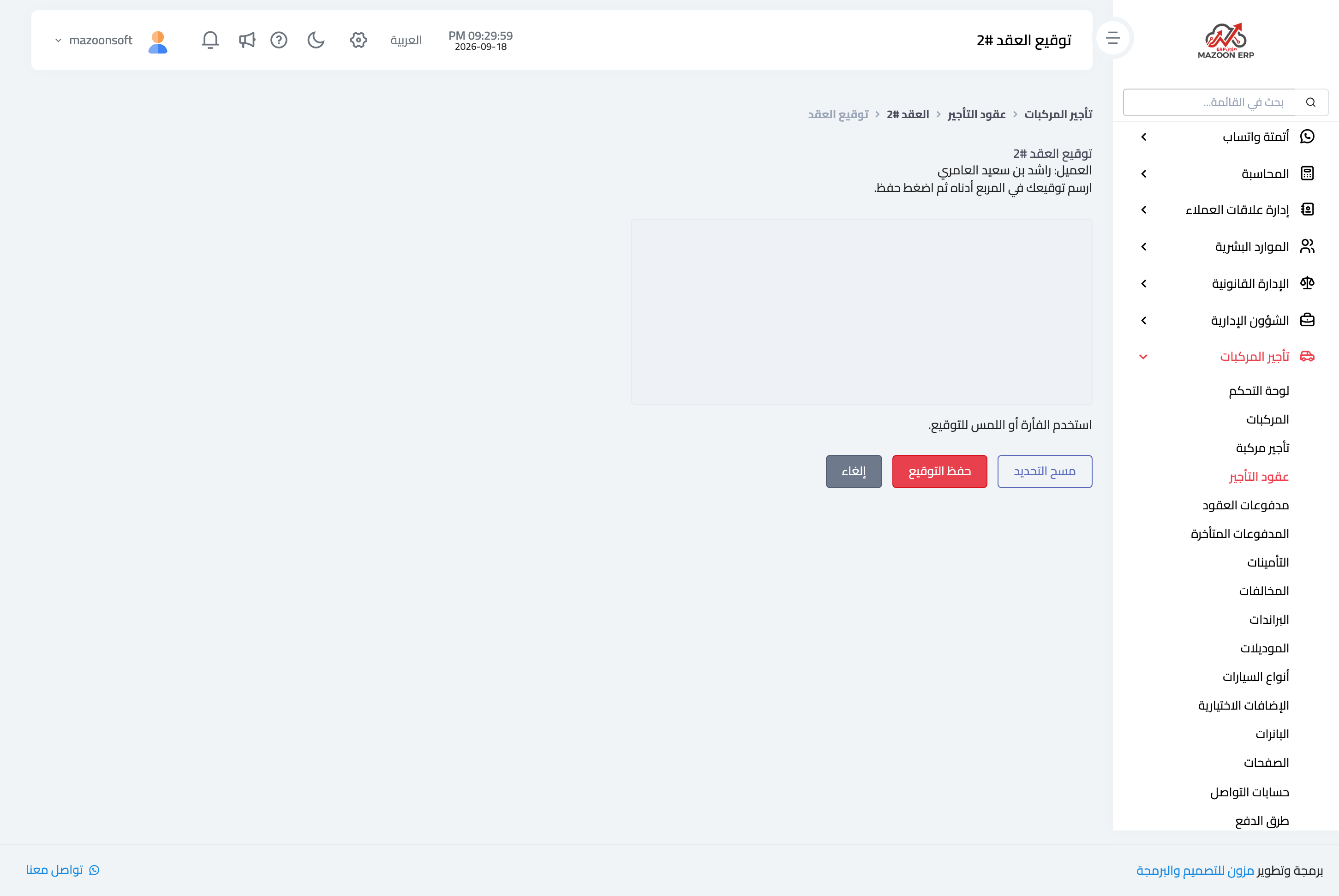
Figure 2
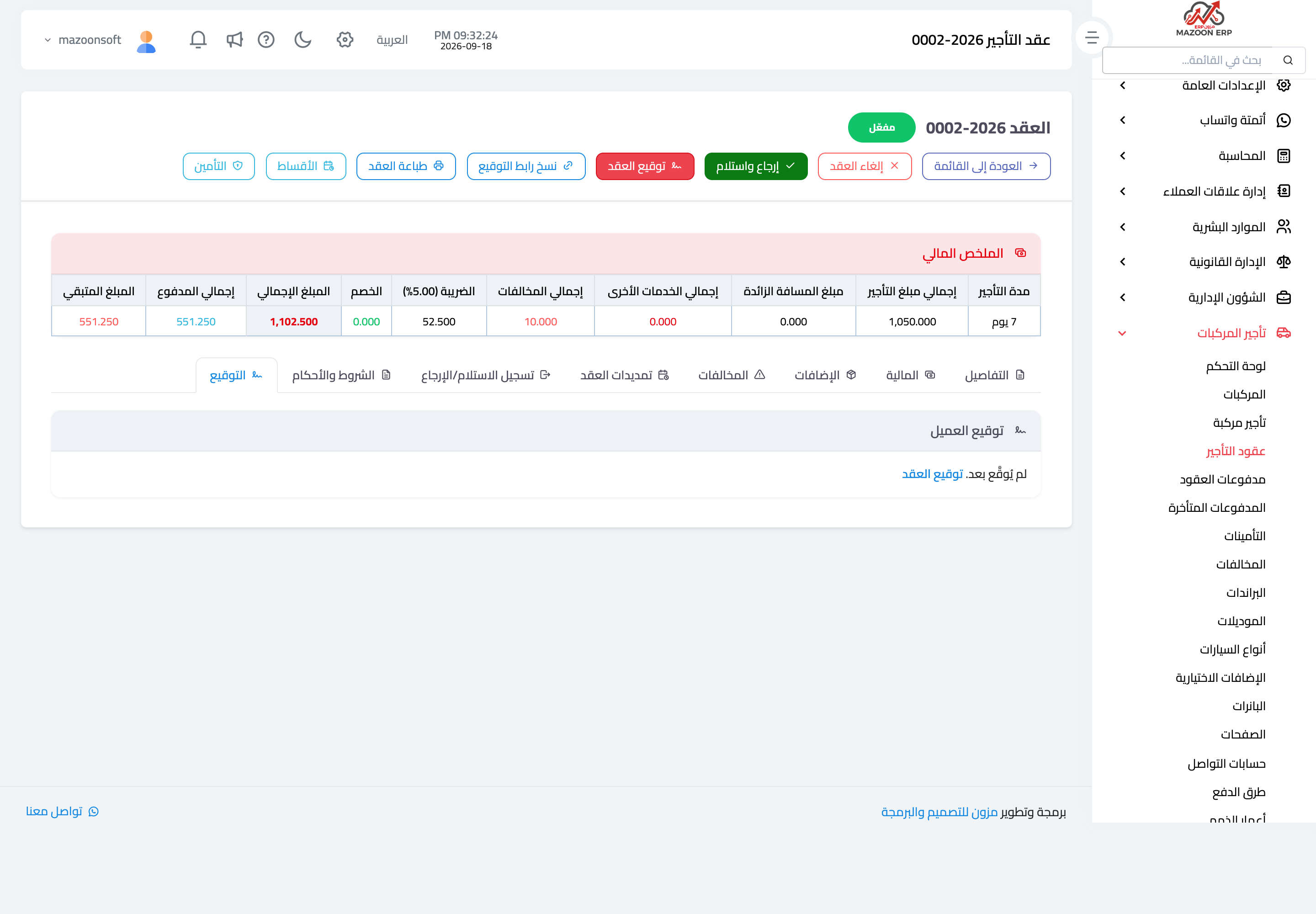
Figure 3
Try what you just read on your own data
Open a free 7-day trial — no credit card, with your own company link in minutes.