
How do I add optional services and add-ons to a contract?
Add-ons are what you sell on top of the rent: a GPS unit, a child seat, an extra driver, extended insurance. You set them up once and then pick them on each contract.
First: set up the service list
- Open Vehicle Rental → Add-on services — Figure 1 — then Add service.
- Enter the Arabic and English name, the price, the tax % and the sort order.
- Set the status to active so it shows to staff and to customers on the website.
Second: add it to a contract
- Open the contract and go to the Add-ons tab — Figure 2.
- Pick a service from the list, or type a one-off line with its own name and price.
- Save; the contract total rises and the line appears on the printed contract.
- On new contracts created by staff, the add-on’s tax is separated from its price: it is added to the contract tax and to the VAT return, and the line shows on the contract at its amount before tax.
- To edit or remove one, use the buttons on that row in the table.
Notes
- Active services also appear in the public booking wizard, and a customer selecting one creates a contract line exactly as if a staff member had typed it.
- The price in the service list is fixed, but you can still adjust it inside a contract when you need to.
- Do not delete an old service used by past contracts; set it to inactive instead.
- Add-ons are the easiest lift to your average contract value, so make sure staff offer them every time.
Screenshots
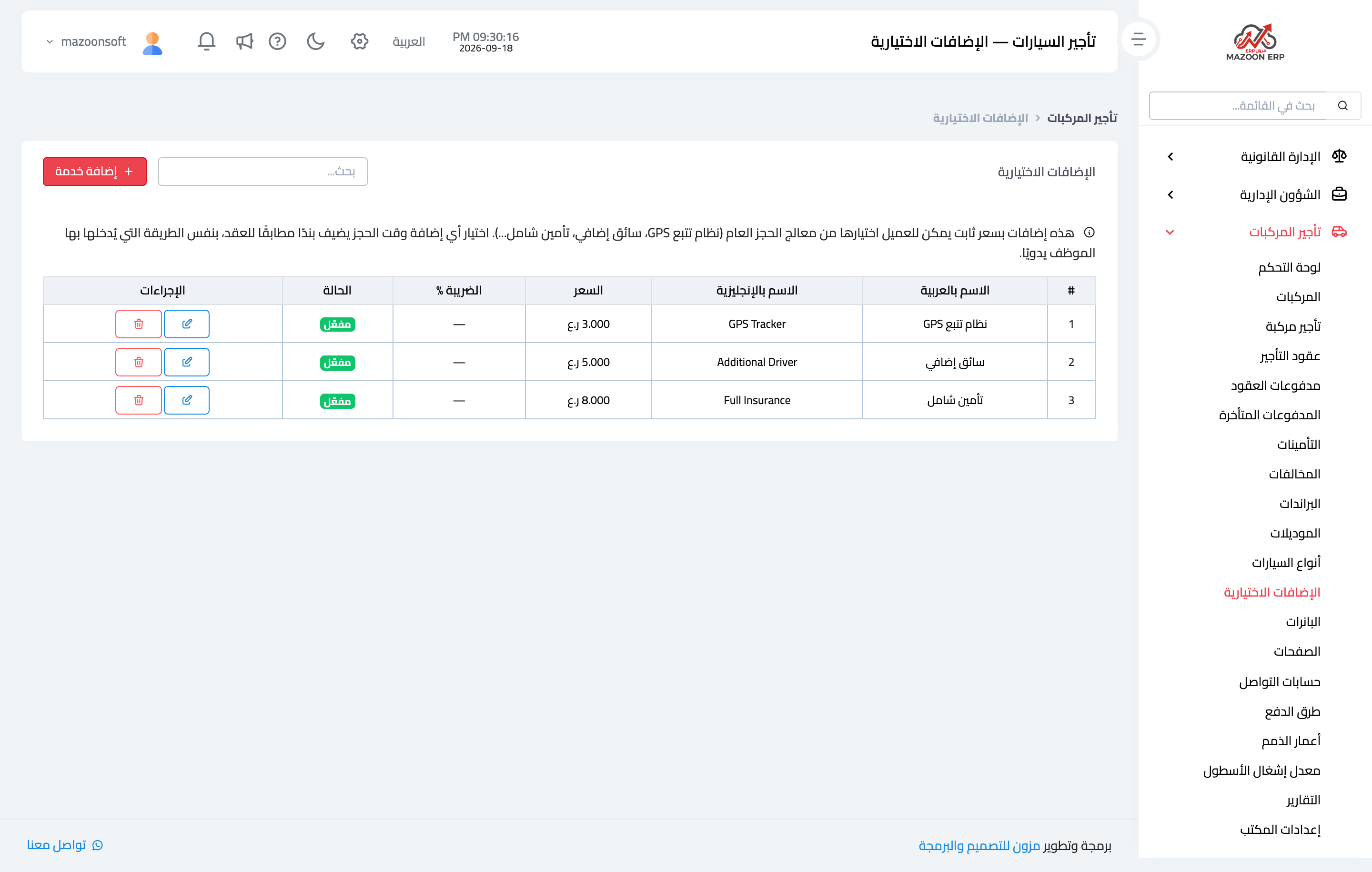
Figure 1
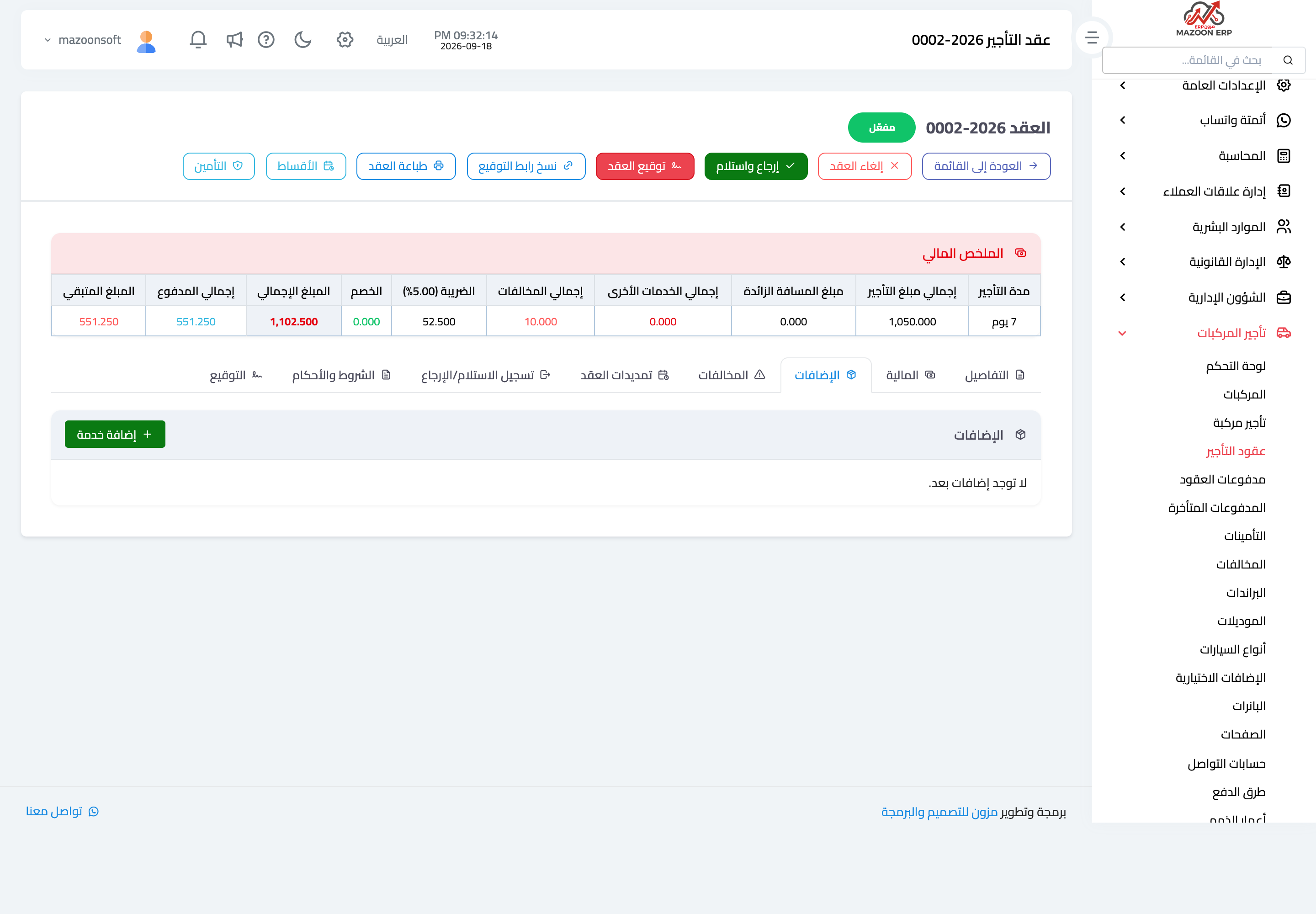
Figure 2
Try what you just read on your own data
Open a free 7-day trial — no credit card, with your own company link in minutes.