
The rental contract: from booking to return
The contract is the unit of work in this module, and it passes through five states; knowing what each one means answers half of a new clerk’s questions.
Creating a contract
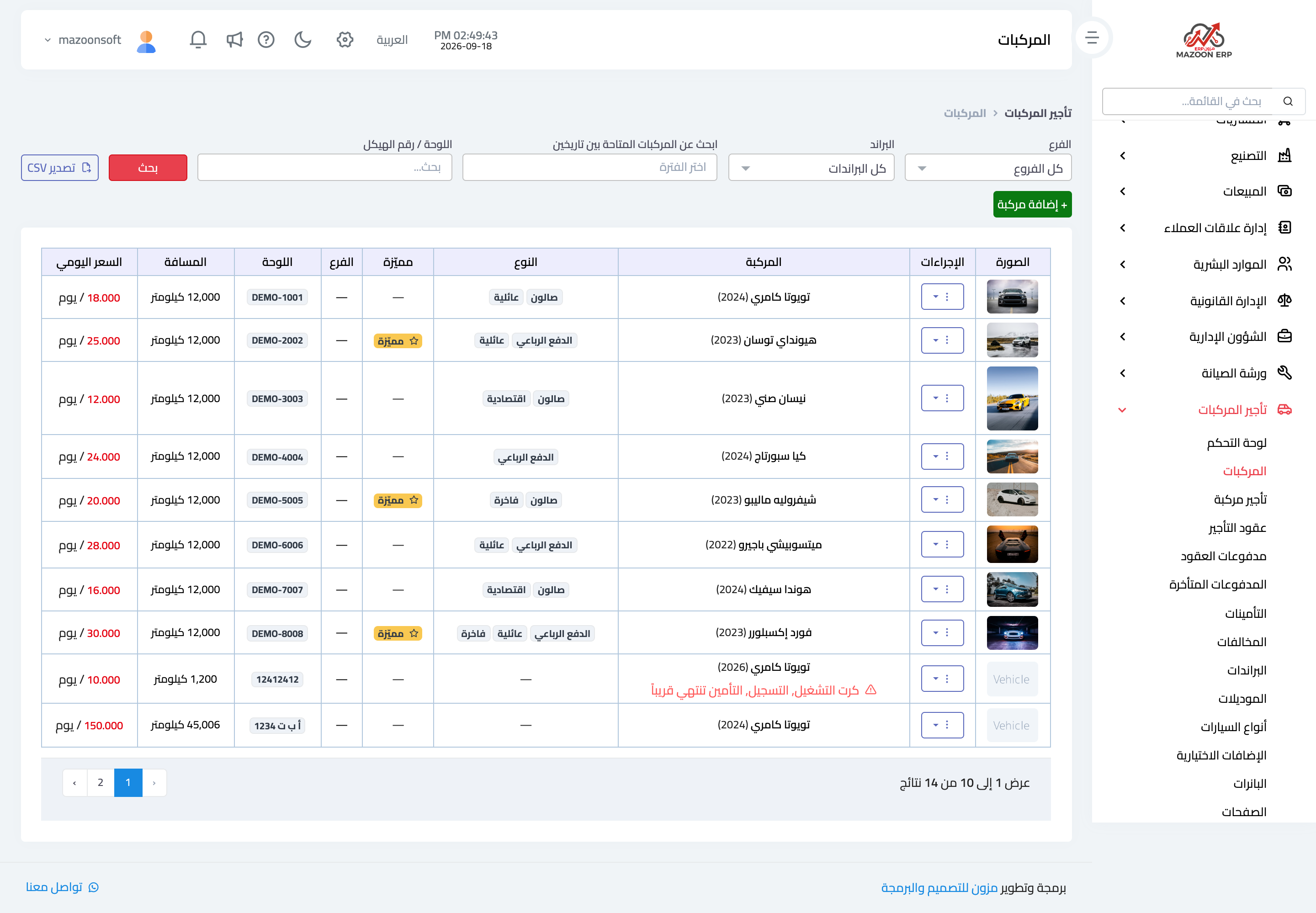
Rent a vehicle opens the new contract screen, as in Figure 1: the customer, the vehicle, the pickup and return dates, the contract type (daily or hourly), the odometer reading and fuel level at handover, the additional driver and their licence if any, and the extra services.
Pricing is computed automatically from the contract length and the vehicle’s pricing tiers; you do not calculate it by hand. The system also blocks booking a vehicle already taken for the same period, and respects any blackout periods recorded on it.
Contract states
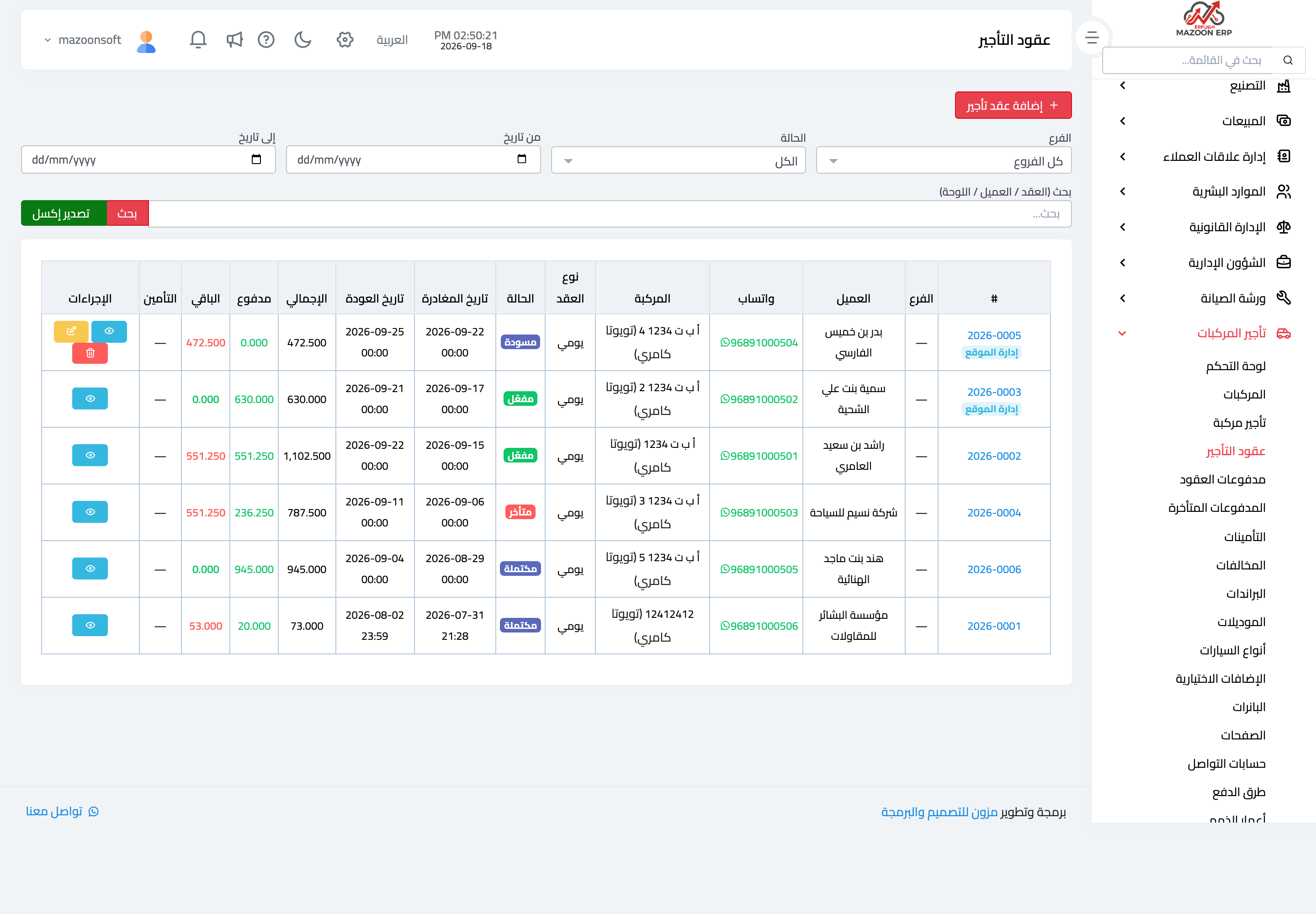
The Rental contracts list — Figure 2 — shows every contract with its colour-coded status, amounts, and the customer’s WhatsApp, with a website badge on those that came from the online storefront rather than the office.
There are five states:
- Draft — on creation; it can be edited, deleted, or signed by the customer.
- Active — after signature; the vehicle counts as rented for the period.
- Overdue — set automatically once the return date passes with no return recorded.
- Completed — when the actual return is recorded with the closing odometer.
- Cancelled — with an optional reason; the vehicle becomes available again.
The contract page
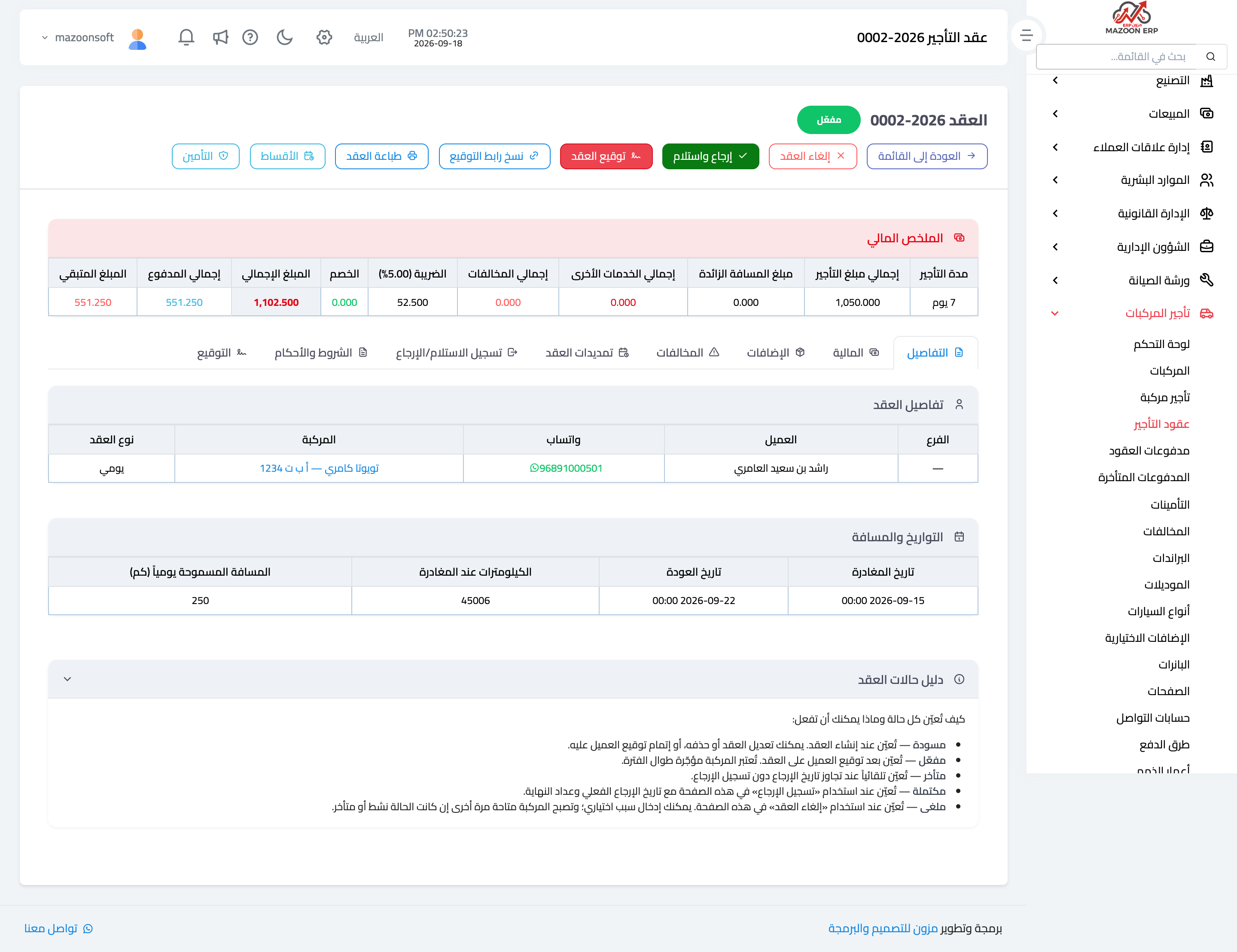
At the top of the page — Figure 3 — sits the financial summary in a single row: rental duration, total rent, excess mileage charge, other services, violations, tax, discount, then paid and outstanding.
Below it are the contract tabs: details, financials, add-ons, violations, extensions, handover/return, terms and conditions, and signature.
At the bottom, a contract states guide explains each state and what you can do in it — a quick reference inside the system itself.
Signature
The customer can sign two ways: with the Sign contract button on your device directly, or with Copy signing link, which you send them so they sign from their phone before reaching the office. After signing, the contract becomes active.
The Print contract button produces the whole contract with its terms and the signature.
Return and final settlement
When the vehicle comes back, press Return and receive and enter the closing odometer, the fuel level, and the actual return date. The system then computes three things at once:
- Excess mileage — the difference between opening and closing odometer, less the daily allowance × the number of days, multiplied by the excess kilometre price.
- Lateness — an extra day is charged once the grace period is exceeded.
- Recorded violations — added to the total.
Extension
If the customer asks for extra days, do not open a new contract; record an extension on its tab. The return date is extended and the amount added to the same contract, keeping the vehicle’s history continuous.
Notes
- Enter the true opening odometer at handover, not an estimate; the whole excess mileage calculation rests on it.
- Have the contract signed before the keys are handed over, not after.
- An overdue contract appears by itself, so review the list daily and call the customer before the delay stretches.
Screenshots
Try what you just read on your own data
Open a free 7-day trial — no credit card, with your own company link in minutes.