
Setting up the fleet: vehicles, types, and pricing
The Vehicle Rental module runs a full cycle: a vehicle in the fleet, then a contract the customer signs, then collection and a deposit, then return with excess mileage and violations calculated. All of it starts with setting up the fleet.
The dashboard
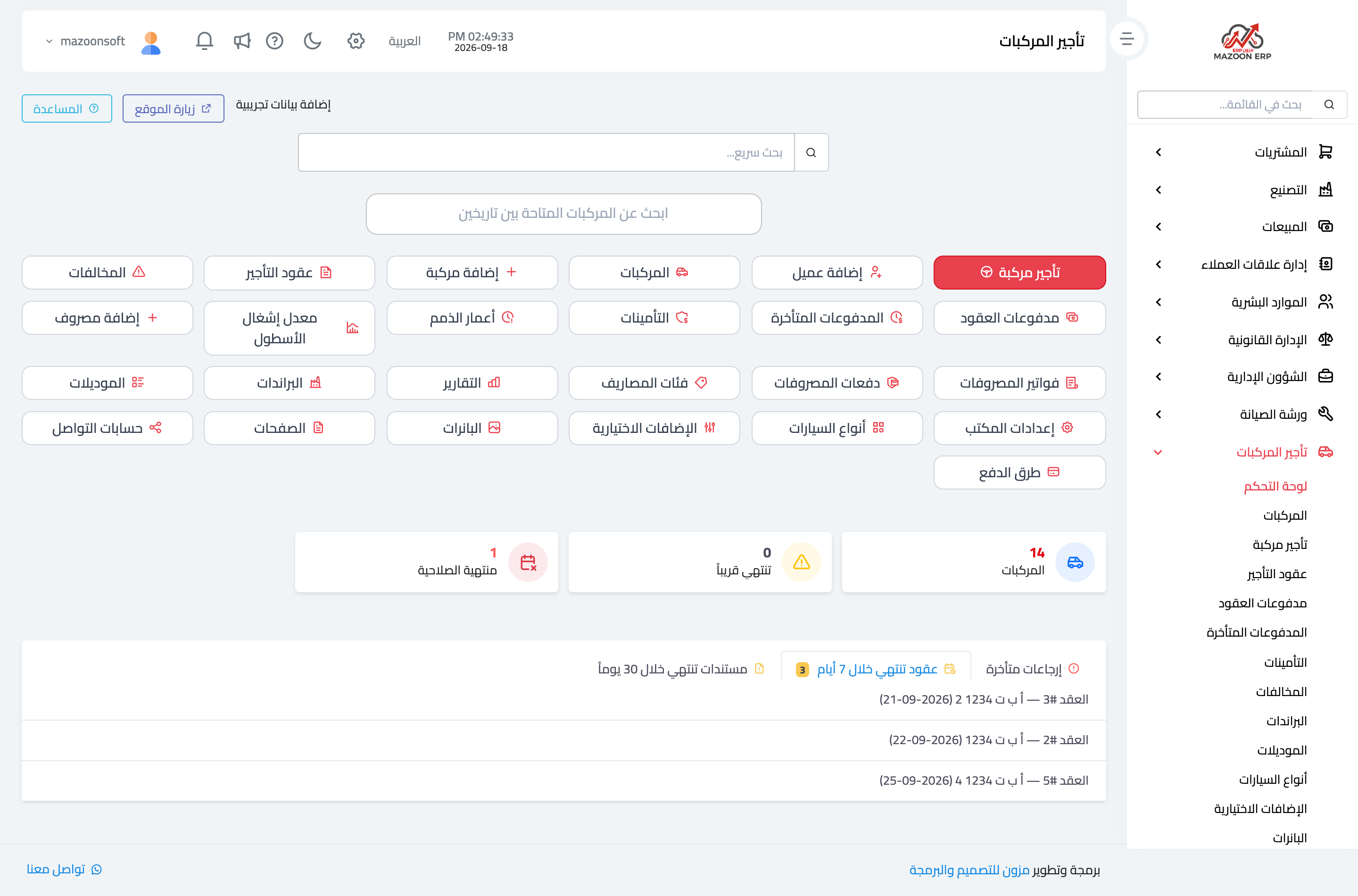
Open Vehicle Rental → Dashboard, as in Figure 1: the number of vehicles and how many are available, active and overdue contracts, collected and outstanding amounts, and upcoming contracts.
Vehicle types
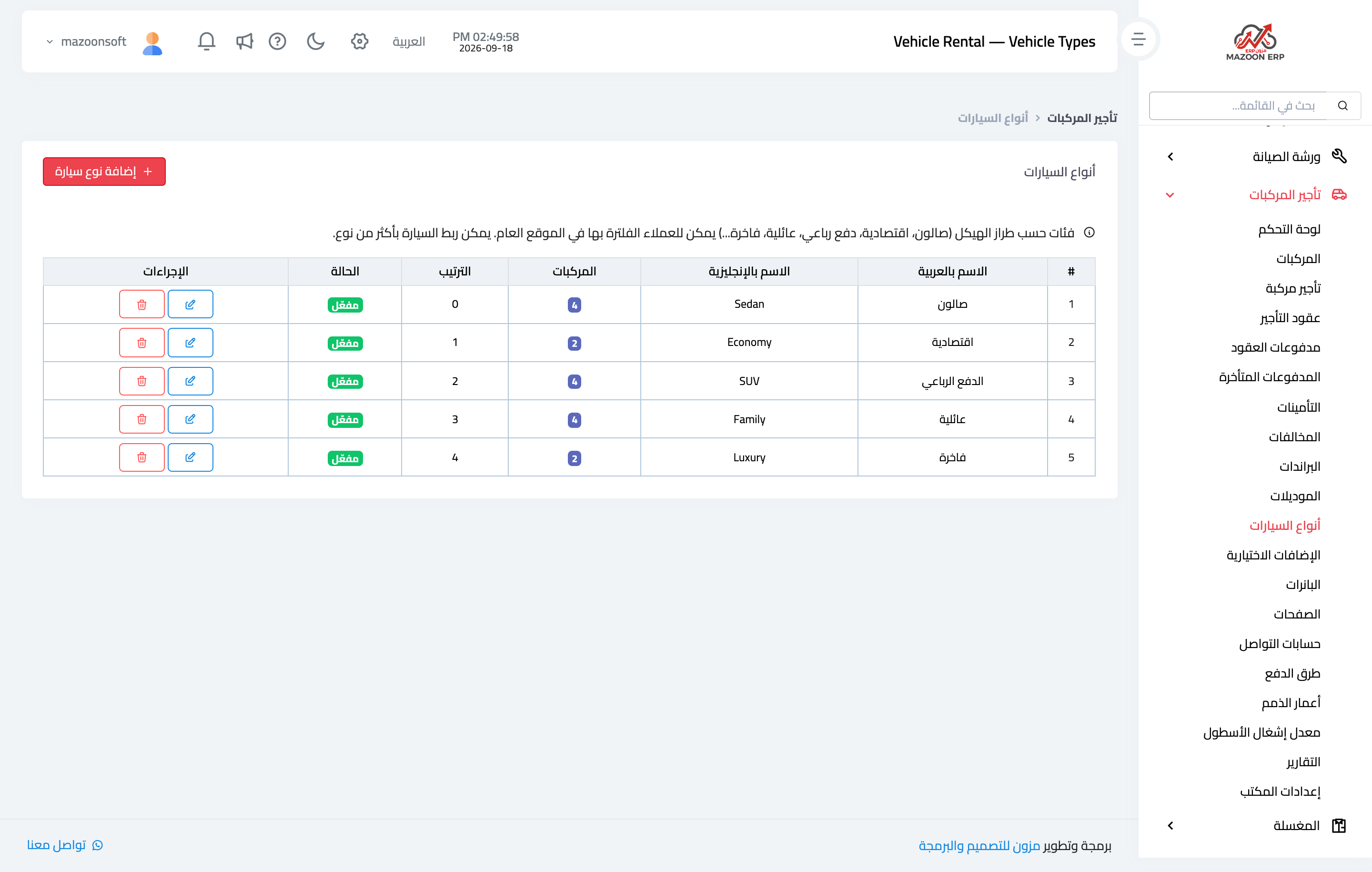
Before recording the first vehicle, set up vehicle types as in Figure 2 — economy, family, four-wheel drive, luxury, saloon. One vehicle can carry more than one type at once, so a Pajero is both “four-wheel drive” and “family”.
These types are what a customer filters by in the online storefront, and what the utilisation reports are built on, so do not multiply them to the point of confusion.
Alongside them are brands and models; a model belongs to its brand, so picking the brand narrows the model list.
Adding a vehicle
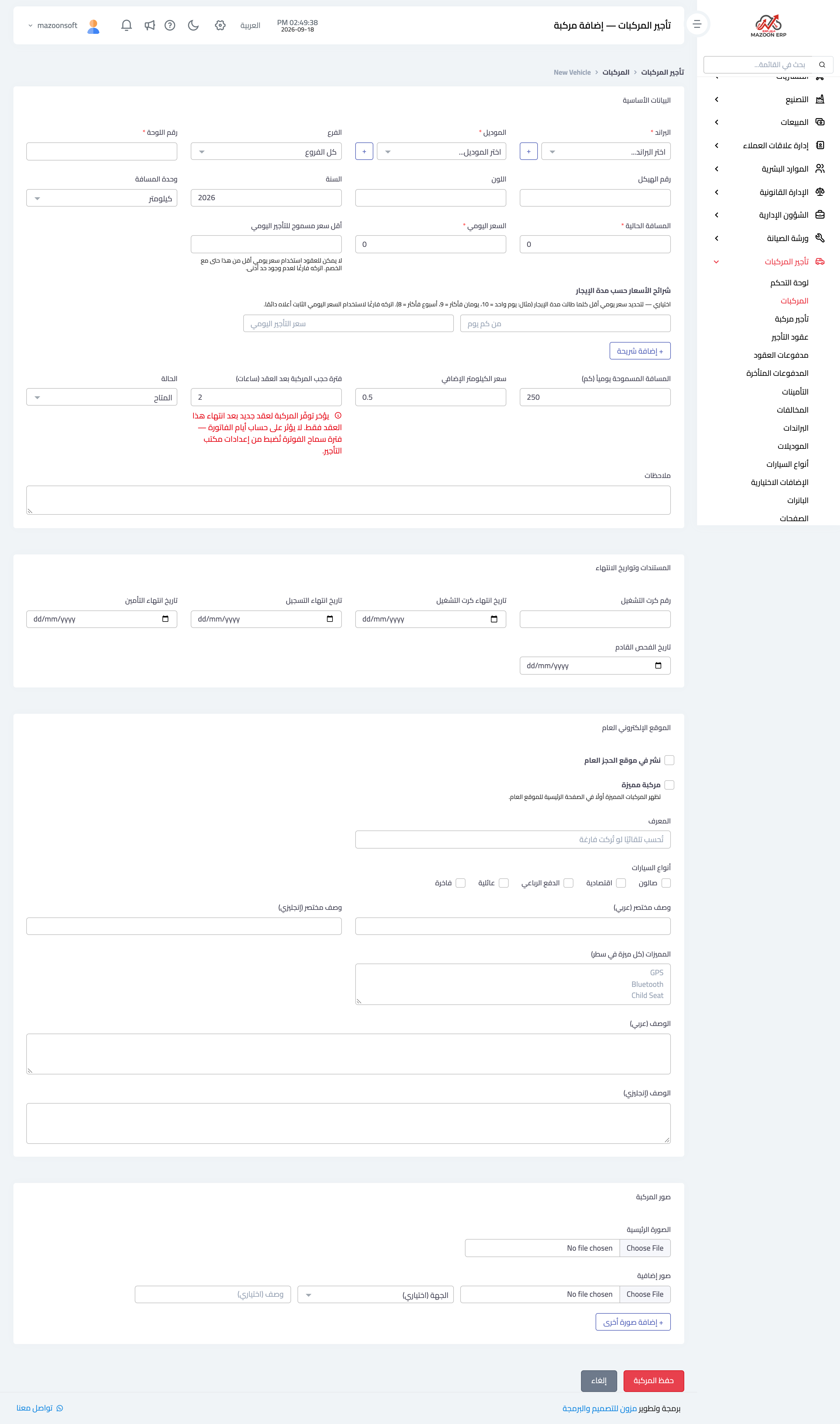
The vehicle form — Figure 3 — is longer than it looks because it serves two purposes: internal management and a display to customers on the storefront.
- Basic details — brand, model, year, colour, plate number, chassis number, branch, and types.
- Pricing — the daily rate, the included kilometres per day, the excess kilometre price, and the grace period in hours before an extra day is charged.
- Pricing tiers — what sets this module apart: one day at one rate, a week at a lower daily rate, a month lower still. The system picks the right tier automatically from the contract length, and falls back to the flat daily rate if no tiers are set.
- Documents and their expiry dates — operating card, registration, and insurance. The vehicle list flags whatever is close to expiring.
- Images — a main image and a gallery, shown in the list and on the storefront.
- Publishing and featuring — whether the vehicle appears on the storefront, and whether it is shown as “featured”.
The vehicle list
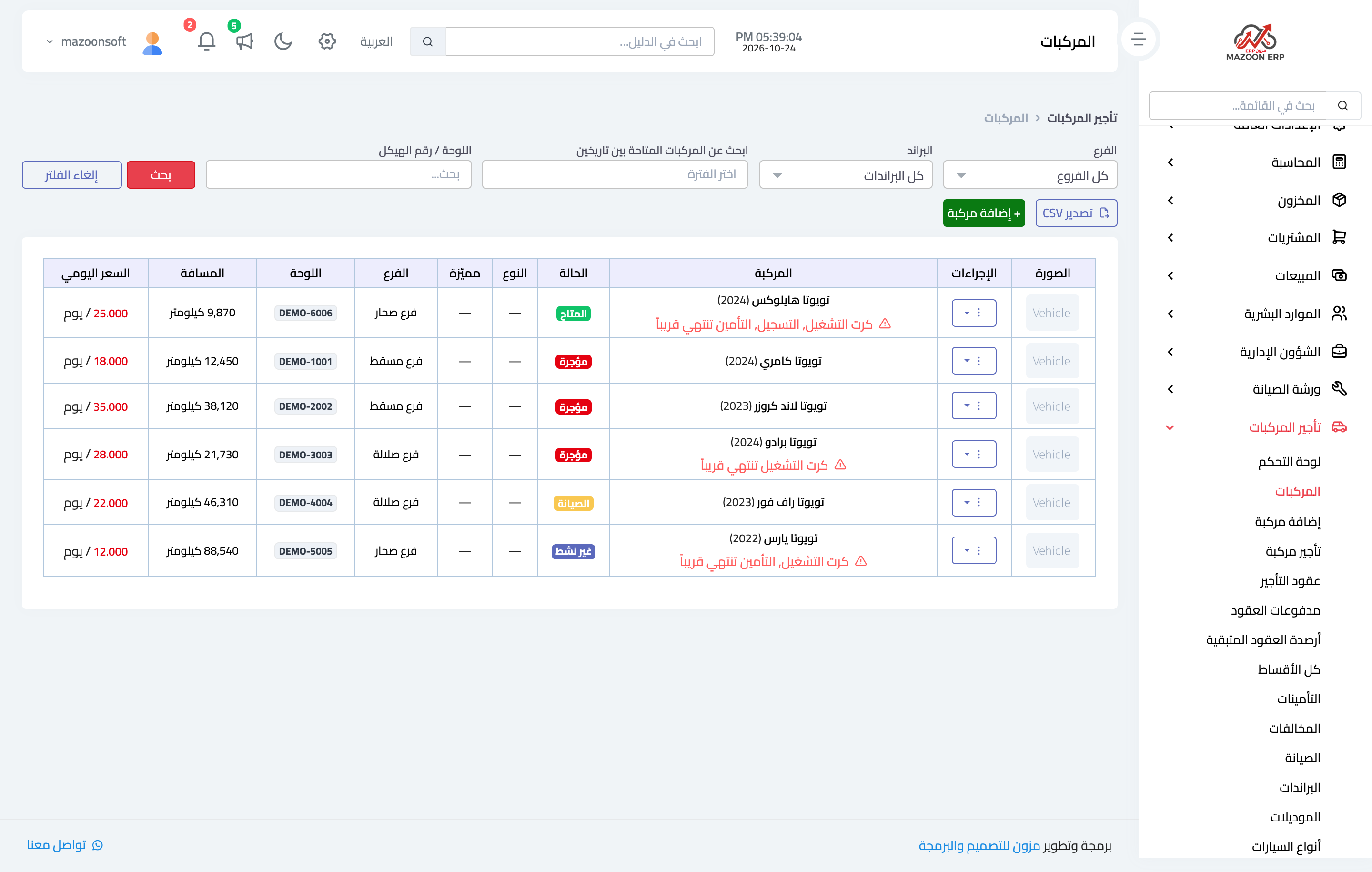
The list — Figure 4 — shows the fleet with its photos: vehicle and year, status, types, the featured badge, branch, plate number, mileage (odometer reading) and daily rate, with a red warning under any vehicle whose documents are close to expiry.
The Status column is worked out from actual contracts and maintenance, not only from what is set on the vehicle form:
- Rented — it has an active, overdue or draft contract that has already started.
- Maintenance — it has a maintenance record in progress, or its status was set to maintenance by hand.
- Inactive — you switched it off on the vehicle form.
- Available — anything else.
So a vehicle becomes available again as soon as its contract is closed, and a contract starting in a few days does not make it rented today. Setting "rented" on the vehicle form does not show it as rented unless a contract actually exists.
Above the table is search for vehicles available between two dates — which is exactly the question that arrives by phone: “do you have a car from Thursday to Sunday?”
The vehicle page
The vehicle page gathers its whole history: details and documents, past contracts, maintenance log, and blackout periods — dates on which it cannot be rented for any reason (scheduled maintenance, or a private booking).
Next to the vehicle's name at the top of the page is its status, worked out the same way as in the list.
Notes
- Set the included mileage and excess kilometre price at vehicle level; the contract inherits both automatically, and correcting them after ten contracts is tedious.
- Enter the document expiry dates; the alert cannot work on an empty field, and a vehicle on the road with lapsed insurance is your liability.
- Pricing tiers beat manual discounts: set them once and they apply to every contract with no negotiation and no oversight.
Screenshots
Try what you just read on your own data
Open a free 7-day trial — no credit card, with your own company link in minutes.