
How do I make rental prices include tax?
At many rental offices the price the employee quotes is the final amount, tax included. This setting makes the system work the same way: the customer pays the price you enter as it is, and the tax is taken out of it instead of being added on top.
Steps
- Open Vehicle Rental → Office settings, then the General tab.
- In the Prices and tax group, turn on Rental prices include tax — Figure 1.
- Press Update.
- From now on, every new contract page shows Included in prices under the tax column — Figure 2.
What changes
- The daily or hourly rent, extra days on a late return, extensions, extra kilometres and add-ons are all entered at the amount the customer pays, with the tax inside it.
- A discount and the Target Amount are taken off the tax-inclusive amount itself.
- Violations stay untaxed, and so does any add-on whose tax rate is 0%.
- The booking pages of your website show visitors the same tax-inclusive amount, with the tax it contains.
- The journal entry and the VAT return take the correct revenue and tax out of the amount automatically.
Example
Daily price 7, tax 5%:
- Without the setting: a one-day contract totals 7.350 — 7 plus 0.350 tax.
- With the setting: the total is 7.000, of which 6.667 is revenue and 0.333 is tax. The customer pays 7 and the contract closes with nothing outstanding.
- If the car comes back after three days, the total is exactly 21.000, not 22.050.
Notes
- The setting applies to new contracts only. Each contract keeps its method from the moment it is created, so turning the setting on or off never changes an existing contract.
- Before turning it on, review the saved vehicle prices: they will be treated as tax-inclusive. If they were entered before tax, update them first.
- The Target Amount field stays for agreeing a lower amount than usual with a customer; the difference is recorded as a discount.
- If the setting is changed while an employee has the new-contract screen open, the system refuses the save and asks them to review the amounts, so a contract is never saved differently from what the employee saw.
Screenshots
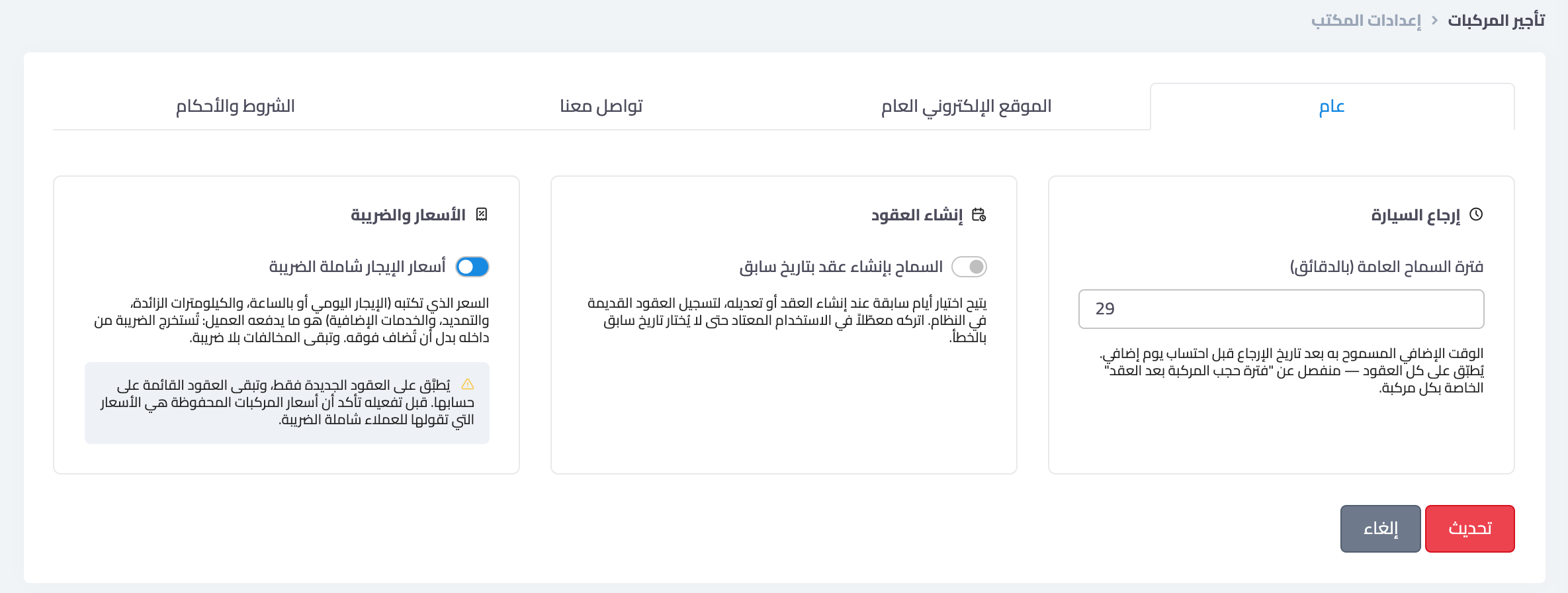
Figure 1
— Office settings → General: the “Rental prices include tax” option
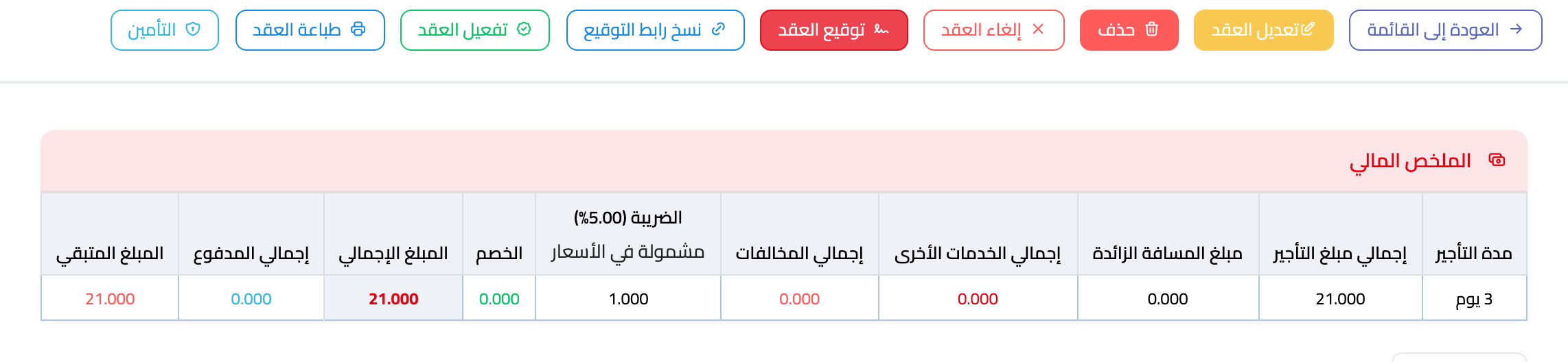
Figure 2
— Financial summary of a tax-inclusive contract: 3 days × 7 = 21.000, with 1.000 tax included in the prices
Try what you just read on your own data
Open a free 7-day trial — no credit card, with your own company link in minutes.