
How do I split a repair invoice into instalments and follow them?
Some customers do not pay a repair invoice in one go: they pay part today and the rest over two or three months. Instead of remembering who owes what and when, split the invoice into dated instalments and follow them from one place.
Payment type: no instalments or dated instalments
Every repair invoice has a Payment type with two values:
- No installments (pay any amount) — the usual way: the customer pays any amount at any time until the invoice is settled. It is the default, so nothing changes for anyone who does not need instalments.
- Dated installments — the invoice total is split into instalments, each with its amount and due date.
Split the invoice when you create it
- Create the repair invoice and add its lines as usual.
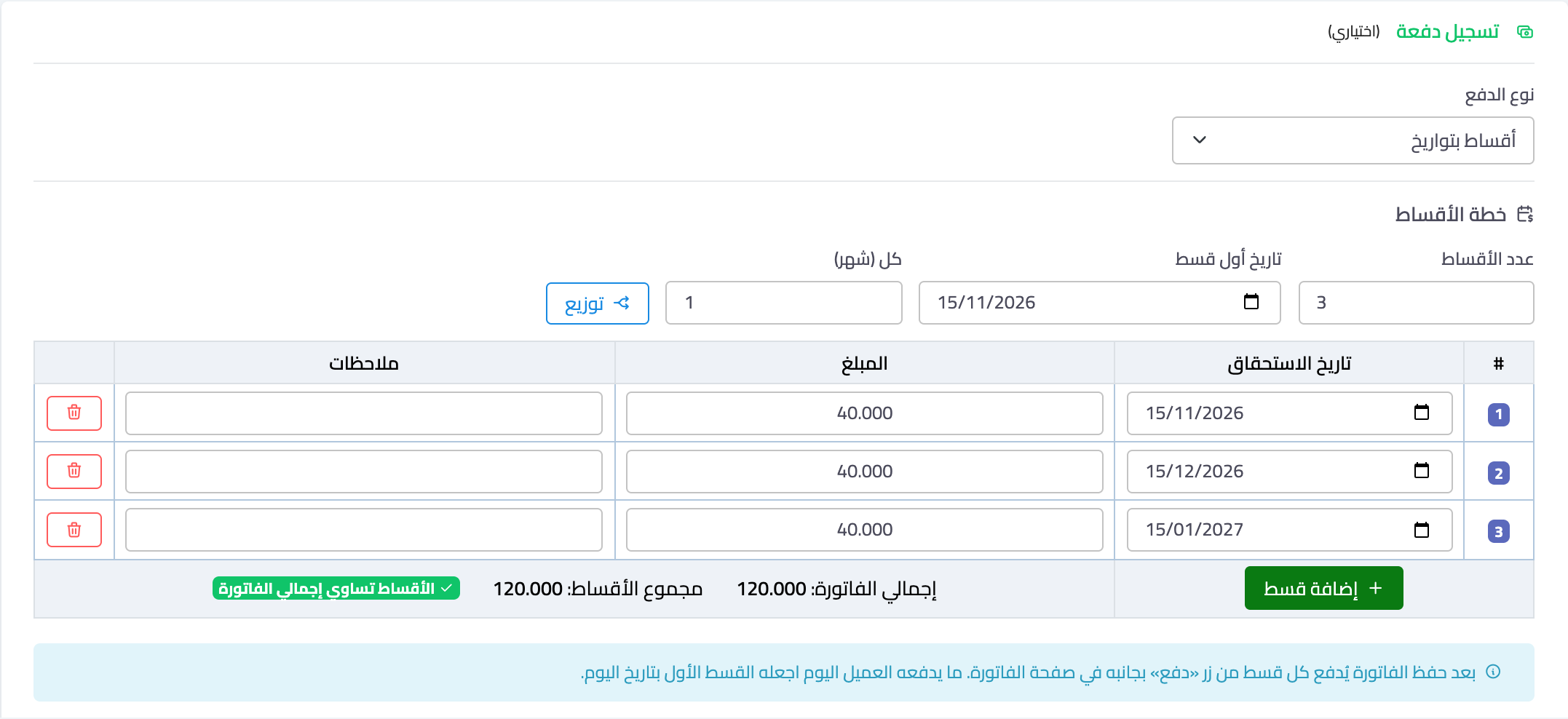
- In the Record payment card choose Payment type: Dated installments — Figure 1. The payment fields disappear and the Installment plan appears.
- Enter the number of installments, the first installment date and every (months), then press Split to divide the total evenly.
- Change any amount or date if you like: when you change an instalment's amount, the rest is spread over the instalments after it. You can also Add installment or delete one.
- Under the table you see the Invoice total and the Installments total; Save works only when they match.
- Save and approve the invoice.
Make what the customer pays today the first installment, dated today, and pay it from the invoice page after saving.
Pay an instalment
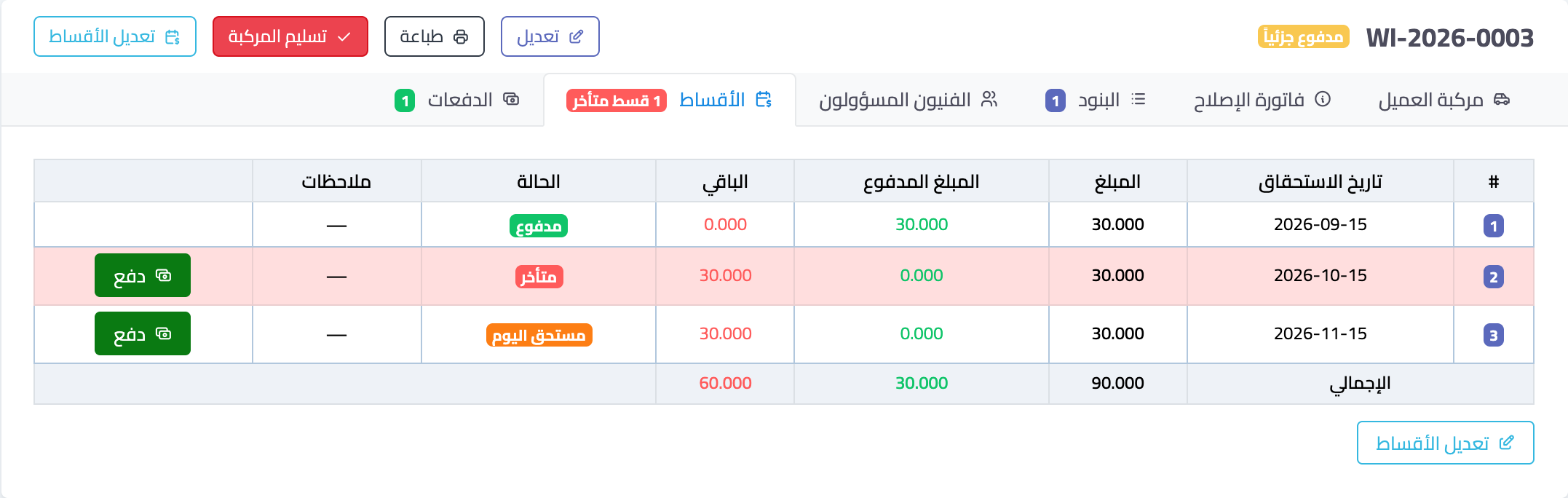
- Open the invoice, then the Installments tab — Figure 2. Each instalment shows its status: Paid, Partly paid, Not due yet, Due today in orange, or Overdue in red.
- Press Pay beside the instalment; the payment window opens with what is left on it already filled in.
- Choose the payment method and save. You can pay part of an instalment; the rest stays on it.
An invoice with instalments has no general Record payment button: every payment goes on an instalment and cannot exceed what is left on it. If the customer pays more than the instalment, record the instalment amount and the rest on the next one.
Split an invoice issued earlier
If the customer decides to pay in instalments after the invoice was issued, open it and press Schedule installments; the Instalments tab opens. What the customer paid before appears as a locked first installment called "Earlier payments", and the rest is spread over instalments starting next month. Check them and press Save.
Change or remove the instalments
- From the Instalments tab press Edit installments, or change them on the invoice edit page.
- An instalment with payments cannot be deleted or go below what was paid on it.
- If you change the invoice lines and its total changes, adjust the instalments to match it, or the invoice will not save.
- Remove installments returns the invoice to regular payments; recorded payments stay as they are.
Follow all instalments
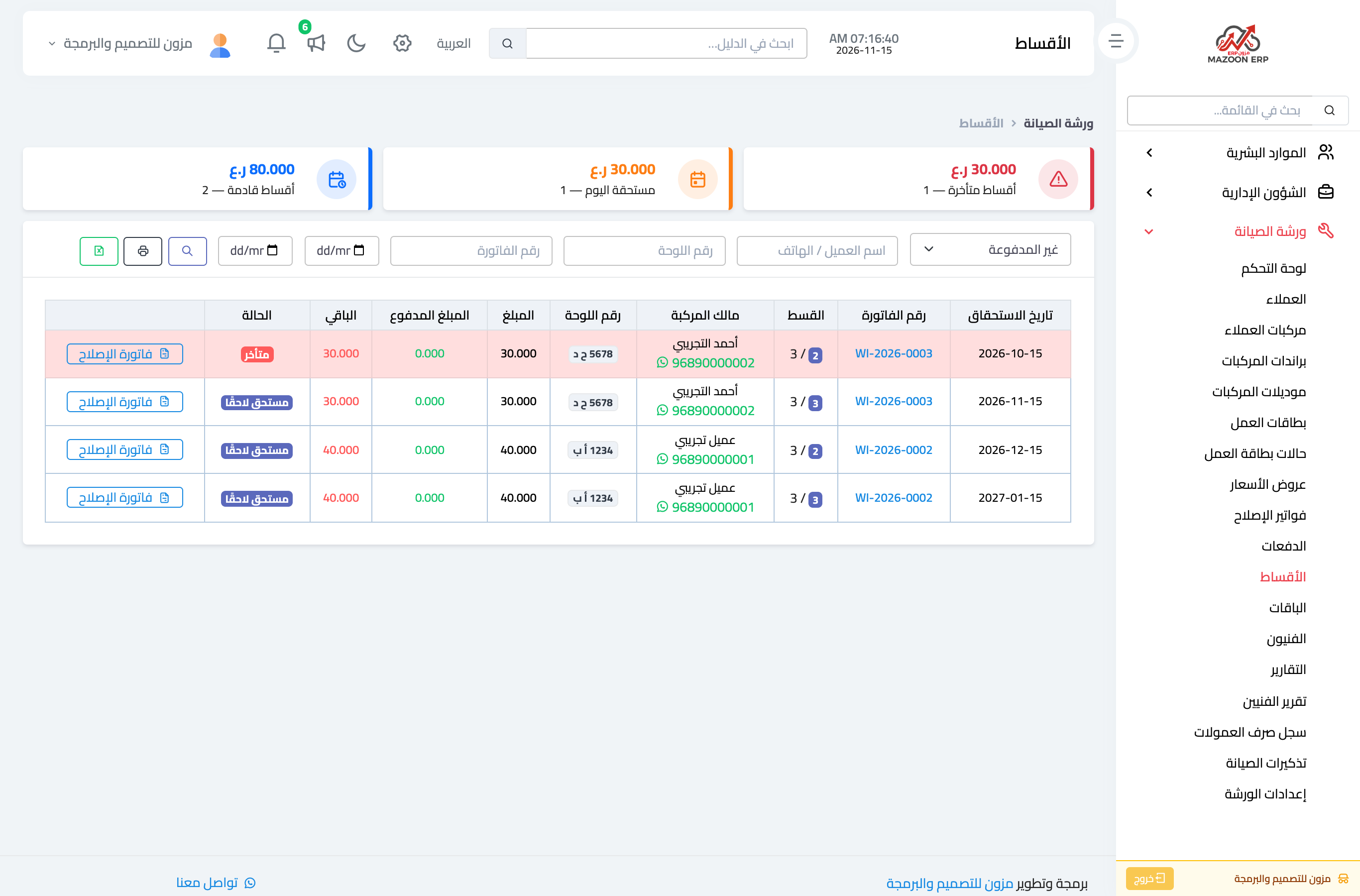
Open Workshop → Installments — Figure 3 — or the Installments button on the workshop dashboard. At the top are three tiles: Overdue installments, Due today and Coming installments, with their amounts and counts; press one to list its instalments. Below is a list with the customer and phone (WhatsApp), plate, amount, paid and remaining, with search by customer, plate, invoice number and due date, and Print and Export (Excel) buttons.
The Repair invoices list also has an Installments filter for invoices with instalments, or with an instalment due or overdue.
Notes
- Instalments are only a collection schedule: the journal entries of the invoice and of each payment are unchanged.
- The instalments table is printed on the invoice, and the instalment number appears on the receipt.
- A cancelled invoice drops out of instalment follow-up.
- Start your morning with the Overdue installments tile: a call today is easier than collecting a pile at month end.
Screenshots
Try what you just read on your own data
Open a free 7-day trial — no credit card, with your own company link in minutes.