
How do I assign technicians to a job card?
Assigning a technician is not just internal housekeeping: the technician’s commission and performance report are built on it, and it is how you know who did what when someone asks.
Steps
- Open the job card, then the Assigned technicians tab — Figure 1.
- Pick the technician from the list and press Assign.
- You can assign more than one technician to the same card when they shared the work.
- To remove one, press the delete button beside their name.
And on the invoice too
The invoice has its own Assigned technicians tab, and that one is the basis for the commission. If you assign a technician on the card but not on the invoice, no commission is computed for them. See “How do I compute and pay a technician’s commission?”.
Notes
- Assign at the start of the work, not at invoicing time; a late assignment becomes guesswork.
- If two technicians shared a job, assign both rather than picking one arbitrarily; that is the first thing that breeds resentment on the floor.
- An unassigned technician does not appear in the technicians report, so it looks as if they did nothing.
Screenshots
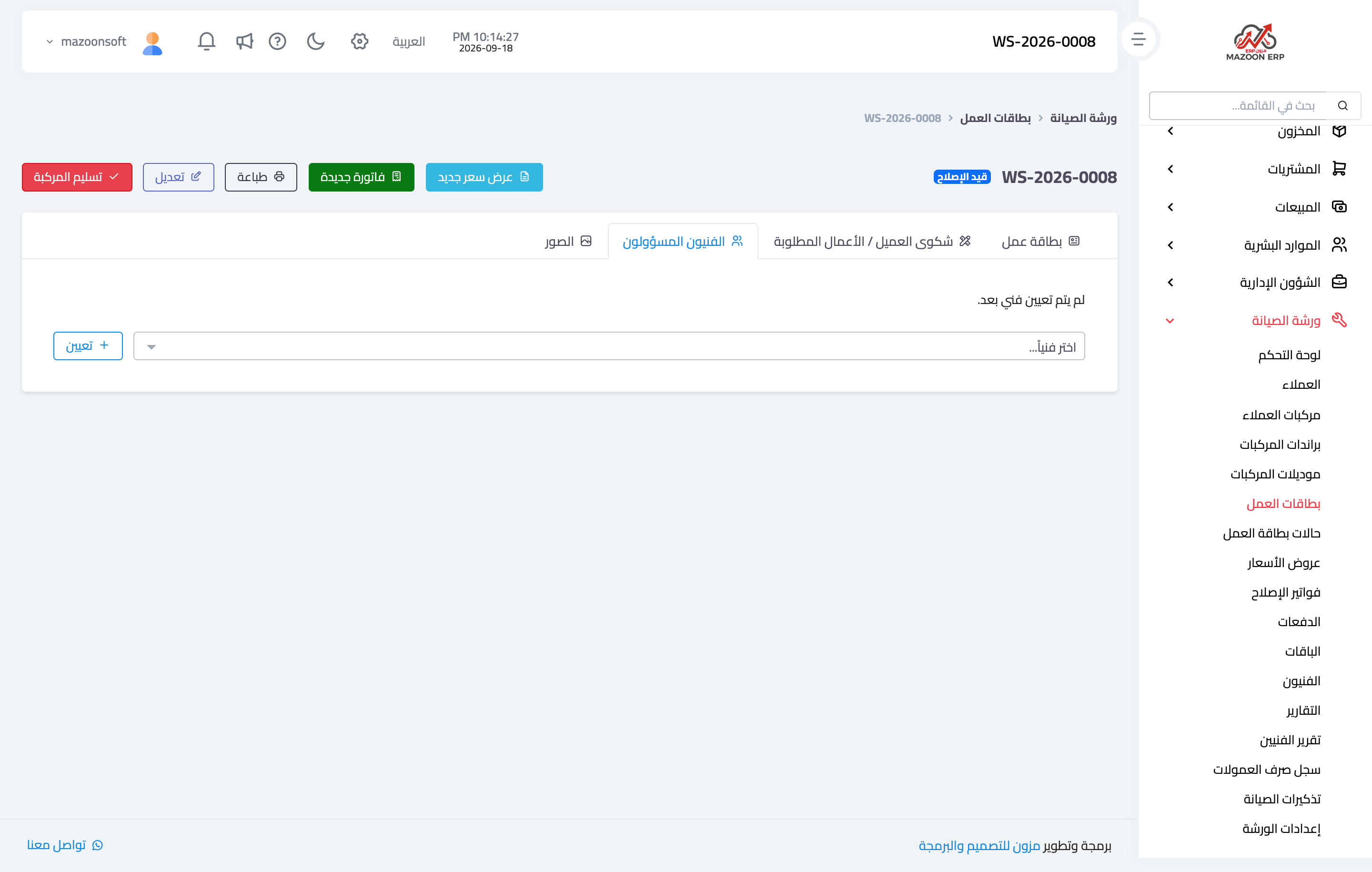
Figure 1
Try what you just read on your own data
Open a free 7-day trial — no credit card, with your own company link in minutes.