
How do I deliver the vehicle and close the job card?
Delivery is the last step and the most neglected: it closes the card, proves the vehicle left, and books the next service date that brings the customer back to you.
Steps
- Open the job card and press Deliver vehicle — Figure 1.
- Enter the delivery date and the exit odometer.
- Write the exit condition notes — the counterpart of the entry notes.
- Check the next service date; the system suggests it from the vehicle’s service interval, and you can adjust it or leave it blank.
- Take the customer signature on screen, then confirm the delivery.
- The card status becomes delivered, and who delivered it and when are recorded.
- Print the card with the Print button and keep a copy for the customer.
Notes
- Do not hand the vehicle over before the invoice is raised; a closed card with no invoice is work done and not collected.
- The next service date is the cheapest marketing you own; do not leave it blank without a reason.
- The exit odometer against the entry one shows whether the vehicle was used outside the workshop.
- Photograph the vehicle at delivery with type “exit” before it leaves the yard.
Screenshots
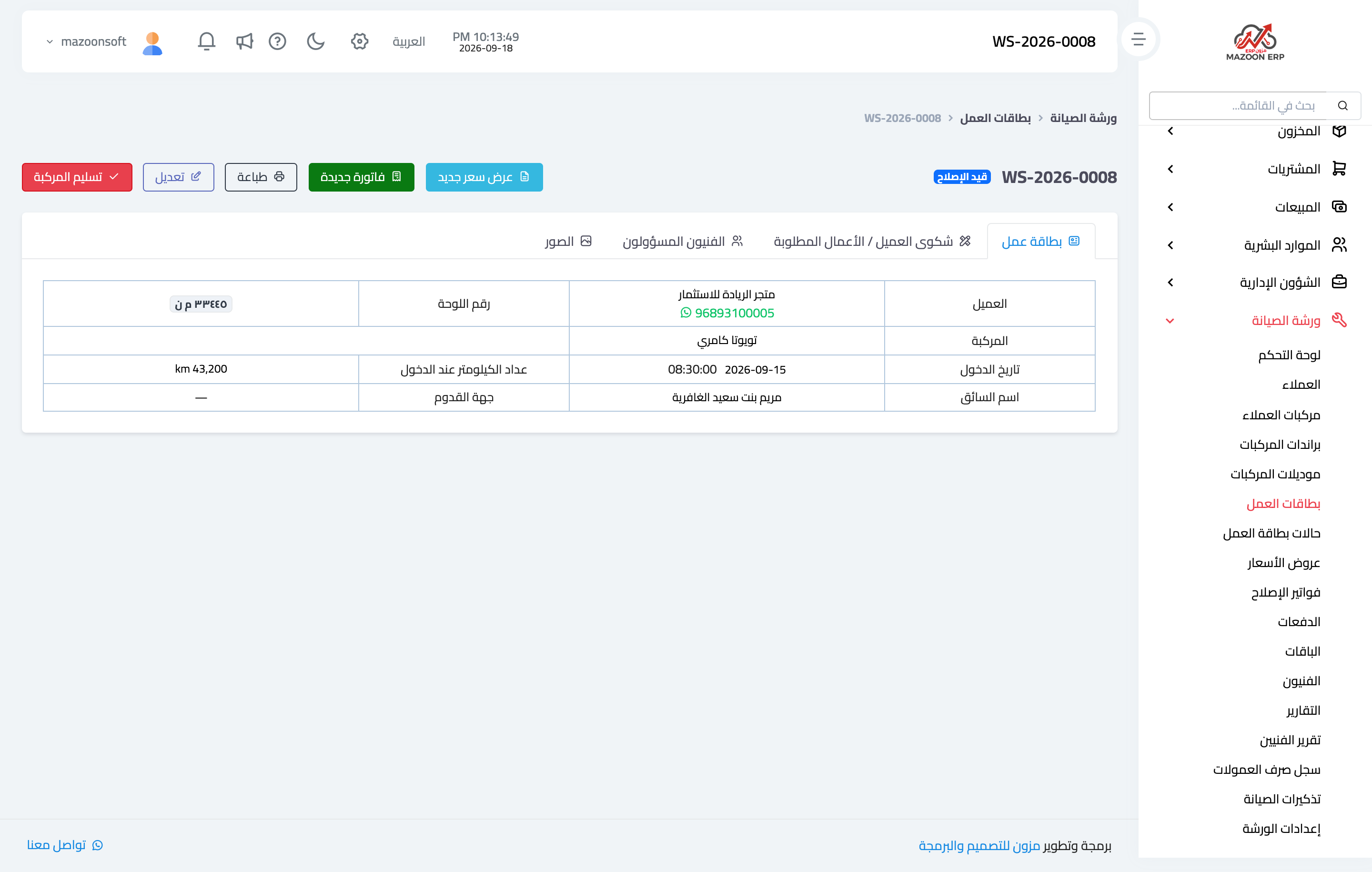
Figure 1
Try what you just read on your own data
Open a free 7-day trial — no credit card, with your own company link in minutes.