
How do I set up and follow job card statuses?
The job card status is your answer to the question you are asked more than any other: “when will the car be ready?”
The statuses that ship with it
Six statuses cover the normal cycle: received, then in progress, then waiting for parts or waiting for approval, then completed, then delivered.
Editing the list
- Open Workshop → Job card statuses — Figure 1.
- Add a new status with its Arabic and English name, or rename an existing one to match what you actually say on the floor.
- Set the sort order so the statuses appear in a logical sequence.
Changing and following a card’s status
- Open the card and press Edit to change the status, or change it straight from the job cards list.
- In Job cards — Figure 2 — filter by status, period and branch to see what is genuinely stuck.
- Waiting for parts is your purchasing follow-up list; waiting for approval is your customer call list.
Notes
- Do not multiply statuses; six that technicians actually maintain beat fifteen they ignore.
- Statuses only pay off when updated as things happen; a card sitting at “received” for three days means nobody has looked at it.
- Make reviewing the job cards list a morning habit before you hand work out to the technicians.
Screenshots
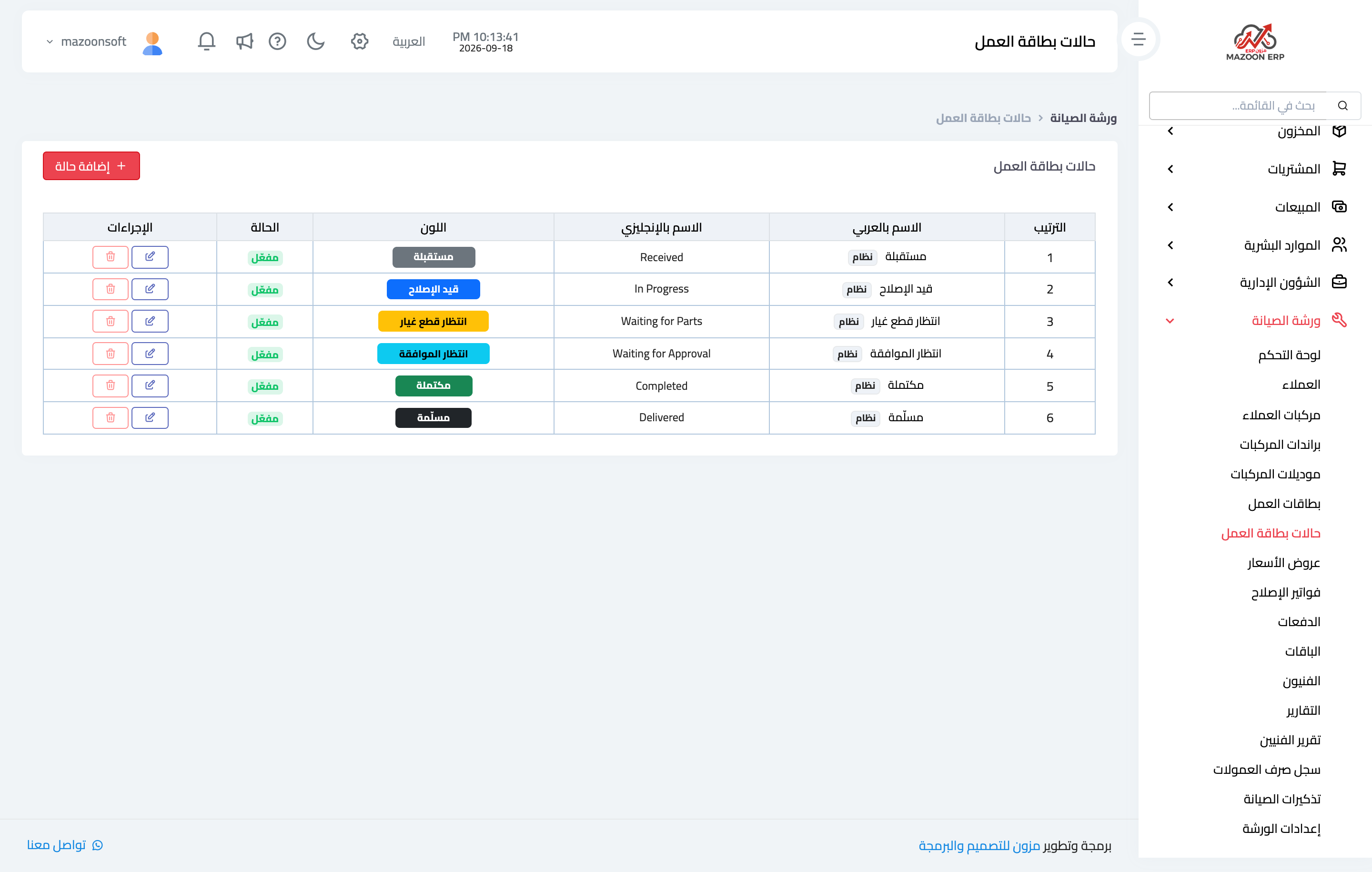
Figure 1
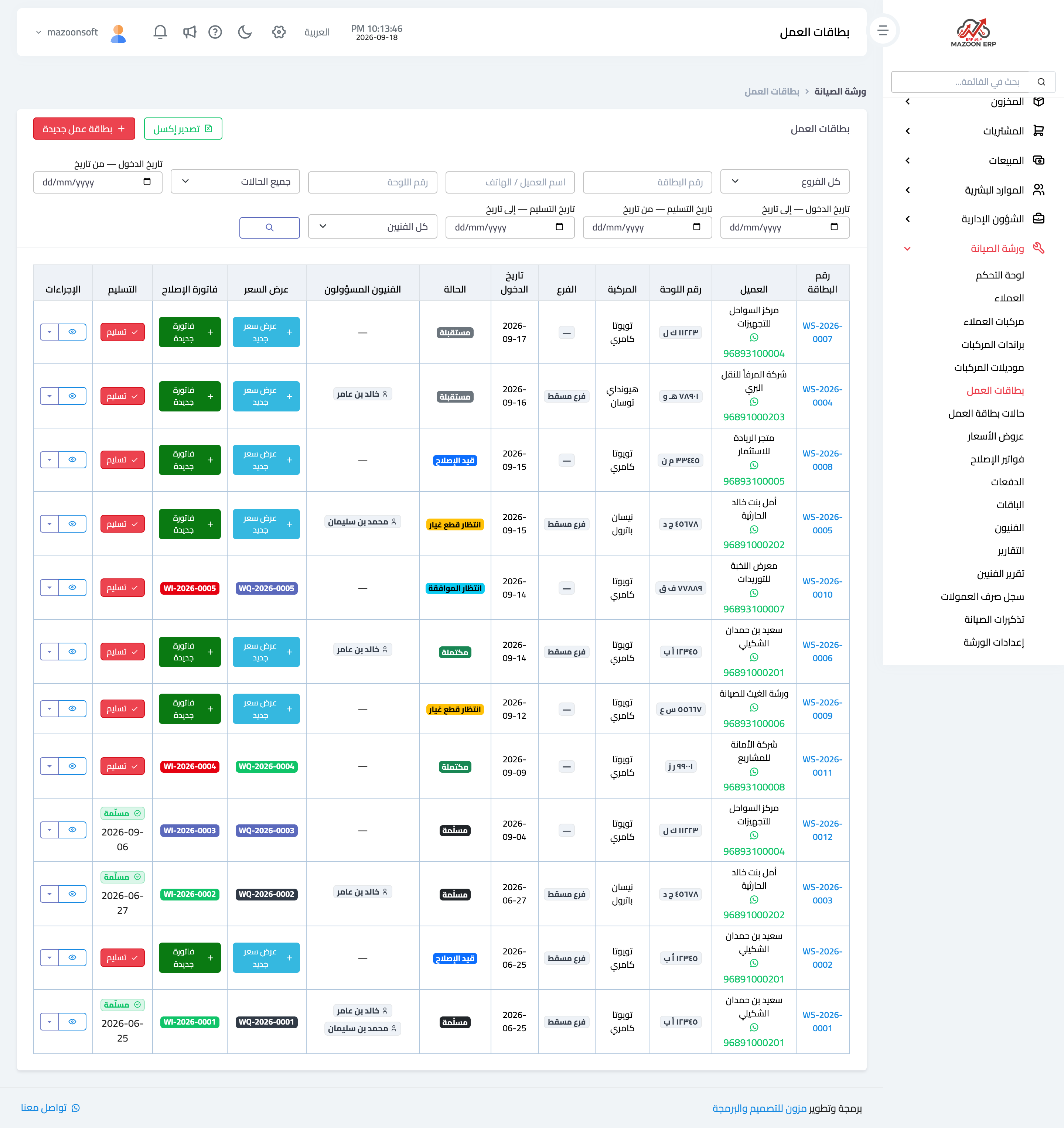
Figure 2
Try what you just read on your own data
Open a free 7-day trial — no credit card, with your own company link in minutes.