
How do I configure the workshop settings?
Four settings you configure once that save you daily work all year.
Steps
- Open Workshop → Workshop settings — Figure 1.
- Stock policy: what happens when you approve an invoice containing a part that is not in stock — block, warn or allow.
- Default service interval in months: the next service date is suggested from it at delivery. Leave it blank to disable the suggestion.
- Vehicle body diagram: upload a top-view car outline for marking damage on job cards (up to 5MB), or keep the default diagram.
- Terms and conditions: write them in Arabic and English; they print on job cards, quotations and invoices.
- Press Save settings.
Which stock policy?
- Block — when your stock is accurate and you want numbers that do not lie.
- Warn — right for most workshops: it alerts you without stopping the work.
- Allow — if you have not yet got stock under control; a temporary answer, not a permanent one.
Notes
- A clear vehicle diagram improves damage documentation more than you would expect.
- Write the terms once here rather than repeating them on every quotation; changing them later then happens in one place.
- The default interval is used only when a vehicle has no interval of its own; the vehicle record wins over the global setting.
Screenshots
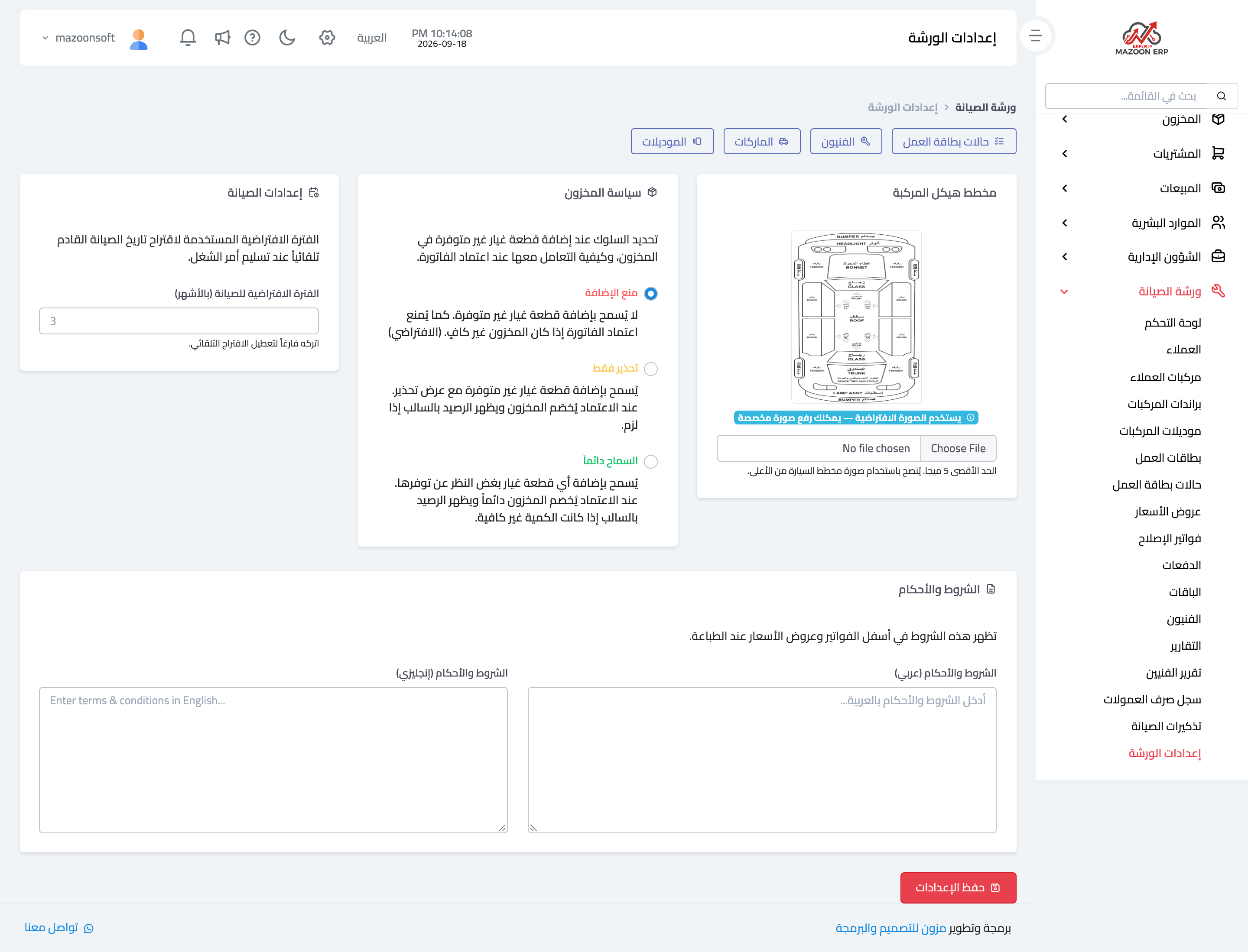
Figure 1
Try what you just read on your own data
Open a free 7-day trial — no credit card, with your own company link in minutes.