
From quotation to repair invoice and collection
After inspecting the car comes the financial question: how much? The quotation answers it; if the customer agrees it becomes a repair invoice, and the invoice is then collected in one payment or several.
The quotation
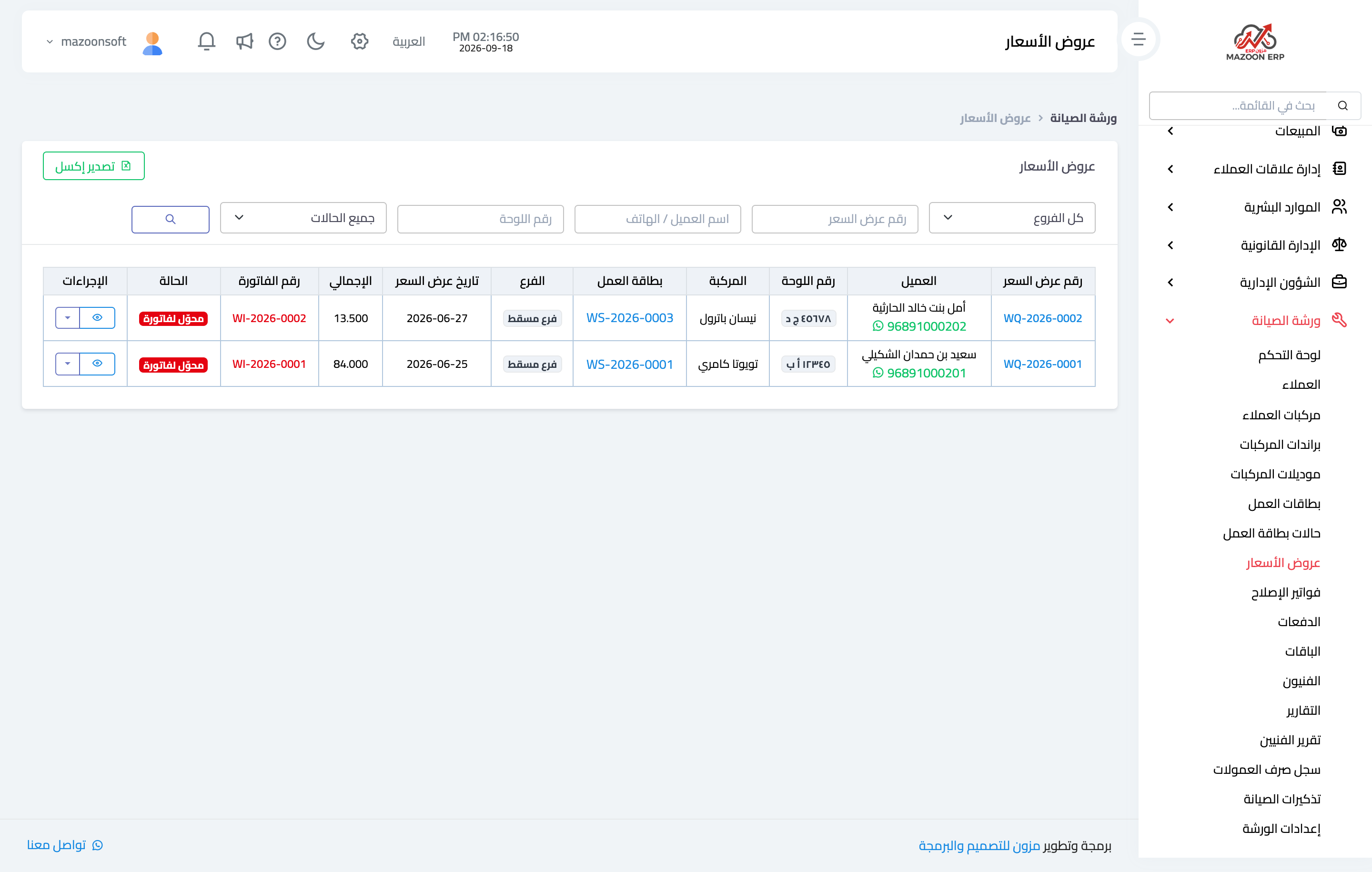
A quotation is created from the New quotation button on a job card, or from the Quotations screen — Figure 1. It is tied to a job card, so it is always clear which vehicle and which complaint it came from.
Its lines come in two kinds: a service or a spare part, each with a quantity, unit price, tax rate, and note. Parts and services are picked from inventory items, so the warehouse the part will be issued from is known. A whole package can be inserted, adding all its lines at once.
The total is then computed: the sum of the lines, less the discount, plus tax. A validity period and notes are added.
The customer signature
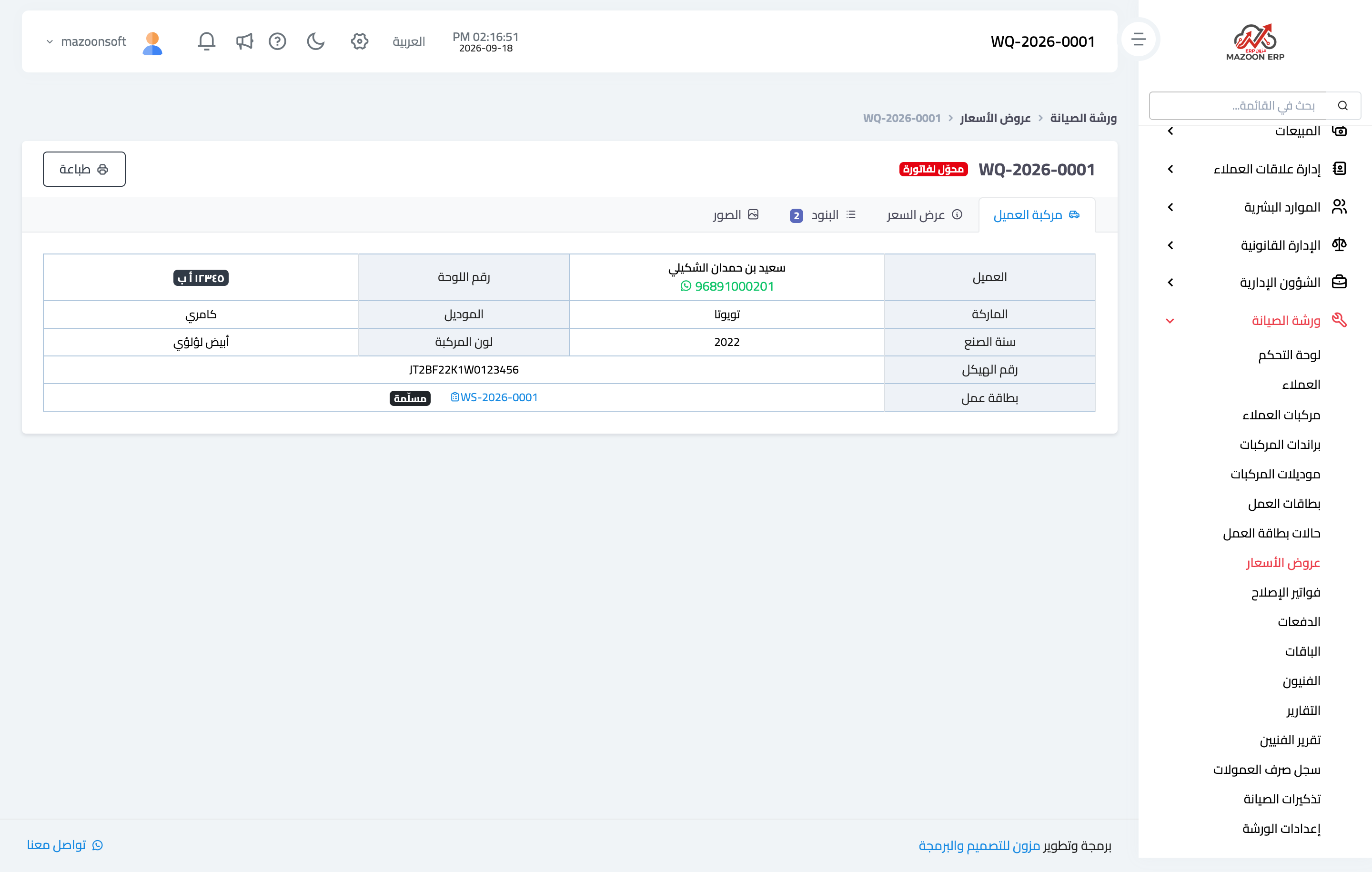
Once saved, the quotation is shown as in Figure 2, and moves through statuses: draft, then approved, then converted to an invoice, or cancelled.
The customer can sign in two ways: on your device directly in the signature pad, or through the signing page — a signed link you open on their device or send to them, so they sign from their own phone without a system account. The signature is stored on the quotation with its timestamp.
The Print button produces the quotation with its lines, totals, workshop terms, and the customer signature.
The repair invoice
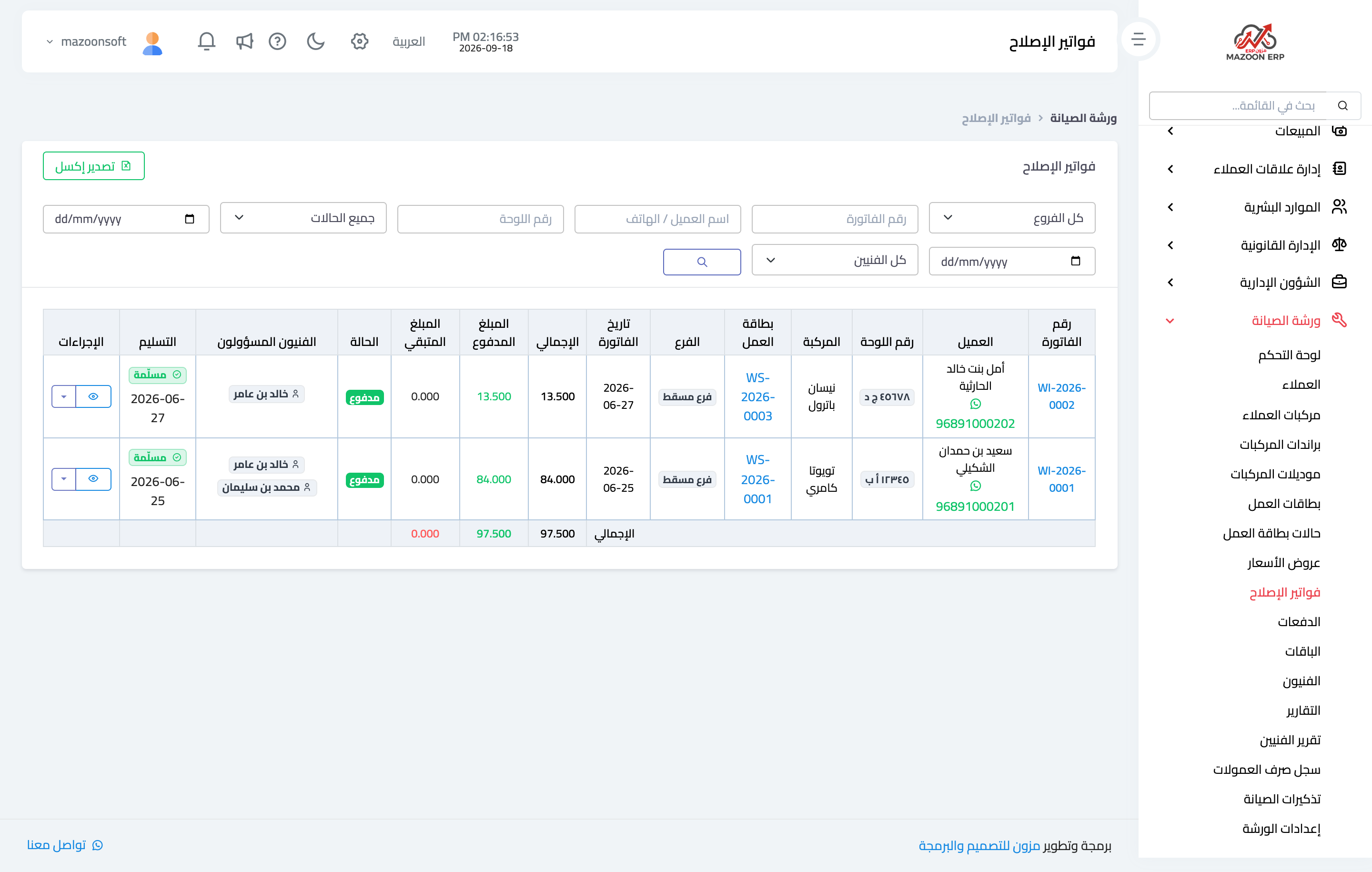
An invoice is created from an approved quotation, carrying its lines over, or directly from the job card when there was no quotation. Invoices are listed on the Repair invoices screen — Figure 3 — with their status, amount, amount paid, and balance.
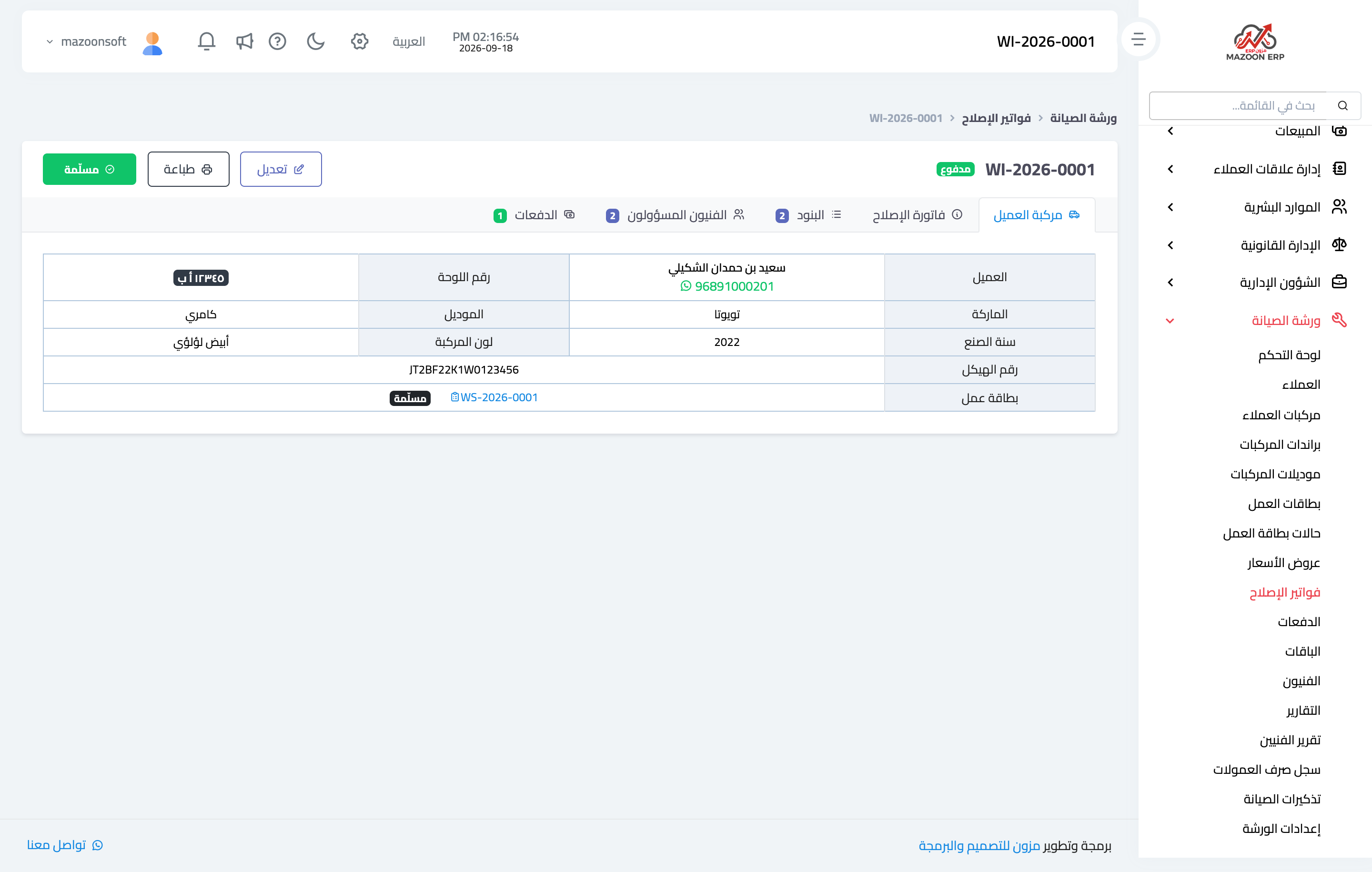
The invoice — Figure 4 — carries everything the quotation does and more:
- Warehouse — the one spare parts are issued from. On approval the parts actually leave stock.
- Assigned technicians — who did the work, and whose commission is calculated from it.
- Due date — for credit invoices.
Approval is the decisive step: before it, the invoice is a draft with no effect; after it, the accounting entry is posted to the revenue, receivable, and tax accounts configured in the workshop settings, stock is reduced, and the technician commission accrues.
Collection
A payment is recorded against the invoice with its amount, date, payment method, and reference, and an invoice accepts more than one payment until it is settled. Its status moves automatically between unpaid, partially paid, and paid.
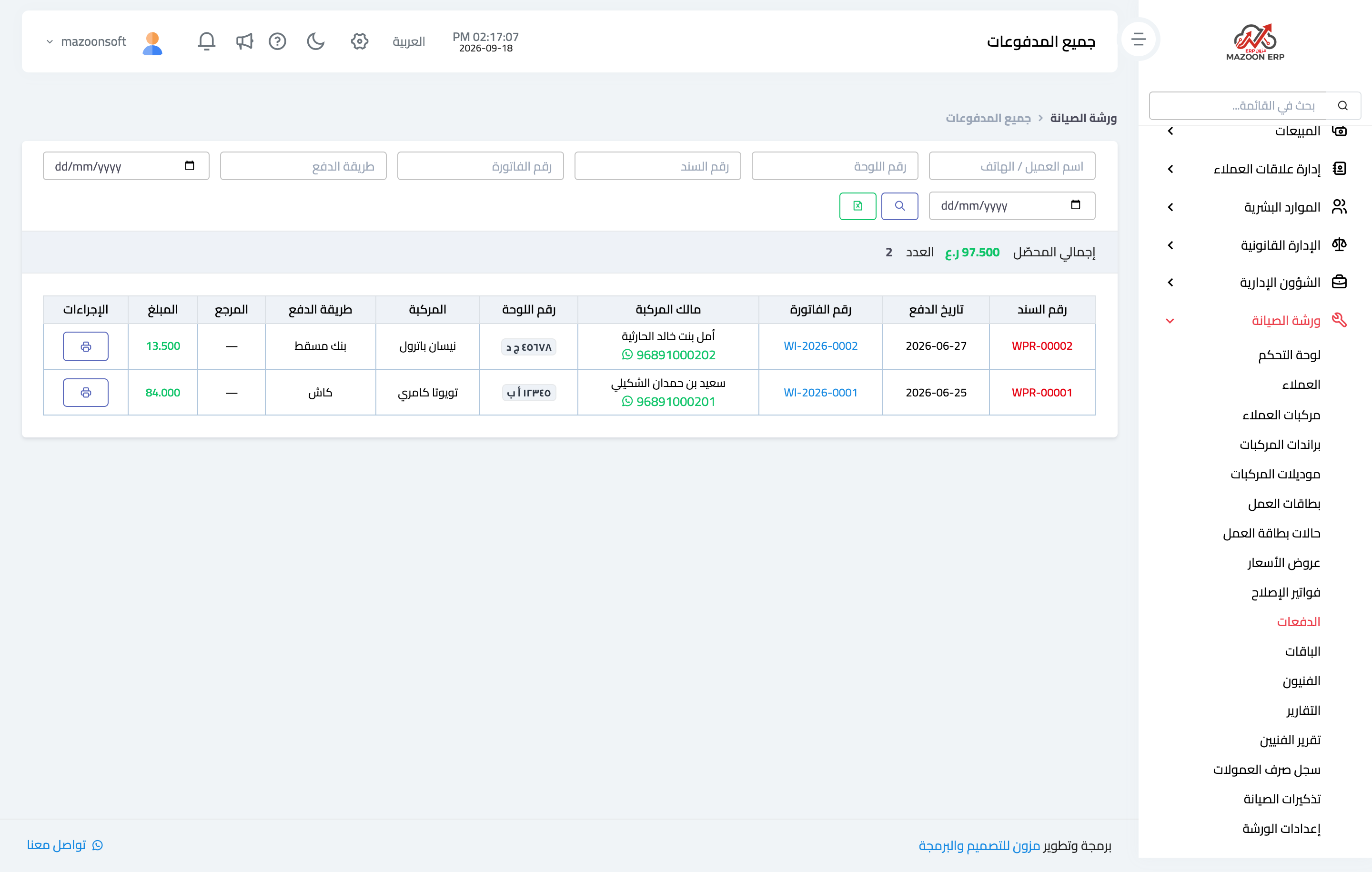
The Payments screen — Figure 5 — gathers everything collected in the workshop: date, invoice, customer, amount, payment method, and who collected it. It is the end-of-day cash review screen, with filters by date and payment method and Excel export.
Each payment has a printable receipt to hand to the customer.
Notes
- Do not approve an invoice before checking its lines; approval posts an accounting entry and moves stock, and undoing that is harder than reviewing first.
- Assign the technicians on the invoice, not only on the job card, because the commission is calculated from the approved invoice.
- The stock policy in the workshop settings decides what happens when a part is short: block or warn.
- Have the customer sign the quotation before work starts; a signed quotation is what protects you in a dispute over the repair cost.
Screenshots
Try what you just read on your own data
Open a free 7-day trial — no credit card, with your own company link in minutes.