
How do I send a quotation for the customer to sign electronically?
What stalls a workshop most is waiting for approval from a customer who is out of town. The signing link solves that in a minute.
Steps
- Open the quotation from Workshop → Quotations — Figure 1.
- Press Generate signing link, then copy the link.
- Send it to the customer on WhatsApp. It opens a standalone page showing the full quotation with its lines and photos, with no account needed in the system.
- The customer signs with a finger and presses Confirm and sign.
- The signature is stored on the quotation with its signing date and appears on the printed copy.
- You can also open the signing page on a workshop device for a customer standing in front of you.
Notes
- Attach photos of the failed parts before sending the link; a remote customer sees only what you send.
- A signature on the link is as binding as one on paper, and it is recorded with its date and time.
- Do not send the link before checking the lines and prices; editing after signature empties it of meaning.
- The signed quotation is your authorisation to begin work, so do not begin before it.
Screenshots
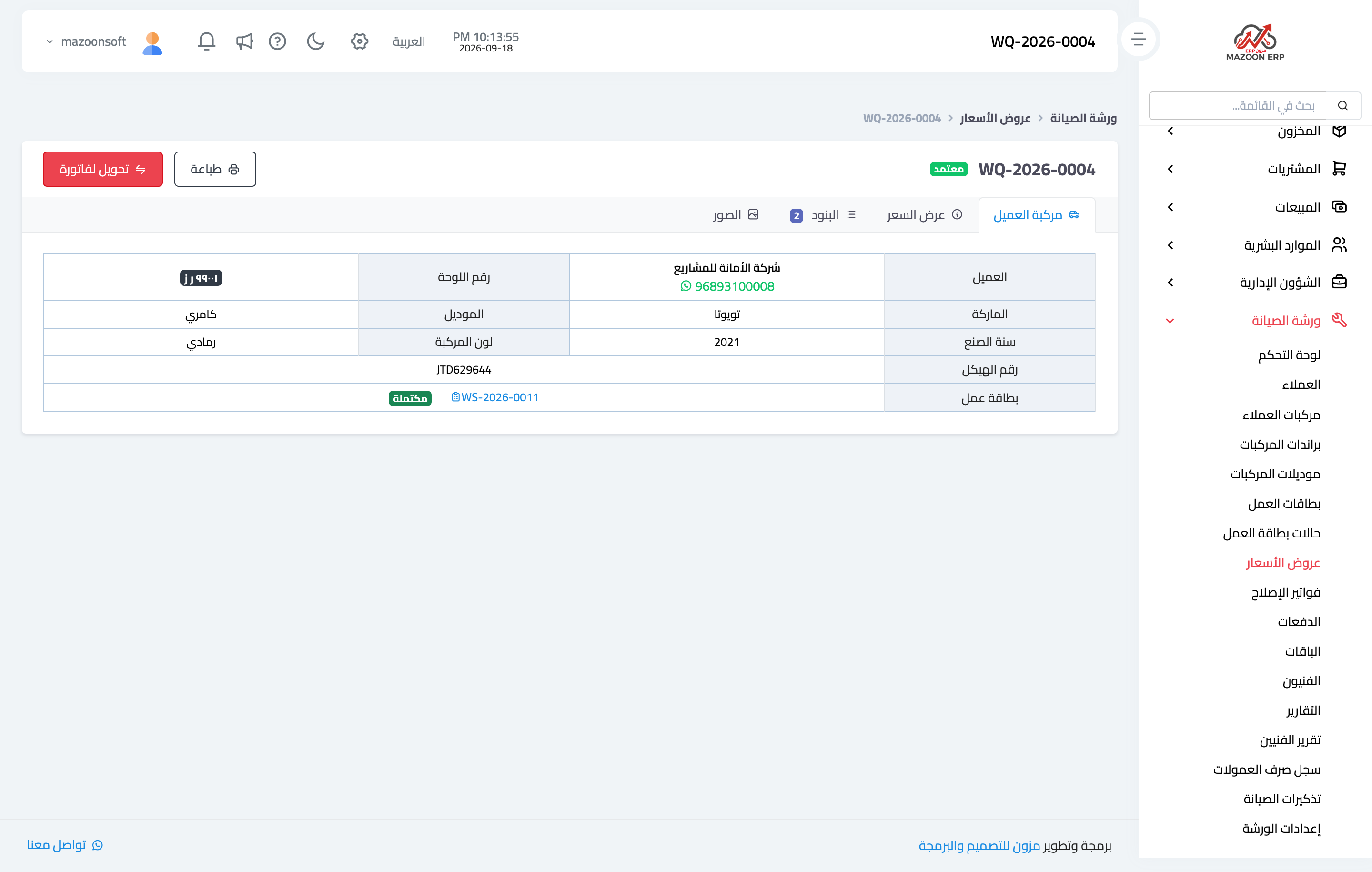
Figure 1
Try what you just read on your own data
Open a free 7-day trial — no credit card, with your own company link in minutes.